TODOs rollup
 david-peled40 downloads
Every todo in your vault in one place, grouped by note and ordered by when the note was last updated.
- Overview
- Scorecard
- Updates4
Every todo in your vault, rolled up into one page. Each todo sits under a link to the note it came from, and notes are ordered by when they were last updated, so whatever you touched most recently is at the top. Tick todos off, filter and search them without opening a single note. Works on desktop and mobile.
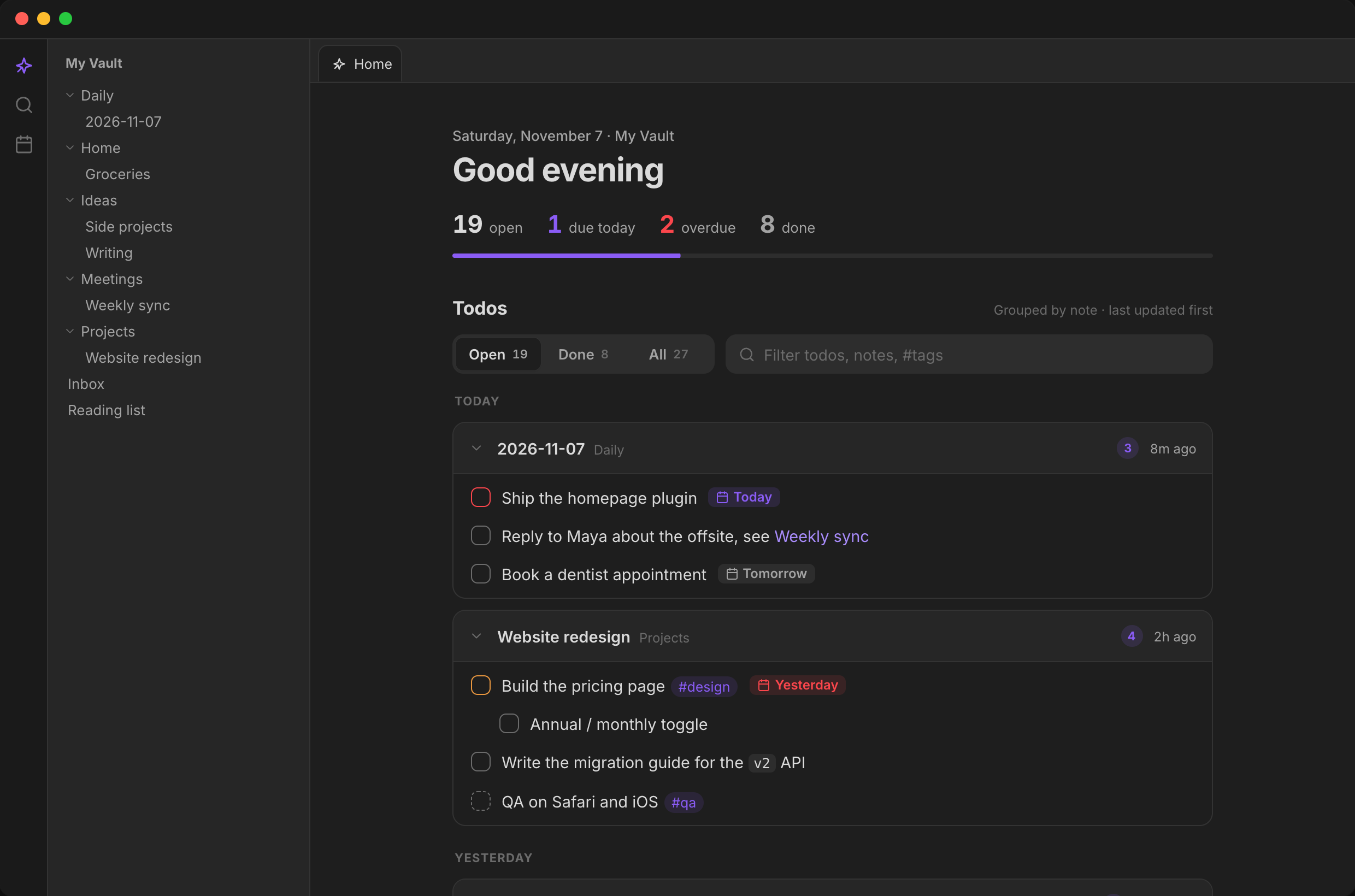
| Light theme | Mobile, dark | Mobile, light |
|---|---|---|
 |
 |
 |
| The page follows your Obsidian theme's colours and fonts. | The layout adjusts to the panel width, from a phone to a narrow split. | Bigger tap targets, no stuck hover effects, no iOS zoom on search. |
Screenshots from the browser demo (npm start) with its sample vault.
Opening the page
The page opens in a tab called Todo, with a checklist icon. There are three ways to get there:
- It opens by itself when the vault starts. Turn this off with Open on startup in settings.
- Click the checklist icon in the ribbon (desktop) or toolbar (mobile). Its tooltip reads Open todos.
- Run TODOs rollup: Open todos from the command palette. You can give it a hotkey in Settings → Hotkeys.
There is only ever one Todo tab. If it's already open, any of these just switches to it. If the tab in front of you is empty, the page opens there instead of in a new tab.
What's on the page
From top to bottom:
- Header. Today's date and the vault name, then a greeting that follows the clock: Good night (before 5:00), Good morning (before 12:00), Good afternoon (before 18:00), Good evening. The greeting can be turned off.
- Counts. How many todos are open and done, plus due today and overdue when there are any (those two tiles hide at zero). A progress bar shows the share of todos that are done.
- Filter and search bar. The Open / Done / All switch and the search box. See Filtering and searching.
- Todos. One card per note, grouped by when the note was last updated. See Note cards.
- Recently edited. Your most recently changed notes, with or without todos, as one-tap shortcuts. You choose how many (3–12) or turn the section off. It hides when there's nothing to show.
Note cards
Every note with at least one todo gets a card. Cards are sorted by the note's last-modified time, newest first, and grouped under these headings:
| Group | Notes updated |
|---|---|
| Today | today |
| Yesterday | yesterday |
| Earlier this week | 2 to 6 days ago |
| This month | 7 to 30 days ago |
| Older | 31 or more days ago |
The card header shows:
- The note's name. Click it to open the note.
- Its folder, in grey. Notes in the vault root show no folder.
- A badge with the number of open todos in that note. It disappears when everything in the note is done.
- When it was last updated: "just now", "8m ago", "3h ago", "yesterday", "3 days ago", then a date after a week ("Nov 2", or "Nov 2, 2025" for another year). Hover over it for the full date and time. These labels update every minute while the page is open.
Click the chevron on the left to collapse a card down to its header. Click again to expand it.
Nested todos stay nested. Subtasks are indented under their parent, and if a parent is filtered out the children move up a level so there are no gaps.
Todos
Each row is one todo: a checkbox, the text, and a due chip if it has a due date.
- Click the checkbox to tick the todo off.
[x]is written into the note straight away. Click a ticked todo to untick it, which writes[ ]. - Click the text to open the note with the cursor on that todo's line.
- Click a
[[link]]inside a todo to open that note. Regular[links](…)open in your browser. - Click a
#tagto search for that tag. - On desktop, Cmd-click (macOS) or Ctrl-click (Windows, Linux) any of these to open it in a new tab.
When you tick a todo with the Open filter on, the checkbox fills and the text crosses out. After a moment the row slides away, because it no longer matches the filter. The counts update as soon as you click. If your device asks for reduced motion, the row is removed without animation.
Safe writes. Before changing the file, the plugin checks that the line still says exactly what it said when the page loaded. If you edited that line in the meantime, nothing is written and you get a notice asking you to try again.
Task formats
| You write | The page shows |
|---|---|
- [ ], * [ ], + [ ], 1. [ ], 1) [ ] |
An open todo. Nested lists and todos inside > quotes work too. |
- [x] or - [X] |
Done |
- [-] |
Cancelled. Counted as done. |
- [/], - [>], - [!], - [?] or any other character |
In progress, shown with a dashed checkbox. Counted as open. |
📅 2026-11-10 (Tasks plugin, also 📆 or 🗓) or [due:: 2026-11-10] (Dataview) |
A due chip (see below) |
🔺 ⏫ 🔼 🔽 ⏬ or [priority:: high] |
A coloured checkbox outline for highest, high, medium, low or lowest priority |
**bold**, *italic*, `code`, ==highlight==, [[links]], [links](…), #tags |
Rendered inline |
Todos inside YAML frontmatter or code blocks are ignored.
Other Tasks plugin and Dataview markers are hidden to keep the list clean: scheduled ⏳, start 🛫, done ✅, created ➕ and cancelled ❌ dates, recurrence 🔁, 🆔 and ⛔, and the matching [scheduled:: …], [start:: …], [completion:: …] and [created:: …] fields. They stay in your note; they just aren't shown.
Due chips read Today, Tomorrow, a weekday for the next six days ("Fri"), or a date further out. Overdue chips are red and read Yesterday or the date. Hover over a chip for the full due date. A done todo's chip turns grey.
Filtering and searching
The bar above the todos has two controls, and they work together: a todo is shown only if it passes both.
Open / Done / All
| Filter | Shows |
|---|---|
| Open | Open and in-progress todos |
| Done | Done and cancelled todos |
| All | Everything |
Each button shows its count for the whole vault. The counts don't change when you search. Notes with nothing left to show under the current filter disappear from the list.
Search box
Type to filter the list as you go. Search is not case-sensitive and matches any part of a word.
- If the text matches a note's name or folder, all of that note's todos are shown (within the current filter). Typing
projectsshows every todo in your Projects folder. - Otherwise it matches the todo's text, as written in the note. That includes hidden metadata, so
2026-11finds todos with a November 2026 date, and⏫finds high-priority todos. - Tags: type
#work, or click any tag on a todo to fill it in. Because matching is on part of a word,#workalso finds#workshop. - Press Esc to clear the search.
If nothing matches, the page says so and offers a Clear filter button.
Empty states
| When | The page shows |
|---|---|
| The vault has no todos at all | No todos yet, with a hint to write - [ ] something in any note |
| Filter is Open and everything is done | All clear, with how many todos you've completed |
| Filter is Done and nothing is done yet | Nothing completed yet |
| A search matches nothing | No todos match "…" and a Clear filter button |
What's remembered
| State | Remembered |
|---|---|
| Open / Done / All filter | Yes. Saved in the plugin settings, so the page reopens on the filter you last used, after restarts too and on every device the settings sync to. |
| Search text | No. Starts empty each time the page opens. |
| Collapsed cards | While the page stays open. Survives edits and refreshes, but resets when you close and reopen the page, restart Obsidian, or change a setting. |
| Settings | Yes. Stored in .obsidian/plugins/todos-rollup/data.json. Changing a setting redraws the page right away. |
Staying up to date
The page refreshes by itself, about a third of a second after any of these:
- you edit a note (including one that just gained or lost a todo)
- a note is renamed, moved or deleted
- Obsidian finishes indexing the vault
- you switch back to the Todo tab
So you can edit a note in a split next to the page and watch the todo appear. Only notes that Obsidian's index says contain tasks are read, so this stays fast on large vaults.
Desktop and mobile
- Desktop: notes open in a new tab by default, so the Todo tab stays open. Turn off Open notes in a new tab to open them in the same tab instead.
- Mobile: notes always open in place, and Back returns you to the page.
- The layout follows the width of the panel, not the device, so it also works in a narrow desktop split.
- Touch screens get bigger tap targets, no stuck hover effects and no grey tap flash. The search box doesn't make iOS zoom in.
- No desktop-only code (
isDesktopOnly: false), and the bundle runs on older iOS versions too.
Settings
| Setting | What it does | Default |
|---|---|---|
| Open on startup | Show the page when the vault opens | On |
| Open notes in a new tab | Desktop only. On mobile, notes always open in place. | On |
| Show greeting | The "Good morning" heading | On |
| Show recently edited notes | The Recently edited section | On |
| Recently edited count | How many recent notes to show (3–12) | 6 |
| Excluded folders | Folders to ignore, one per line. Subfolders are excluded too. | Templates |
| Excluded note names | File names to ignore in every folder, one per line. Not case-sensitive. | AGENTS.md, SKILL.md |
Excluded folders and note names are left out everywhere: the todo list, the counts and Recently edited.
Development
npm install
npm start            # browser demo at http://localhost:5199 (same as npm run demo)
npm test             # colocated unit tests (*.test.ts) plus architecture rules
npm run dev          # watch build of the real plugin (main.js)
npm run lint         # Oxlint: correctness, layer boundaries, no innerHTML
npm run typecheck    # TypeScript check (including tests)
npm run check        # lint + typecheck + tests
npm run build        # type-check + production build of the plugin
npm run demo:build   # static build of the demo in demo-dist/
Architecture
The code is split into DDD layers. Dependencies point inward, and only infrastructure/ (and the entry point main.ts) may import obsidian. src/architecture.test.ts enforces this. See docs/architecture.md.
src/
  domain/              the todo model and its rules; pure, no I/O, no DOM
    task.ts            Task, status, filter rules
    task-parser.ts     finds todos in a note
    task-toggle.ts     flips a checkbox safely
    task-text.ts       due dates, priorities, links, tags
    calendar.ts        day buckets and due-date urgency
    settings.ts        settings model, validation, exclusion rules
    ports.ts           NoteRepository, NoteOpener, Notifier, Clock
  application/
    todo-board.ts      loads notes, holds filter/search/pending state, toggles todos
  presentation/        framework-free DOM components (shared by plugin and demo)
    todo-page.ts       lays out the page and wires board events to components
    header.ts toolbar.ts todo-list.ts note-card.ts task-row.ts task-tokens.ts recent-notes.ts
    format.ts dom.ts context.ts
  infrastructure/obsidian/
    vault-note-repository.ts   NoteRepository over the vault
    workspace-note-opener.ts   NoteOpener over the workspace
    todo-view.ts settings-tab.ts
  main.ts              plugin entry and composition root
styles.css             all styles, built on Obsidian's theme variables
demo/                  sample vault, mock Obsidian window and phone, in-memory NoteRepository
scripts/install.mjs    copies the build into a vault
Tests sit next to the code they cover (*.test.ts). They are excluded from the production type-check (tsconfig.build.json) and never reach the bundle.
Browser demo (npm start)
The demo runs the shared domain, application and presentation layers against an in-memory vault (demo/vault.ts) inside a mock Obsidian window, so Obsidian isn't needed and the page looks and behaves exactly like the real plugin.
- Use the bar at the top to switch between Desktop and Mobile, and between Light and Dark.
- Tick off a todo: it fills in, crosses out, then slides away.
- Click a todo's text to open its note with that line selected.
- Edit a note and go back to the Todo tab: your changes are already there.
- Click Reset to bring back the sample notes.
You can link straight to a view, for example http://localhost:5199/?device=mobile&theme=light.
Installing into a local vault
npm run build
npm run install-plugin -- /path/to/vault   # copies main.js, manifest.json, styles.css
This copies the build into <vault>/.obsidian/plugins/todos-rollup/. Then go to Settings → Community plugins, turn off Restricted mode if needed, and enable TODOs rollup. To install by hand, copy the same three files into that folder.
For development, symlink this folder into <vault>/.obsidian/plugins/todos-rollup instead, run npm run dev, and reload Obsidian (or use the Hot Reload plugin). Use the copy when the vault syncs to other devices, since a synced symlink points nowhere there.
On your phone: if your vault syncs (Obsidian Sync, iCloud, Syncthing and so on), the plugin folder syncs with it. Enable TODOs rollup in Settings → Community plugins on the phone too. With Obsidian Sync, turn on Settings → Sync → Installed community plugins.
Design
The interface follows Emil Kowalski's design-engineering guidelines:
- Animations are short (under 300ms) and use strong ease-out curves. Nothing animates from zero size.
- Buttons and checkboxes shrink slightly when pressed, so every tap gets instant feedback.
- Hover effects only apply with a mouse or trackpad, so nothing gets stuck after a tap on a phone.
- Numbers use fixed-width digits so counts don't jump when they change.
- If your device asks for reduced motion, movement is turned off.
Contributing
Issues and pull requests are welcome. See CONTRIBUTING.md and the Code of Conduct. To report a security problem, see SECURITY.md.
License
MIT © 2026 David Peled