Rollover Daily Todos
 lumoe149k downloads
Rollover any unchecked checkboxes from your last daily note into today's note.
- Overview
- Scorecard
- Updates16
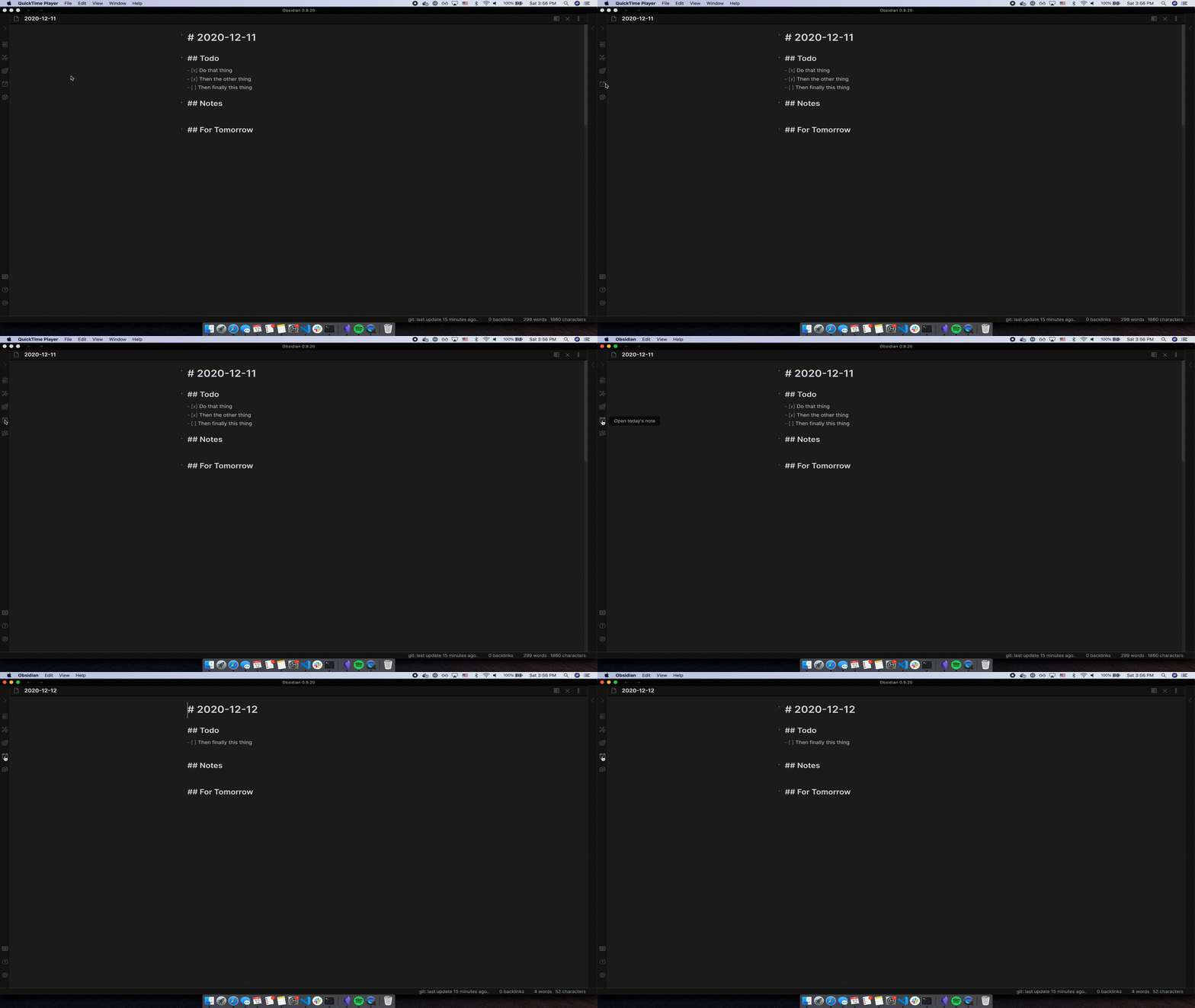
This Obsidian plugin will rollover any incomplete todo items from the previous daily note (could be yesterday, or a week ago) to today. This is triggered automatically when a new daily note is created via the internal Daily notes plugin, or the Periodic Notes plugin., It can also be run as a command from the Command Palette.
Usage
1. New Daily Note
Just create a new daily note using the Daily notes or Periodic Notes plugin. The previous day's incomplete todos will be rolled over to today's daily note.
Note: Automatic rollover can cause conflicts with other plugins, particularly the Templater plugin. If you're using Templater for your daily notes, it's recommended that you disable automatic rollover in the plugin's settings and instead trigger it manually after creation.
2. Command: Manual Rollover Todos Now
You can also open your command palette (CMD+P on macOS) and start typing roll to find this command. No matter where you are in Obsidian, the previous day's todos will get rolled forward. There is also a command called Undo last rollover which can be run within 2 minutes of a rollover occurring. Both commands are potentially destructive, and the default text element undo command (CMD+Z on macOS) didn't work. Currently only 1 undo is available for use at the moment.
Note that if you create a daily note in the future, and you try to run this command, todos will not be rolled into a future date. They will always be rolled to today's note (if it doesn't exist, nothing will happen), from the chronologically closest (in the past) daily note.
Requirements
- You must have either:
Daily notesplugin installed orPeriodic Notesplugin installed AND the Daily Notes setting toggled on
- A Note folder set in one of these plugins. Inside it you must have:
- 2 or more notes
- All notes must be named in the format you use for daily notes (for example
2021-08-29forYYYY-MM-DD)
Settings
1. Disable automatic rollover
If you prefer to trigger the rollover of your todos manually, you can use this setting to prevent the plugin from rolling them over when a new note is created.
2. Template Heading
If you chose a template file to use for new daily notes in Daily notes > Settings or Periodic Notes > Settings, you will be able to choose a heading for incomplete notes to roll into. Note that incomplete todos are taken from the entire file, regardless of what heading they are under. And they are all rolled into today's daily note, right under the heading of choice.
If you leave this field as blank, or select None, then incomplete todos will be rolled onto the end of today's note (for new notes with no template, the end is the beginning of the note).
3. Delete todos from previous day
By default, this plugin will actually make a copy of incomplete todos. So if you forgot to wash your dog yesterday, and didn't check it off, then you will have an incomplete checkmark on yesterday's daily note, and a new incomplete checkmark will be rolled into today's daily note. If you use the Undo last rollover command, deleted todos will be restored (remember, the time limit on this is 2 minutes).
Toggling this setting on will remove incomplete todos from the previous daily note once today's daily note has a copy of them.
4. Remove empty todos in rollover
By default, this plugin will roll over anything that has a checkbox, whether it has content or not. Toggling this setting on will ignore empty todos. If you have #3 from above toggled on, it will also delete empty todos.
5. Roll over children of todos
By default, only the actual todos are rolled over. If you add nested Markdown elements beneath your todos, these are not rolled over but stay in place. Toggling this setting on allows for also migrating the nested elements, including ones that are completed.
6. Done status markers
By default, the plugin considers checkboxes containing 'x', 'X', or '-' as completed tasks that won't be rolled over. You can customize this by adding any characters that should be considered "done" markers. For example, adding '?+>' would also treat checkboxes like '[?]', '[+]', and '[>]' as completed tasks. This is useful for users of custom status markers like the Obsidian Tasks plugin.
The plugin supports Unicode characters, including complex emoji and grapheme clusters, in checkbox content. This means you can use emojis or special Unicode characters as status markers and they will be handled correctly.
Bugs/Issues
- Sometimes you will use this plugin, and your unfinished todos will stay in the same spot. These could be formatting issues.
- Regex is used to search for unfinished todos:
/\s*[-*+] \[[^xX-]\].*/g(or with your custom done markers) - At a minimum, they need to look like:
start of line | tabs-Your text goes here - If you use spaces instead of tabs at the start of the line, the behavior of the plugin can be inconsistent. Sometimes it'll roll items over, but not delete them from the previous day when you have that option toggled on.
- Sometimes, if you trigger the
rolloverfunction too quickly, it will read the state of a file before the new data was saved to disk. For example, if you add a new incomplete todo to yesterday's daily note, and then quickly run theRollover Todos Nowcommand, it may grab the state of the file a second or two before you ran the command. If this happens, just run theUndo last rollovercommand. Wait a second or two, then try rolling over todos again.
For example (no template heading, empty todos toggled on):
You type in:

- [x] Do the dishes
- [ ] Take out the trash

And then you run the Rollover Todos Now command. Today's daily note might look like:

- [ ] Take out the trash

And the previous day might look like

- [x] Do the dishes
- There are sometimes conflicts with other plugins that deal with new notes -- particularly the Templater plugin. In these situations, your todos may be removed from your previous note, and then not be saved into your new daily note. The simplest remedy is to disable the automatic rollover, and instead trigger it manually.
Installation
This plugin can be installed within the Third-party Plugins tab within Obsidian