Tips
 谈谈子135 downloads
Pick code block languages from a floating two-column panel, with built-in languages, Mermaid, plugin-registered names, and reusable content templates.
- Overview
- Scorecard
- Updates5
English · 简体中文
Code blocks in Obsidian, as handy as they are in Typora: hover a code block and pick the language.
Tips is an Obsidian plugin that solves two things:
- Obsidian has no language picker on code blocks — you have to type the info string by hand (
```java), which is easy to get wrong and tedious to type. - Many plugins (such as sketch-mechanisms and word-cloud) are triggered through code blocks, but over time you forget the activation name (
mechanism,wordcloud, …).
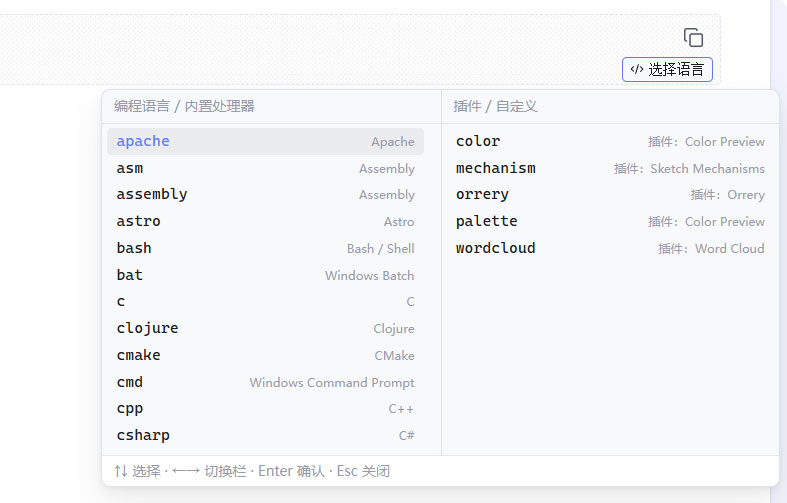
Tips gathers built-in languages + Obsidian's own processors (mermaid / math / query) + code block names registered by your installed plugins + identifiers from their bundled tips.json + your own custom entries into a single two-column panel.
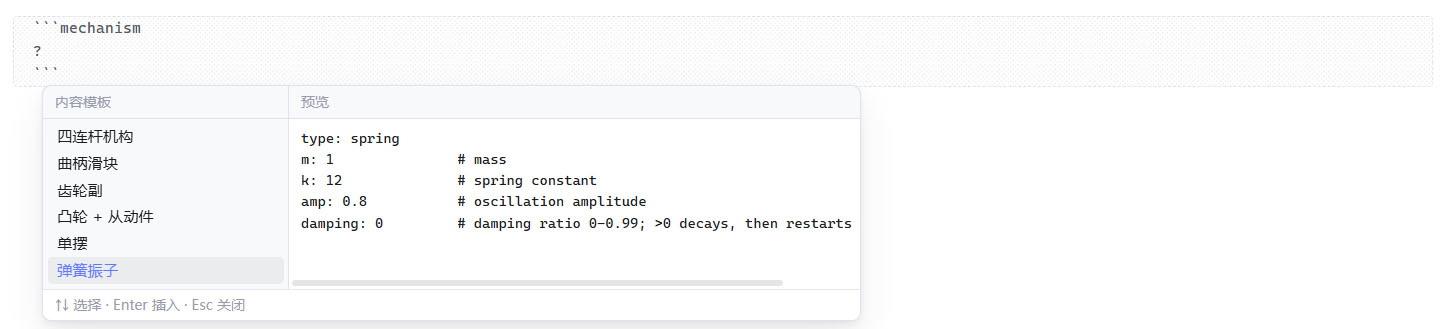
It also lets you store reusable templates — type ? to bring them up whenever you need them.
Features
1. Floating button on code blocks
Hover any code block and a button appears in the bottom-right corner showing that block's current language — an instant answer to "what am I supposed to write here?". Click it to open the picker and switch languages.
Clicking the button does not move your cursor; picking a language only rewrites the language identifier, so your editing position is never disturbed.
2. Typing ``` opens the two-column picker
Type three backticks on an empty line and the picker appears immediately:
| Left column: languages / built-in | Right column: plugins / custom |
|---|---|
mermaid, python, java, bash, … |
Code block names registered by plugins (such as mechanism, wordcloud, …) plus your own entries |
Long entries are truncated with an ellipsis; hovering shows the full "entry — note" tooltip.
Keep typing to filter: after j, both columns narrow to matching entries. Filtering prefers prefix matches and also supports fuzzy matching, so wc still finds wordcloud.
Keyboard:
| Key | Action |
|---|---|
↑ / ↓ |
Move within the current column; at the end it jumps to the other column |
← / → |
Switch columns |
Enter / Tab |
Confirm the selection |
Esc |
Close the panel |
You can also click an entry with the mouse.
Put the cursor on an existing info line (for example ```java) and the panel opens with that line's content as the filter; editing the line updates results live.
The panel always follows the cursor. Even when it was opened from the corner button, as soon as you go back to editing the info line it moves from the button to the line you're editing — it never stays behind.
Entries are sorted alphabetically so you can find them by name (this can be switched back to the built-in frequency order in settings).
The panel is always anchored directly below the cursor or the button (flipping above when there isn't room below) and never shifts sideways. It stays flush against its anchor, so shrinking the content won't leave a gap; it closes automatically when you scroll the note or move away from the info line.
3. Where candidates come from
- Built-in languages: around 100 common language identifiers, with the full language name as the note.
- Obsidian processors:
mermaid,math,query. - Plugin scan: reads each plugin's
main.jsunder the plugins folder, extracts names fromregisterMarkdownCodeBlockProcessor("xxx", …)and shows which plugin they belong to (disabled plugins are labelled). Two extra clues are used when the literal name is not enough: the.block-language-*classes in the plugin'sstyles.css, and string constants that are later passed to the registration call. - Templates bundled with plugins: identifiers that appear in a plugin's
tips.jsonare added as candidates too. This covers plugins that register their code blocks dynamically, where the name only exists at runtime and cannot be read from the source. - Custom entries: add or remove them in settings at any time (entry + note).
4. Content templates (no more memorising syntax)
Picking the right category is only the first step. Mermaid alone has a dozen diagram types, and other plugins come with their own variants — each with different syntax. Store the ones you use as content templates, then type ? as the first character inside a code block to bring them up:
```mermaid
?实体关系图
```
A panel appears (names on the left, a full preview on the right). Pick with ↑↓ and insert with Enter — the whole code block body is replaced and the cursor lands at the end of the new content.
?must be the first character of the body, with no leading space, soa ? b : cnever triggers it by accident- Typing after
?filters by name (the body is not searched), e.g.?实体关系图 - Templates are managed per entry under Settings → Tips → Content templates; paste a whole code block and the surrounding
```is stripped for you - Exports are split into three groups — plugins / builtin / custom:
{
    "plugins": { "mechanism": [{ "name": "Four-bar linkage", "body": "type: fourbar" }] },
    "builtin": { "mermaid": [{ "name": "Pie chart", "body": "pie title X" }] },
    "custom": { "myblock": [{ "name": "Private template", "body": "..." }] }
}
The three groups are treated differently on import:
| Group | Behaviour |
|---|---|
plugins |
Imported when the plugin is installed, otherwise skipped entirely with a notice |
builtin |
Imported when the processor exists, otherwise skipped entirely with a notice |
custom |
Controlled by the "import non-plugin templates" switch; missing entries are created automatically with a blank note |
- You can export a
tips.jsonfile, or select the JSON shown in the export dialog and copy it; importing accepts pasted text or a chosen file - Import is additive: identical entries are skipped, and entries you don't currently have are skipped with a notice
For plugin authors: ship templates with your plugin
If your plugin also works through code blocks, you can put reference templates in a tips.json inside your plugin folder — users get them automatically after installing, with no manual import:

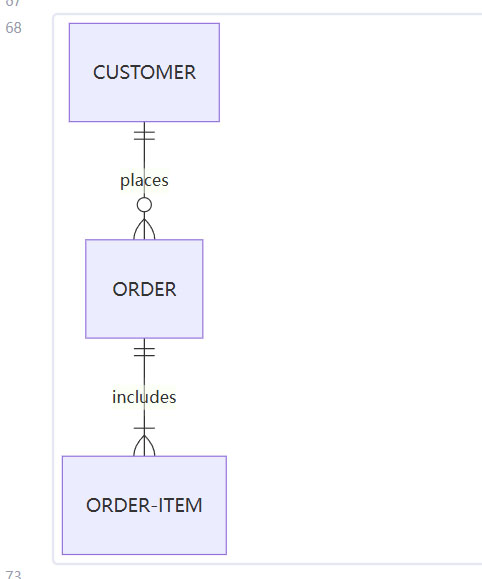
The structure of tips.json:
{
    "mermaid": [
        { "name": "erDiagram","body": "erDiagram\n    CUSTOMER ||--o{ ORDER : places\n    ORDER ||--|{ ORDER-ITEM : includes"
      },
        { "name": "......", "body": "........" }
    ]
}
A few conventions:
- Keys are code block identifiers, values are arrays of templates (each with
nameandbody) - Do not include the surrounding fence in
body - Identifiers written here are added to the code block candidate list, so plugins that register their blocks dynamically still show up in the
```picker - Templates are merged into the user's template list on rescan, so they sit alongside the user's own entries and behave like them
- Everything here disappears when your plugin is uninstalled; users can turn off "Read templates bundled with plugins" in settings
Installation
Manual installation
- Download or build
main.js,manifest.jsonandstyles.css. - Create
<vault>/.obsidian/plugins/tips/inside your vault. - Put the three files in there.
- Open Obsidian → Settings → Community plugins → turn off Restricted mode → enable Tips.
Building from source
npm install
npm run dev     # watch mode, rebuilds on change
npm run build   # type check + production build
Copy the generated main.js along with manifest.json and styles.css into the plugin's tips folder.
During development you can also clone this repository straight into <vault>/.obsidian/plugins/tips/ and reload the plugin in Obsidian after npm run dev.
Settings
| Setting | Default | Description |
|---|---|---|
| Interface language 🌏️ | Follow Obsidian | Choose "Follow Obsidian" or 简体中文 / English / Русский / Français / Español / العربية |
| Floating code block button | On | When off, the corner button is no longer shown |
| Auto-open after typing ``` | On | When off, the panel can only be opened from the button or the command |
| Open while editing the info line | On | Opens when the cursor lands on the info line or while you edit it |
| Sort candidates alphabetically | On | When off, the language column keeps the built-in frequency order |
| Candidate panel width | 580 px | Range 280–920 px, shared by the language and template panels |
| Include the built-in language list | On | When off, only the entries you need remain in the left column |
| Scan installed plugins for code block names | On | When off, no plugin files are read |
| Read templates bundled with plugins | On | Scans plugin folders for tips.json; its identifiers join the candidate list and its templates are merged into yours on rescan |
| Rescan now | —— | Triggers a scan manually and reports the result |
| Custom code block entries | Empty | Entry + note, add or remove at any time |
| Content templates | Empty | Reusable code block bodies per entry, invoked with ? on the first line; supports import / export |
The plugin also registers two commands (search for "Tips" in the command palette):
- Open code block language picker
- Rescan plugin code block names
How it works
- The editor UI is built on CodeMirror 6's public extension points: a
ViewPluginregistered throughregisterEditorExtensionadds a line decoration to the last line of every fenced code block and places aWidgetTypebutton at the end of that line; the picker is a fixed-position layer attached todocument.body. - Code blocks are detected with line-level regex on fences (both
```and~~~are supported), and unclosed fences are handled correctly, so the panel reacts the moment the third backtick is typed. - The plugin scan does not rely on any internal API:
Vault.configDirandVault.adapterare both public, so it works on desktop and mobile alike. The enabled-plugin list comes from the vault config filecommunity-plugins.json. - A plugin's
tips.jsonis where an author can distribute reference templates. Its identifiers are fed into the candidate list and its templates are merged into the local template table, which is what makes plugins with runtime-registered code block names usable. - UI strings ship in six languages (Chinese, English, Russian, French, Spanish and Arabic — each language name always written in its own script), with no third-party i18n library.
Known limitations
- The plugin scan relies on literal calls in
main.js. A plugin that builds its registration name from variables cannot be read from the source — if it ships atips.json, its identifiers still reach the picker; otherwise add them as custom entries. Plugins in that situation are listed in settings. - The floating button and the pickers work in edit mode; reading mode uses a separate rendering pipeline and is not supported yet.
- Scanning reads every plugin's
main.js(usually tens of KB to a few MB). It runs asynchronously in the background on first load and can be a little slow on mobile with large vaults; it can be turned off in settings. - Code blocks are detected with line-level regex rather than a syntax tree, so extreme nesting (a fence at the start of a line inside a code block) may be misread.
- To keep typing responsive, documents longer than 3000 lines are only scanned around the cursor (aligned back to the nearest fence line). Code blocks spanning thousands of lines may not be detected — open the picker from the command palette, or write the language by hand.
Project layout
tips/
├── src/
│   ├── main.ts              # Plugin entry: settings, commands, scan scheduling
│   ├── settings.ts          # Settings tab
│   ├── i18n.ts              # Strings and language resolution
│   ├── types.ts             # Settings and candidate types
│   ├── data/languages.ts    # Built-in languages and Obsidian processors
│   ├── core/
│   │   ├── preferences.ts   # Settings merge and normalisation
│   │   ├── scanner.ts       # Scans installed plugins for code block names
│   │   ├── snippets.ts      # Templates: fence stripping, normalisation, import merge
│   │   └── store.ts         # Candidate merging, filtering and sorting
│   ├── editor/
│   │   ├── codeblocks.ts    # Fence detection, ? trigger point and replacement maths
│   │   └── extension.ts     # CodeMirror 6 extension: button + panel timing
│   └── ui/
│       ├── picker.ts         # Two-column language picker
│       ├── position.ts       # Shared positioning and scrolling helpers
│       ├── snippet-picker.ts # Template panel (names / preview)
│       └── snippet-modals.ts # Template editing and import/export modals
├── styles.css
├── manifest.json
└── esbuild.config.mjs
Changelog
3.1.0
Settings
- The scan options now live in their own Scanning section with a heading, and the two notices (dynamic registration, bundled templates) moved inside it.
- A new note explains the order in which scanning resolves names: literal registration → unique string constant →
.block-language-*class →tips.jsonidentifier. - The scan summary now counts bundled templates too, and reports plugins rather than names: “N code block names from N plugins (N of them provide tips.json templates)”.
- Template group headings now read “N names / N templates”, with the counts rendered in a weaker colour so they don't compete with the group name.
Fixed
- Four
createEl('div')calls in the template dialogs were replaced withcreateDiv(), as required by Obsidian'sprefer-create-elrule.
Changed
- Removed the “copy to clipboard” button from the export dialog. The JSON can be selected and copied right there, and the plugin no longer touches the clipboard at all — which also removes the clipboard disclosure from its listing. (This supersedes the clipboard feature noted under 2.0.0.)
Docs
- Added
CONTRIBUTING.md, linked from both READMEs.
3.0.0
Fixed: templates bundled by plugins now actually reach the picker
A plugin's tips.json was being read, counted and shown in settings, but the identifiers inside it never made it into the ``` picker — so a plugin that registers its code blocks dynamically (from a variable, which static analysis cannot resolve) looked "detected" yet was unusable. The bundled identifiers are now merged into the candidate list as well, subject to Read templates bundled with plugins and de-duplicated against names found by the scan.
Scanning
- Two extra clues are now used when reading a plugin, so names that used to be missed are found: the
.block-language-*classes in the plugin'sstyles.css, and string constants that get passed toregisterMarkdownCodeBlockProcessor()later on (only when the variable resolves to exactly one string literal). - Tested against the Excalidraw plugin: both
excalidrawandexcalidraw-script-installare detected, with nothing missed. - Plugins whose names still cannot be resolved are reported in settings, listing which ones and why.
Settings
- A new note under the scan section states how many bundled templates were read, from which plugins, and where to find them — styled like the existing warning, but with an accent-coloured bar since it reports a state rather than a problem.
- Template groups are now collapsed by default; the group heading carries its template count, e.g.
LMath (13), so you can see at a glance which groups have content. - Every row inside a group (the identifier row and its templates) uses a consistent 8px vertical rhythm.
Changed
- Bundled templates are merged into your template list on rescan, so they appear side by side with your own and can be edited or removed. They come back the next time you rescan.
2.1.1
- Panel position is delivered through CSS variables instead of inline styles, as required by the review rules.
2.1.0
- Addressed the community plugin review: DOM elements are now created with Obsidian's helpers (
createDiv/createSpan/createEl), and section titles useSetting.setHeading(). - Language detection uses Obsidian's
getLanguage()API instead of readinglocalStorage. - Removed the deprecated
setDynamicTooltip()call. minAppVersionraised to 1.8.7, required bygetLanguage().- The README is now English by default; the Chinese version lives at
README_ZH.md.
2.0.0
Content templates (new)
- Type
?on the first line of a code block to bring up the template panel: names on the left, a full preview on the right,↑↓to select andEnterto insert - Inserting replaces the whole body (fences stay put) and leaves the cursor at the end of the new content
?must be the first character of the body, soa ? b : cnever triggers it; typing after?filters by name- Templates are managed per code block entry under Settings → Tips → Content templates, with add / edit / delete
- Pasting can include a whole code block — the surrounding
```is stripped automatically
Import / export
- Exports to JSON, split into plugins / builtin / custom groups so the receiver can treat them differently
- Copy to clipboard, or export a
tips.jsonfile; importing accepts pasted text or a chosen file - Import is additive: identical entries are skipped, entries from uninstalled plugins are skipped with a notice
- Custom entries that don't exist yet are created automatically (with a blank note); plugin and builtin entries are only ever skipped
- New "Read templates bundled with plugins": a
tips.jsoninside a plugin folder is shown automatically (read-only, never written into your list)
Other
- Interface language extended to six: 简体中文, English, Русский, Français, Español, العربية
- RTL languages such as Arabic get the right writing direction automatically
- Default panel width is 580 px, with the ceiling raised to 920 px
- New toggles for "Sort candidates alphabetically" and "Open candidates while editing the info line"
- Settings wording unified (entry / template), with interactions and styling aligned to Obsidian's native settings items
1.0.0
- First release, solving two things: languages are awkward to pick, plugin code block names are easy to forget
- Floating button: hover a code block to see its language in the corner, click to switch
- Typing
```opens the two-column picker (languages / built-in, plugins / custom) - Scans installed plugins for registered code block entries and labels their source
- Custom code block entries (name + note)
Contributing
Bug reports and pull requests are welcome — see CONTRIBUTING.md. It covers what to include in a bug report, how to test changes to the logic modules without a test framework, and the review rules the code has to follow.
Author
- GitHub: @Tan-TanZi
License
MIT © 2026 Tan-TanZi