Search...Search plugins and themes...
⌘K
Sign in
  • Get started
  • Download
  • Pricing
  • Enterprise
  • Account
  • Obsidian
  • Overview
  • Sync
  • Publish
  • Canvas
  • Mobile
  • Web Clipper
  • CLI
  • Learn
  • Help
  • Developers
  • Changelog
  • About
  • Roadmap
  • Blog
  • Resources
  • System status
  • License overview
  • Terms of service
  • Privacy policy
  • Security
  • Community
  • Plugins
  • Join the community
  • Discord
  • Forum / 中文论坛
  • Merch store
  • Brand guidelines
Follow us
DiscordTwitterBlueskyThreadsMastodonYouTubeGitHub
© 2026 Obsidian

Timeline Schedule

ebonsignoriebonsignori3k downloads

Inline timelines generated from human-readable time strings, e.g. 'Walk dog (30min)' in a ```schedule codeblock.

Add to Obsidian
  • Overview
  • Scorecard
  • Updates4

Inline timelines generated from human-readable time strings, e.g. 'Walk dog (30min)' in a ```schedule codeblock in Obsidian.

You can set if you want to enable pretty preview and/or autofill from the plugin's settings.

Only autofill, no pretty preview
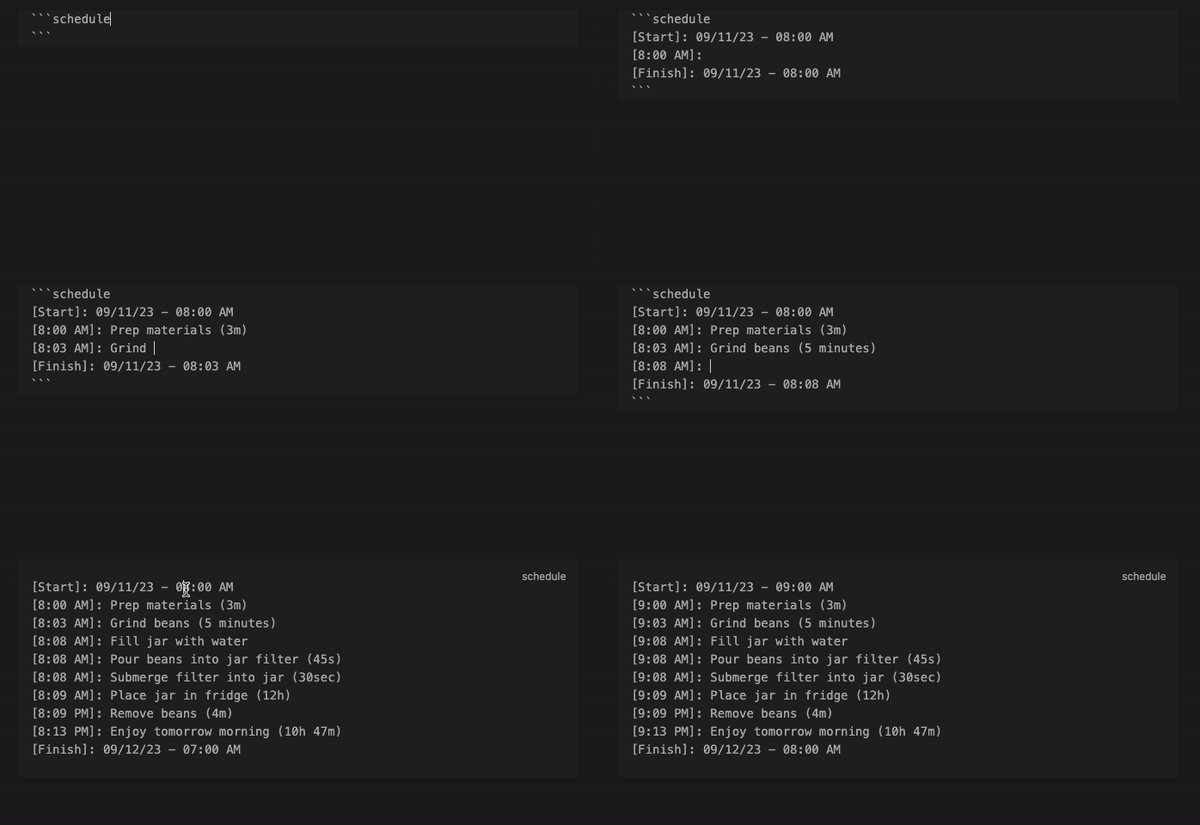
Only autofill, no pretty preview demo gif

A [Start] and [Finish] block will always be present during autofill, and each line between them will be prepended with a time block e.g. [9:30 AM]:.

Each human-readable time string you add to the end of a line will be added to the next time block.

For instance, Grind beans (3m) sets the time from [7:05] to [7:08] in the next line.

In this mode, when your cursor exits the codeblock it will preview as a standard Obsidian code block.

While possible, autofill is not recommended within callouts. I recommend writing your schedule outside of a callout, then pasting the codeblock in a callout to be rendered in pretty preview.

Only pretty preview, no autofill

Only pretty preview, no autofill demo gif

In this mode, you don't need date blocks, e.g. ([Start], [Finish]), the start date is set from whatever you put at the beginning e.g. "Start: 08/10/2023 08:00 AM"

If you omit a start line, the current date & time will be used.

Both autofill and pretty preview (default)
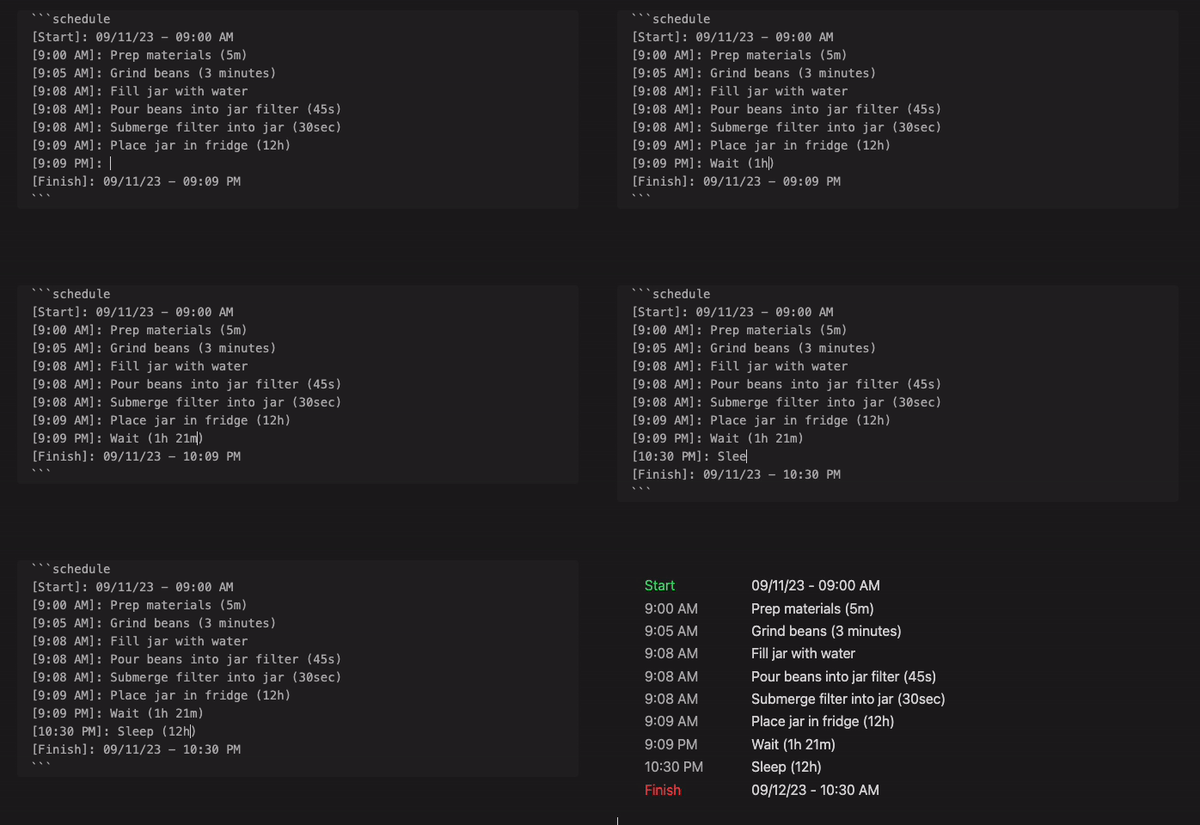
Both autofill and pretty preview demo gif

You can change the name for Start and Finish as well as the formats of the start, end, and event dates in the plugin's settings.

Styling

See styles.css for a list of classes you can override.

Installing

Search "Timeline Schedule" via the built-in community plugin browser in Obsidian.

Contributing

Please open an issue with any suggestions or bug reports.

See developer docs if you'd like to open a PR.

Acknowledgements

The Obsidian team for creating a wonderful product :purple_heart:

67%
HealthFair
ReviewCaution
About
Generate inline timelines from human-readable time strings inside a schedule codeblock, converting entries like "Walk dog (30min)" into timed events. Use autofill to prepend time blocks with [Start] and [Finish], or use pretty preview to render schedules from a start line or the current time.
DatesVisualizationAutomation
Details
Current version
1.2.1
Last updated
2 years ago
Created
3 years ago
Updates
4 releases
Downloads
3k
Compatible with
Obsidian 0.15.0+
License
MIT
Report bugRequest featureReport plugin
Author
ebonsignoriebonsignori
github.com/Ebonsignori
GitHubebonsignori
  1. Community
  2. Plugins
  3. Dates
  4. Timeline Schedule

Related plugins

Rollover Daily Todos

Rollover any unchecked checkboxes from your last daily note into today's note.

Markwhen

Create timelines, gantt charts, calendars, and more using markwhen.

Update frontmatter modified date

Automatically update a frontmatter modified date field when the file is modified.

Vault Changelog

Maintain a changelog of recently edited notes.

Templater

Create and use dynamic templates.

BRAT

Easily install a beta version of a plugin for testing.

Day Planner

Day planning from a task list in a Markdown note with enhanced time block functionality.

Tasks

Track tasks across your vault. Supports due dates, recurring tasks, done dates, sub-set of checklist items, and filtering.

Maps

Adds a map layout to bases so you can display notes as an interactive map view.

Linter

Format and style your notes. Linter can be used to format YAML tags, aliases, arrays, and metadata; footnotes; headings; spacing; math blocks; regular Markdown contents like list, italics, and bold styles; and more with the use of custom rule options.