TimeSaver
 odayou1k downloads
Save your time. 1. Quickly insert todo directive. 2. Quickly count the time spent on tasks in the current note and the total time spent.
- Overview
- Scorecard
- Updates6
一个 Obsidian 插件,用于统计任务的时间花费
基于自己的工作流和一个网友的诉求开发的一个 Obsidian 插件,欢迎大家提出宝贵意见。
仓库地址
odayou/task-processing-extension
✨ 0.0.6 更新亮点
- 三层非侵入式统计 UI:状态栏实时显示当前笔记耗时与已统计笔记数;右侧栏面板常驻展示总时长 / 按任务 / 按 #标签 / 笔记数;打开 / 保存 / 离开笔记时自动统计(常开,无需配置)。
- 超强时间格式兼容:中文
2026年8月28日10:53、日期时间直连2026-08-2810:53、en-dash / 连字符混用、秒级精度、带日期时刻——怎么写都能识别。 - 跨笔记聚合 & Dataview/Bases 联动:一键汇总所有笔记或指定文件夹的耗时,按 #标签 拆分,并写入 frontmatter 供数据库查询。
- 设置分组 + 逐项开关:插入任务 / 时间 / 复制链接、统计右键入口均可独立控制,默认只给你需要的。自动计算已默认常开(打开 / 保存 / 离开笔记时静默统计),无需开关。
功能
- 根据记录的明细,统计每项 task 的时间花费(提取当前文档中的 tasks),并展示总花费。
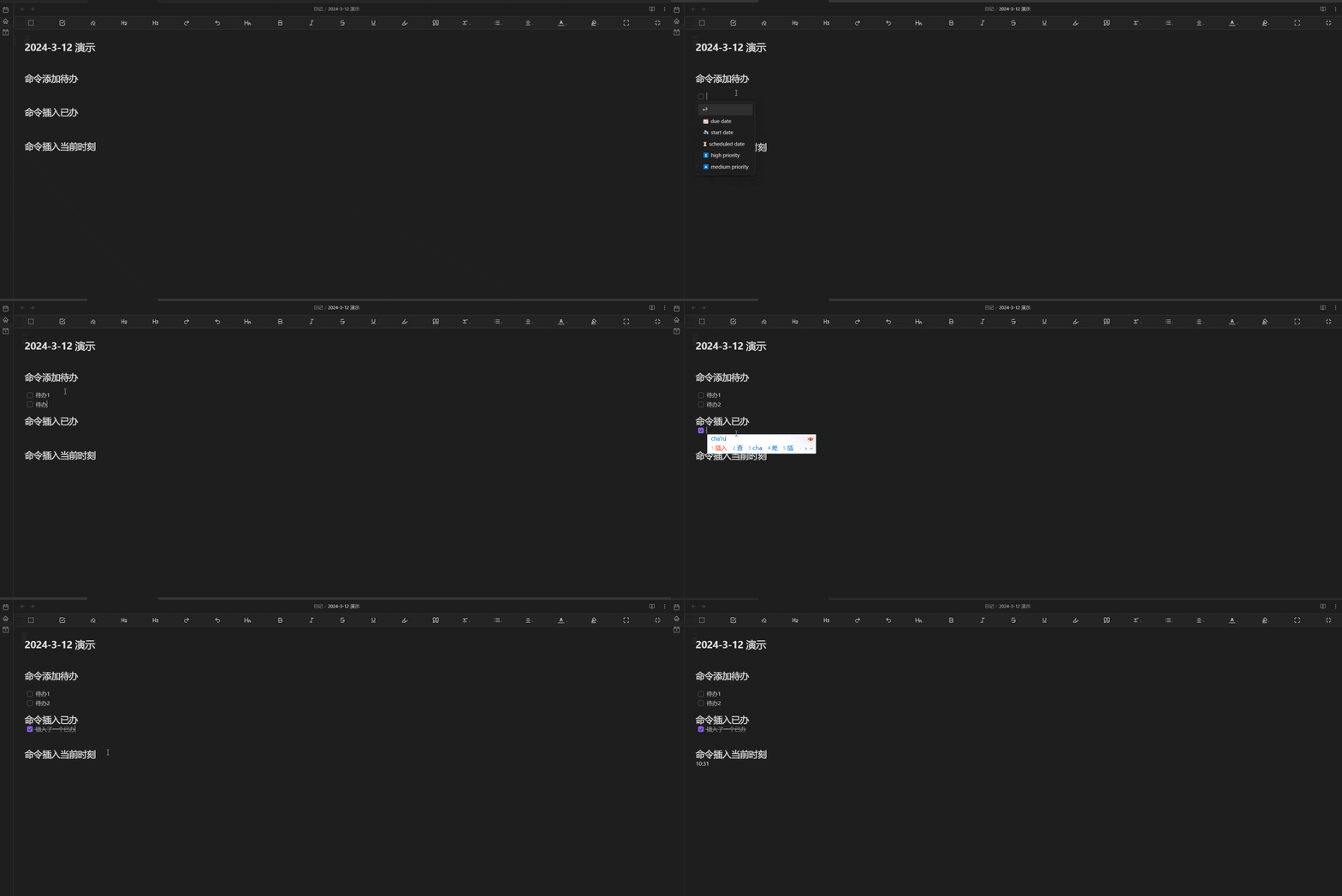
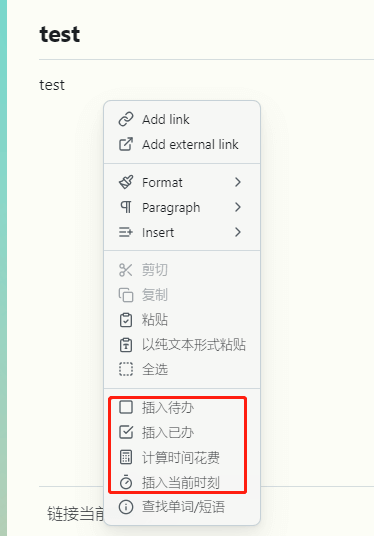
- 提供快捷指令:插入待办 / 已办事项、插入当前时刻、复制链接。
- 以上指令均可通过命令面板或编辑器右键菜单触发(可逐项开关)。
- 状态栏实时摘要(v0.0.6):当前笔记耗时与已统计笔记数常驻状态栏(不再展示无日期锚点的「全部总时长」累加)。
- 右侧栏统计面板(v0.0.6):总时长、按任务明细、按 #标签、含任务笔记数,一键查看全局时间分布。
- 跨笔记聚合 & Dataview 联动(v0.0.6):
计算所有笔记总时间汇总所有笔记(或指定文件夹)的任务,按#标签分布并统计含任务笔记数(不展示无日期锚点的总时长累加);可选写入每条笔记的 YAML frontmatter。 - 超宽松时间格式(v0.0.6):支持中文日期、日期时间直连、en-dash / 连字符、秒级与带日期时刻,详见时间格式支持。
使用方式
在编辑视图下,在具有任务(标准 task 格式)、时间时刻的文档中,调用命令 total time(或通过右键菜单 / 面板触发),即可在光标处列出每个任务的时间花费并展示总花费。
- 想看全局:左侧 ribbon 或命令
切换 TimeSaver 面板打开右侧栏面板;状态栏实时显示当前笔记耗时与已统计笔记数。 - 想汇总所有笔记:命令
计算所有笔记总时间(默认不进右键菜单,需在设置开启右键菜单显示统计入口)。 - 想自动更新:自动计算已常开——打开笔记(含 Obsidian 启动恢复的记忆文件)、编辑器失焦、保存文件时都会自动静默重算,无需任何设置。
演示
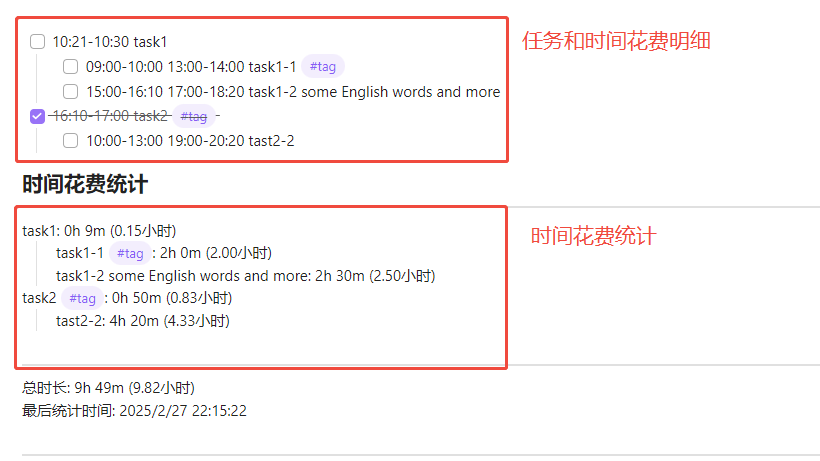
- 时间统计效果展示
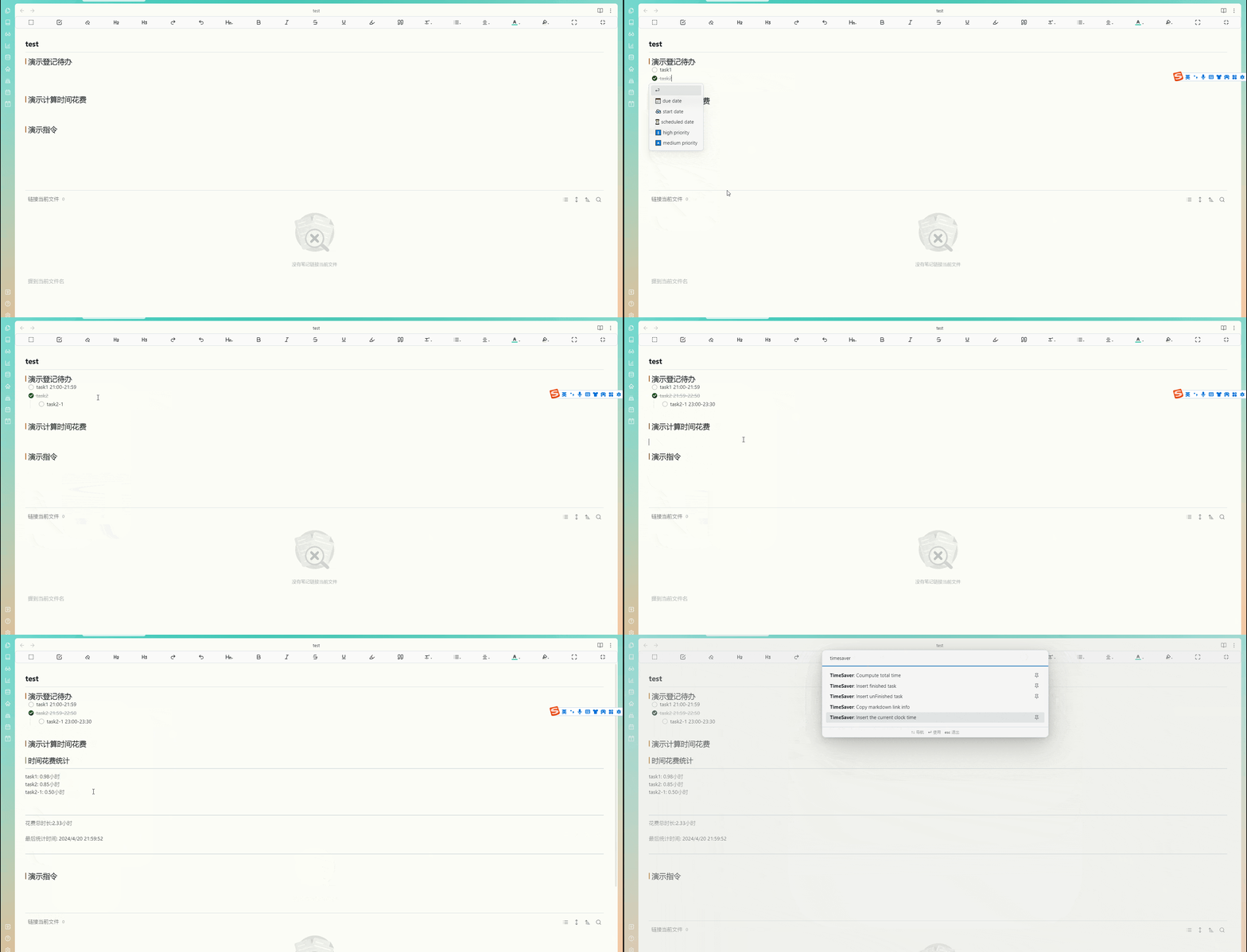
- 综合演示
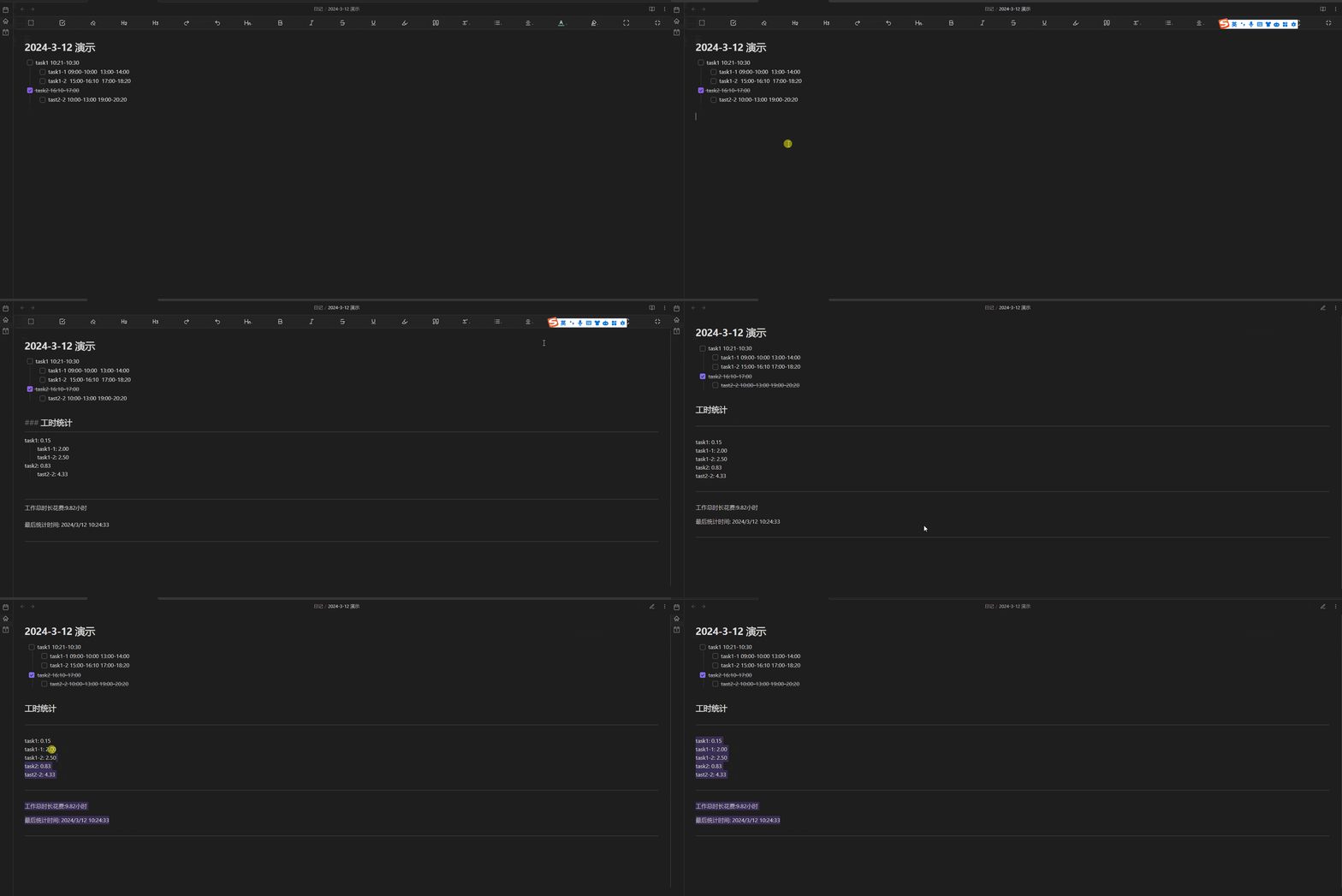
- 任务耗时统计演示
- 几个快捷命令演示
- 所有功能都集成进了右键菜单
示例数据
任务
- [ ] 10:21-10:30 task1
    - [ ] 09:00-10:00 13:00-14:00 task1-1 #tag
    - [ ] 15:00-16:10 17:00-18:20 task1-2 some English words and more
- [x] 16:10-17:00 task2 #tag
    - [ ] 10:00-13:00 19:00-20:20 tast2-2
统计结果
### 时间花费统计
---
task1: 0h 9m (0.15小时)
    task1-1 #tag: 2h 0m (2.00小时)
    task1-2 some English words and more: 2h 30m (2.50小时)
task2 #tag: 0h 50m (0.83小时)
    tast2-2: 4h 20m (4.33小时)

---
总时长: 9h 49m (9.82小时)
最后统计时间: 2025/2/27 22:15:22
面板、状态栏与一键统计(v0.0.6)
- 状态栏:开启
状态栏后,底部状态栏实时显示当前笔记耗时与已统计笔记数(编辑/切换笔记即更新);点击状态栏可弹出快捷菜单:计算当前笔记、计算所有笔记、导出统计、切换面板。计算当前笔记不再要求处于编辑模式——阅读模式、文件在其它视图打开、甚至 Obsidian 启动恢复的记忆文件都会自动计算;非 Markdown 文件(如 Canvas)会温和提示而非误报「请打开 Markdown 文件」。 - 右侧栏面板:左侧 ribbon 图标或命令
切换 TimeSaver 面板打开;尚未统计时面板内提供「计算当前笔记 / 按日期统计 / 计算所有笔记」触发按钮;已统计后展示总时长、按任务明细、按 #标签拆分、含任务笔记数,并内置「刷新」「复制全部」「导出到当前笔记」按钮;按日期聚合结果会额外以「仅统计 daily-notes」明确标示并按天列出。 - 自动计算(常开):打开笔记(含 Obsidian 启动恢复的记忆文件)、编辑器失焦、保存文件三种时机都会自动静默重算当前笔记统计,无需任何开关;计算仅为只读扫描,绝不改写笔记正文。
时间格式支持
TimeSaver 对时间段的写法非常宽容,以下全部可被正确识别(均表示同一段 09:00–11:30 附近的耗时):
| 写法 | 说明 |
|---|---|
09:00 - 11:30 |
基础写法(空格 + 连字符) |
09:00 – 11:30 |
长横(en-dash –)作分隔符 |
09:00:00 - 11:30:00 |
带秒级精度 |
2026-08-28 09:00 - 11:30 |
带日期时刻(西式 - 分隔) |
2026/08/28 9:00 - 11:00 |
斜杠日期 + 单数字小时 |
2026年8月28日10:53 |
中文年月日,日期与时间直连 |
2026/8/2810:53 |
斜杠日期与时间直连 |
2026/08/2810:53 |
补零日期与时间直连 |
2026-08-2810:53 |
连字符日期与时间直连 |
要点:
- 日期与时间之间允许 0 个或多个空白(可直连)。
- 西式日期分隔符
-//与中文年 月 日均支持。 - 结束时刻省略日期时,继承开始时刻的日期,避免跨午夜误判。
说明:这些混排格式没有通用标准(ISO 8601 为
2026-08-28T10:53,与日常随笔写法不同;JSDate.parse/ dayjs 也无法解析中文年月日),因此采用正则显式覆盖常见写法,按需扩展即可。
跨笔记统计与 Dataview 联动(v0.0.6)
设置
插件设置页新增三项:
- 统计范围(Scope):
所有笔记或指定文件夹。选「指定文件夹」时需填写仓库相对路径,例如tasks/daily。 - 文件夹(Folder):仅当统计范围 = 指定文件夹时生效。
- 同步到 frontmatter(Sync to frontmatter):开启后,运行聚合命令会把每条含任务笔记的计算结果写入其 YAML。
用法
在编辑器右键菜单,或命令面板调用 计算所有笔记总时间(计算所有笔记总时间)。插件会扫描目标笔记中的任务并弹窗汇总:
- 所有笔记的按
#标签分布与含任务笔记数(不展示无日期锚点的总时长累加) - 含任务的笔记数量
- 按
#标签排序的耗时明细(例如#写作 2h 30m)
frontmatter 结构
开启「同步到 frontmatter」后,每条含任务的笔记头部会变成:
---
time-saver:
  total_minutes: 589
  by_tag:
    写作: 270
    会议: 90
    运维: 229
---
用 Dataview 查询
安装 Dataview 后,即可把 TimeSaver 的输出当数据库查询。
列出每个笔记的耗时(DQL):
TABLE `time-saver`.total_minutes AS 分钟, `time-saver`.by_tag AS 按标签
FROM "tasks"
WHERE `time-saver`
跨笔记按标签汇总(DataviewJS):
const pages = dv.pages('"tasks"').where(p => p["time-saver"]);
const byTag = {};
let total = 0;
for (const p of pages) {
  total += (p["time-saver"].total_minutes || 0);
  const tags = p["time-saver"].by_tag || {};
  for (const [t, m] of Object.entries(tags)) byTag[t] = (byTag[t] || 0) + m;
}
dv.paragraph("总时长:" + (total / 60).toFixed(1) + " 小时");
dv.table(["标签", "分钟"], Object.entries(byTag).sort((a, b) => b[1] - a[1]).map(([t, m]) => [t, m]));
提示:
time-saver含连字符,DataviewJS 中请用方括号写法p["time-saver"]访问。
按日期聚合(daily-notes)
命令 按日期聚合(daily-notes)(或状态栏菜单「按日期聚合」、面板「按日期统计」按钮)会把所有名为日期的日记笔记按天汇总,回答「这天 / 这周花了多少时间」。
重要且明确的预期:本视图只统计 daily-notes——文件名形如
2026-08-28/2026.08.28/2026/08/28的笔记。普通笔记(如项目A.md)没有可靠的日期锚点,不会被计入,也不在结果里出现。这是刻意的边界,避免把无日期的笔记强行拼进时间线。
- 面板顶部以灰色小字明确标示「仅统计 daily-notes(文件名形如 2026-08-28 …)」。
- 结果按日期降序排列(最近的一天在最上),每天显示当天总时长与按 #标签 拆分。
- 耗时来源:优先读每条笔记的 frontmatter(开启同步时),否则扫描正文;经「移除统计」标记为
disabled的笔记按 0 计、自动排除。 - 与「统计范围 / 文件夹」设置联动:若设为指定文件夹,只在该文件夹内挑 daily-notes。
导出为 CSV
命令 导出统计为 CSV(或状态栏菜单「导出统计为 CSV」)会扫描当前统计范围内的所有笔记,生成逐笔记的 CSV:
| 列 | 含义 |
|---|---|
note / path |
文件名 / 仓库内路径 |
is_daily / date |
是否为日记笔记 / 日记日期(非日记留空) |
total_minutes |
该笔记总耗时(分钟) |
total_human |
人类可读,如 2h30m |
by_tag |
该笔记按 #标签 拆分,如 #写作:150; #会议:90 |
- 文件写入仓库根目录
time-saver-export-YYYY-MM-DD.csv(带 UTF-8 BOM,Excel 直接打开不乱码),同时复制到剪贴板,方便粘贴到表格 / 发票 / 其它工具。 - CSV 把数据交还给你,可自由做图表、计费或迁移到 Toggl 等工具。
移动端
- 命令(
计算当前/所有笔记、按日期聚合、导出 CSV等)与右侧面板在 Obsidian 移动端同样可用,触发方式:- 左侧 ribbon 图标 打开 TimeSaver 面板(面板内有「计算 / 按日期统计 / 刷新 / 导出」按钮);
- 命令面板(Ctrl/Cmd+P)直接调用任意命令。
- 移动端没有状态栏菜单入口(Obsidian 移动端不渲染插件状态栏项),自动计算(打开/失焦/保存)在移动端照常静默工作。
设置说明(v0.0.6)
设置页按类型分组,关键开关:
- 通用:界面语言。
- 插入功能:
插入任务、插入时间、复制链接(默认开;关掉后对应命令不再出现在右键菜单)。 - 统计与面板:
状态栏、启动时打开面板、右键菜单显示统计入口(默认关)。(自动计算已默认常开,无需开关) - 跨笔记聚合:
统计范围、文件夹、同步到 frontmatter。
更新日志
见 CHANGELOG.md。