Time Manager
 Najeong Kim359 downloads
Visualize your Daily Note tasks as a timeline and track completion by category.
- Overview
- Scorecard
- Updates2
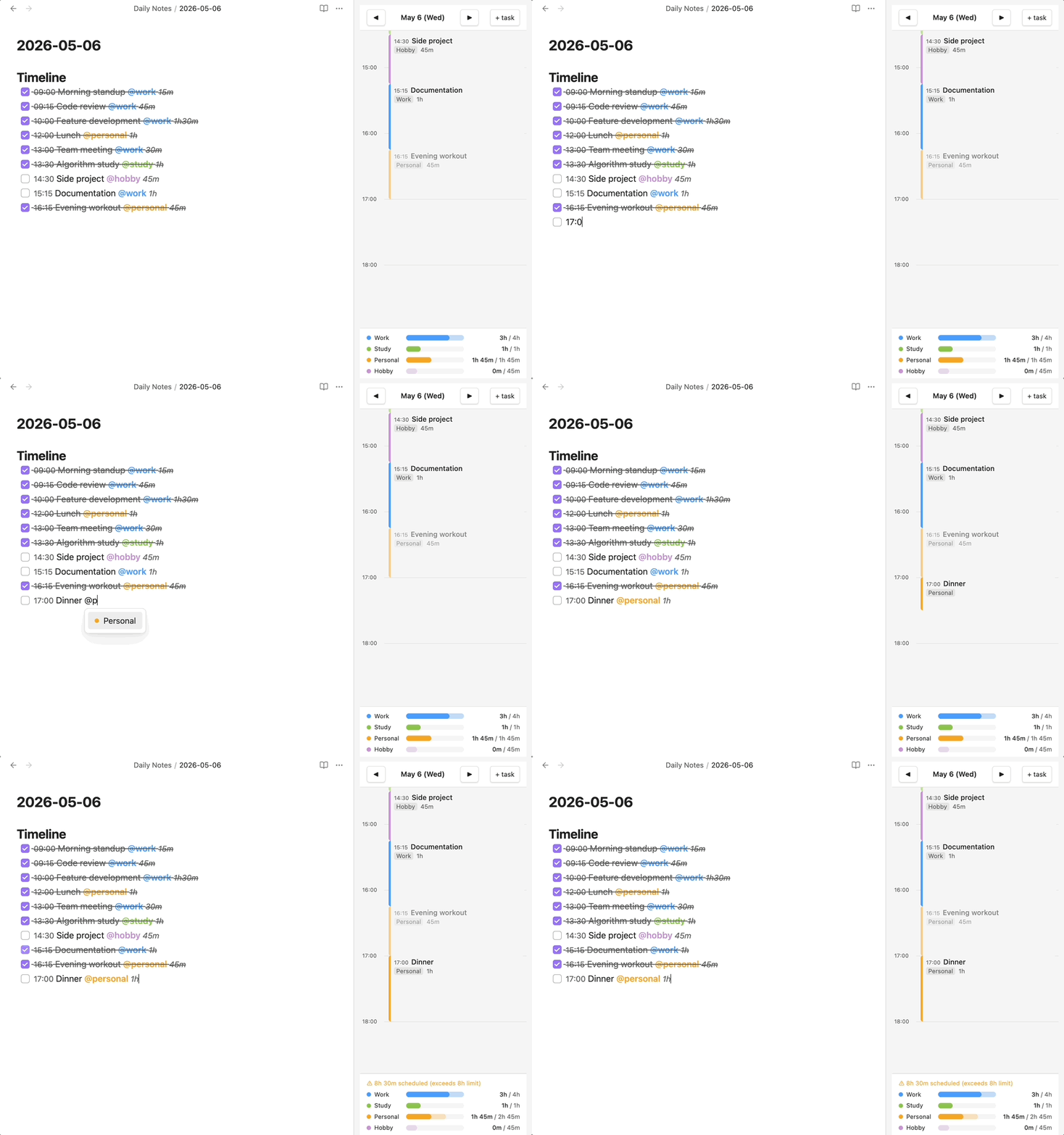
Visualize your Daily Note tasks as a timeline and track time spent by category — all inside Obsidian's sidebar.
Installation
- Open Settings → Community plugins → Browse
- Search for Time Manager and click Install
- Click Enable, then click the 🕐 clock icon in the ribbon
Quick start
Add a ## Timeline section to today's Daily Note and paste this:
## Timeline

- [ ] 09:00 Morning routine @personal 30m
- [ ] 09:30 Deep work @work 2h
- [ ] 12:00 Lunch @personal 1h
- [ ] 13:00 Meetings @work 1h30m
- [ ] 23:00 end
The timeline renders instantly on the right. Edit the note and it updates live.
How it works
Timeline view
Tasks appear as time blocks on a vertical axis. The red line shows the current time.
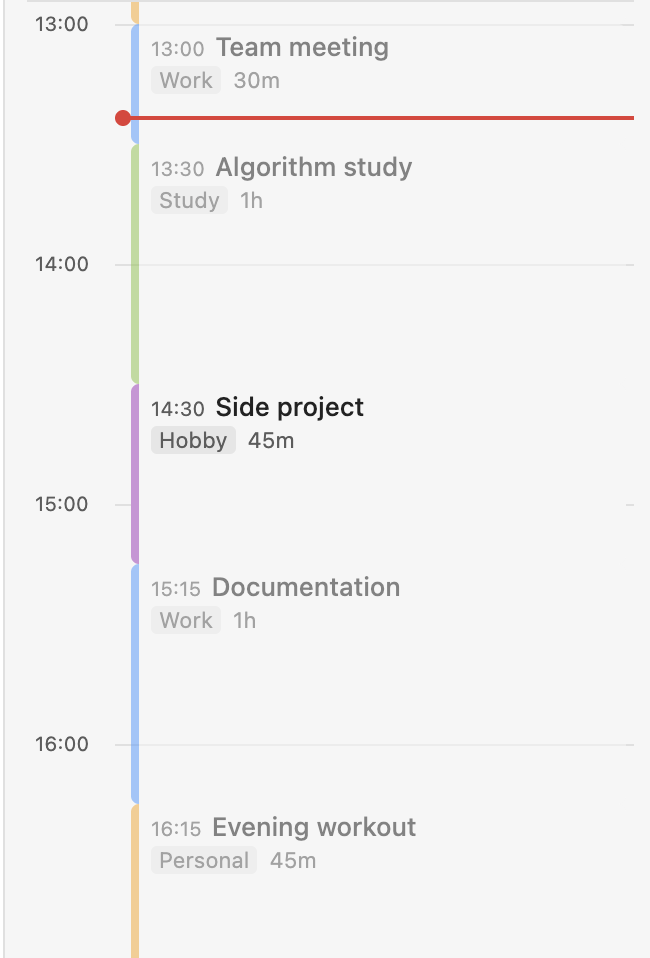
- Click ◀ / ▶ to navigate between days
- Click a Daily Note in the file explorer to jump to that date
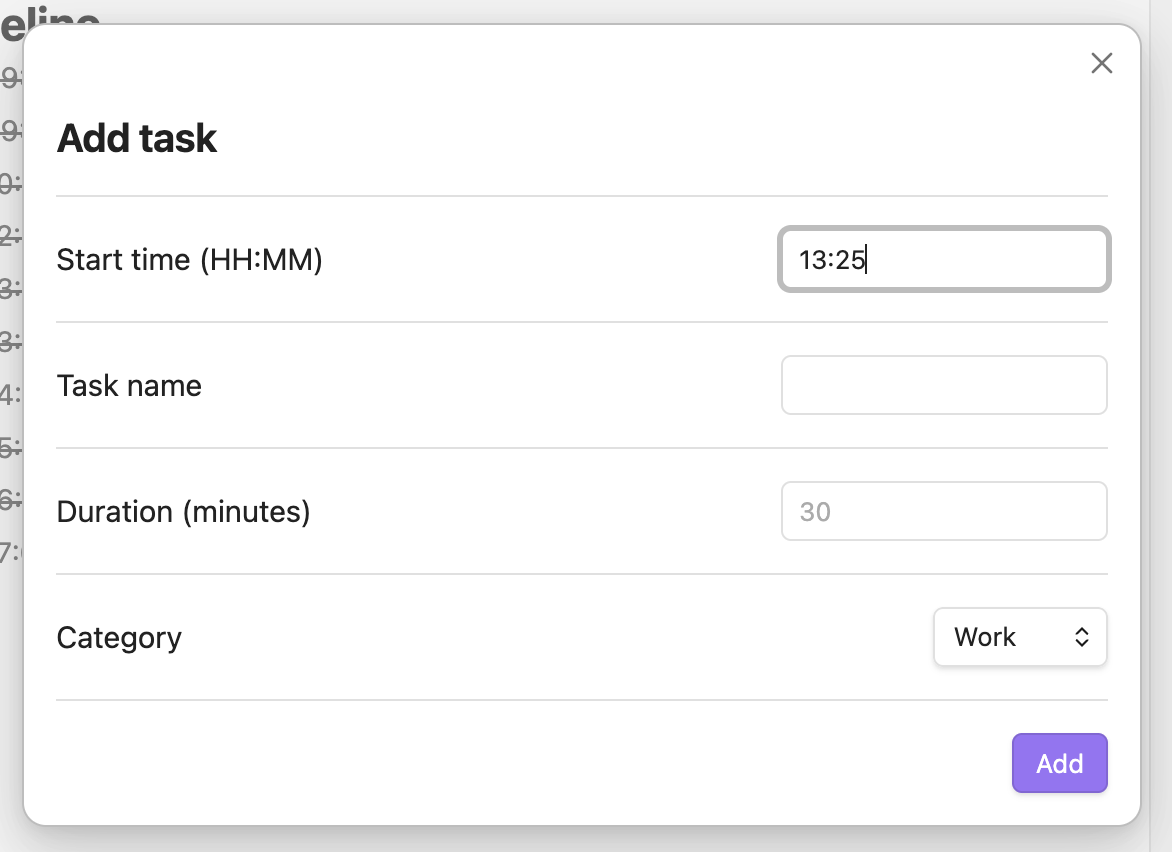
- Click + task to add a task via modal
Daily stats
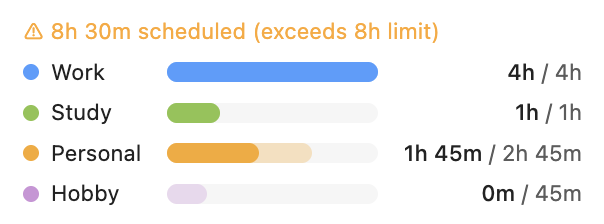
A bar chart at the bottom shows scheduled vs. completed time per category.
Editor highlights
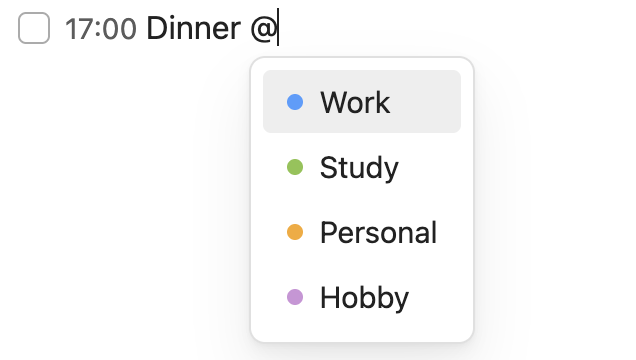
Category tags and durations are highlighted as you type. Type @ to get autocomplete.
Task format
- [ ] HH:MM Task name @category duration
| Field | Options | Example |
|---|---|---|
| Status | [ ] todo · [x] done |
[x] |
| Time | HH:MM |
09:30 |
| Category | @work · @study · @personal · @hobby |
@work |
| Duration | 30m · 1h · 1h30m |
1h30m |
Duration is required for the stats to be accurate. If omitted, the gap to the next task is used.
Settings
Settings → Time Manager
| Setting | Default | Description |
|---|---|---|
| Daily Note folder | Daily Notes |
Folder where your Daily Notes live |
| Section heading | Timeline |
The ## heading to parse as the timeline |
| Daily work hour limit | 8h |
Overload warning threshold (4–16h) |
License
MIT License — © 2026 Najeong Kim
HealthExcellent
ReviewPassed
About
Visualize daily tasks from your Daily Notes as vertical time-blocks on a timeline. Record durations and completion by category and view per-category bar charts with overload warnings. Suggest and color-highlight @category tags while editing.Details
Current version
0.1.1
Last updated
4 months ago
Created
5 months ago
Updates
2 releases
Downloads
359
Compatible with
Obsidian 1.7.2+
Platforms
Desktop, Mobile
License
MIT