Search...Search plugins and themes...
⌘K
Sign in
  • Get started
  • Download
  • Pricing
  • Enterprise
  • Account
  • Obsidian
  • Overview
  • Sync
  • Publish
  • Canvas
  • Mobile
  • Web Clipper
  • CLI
  • Learn
  • Help
  • Developers
  • Changelog
  • About
  • Roadmap
  • Blog
  • Resources
  • System status
  • License overview
  • Terms of service
  • Privacy policy
  • Security
  • Community
  • Plugins
  • Themes
  • Discord
  • Forum / 中文论坛
  • Merch store
  • Brand guidelines
Follow us
DiscordTwitterBlueskyThreadsMastodonYouTubeGitHub
© 2026 Obsidian

Text2Audio

luhaifeng666luhaifeng6662k downloads

Convert text to speech.

Add to Obsidian
  • Overview
  • Scorecard
  • Updates39

Obsidian Text-to-Audio Plugin

Documents

Simplified Chinese | Traditional Chinese | English

Change Log

You can view the latest changes here.

Prerequisites

Before using this plugin, you need to apply for Microsoft's Text-to-Speech Service.

Installation and Configuration

You can configure the plugin by following the steps below.

Install the Plugin

  • Open Settings in Obsidian.
  • In the side menu, find Community Plugins under Community plugins, click Browse, search for Text2Audio, and install and enable Text2Audio.
  • Fill in the Speech key, Speech Region, and Directory(optional,). You can refer to this document to get the Speech key and Speech Region.

Configure the Plugin

  • You can quickly register or log in to Microsoft Azure Cloud Services through this website.

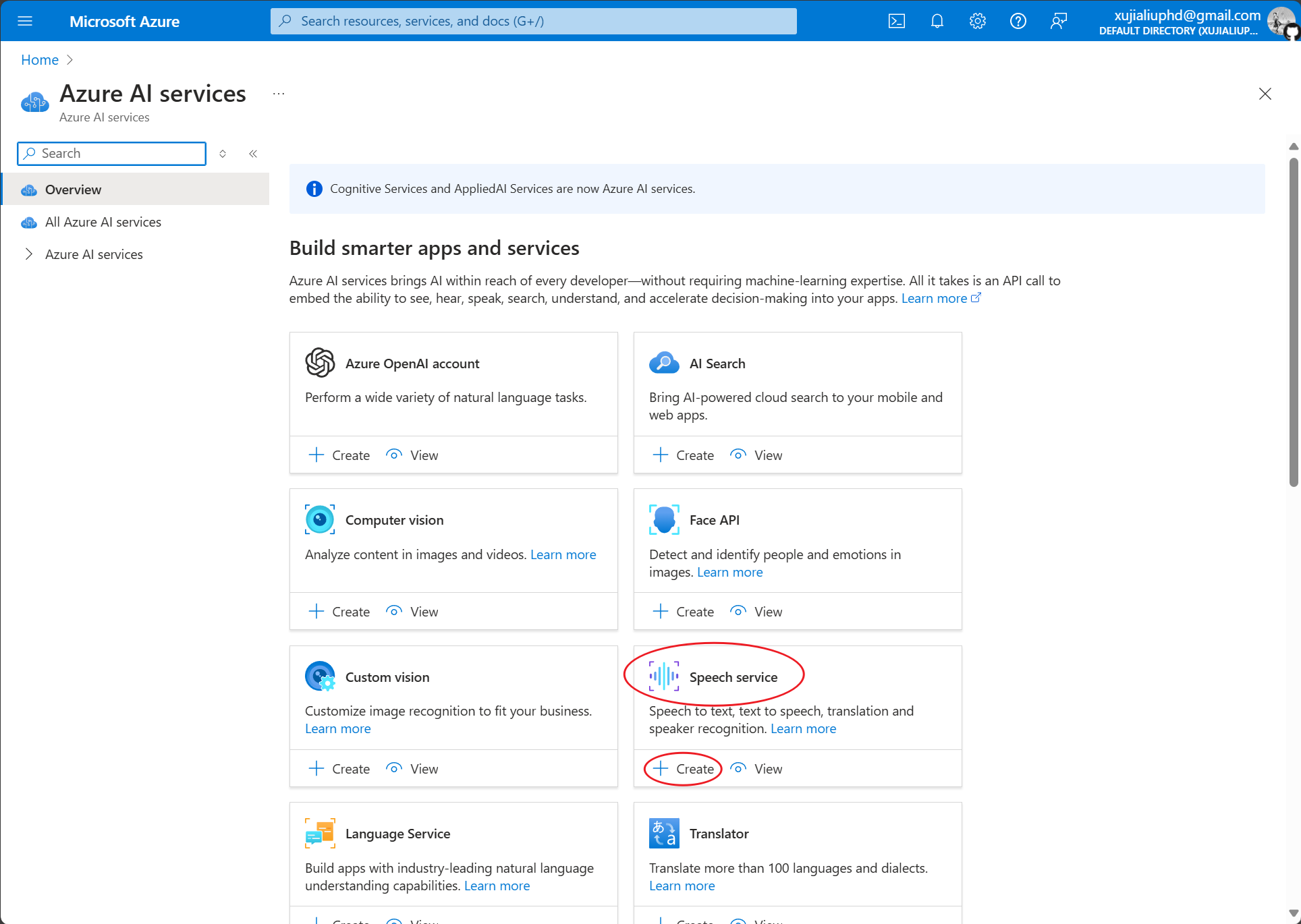
  • After logging in, click on Azure AI services.

    img

  • Find Speech service and click create to create a service instance.

    img

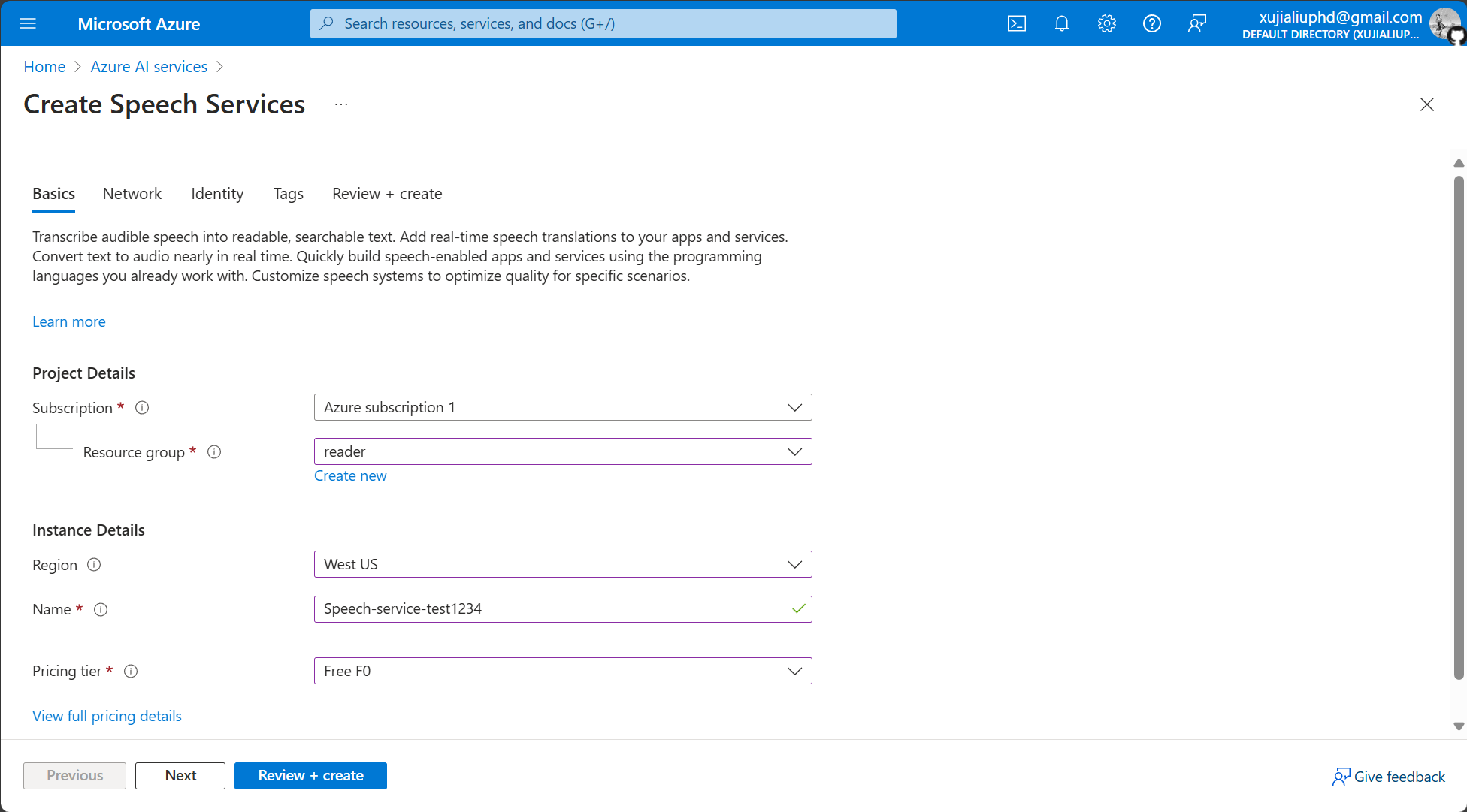
  • Create a Resource group (if it's your first time using it), and then choose the Region closest to you.
    img

  • The Name must be unique globally, so please name it longer, note: no spaces or _ are allowed.

  • Choose Free F0 for Pricing tier.

  • Click Review + create, then click Create after the page transitions.

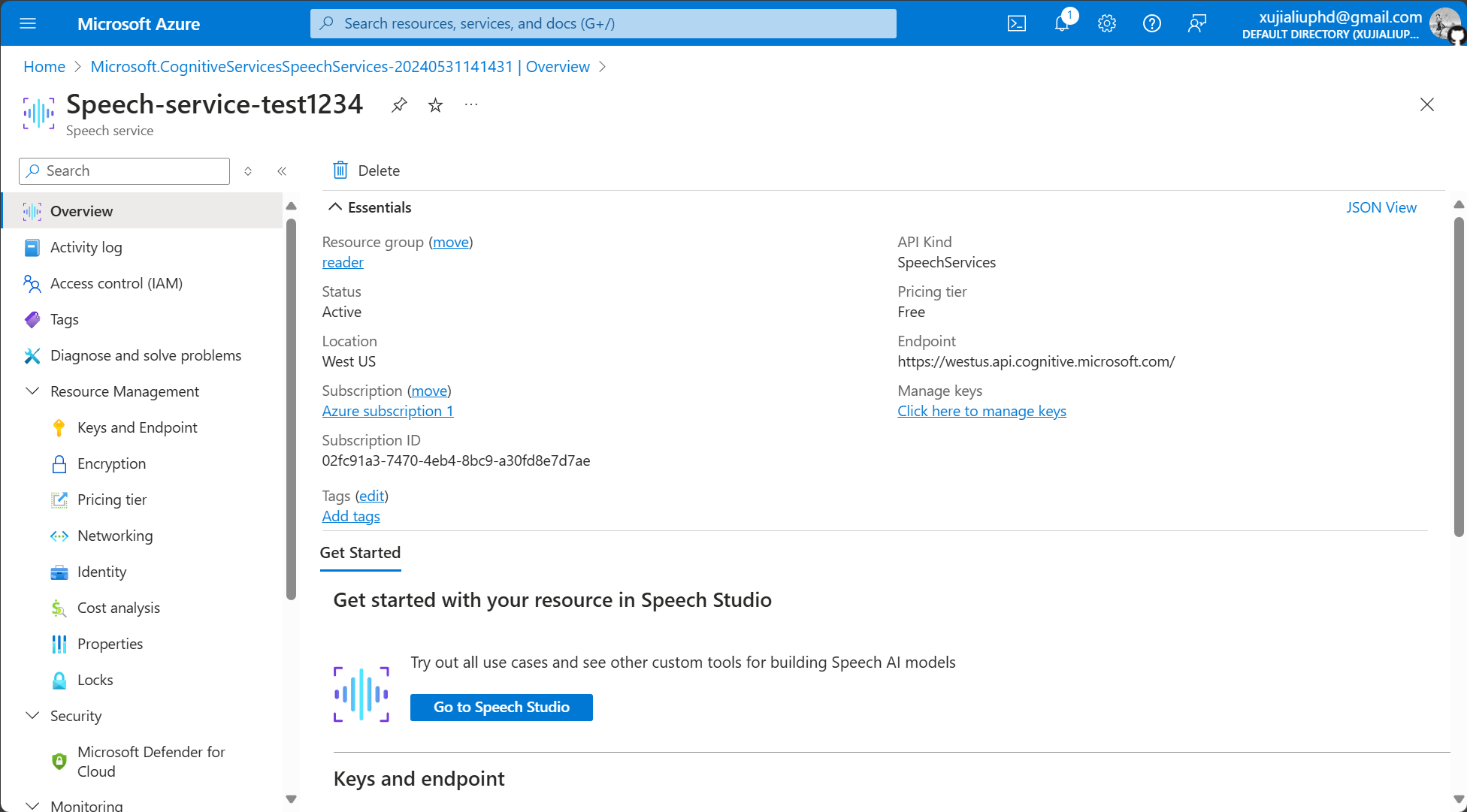
  • Wait a moment for the instance to be created, then click Go to resource.
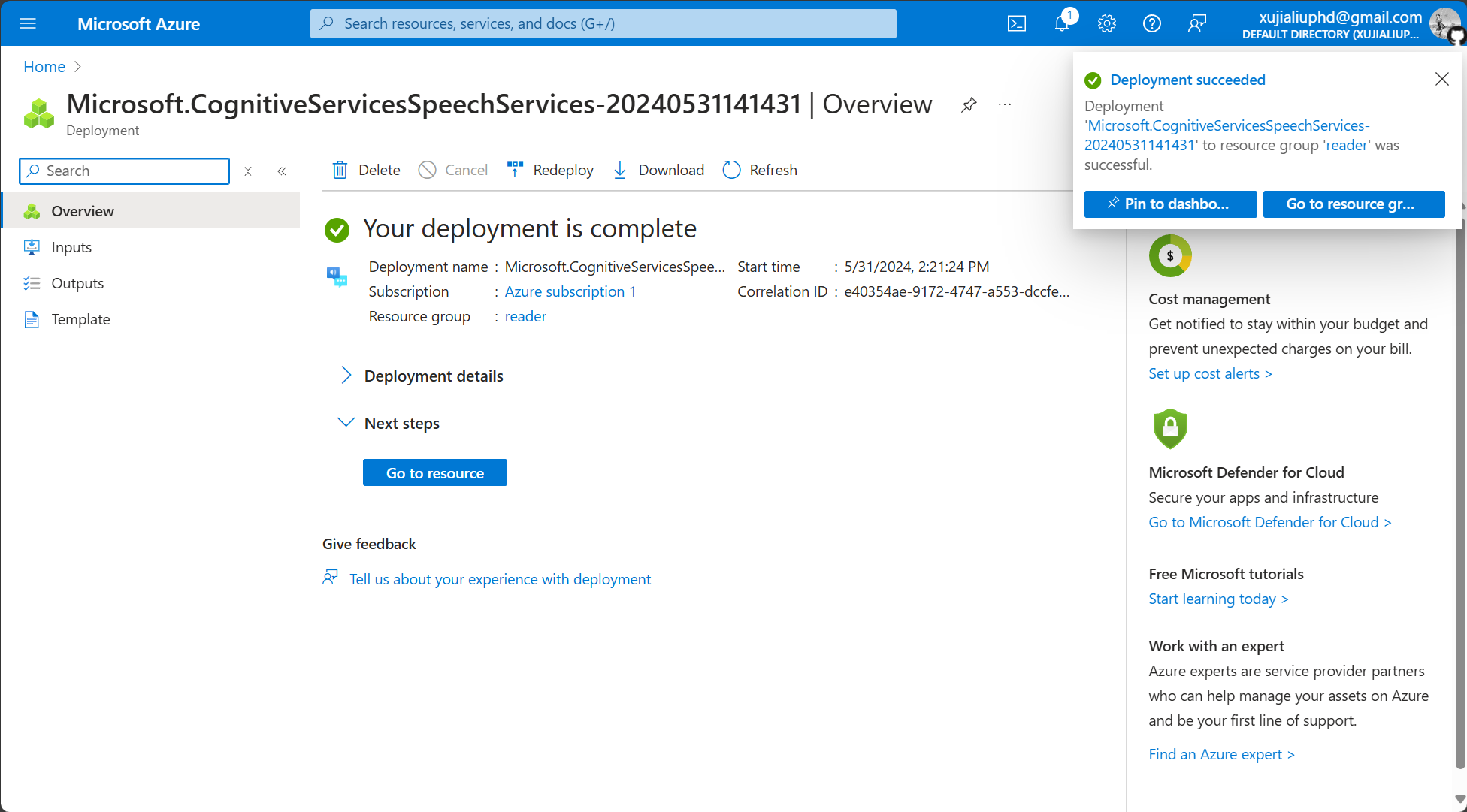
    img

  • Click on Keys and Endpoint in the left sidebar.

    img

  • Copy the KEY to the Speech key field in Obsidian Text2Audio, and copy Location/Region to the Speech Region field.

    img

    img

  • Congratulations, you have completed the setup!

How to Use

This plugin has two usage methods, using Keyboard Shortcuts or using the plugin window.

Using Keyboard Shortcuts (Recommended)

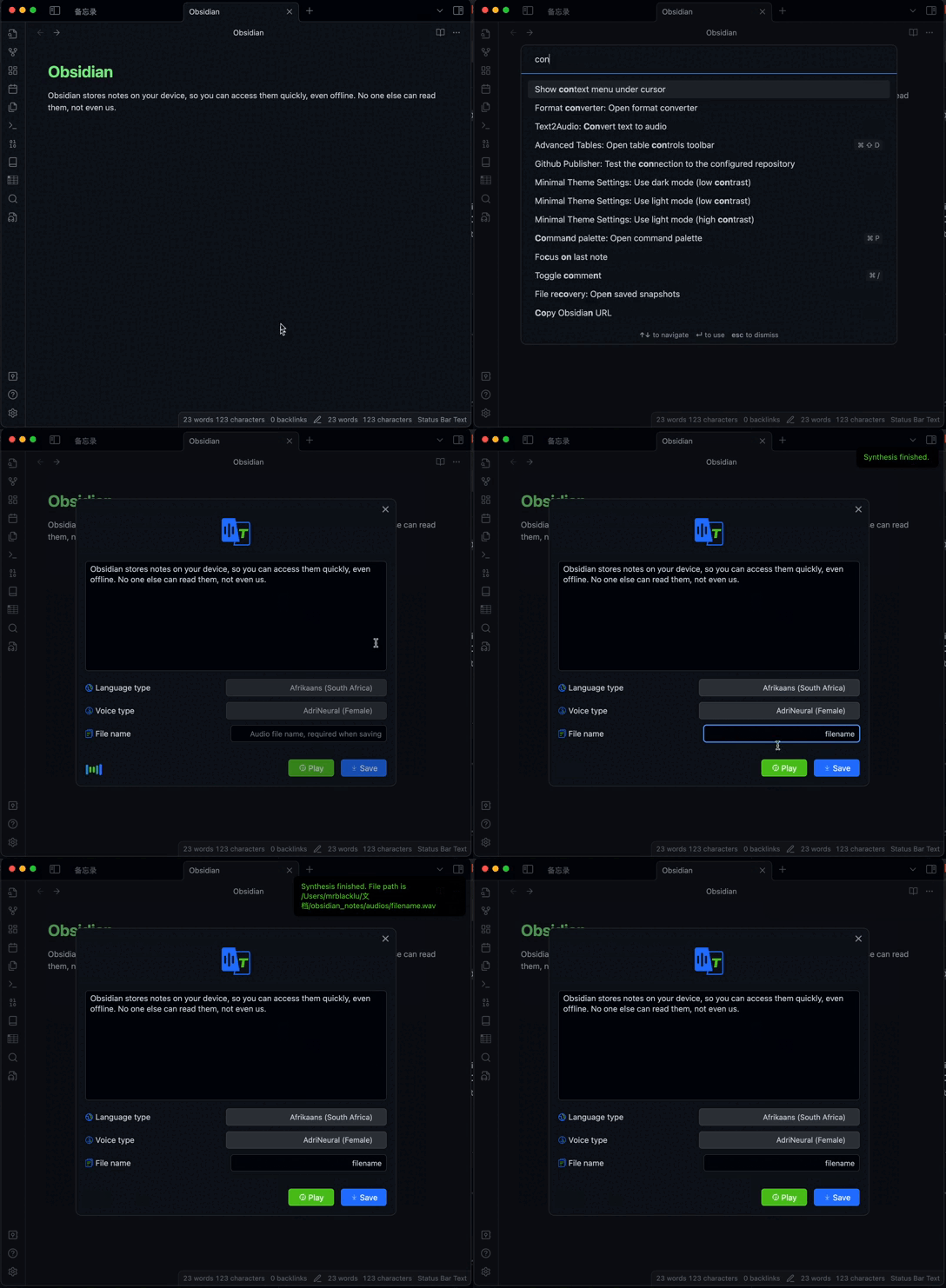
By setting hotkeys, you can quickly convert text to speech using keyboard shortcuts. The hotkeys and explanations are shown as follows.

  • Convert text to speech: Select text or set Read before or after to convert text to speech and play it.
  • Pause or resume the audio: Pause/play.
  • Stop conversion: Terminate text-to-speech conversion and close the current player process.
  • Convert text to audio: Open the plugin window (select text with the mouse, then press the shortcut key, and the selected text will appear in the plugin window input box).
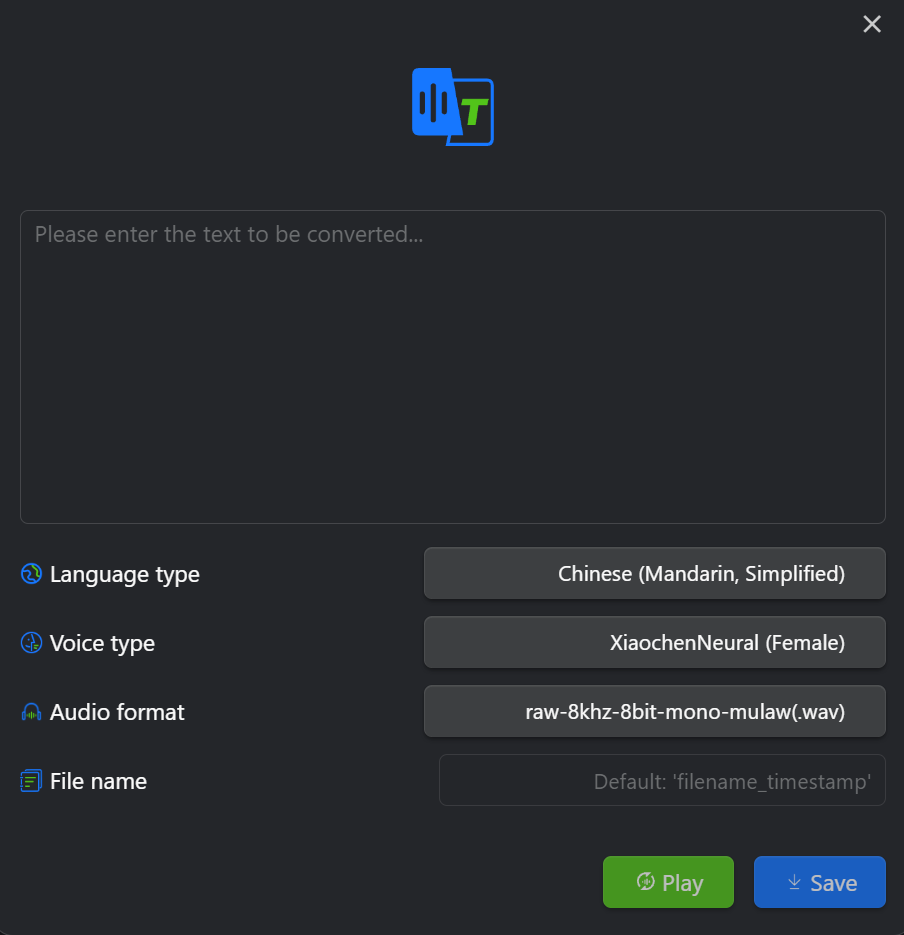
    img

Using the plugin window

  • Click the Text to Audio icon in the left side menu, or click the command icon in the left side menu and select the command named Text2Audio: Convert text to audio to open the plugin window.
  • Enter the text and select the language that you wanna convert to.
  • Click the play or save button.

Activity
Alt

67%
HealthFair
ReviewCaution
About
Convert selected text or entire notes to speech via Microsoft Azure Text-to-Speech and play audio directly in Obsidian. Use keyboard shortcuts or the plugin window to start, pause/resume, and stop playback, with support for Simplified Chinese, Traditional Chinese, and English.
AIIntegrationsCommands
Details
Current version
4.1.0
Last updated
2 years ago
Created
2 years ago
Updates
39 releases
Downloads
2k
Compatible with
Obsidian 0.15.0+
Platforms
Desktop, Mobile
License
MIT
Report bugRequest featureReport plugin
Sponsor
Buy Me a Coffee
Author
luhaifeng666luhaifeng666
github.com/luhaifeng666
GitHubluhaifeng666
  1. Community
  2. Plugins
  3. AI
  4. Text2Audio

Related plugins

Agent Client

Chat with Claude Code, Codex, Gemini CLI, and more via the Agent Client Protocol — right from your vault.

Smart Composer

AI chat with note context, smart writing assistance, and one-click edits for your vault.

Open vault in VS Code

Ribbon button and command to open vault as a Visual Studio Code (VSCode) workspace.

Shell commands

Define system commands that you want to execute via command palette, hotkeys, URI links or automated events. E.g. open external applications or perform automated file modifications.

Snipd Official

Sync Snipd podcast highlights to your vault with transcript, notes, AI summaries and metadata.

Local REST API & MCP Server

Unlock your automation needs by interacting with your notes over a secure REST API.

Copilot

Your AI Copilot: Chat with Your Second Brain, Learn Faster, Work Smarter.

Claudian

Embeds Claude Code/Codex as an AI collaborator in your vault. Your vault becomes agent's working directory, giving it full agentic capabilities: file read/write, search, bash commands, and multi-step workflows.

Smart Connections

AI link discovery copilot. See related notes as you write. Lookup using semantic (vector) search across your vault. Zero-setup local model for embeddings, no API keys, private.

Quick Switcher++

Enhanced Quick Switcher, search open panels, and symbols.