Taskscape
 Belal Adel34 downloads
Visualize your markdown tasks as a Gantt timeline or a grouped summary using a taskscape code block.
- Overview
- Scorecard
- Updates2
Taskscape
See your tasks in a different perspective.
Turn your Markdown task lists into interactive Gantt timelines and grouped summaries, right inside Obsidian.
Usage • Views • Task Format • Clockwork Tasks • Installation
Taskscape reads a task file in your vault, works out how long each task stayed open, and draws it. It is useful for habit and self-improvement task lists where you want to see what repeats, what slipped, and how long things took.
Usage
Add a taskscape code block to any note:
```taskscape
source: TODO/Self Improve Tasks.md
```
With only source, every task and every date is shown. All other lines are optional:
| Parameter | What it does | Default |
|---|---|---|
source |
Path of the task file in your vault (with or without .md), or a [[wikilink]] |
required |
view |
gantt or summary |
gantt |
count |
Show only the last N tasks (Gantt view only) | all |
start |
Only tasks on or after this date (YYYY-MM-DD) |
oldest task |
end |
Only tasks on or before this date (YYYY-MM-DD) |
latest task |
source: TODO/Self Improve Tasks.md
view: summary
start: 2026-09-01
end: 2026-09-30
Dates are matched against a task's done date, or its due date if it has no done date. count keeps the last N tasks after the date filter is applied.
Views
1. Gantt View
Gantt draws one bar per task from its due date to its done date (or to today if it is still open).
Visualize your tasks on a timeline, track when tasks were due, when they were completed, and which ones are still pending.
[!TIP] Great for spotting patterns in your daily routine and getting a feel for your current rhythm.
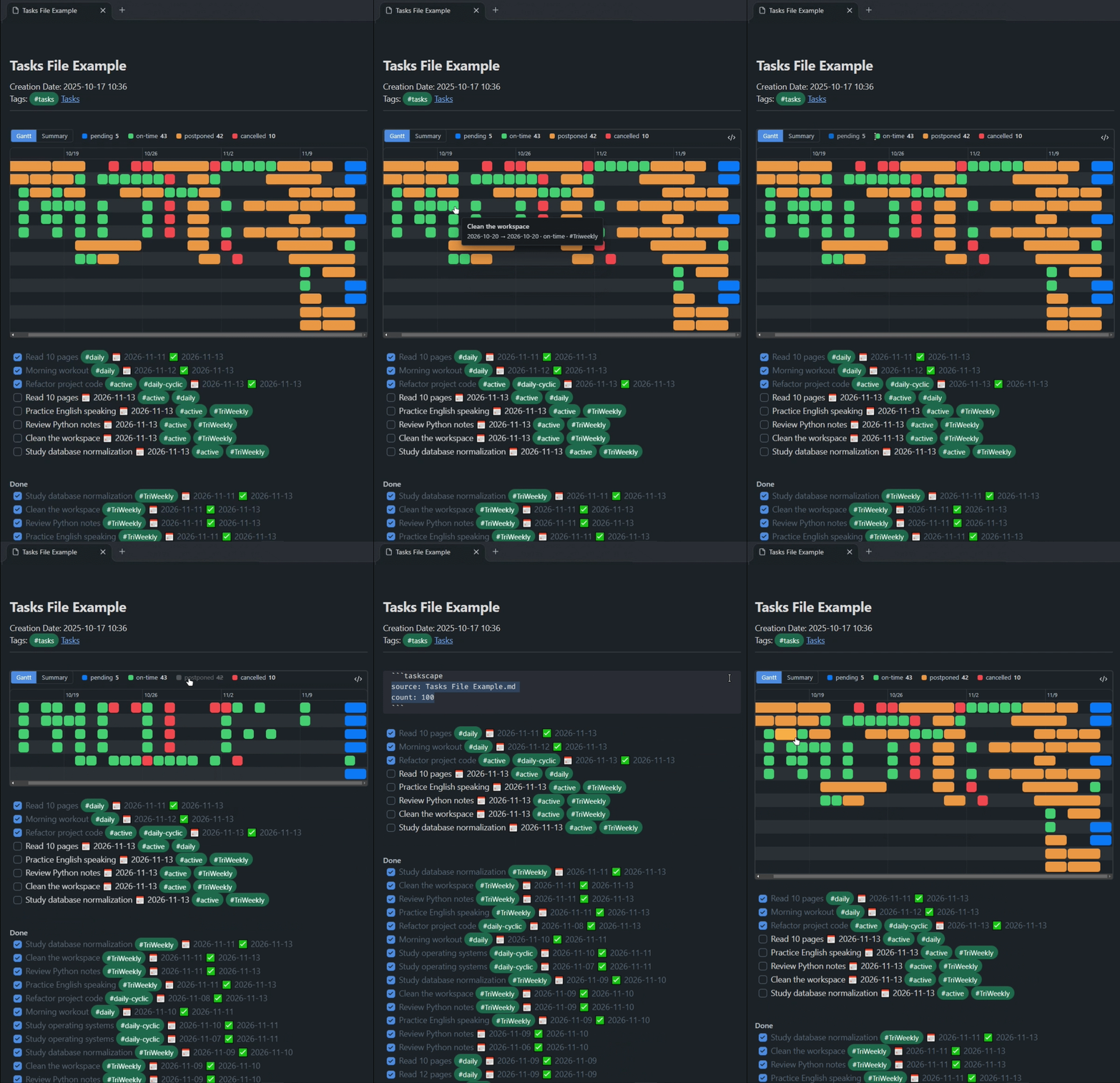
- Bars are packed into the fewest possible lanes, and tasks with the same name stay on the same lane when possible.
- Hover a bar to see the full task name, dates, state and tags.
- The chart opens scrolled to the latest dates.
2. Summary View
Summary groups repeating tasks into one row each:
Workout legs ×3 🚀 2026-10-23 🏁 2026-10-26
You'll see grouped overview of recurring tasks, how often tasks appear, their date ranges, and their completion states at a glance.
[!TIP] Perfect for looking back at your progress and seeing how far you've come.
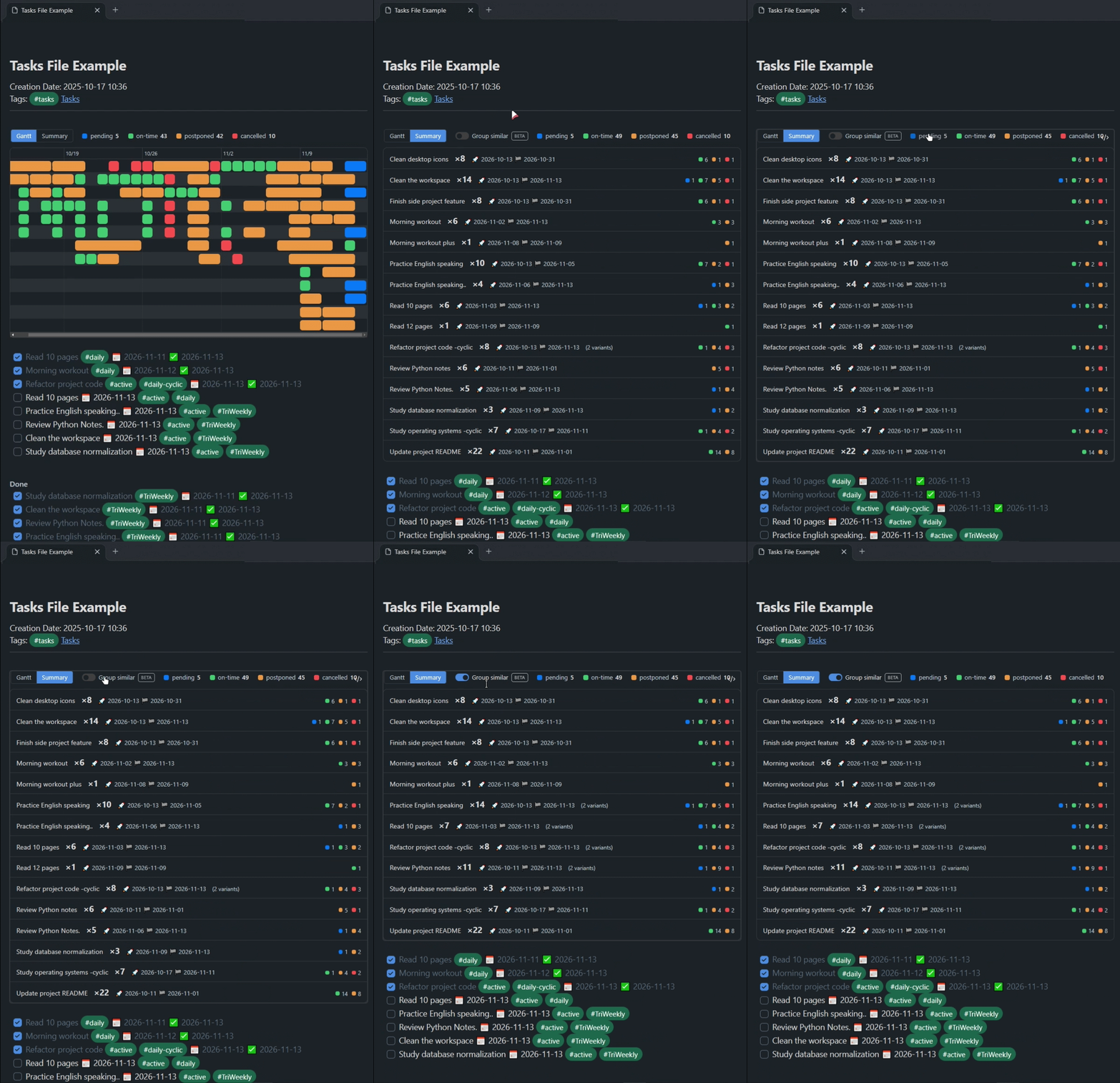
- ×N is how many times the task appears, 🚀 is its earliest done date and 🏁 is its latest done date (
openif none is done). - Rows are sorted by name and end with small counts per state.
- Group similar (beta) merges tasks whose names differ only slightly, such as "Workout legs" and "Workout - legs". It is off by default. Merged rows show a "variants" hint listing the original names.
The note updates automatically a moment after you save the task file.
Task Format
Taskscape reads lines in the emoji task format used by the Tasks plugin:
- [ ] Read a chapter #reading 📅 2026-10-01
- [x] Workout #daily 📅 2026-10-01 ✅ 2026-10-01
- [-] Call the bank 📅 2026-10-02 ❌ 2026-10-03
A task's state comes from its dates and markers:
| State | Meaning |
|---|---|
| 🔵 pending | No ✅ or ❌ date |
| 🟢 on-time | 📅 date = ✅ date |
| 🟡 postponed | 📅 date ≠ ✅ date |
| 🔴 cancelled | has a ❌ date |
Task Icons Corrispond to...
✅ Done date ❌ Cancel date 📅 Due date[!CAUTION] Nested Tasks
Only top-level task lines (
- [ ] ...) are read. Indented sub-tasks are ignored.
Works well with Clockwork Tasks
Creating recurring tasks by hand takes time. Clockwork Tasks, another Obsidian plugin by me, lets you write your routines once and automatically generate their tasks each day.
Taskscape can visualize the tasks Clockwork Tasks creates, so you can build a routine and see your progress over time.
As a personal recommendation, keep daily tasks small—around 5–20 minutes. Schedule more demanding tasks two or three times a week, and consider adding days off. Find the pace that works for you: your life, your pace.
Installation
From the Community plugins browser: search for Taskscape, install and enable.
Manually: download main.js, manifest.json and styles.css from the latest release, put them in <your vault>/.obsidian/plugins/taskscape/, then reload and enable the plugin.
Building from source
- Clone the repository and open its directory.
- Install the dependencies with
npm ci. - Build the plugin with
npm run build. - Copy the generated
main.js, along withmanifest.jsonandstyles.css, into<your vault>/.obsidian/plugins/taskscape/.
Privacy
Taskscape makes no network requests, collects no telemetry, and only reads the task file named in the code block.