Tasks Companion
 i-am-rudi48 downloads
Roll unfinished tagged tasks forward, park them in a collection note, or schedule them, from a code block you place anywhere in your notes.
- Overview
- Scorecard
- Updates8
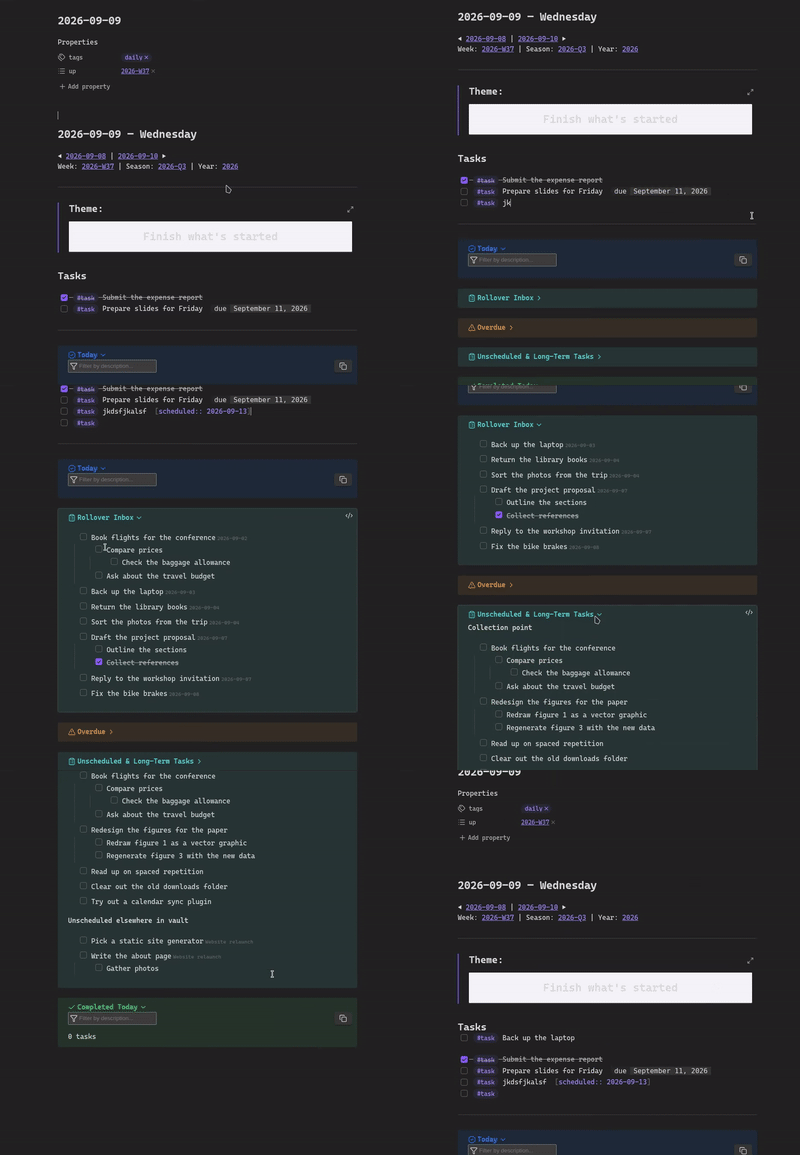
A Plugin providing some convenience features for interacting with the Task plugin. I have been always uncomfortable with auto rollover, as it is easy to loose track and be unintentional about what is being rolled over. The other option manual rollover is intentional but unnecessarily tedious.
I wanted the best of both worlds automatic collection and intentional rollover. Which not only feels natural but also looks appealing and intuitive. For the longest time this was solved by stupidly long dataview-js queries, but not anymore. To preserve my own sanity and maybe yours, if your brain is wired like mine, I present the plugin version of these stupidly long dataview-js queries.
The main idea: Have rollover blocks you engage with intentionally from which you can directly edit the notes you query.
I have furthermore added some convenience features I always wanted with Tasks. I mean if I am making a plugin anyway, way wouldn't I? So enter on a task not only autocompletes bullets but also the filter tag. And you have two commands, one for scheduling a task that is not yet scheduled and one for toggling task on a line or checkbox. Furthermore, commands to put dates on a task from a pop up.
It works with Periodic Notes when that's installed, reading folders and date formats from its settings, and works perfectly well on its own using its own settings.
Tagging tasks
The plugin tracks checklist items carrying a tag you choose — #task by
default. Two commands make that tag cheap to apply.
Toggle task tag on the current line or selection. Select a stretch of lines and run it: the tag is inserted between the checkbox and the content.
- [ ] call the plumber          →  - [ ] #task call the plumber
- [ ] book the MOT              →  - [ ] #task book the MOT
Plain bullets and plain lines are turned into tasks on the way, so an ordinary list becomes a tracked one in a single step. Turn off Tagging also creates checkboxes if you'd rather only touch existing checklist items.
- call the plumber              →  - [ ] #task call the plumber
call the plumber                →  - [ ] #task call the plumber
The command is a real toggle: if every line it would touch is already tagged, it strips the tag instead. A mixed selection tags everything. There's no default hotkey — bind one in Settings → Hotkeys.
Carrying the tag onto the next line. With this on, pressing enter at the end of a tagged task starts the next item already tagged, so a run of tasks can be typed without repeating yourself.
- [ ] #task call the plumber⏎
- [ ] #task ▌
It only fires on a tagged, non-empty checklist item with the cursor past the tag. Enter on an empty item still ends the list, and everything else keeps Obsidian's normal behaviour.
Both features use the same tag as the rollover blocks, so tagging a line is what puts it in the inbox.
Scheduling tasks
Schedule the task on the current line or selection. Run it anywhere in the vault — the task doesn't have to be tagged, or in a periodic note — and a small date prompt opens with the field already focused, so a date is one short burst of typing and enter.
The same prompt is a click away too: hover a tagged task anywhere in a note, in either editing or reading view, and a calendar icon appears beside it. Turn that off with Calendar icon on tagged tasks if you'd rather use the command alone.
The field takes rather more than an ISO date (like in the natural language plugin):
| You type | You get |
|---|---|
today, tomorrow, tmr, yesterday |
the obvious thing |
fri, friday, next friday |
the next Friday — never today |
next week, next month, next year |
a week, month or year out |
+3, +3d, 2w, +1m, -2d |
an offset in days, weeks, months or years |
22 |
the 22nd — this month, or next if it's gone |
12-01, 12 dec, dec 12 |
that day this year, or next if it's gone |
2026-12-01, 2026/12/01 |
exactly that |
Anything ambiguous resolves forwards, since this only ever schedules work. What you've typed so far is spelled out beneath the field, and the month below follows along: click a day to schedule it straight away, or tab into the grid and walk it with the arrow keys (page up and down move by month). If the task already has a date, it's there when the prompt opens, and Clear date removes it.
Three dates, not one. The buttons at the top choose which one you're setting: ⏳ scheduled (the default, and the one the blocks read), 📅 due, or 🛫 start. You can stay on the keyboard for that too — lead with the field name and the prompt follows:
due friday        →  📅 the coming Friday
start +3d         →  🛫 three days out
fri               →  ⏳ the coming Friday
Each field is written and cleared independently, so a task can carry all three. These are the Tasks plugin's own three planning dates; its record-keeping ones — created, done and cancelled — are left out, because they mark something that already happened and this prompt only ever resolves forwards.
The date is written in whichever notation Schedule format is set to —
[due:: 2026-12-01] or 📅 2026-12-01 — replacing any date already on the line
for that field, in either notation. A selection spanning several tasks schedules them all
in one step; lines that aren't checklist items are left alone. There's no
default hotkey — bind one in Settings → Hotkeys.
Parking a task
Move the task on the current line or selection to the collection note. Run it on any task, anywhere, tagged or not — it's the in-note version of a periodic block's put on hold button. The task goes under the target heading in the collection note with its subtasks, and leaves its dates behind: scheduled, due and start come off the parent line, so a parked task shows up as unscheduled again. With several tasks selected, they all go in one step. There's no default hotkey — bind one in Settings → Hotkeys.
Blocks
Three modes, each placed as its own block so you can position them freely.
Unfinished tasks from earlier notes — the classic rollover. Pulls from periodic notes of the same granularity dated strictly before the current one. Granularity is auto-detected from the note you're in, so the same block text works in daily, weekly, monthly, quarterly and yearly templates.
```rollover
mode: periodic
title: Rollover inbox
```
Force a granularity when you want a weekly note to show the day-level backlog:
```rollover
mode: periodic
granularity: day
title: Unfinished this week
```
Collection note — everything parked in your long-term note.
```rollover
mode: collection
title: Unscheduled & long-term
```
Unscheduled elsewhere — open tasks anywhere in the vault with no scheduled or due date. Periodic note folders and the collection note are excluded automatically.
```rollover
mode: unscheduled
title: Unscheduled elsewhere in the vault
exclude: [Archive, Meta/Templates]
```
Block options
| Key | Values | Notes |
|---|---|---|
mode |
periodic, collection, unscheduled |
Defaults to periodic. |
granularity |
day, week, month, quarter, year |
periodic mode only. Defaults to the current note's own granularity. |
title |
any text | Omit for no heading. |
exclude |
[A, B] or A, B |
Added to the folders excluded in settings. |
limit |
number | Cap the number of rows. |
show-source |
true / false |
Whether to show the originating note. |
Actions
Each row carries the actions that make sense for it:
- checkbox — writes
[x]to the line in its source note. Right-click it (or long-press on a phone) for the other states: todo, in progress[/], done and cancelled[-]. In-progress tasks count as unfinished, so they keep rolling over; done and cancelled ones drop out. - open — open the source note
- move here — move the task and its subtasks under the target heading in the current note
- put on hold — move the task and its subtasks to the collection note (
periodicmode) - schedule — opens the date prompt above (
unscheduledmode)
Two looks for those buttons, set by Row actions:
- Minimal (default) — icon buttons, appearing only when you hover the row, so the list stays quiet until you reach for it.
- Emoji — 🔗 ➡️ ⏸️ ⏳, always visible. These are the emoji the Tasks plugin uses for the same ideas, so a vault built around it doesn't end up reading two visual languages at once.
Subtasks render nested and always travel with their parent. A move inserts into the destination before cutting from the source, so an interrupted move leaves a duplicate rather than losing the task.
Settings
Task tag, whether the tag must start the line, target heading, collection note, excluded folders, schedule format and row action style. Under Editing, the two tagging behaviours above and whether tagged tasks show the calendar icon on hover. Under Periodic notes, per-granularity folder and format fallbacks, used only where Periodic Notes isn't supplying them.
Performance
Tasks are parsed once into an in-memory index, then patched per file from the
metadata cache's changed event — which supplies the new content, so no re-read
is needed. Only files the cache already reports as containing checklist items
are read at startup. Blocks render from the index rather than rescanning the
vault, so adding more blocks costs very little.
Known limits
- A blank line between a parent task and its subtasks ends the block; subtasks after a blank line will not travel with the parent.
- Block detection is by indentation, so any deeper-indented line beneath a task moves with it, including non-task prose.
- Line lookup matches on task text, so two byte-identical task lines in one file could resolve to the wrong one.
- Scheduling stamps the parent line only; subtasks stay unannotated.
- Tag continuation doesn't extend ordered lists — enter there behaves normally.
Development
npm install
npm run dev     # watch build
npm run build   # typecheck, then bundle to main.js
npm test        # run the test suites
npm test bundles each suite in tests/ against a stub of the obsidian
module and runs it in node, covering the pure logic: task parsing, tagging, tag
continuation, path handling, periodic-note detection, date input and the
line-edit layer that writes to files. Anything needing a live app — rendering,
the settings tab, the date prompt, the metadata cache — has to be tried in
Obsidian.
Releases are cut by pushing a tag named for the version:
git tag 0.1.1 && git push origin 0.1.1
The workflow in .github/workflows/main.yml stamps the version into
manifest.json, versions.json and package.json, commits that to the default
branch, and moves the tag onto that commit, so the release comes from a commit
whose manifest carries its version. It then builds, attests the build's
provenance, and attaches main.js, manifest.json and styles.css to the
release. Afterwards, git pull and git fetch --tags --force bring the bump
commit and the moved tag back locally.
License
MIT