Task Manage
 heart-freely197 downloads
3-level task management (file/heading/list), 19 views (kanban/matrix/calendar/Gantt/task tree/statistics), batch edit task marks, supports multiple task management methods.
- Overview
- Scorecard
- Updates5
3-level task management (file/heading/list), 19 views (kanban/matrix/calendar/Gantt/task tree/statistics), batch edit task marks, supports multiple task management methods.
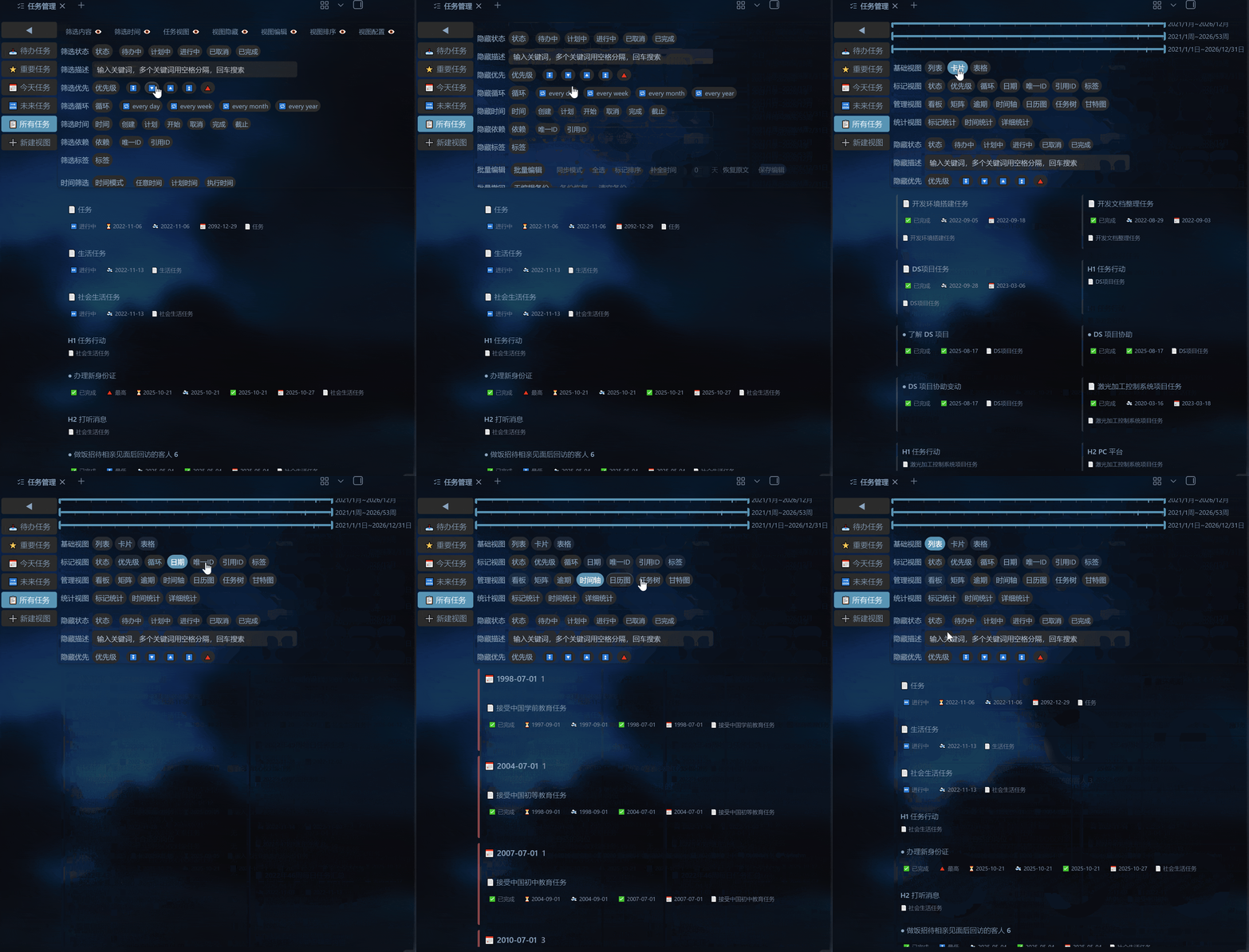
Why Choose Task Manage
- 19 Views: From simple lists to advanced Gantt charts, meeting diverse scenario needs
- Global Filtering: Configure once, apply to all views simultaneously
- Solution-Driven: Save multiple view configurations, switch work scenarios with one click
- Batch Editing: Batch modify task marks with snapshot rollback for safety
- Calendar & Gantt Chart: Visualize time dimensions to intuitively grasp task distribution and dependencies
Dependencies
This plugin requires the following plugin for data support:
- Tasks — Task mark parsing and editing
Please install and enable this plugin in Obsidian first.
Installation
Community Plugin Marketplace (Recommended)
- Open Obsidian Settings → Community Plugins
- Click Browse, search for Task Manage
- Install and enable
Manual Installation
- Download
main.js,manifest.json,styles.cssfrom Releases - Place them in
<vault>/.obsidian/plugins/obsidian-task-manage/ - Restart Obsidian and enable the plugin
Quick Start
1. Configure Task Paths
After installation, open Settings → Task Manage, add folders containing tasks in the "Task Path" field. The plugin will automatically scan Markdown files within them.
2. Open Main Panel
Click the  icon in the left ribbon, or search for "Task Manage" in the command palette.
3. Choose a View
The left sidebar provides preset views:
| View | Description | Use Case |
|---|---|---|
| Todo Tasks | Tasks that are Todo + Planned | Daily todo review |
| Important Tasks | High-priority (🔺⏫🔼) tasks that are In Progress | Focus on high-priority tasks |
| Today Tasks | Tasks due today | Handle tasks due today |
| Future Tasks | Tasks due within the next 15 days | Plan ahead for near-term work |
| All Tasks | All tasks, no filter | Global browsing or batch ops |
Click ➕ New View to create custom solutions.
4. Filter & Sort
The top view configuration panel provides 7 toolbars:
| Panel | Function |
|---|---|
| Filter | Status (Todo/Planned/In Progress/Done/Cancelled) + keyword search (space-separated "AND" logic) + marks (Priority/Recurrence/Dates/Unique ID/Reference ID/Tag) |
| Time | Dynamic slider (Day/Week/Month/Quarter/Year) + Static slider, with "Use Dynamic" linkage support |
| Task View | 4 groups of 19 view styles (Basic/Mark/Manage/Statistics) |
| View Hide | Hide Recurring/Done/Cancelled/Specific Status/Priority/Description/Marked tasks |
| View Sort | Original order + 14 sort fields, with ascending/descending support |
| View Edit | Batch edit/Complete time/Mark sort/Save changes/Snapshot rollback |
| View Config | View name & icon/Import & Export JSON/Restore default/Delete view |
All filter conditions are automatically saved and restored on restart.
View Introduction
Basic Views (List / Card / Table)
- List: Detailed mode displays full mark information, concise mode displays only descriptions
- Card: Grid layout with left color bar indicating status
- Table: Sortable table with empty columns automatically hidden
Mark Views (Status / Priority / Recurrence / Date / Tag / Unique ID / Reference ID)
Group tasks by the selected mark type (e.g., "Priority"), each group identified by an independent color bar. For example, selecting the "Priority" view groups all tasks into 5 categories: 🔺/⏫/🔼/🔽/⏬.
Management Views
Kanban
Three columns arranged horizontally: Todo / Planned / In Progress.
Matrix
Four-quadrant classification: 🔺 Urgent & Important / ⏫ Not Urgent but Important / 🔼 Urgent but Not Important / 🔽⏬ Not Urgent & Not Important.
Overdue
Grouped by overdue days (Due Today / Overdue 1 day / Overdue N days).
Timeline
Grouped by due date, displaying task distribution along a timeline.
Calendar View
Five views: Year / Quarter / Month / Week / Day:
- Year View: Heatmap, color intensity indicates task density
- Quarter View: 7 columns, task bars
- Month View: 7 columns, task bars
- Week View: 7 columns, task bars
- Day View: Card list
Interactions: Click date header to jump to Day View, double-click task bar to jump to source file, hover to show full information.
Gantt Chart
- Left task tree + right timeline
- Task bars colored by execution status
- Dependency arrows (⛔ mark) automatically drawn
- Hold
Altand scroll mouse wheel to zoom timeline, drag blank area to pan - Click ➤ button to automatically locate task bar
- Click task bar to jump to corresponding task tree node in the left panel
Task Tree
Three-level display: File → Heading → List Task:
- Collapse/expand nodes
- Progress bar showing subtask completion status
- Supports parent-child relationships between tasks (YAML
父任务+ Wiki link)
Statistics Views
- Mark Statistics: 6 pie charts, counting Status/Priority/Recurrence/Date/Dependency/Tag
- Detailed Statistics: Stacked bar chart showing task count changes by date across statuses
- Time Statistics: Under development
Task Mark Format
The plugin parses Emoji marks in task lines:
- [ ] Task description 🔺 🔁 every week ➕ 2025-09-06 ⏳ 2025-09-06 🛫 2025-09-06 📅 2026-04-06 🆔 dcf64c ⛔ dcf64c 🏁 keep
| Mark | Meaning | Example |
|---|---|---|
- [ ] |
Todo | Execution status (space/?/>/x/-) |
🔺⏫🔼🔽⏬ |
Priority | 🔺 (Highest) → ⏬ (Lowest) |
🔁 every ... |
Recurrence | 🔁 every week |
➕ YYYY-MM-DD |
Created Date | ➕ 2025-09-06 |
⏳ YYYY-MM-DD |
Planned Date | ⏳ 2025-09-06 |
🛫 YYYY-MM-DD |
Start Date | 🛫 2025-09-06 |
❌ YYYY-MM-DD |
Cancelled Date | ❌ 2023-04-18 |
✅ YYYY-MM-DD |
Done Date | ✅ 2023-04-17 |
📅 YYYY-MM-DD |
Due Date | 📅 2026-04-06 |
🆔 id |
Unique ID | 🆔 dcf64c |
⛔ id1,id2 |
Task Dependencies | ⛔ dcf64c,h17ye |
🏁 keyword |
Custom Tag | 🏁 keep |
Mark order is not sensitive; the plugin will automatically sort them according to specification.
Editing Features
In List/Card view, click a task card to enter edit mode:
Single Edit
- Click mark buttons (Status/Priority/Recurrence/Date/Tag/ID, etc.) to modify corresponding marks
- Description can be edited directly by clicking
- Preview shows changes in real-time
- Click "Save" to write to file
Batch Edit
- Click the "Batch Edit" button in the panel
- Check tasks to edit (supports Select All/Deselect All)
- Click edit buttons to sync modifications to all checked tasks
- Supports completing time and mark sorting
- Can be restored via "Batch Rollback" after saving
Cross-File Task Relationships
The plugin supports establishing parent-child relationships between tasks across files through:
- YAML Meta Property: Set
父任务: 父文件名in the frontmatter of subtask files - Wiki Link: Use
[[子文件名]]in the parent file
When both methods exist, the YAML declaration takes precedence.
Plugin Settings
Settings → Task Manage provides:
| Setting | Description |
|---|---|
| Task Path | Folders containing task files (supports multiple, comma-separated) |
| Match Tasks | Four-level filter: Folder/File/Heading/Task Item |
| Import/Export | JSON import/export of plugin configuration |
FAQ
Q: Why are no tasks displayed after opening the panel? A: Please check the following:
- The task file folder path is correctly configured in Settings → Task Manage
- Task files contain valid task marks (at least
- [ ]at the beginning) - The Tasks plugin is installed and enabled
Q: Why does the Gantt chart show only a few tasks?
A: The Gantt chart requires tasks to have date marks to display time bars. Ensure tasks contain at least one of: Planned Date ⏳, Start Date 🛫, or Due Date 📅.
Q: Why aren't dependency arrows displayed? A: Dependency arrows require two conditions:
- The depended task has a
🆔Unique ID - The dependent task references that ID via
⛔ - Both tasks have date ranges and are visible in the current filter results
Q: How do I back up and restore view configurations? A: Click 📤 Export Config in the view configuration panel to save as a JSON file, and click 📥 Import Config when needed to restore. Plugin configurations can be imported/exported in settings.
Q: Does the plugin modify my original task files? A: Yes. All editing operations (single edit/batch edit) directly modify Markdown files. It is recommended to back up or commit with Git before batch operations. The plugin's built-in "Snapshot Rollback" feature can undo the most recent batch edit.
Q: Does the plugin support mobile? A: The current version is tested only on desktop. Mobile compatibility will be improved in future releases.
Feedback & Contributions
- Found an issue? Submit it on GitHub Issues
- Pull requests are welcome!
- Like this plugin? Give it a ⭐!