Task Journal Checkbox Sink
 inciyang2022-a11y289 downloads
Manage centralized task lists with status journals, automatic sinking, archiving, and single-step undo.
- Overview
- Scorecard
- Updates3
Keep a centralized Obsidian task page readable: sink completed tasks safely, record outcomes in Daily Notes, archive by completion date, and undo the latest operation.
English | 中文 | Releases | Issues
- Available in the official Obsidian Community Plugins directory
- Full English and Simplified Chinese interface
- Desktop, Android, and iOS
- Local and offline: no account, network requests, telemetry, advertising, or payment
- Minimum Obsidian version:
1.6.6
English
What it does
Task Journal Checkbox Sink is designed for people who keep tasks on a centralized Obsidian page.
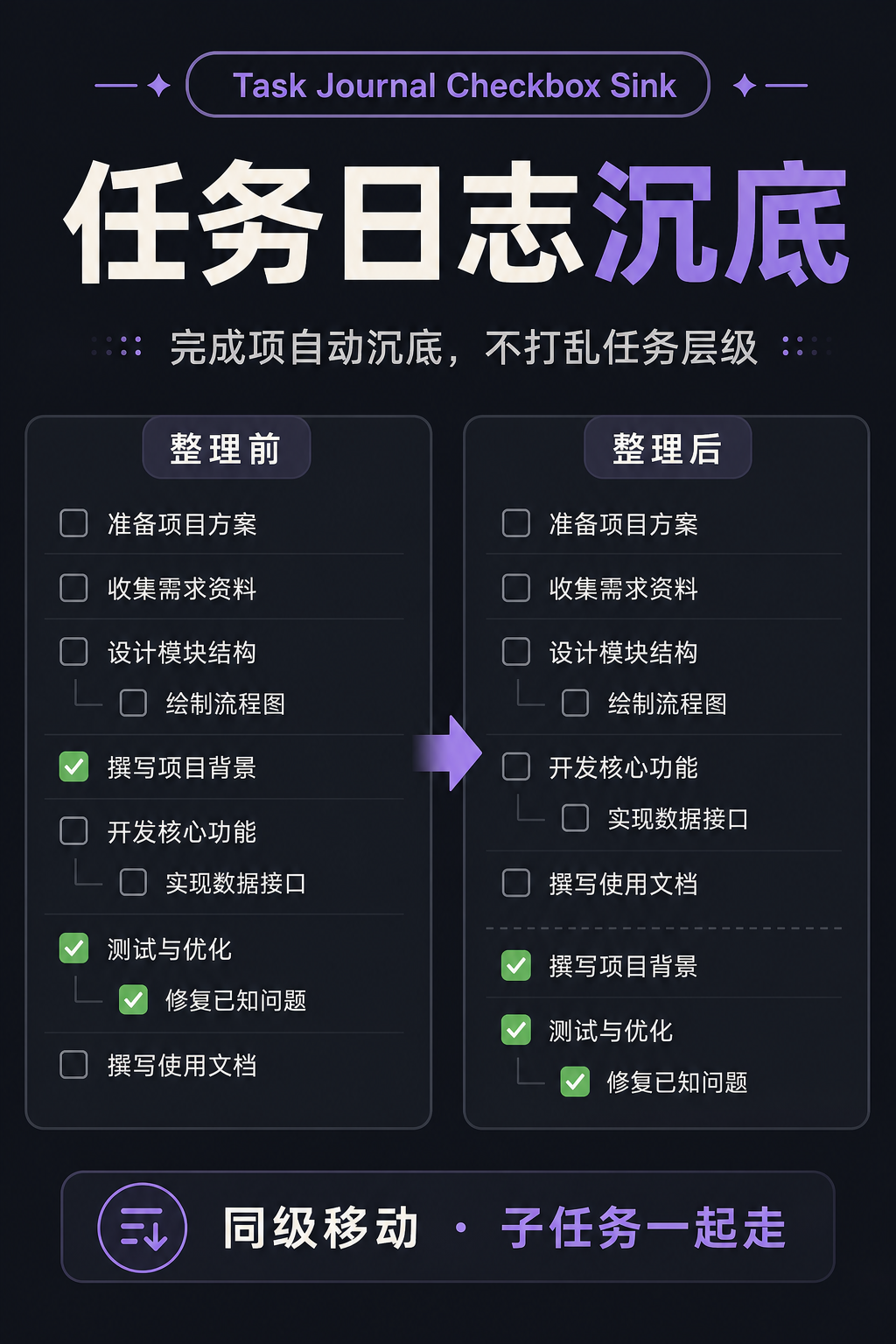
- Safely sink completed tasks: move a completed task only to the end of its current sibling list, without crossing headings or parent tasks.
- Keep task blocks intact: child tasks and attached content move with their parent task.
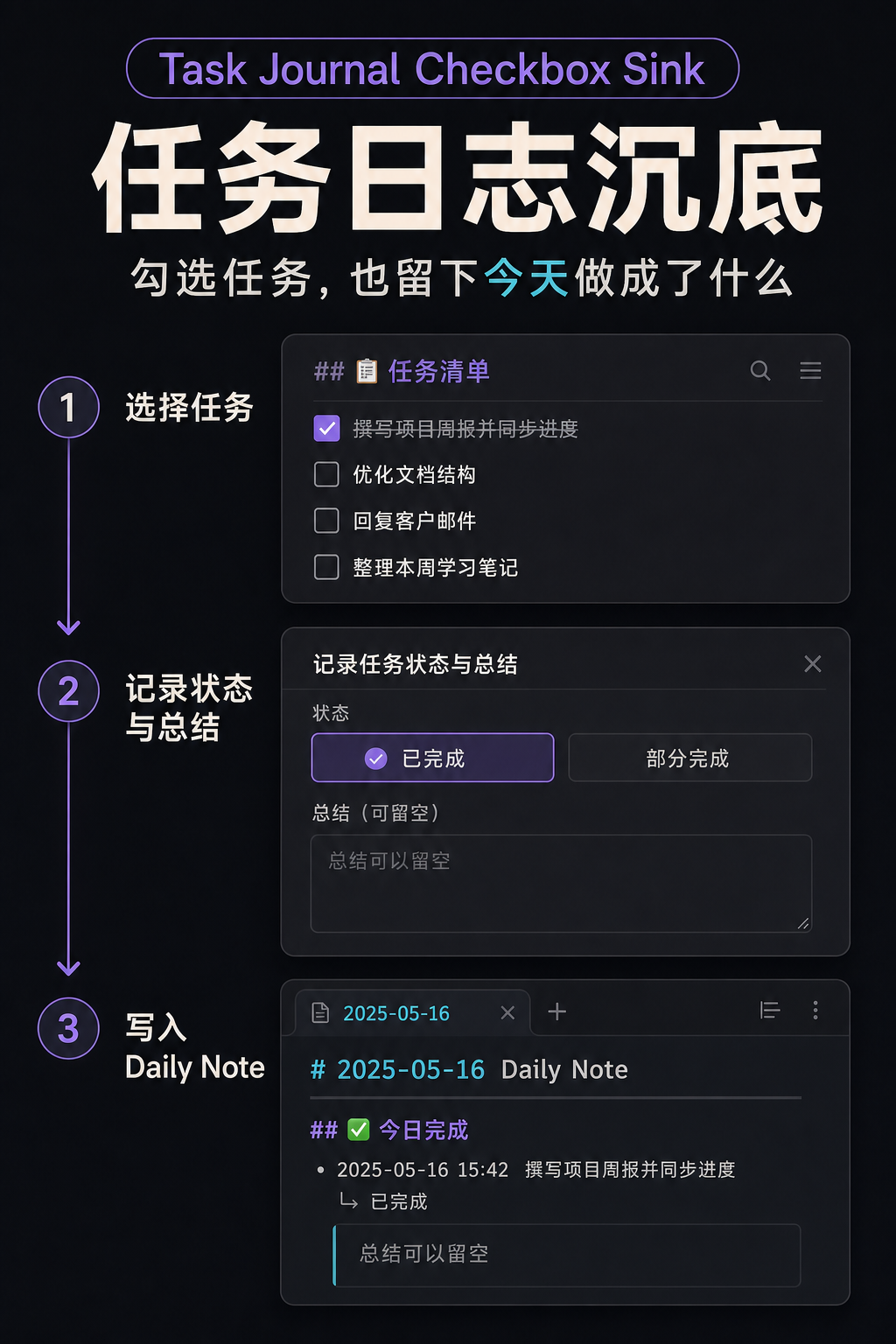
- Write outcomes to a Daily Note: record a task as completed or partially completed and add an optional summary.
- Track native checkbox changes: store the real completion date and organize completed tasks automatically.
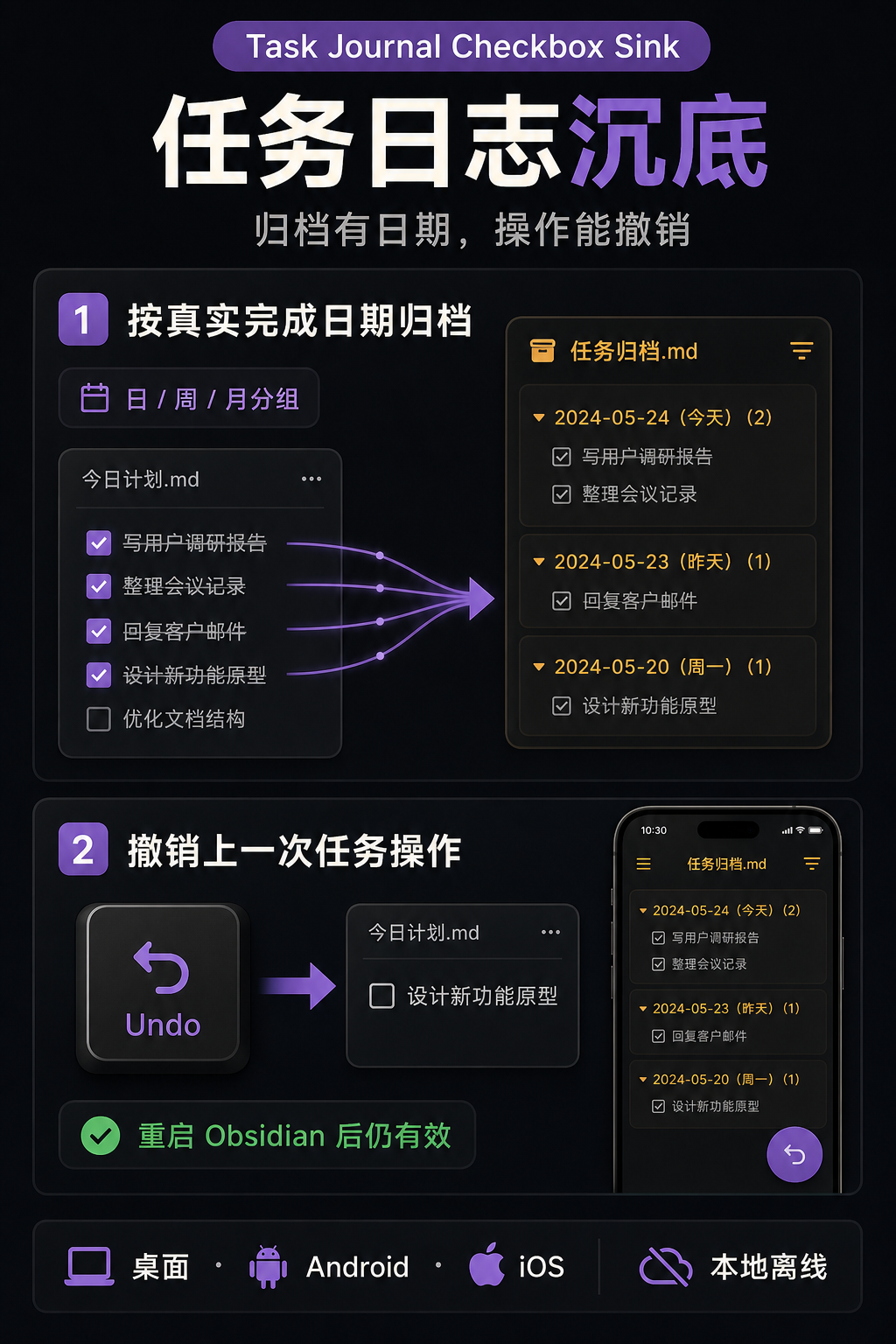
- Archive by completion date: archive to a file or a heading in the current note, grouped by day, week, month, or not grouped.
- Undo the latest operation: undo the most recent status, checkbox, or archive operation, including after restarting Obsidian.
- Use it on mobile: dialogs, touch handling, the software keyboard, and narrow settings screens are supported on Android and iOS.
Feature preview
| Task sinking | Daily Note entry | Archive and undo |
|---|---|---|
 |
 |
 |
Bilingual interface
| English settings | Simplified Chinese settings |
|---|---|
 |
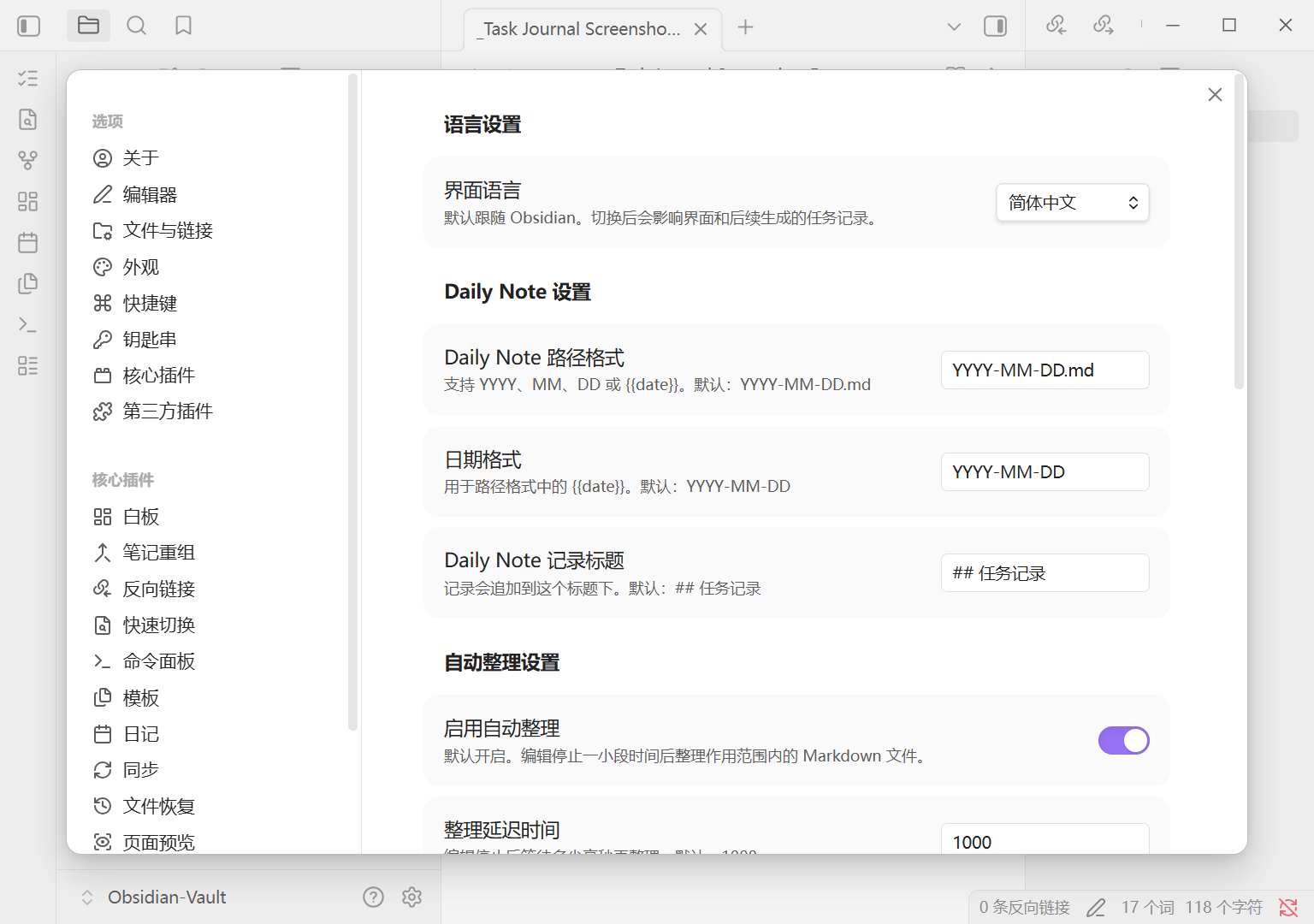 |
| English task-status dialog | Simplified Chinese task-status dialog |
|---|---|
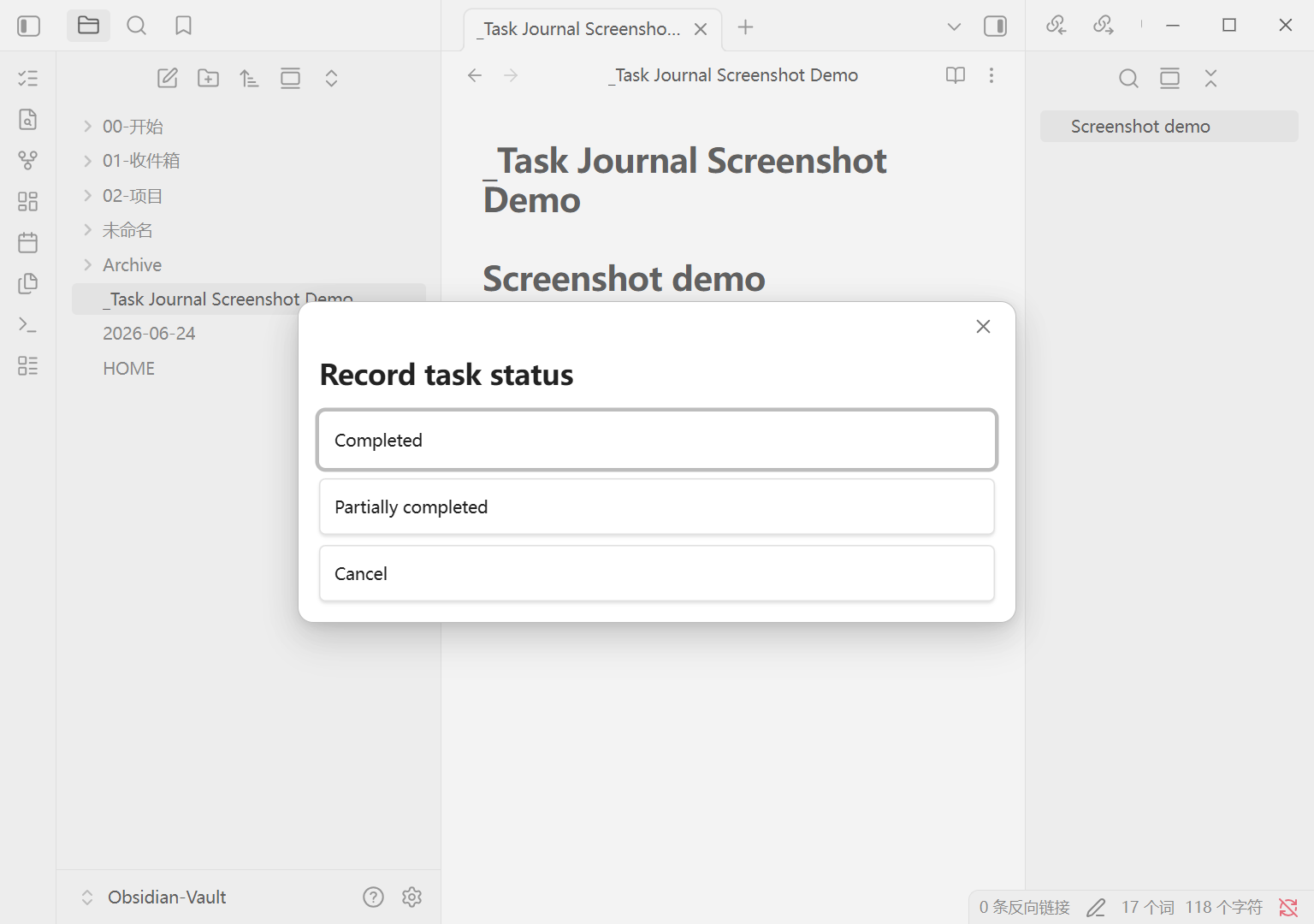 |
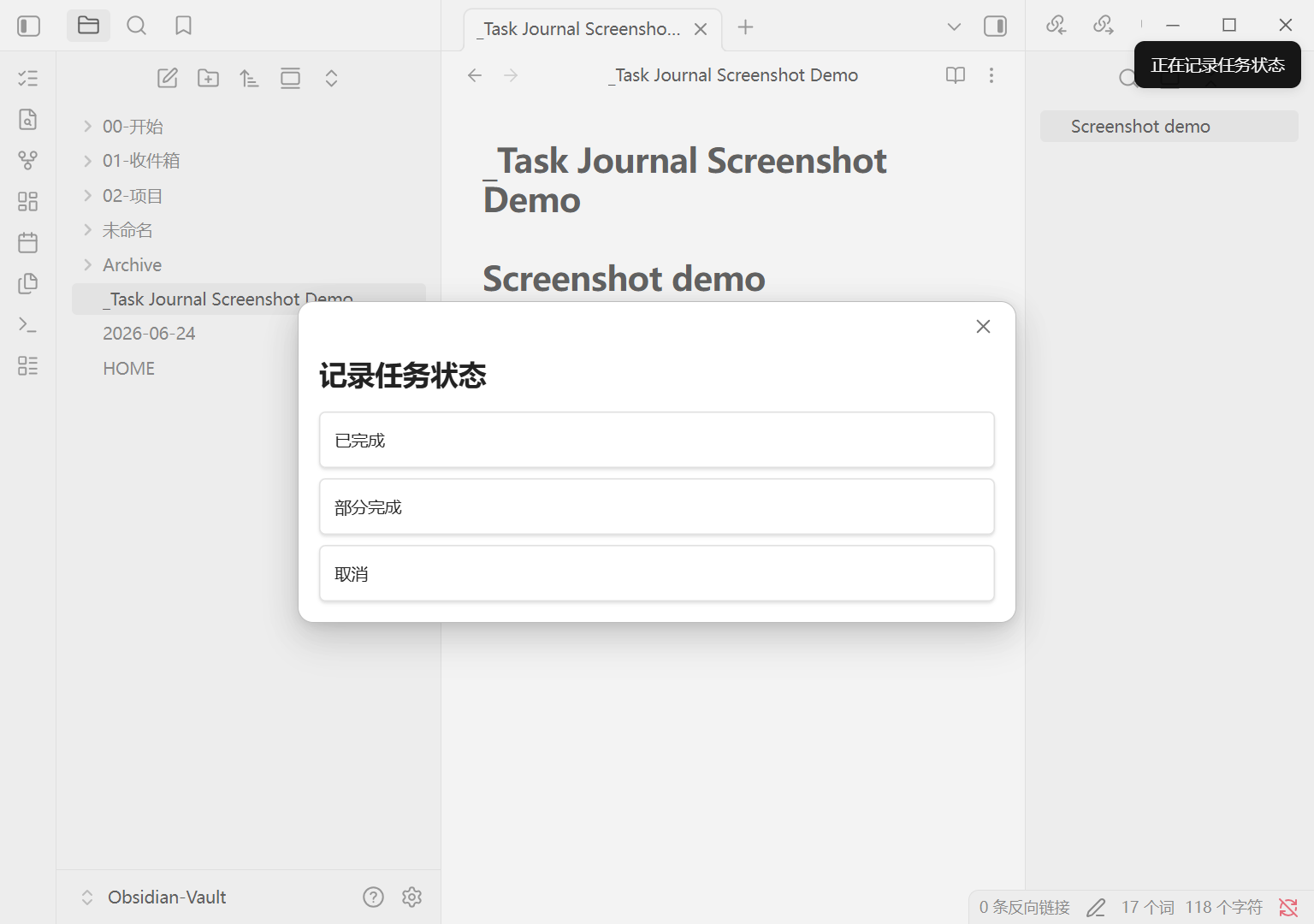 |
Install
Community Plugins directory (recommended)
Install Task Journal Checkbox Sink in Obsidian
- Open Settings → Community plugins.
- Select Browse and search for
Task Journal Checkbox Sink. - Select Install, then Enable.
Manual installation
- Download
main.js,manifest.json, andstyles.cssfrom GitHub Releases. - Put the three files directly in
.obsidian/plugins/task-journal-checkbox-sink/. - Restart Obsidian and enable the plugin under Community plugins.
Quick start
- Open the plugin settings. The interface follows Obsidian automatically, or you can choose English or Simplified Chinese.
- Put the cursor on a Markdown task such as
- [ ] Finish report. - On desktop, select the
list-checksicon in the left ribbon. You can also run Record task status from the command palette, Commander, or a mobile toolbar. - Choose Completed or Partially completed, then enter an optional summary.
Clicking a native Obsidian checkbox also stores its completion date. Auto-organize is enabled for the entire vault on new installations, with Templates/ and Archive/ excluded by default. Review these settings before using the plugin in an existing vault.
Commands
| Command | Purpose |
|---|---|
| Record task status | Update the current task, write a Daily Note entry, and sink it when completed |
| Archive completed tasks | Archive completed tasks from the active Markdown file |
| Undo last task operation | Undo the latest operation recorded by the plugin |
New-installation defaults
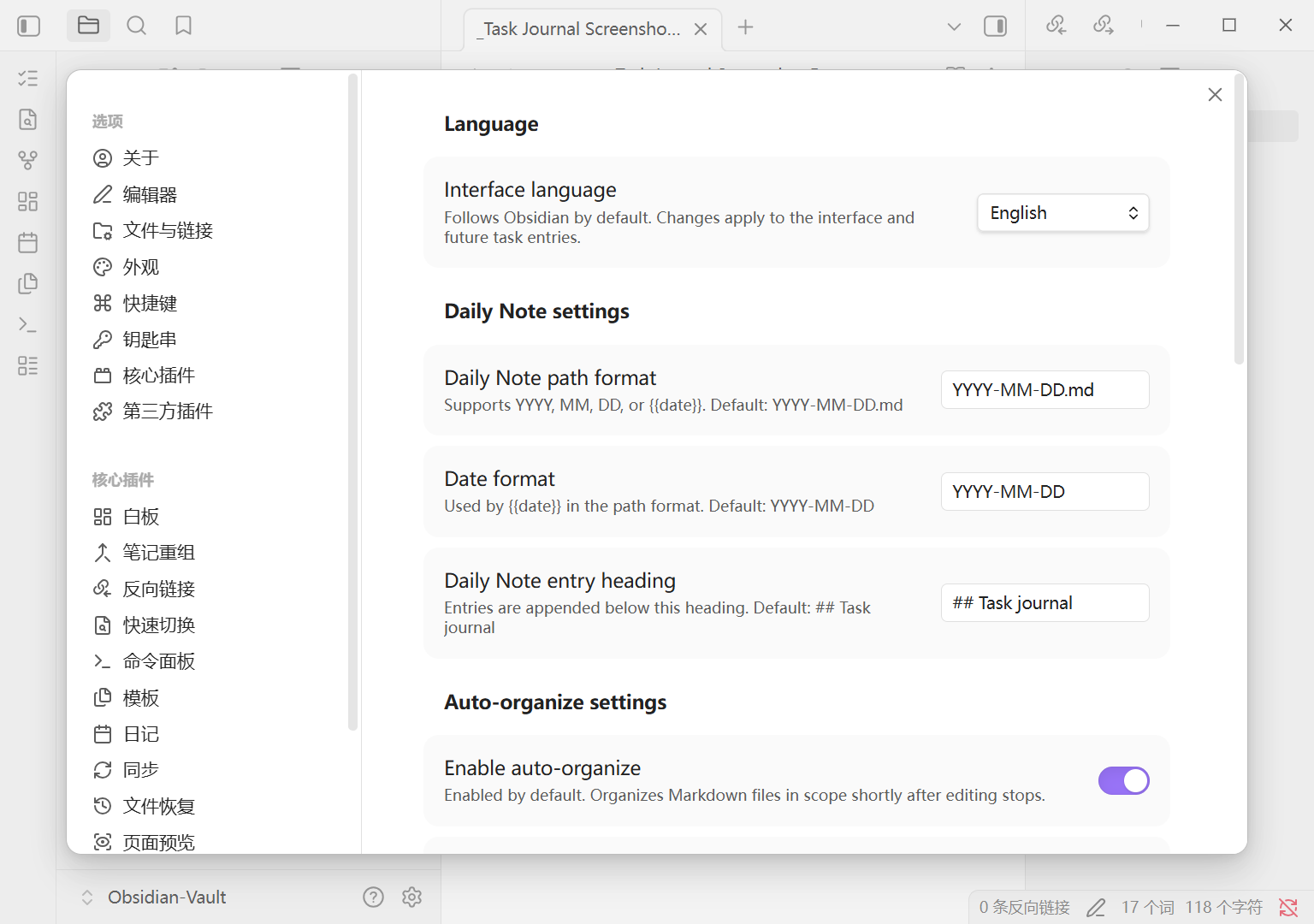
- Language: follow Obsidian
- Daily Note path:
YYYY-MM-DD.md - Date format:
YYYY-MM-DD - English Daily Note heading:
## Task journal - Auto-organize: enabled
- Organize delay:
1000ms - Scope: entire vault
- Excluded folders:
Templates/andArchive/ - Archive file:
Archive/Done Tasks.md - English archive heading:
## Completed tasks archive - Archive grouping: day
Updating from an earlier release does not overwrite saved headings, scope, or auto-organize choices.
Privacy and safety
- The plugin runs locally and does not access files outside the vault.
- Tasks inside fenced code blocks and HTML comments are ignored.
- Tasks never move across headings or parent-task boundaries.
- Undo refuses to overwrite files changed after the recorded operation.
- Completion dates are stored in hidden Markdown comments:
%%task-journal-completed:YYYY-MM-DD%%
Support
Open a GitHub issue. Remove names, journals, project details, and other private information from example notes, then provide the smallest Markdown sample that reproduces the problem.
中文说明
它解决什么问题
Task Journal Checkbox Sink(任务日志沉底)适合在一个 Obsidian 页面中集中管理任务。
- 完成项安全沉底:只移动到当前缩进层级的同级列表末尾,不跨标题或父任务。
- 保留完整任务块:子任务和附属内容随父任务一起移动。
- 写入 Daily Note:记录“已完成”或“部分完成”,并添加可留空的总结。
- 支持原生 checkbox:记录真实完成日期,并按设置自动整理。
- 按完成日期归档:归档到指定文件或当前页面标题,可按日、周、月或不分组。
- 撤销上一次操作:支持状态记录、checkbox 和归档操作,重启 Obsidian 后仍可撤销。
- 支持移动端:适配 Android、iOS 的触控、软键盘、弹窗和窄屏设置页。
安装
官方插件目录(推荐)
- 打开 设置 → 第三方插件 → 浏览。
- 搜索
Task Journal Checkbox Sink。 - 选择 安装,然后 启用。
手动安装
- 从 GitHub Releases 下载
main.js、manifest.json和styles.css。 - 将三个文件直接放入
.obsidian/plugins/task-journal-checkbox-sink/。 - 重启 Obsidian,并在第三方插件中启用。
30 秒开始使用
- 打开插件设置。语言默认跟随 Obsidian,也可以固定为简体中文或 English。
- 把光标放在标准 Markdown 任务行上,例如
- [ ] 完成报告。 - 桌面端点击左侧功能区的
list-checks按钮;也可以从命令面板、Commander 或手机工具栏运行 记录任务状态。 - 选择“已完成”或“部分完成”,填写可选总结。
新安装默认开启自动整理并作用于全库,同时默认排除 Templates/ 和 Archive/。在已有 Vault 中使用前,建议先检查作用范围和排除文件夹。旧版本升级不会覆盖已经保存的开关、范围或标题。
命令
| 命令 | 作用 |
|---|---|
| 记录任务状态 | 更新当前任务、写入 Daily Note,并在已完成时沉底 |
| 归档已完成任务 | 归档当前活动 Markdown 文件中的已完成任务 |
| 撤销上一次任务操作 | 撤销最近一次插件任务操作 |
新安装默认设置
- 语言:跟随 Obsidian
- Daily Note 路径:
YYYY-MM-DD.md - 日期格式:
YYYY-MM-DD - 中文记录标题:
## 任务记录 - 自动整理:开启
- 整理延迟:
1000ms - 作用范围:全库
- 排除文件夹:
Templates/、Archive/ - 归档文件:
Archive/Done Tasks.md - 中文归档标题:
## 已完成任务归档 - 归档分组:按天
隐私与安全
- 插件完全本地运行,不访问 Vault 外文件。
- 不处理 fenced code block 或 HTML 注释中的任务。
- 不跨标题或父任务移动任务。
- 相关文件在操作后被修改时,整次撤销会拒绝执行。
- 完成日期保存在隐藏 Markdown 注释中:
%%task-journal-completed:YYYY-MM-DD%%
反馈问题
请前往 GitHub Issues。提交 Markdown 示例前,请删除姓名、日记、项目名称或其他私人内容。
Development
npm install
npm run lint
npm test
npm run build
npm run check:release
Release assets are main.js, manifest.json, and styles.css. The GitHub release tag must exactly match the version in manifest.json and must not start with v.