Task ID Audit
 theluckystrike6 downloads
Find duplicate task IDs, missing dependency targets, and dependency cycles.
- Overview
- Scorecard
- Updates3
Task ID Audit finds duplicate task IDs, missing dependency targets, self references, and dependency cycles in Markdown notes. Use it before a project review or after you copy a task template. The report gives source paths and line numbers. Select a source to open the task.
The audit checks are free. Optional Pro features save project profiles and report snapshots, and repeat an audit after file changes. The plugin reads task text without changing notes.
Features
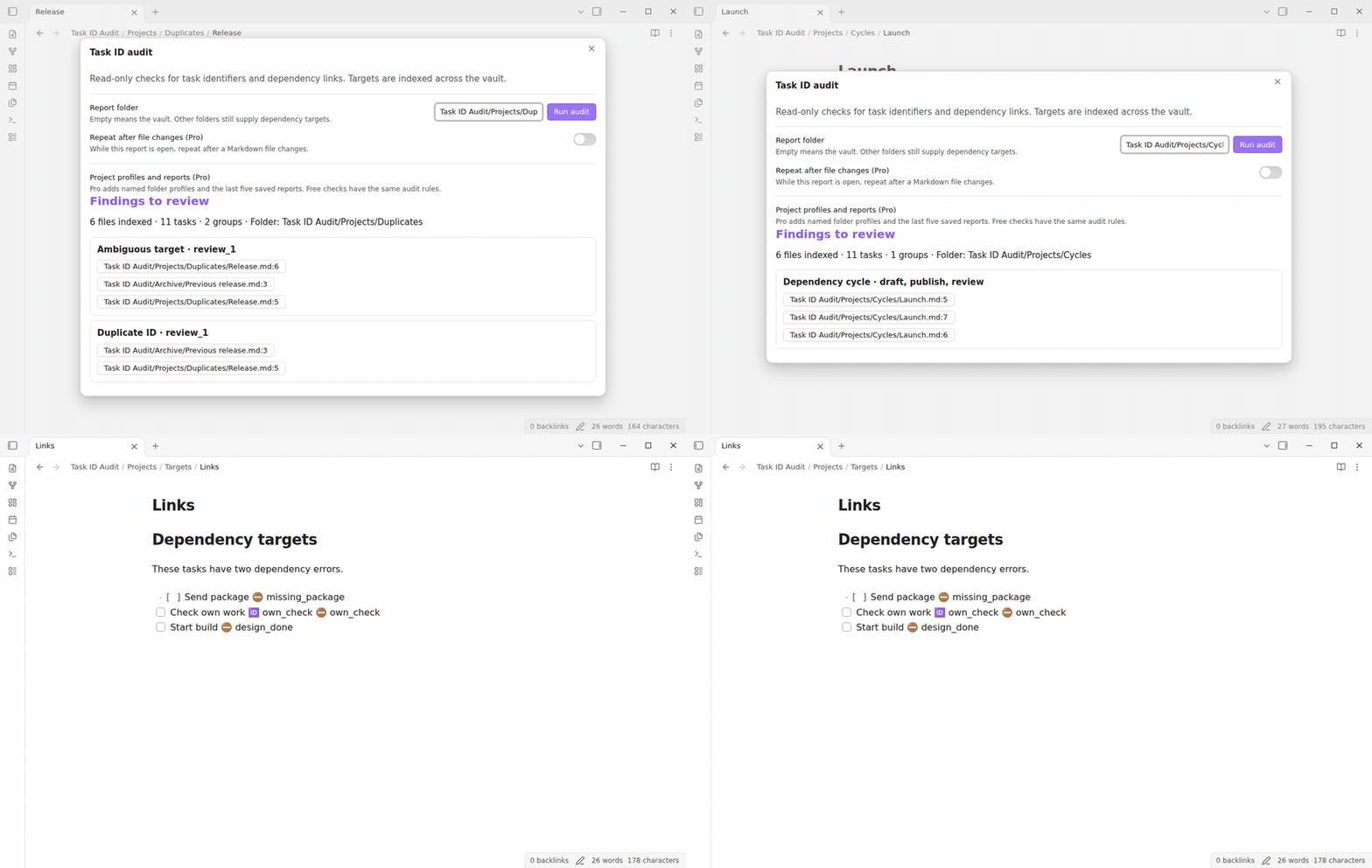
Index task IDs and find duplicates
The scanner reads ordinary checkbox task lines with 🆔 and ⛔ fields. A duplicate group lists the paths and physical line numbers that share an ID. Completed tasks also supply targets. IDs are case sensitive and use letters A to Z, letters a to z, digits, _, and -.
A task with ID release_1 can be the target of ⛔ release_1. Multiple dependencies use commas, for example ⛔ design, review. The Tasks plugin is not required to run the audit.
Check dependency targets
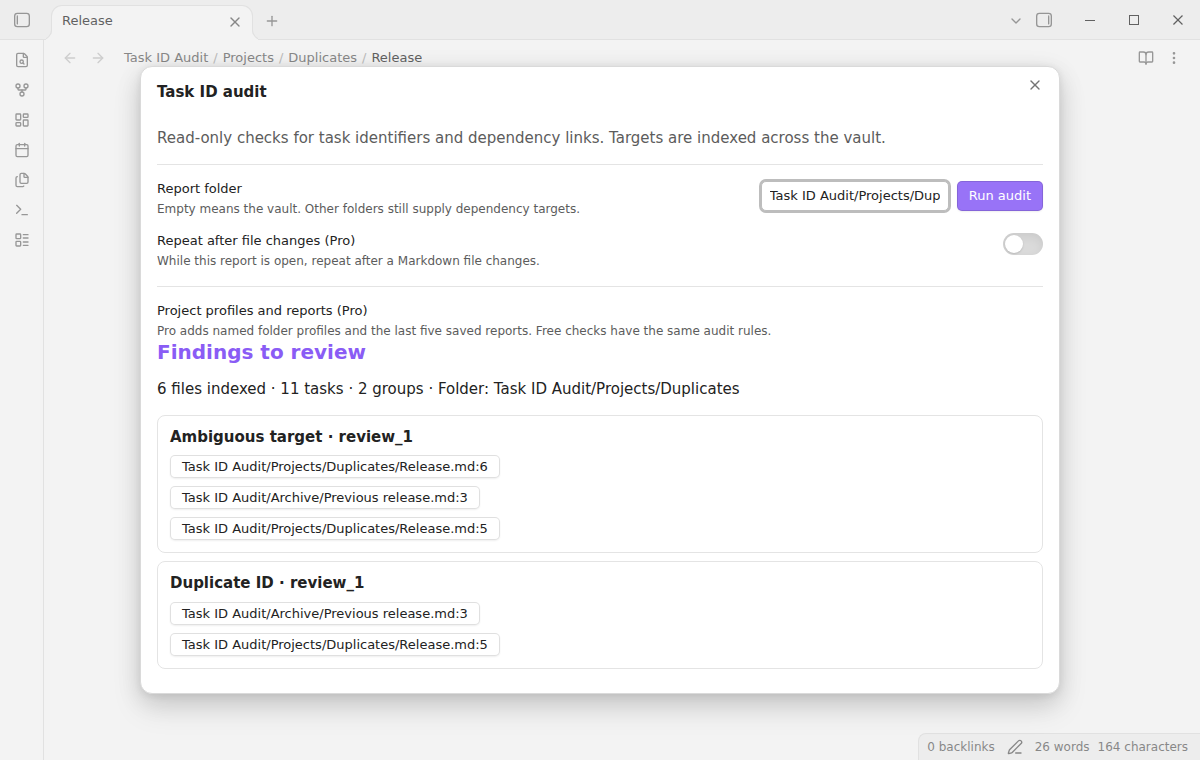
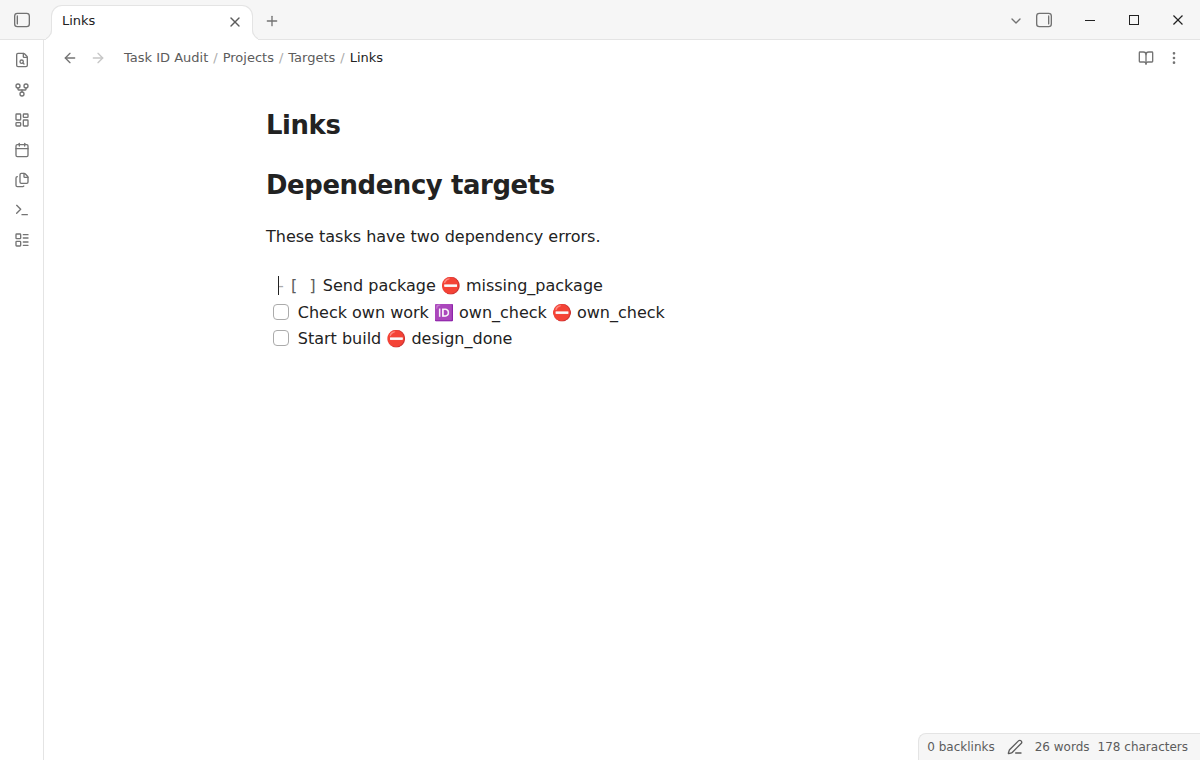
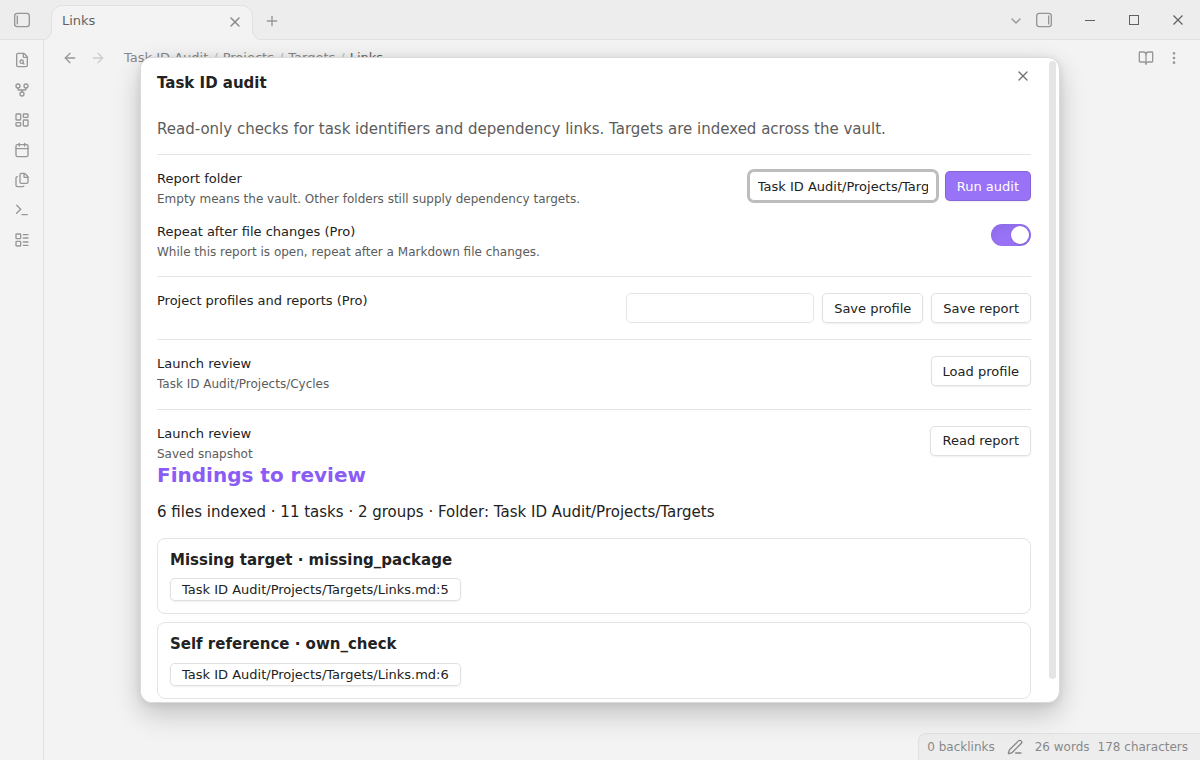
In a complete scan, a missing-target warning names an ID that the index cannot find. A self-reference warning identifies a task that depends on its own ID. If a dependency points to an ID with two or more targets, the report shows an ambiguous-target group and the duplicate group. Cycle analysis does not choose between those targets.
Find dependency cycles
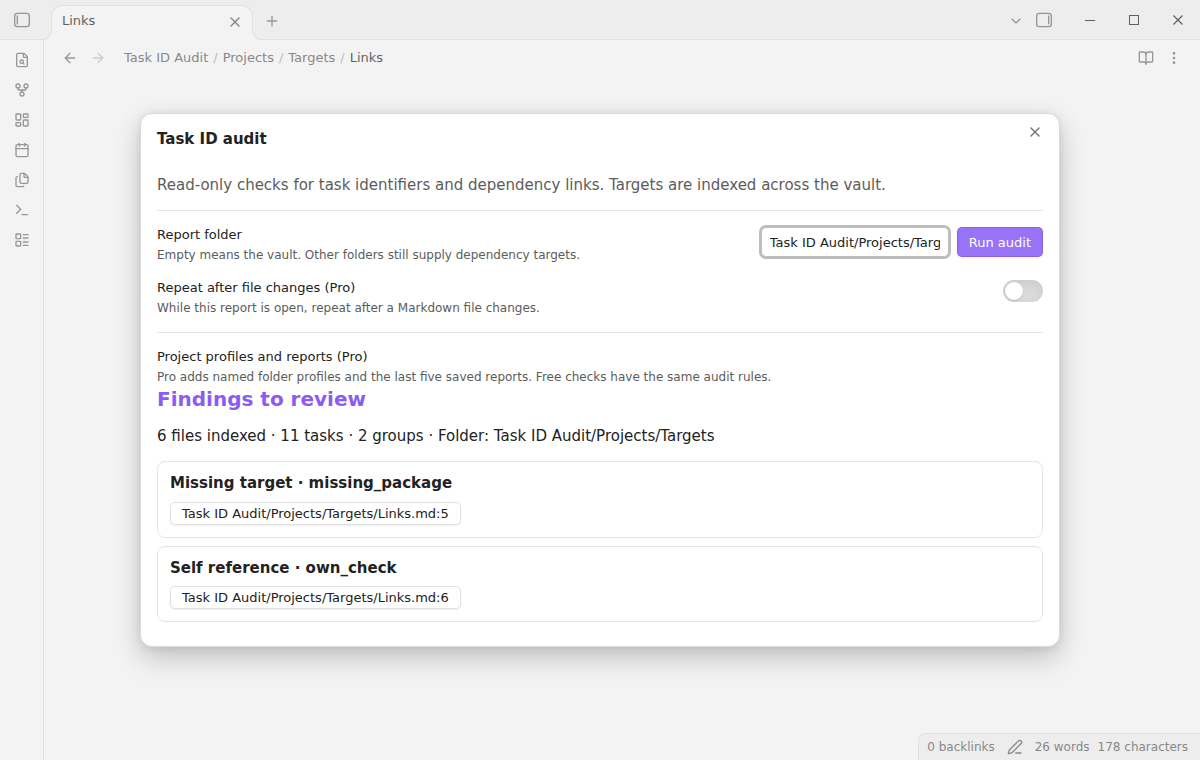
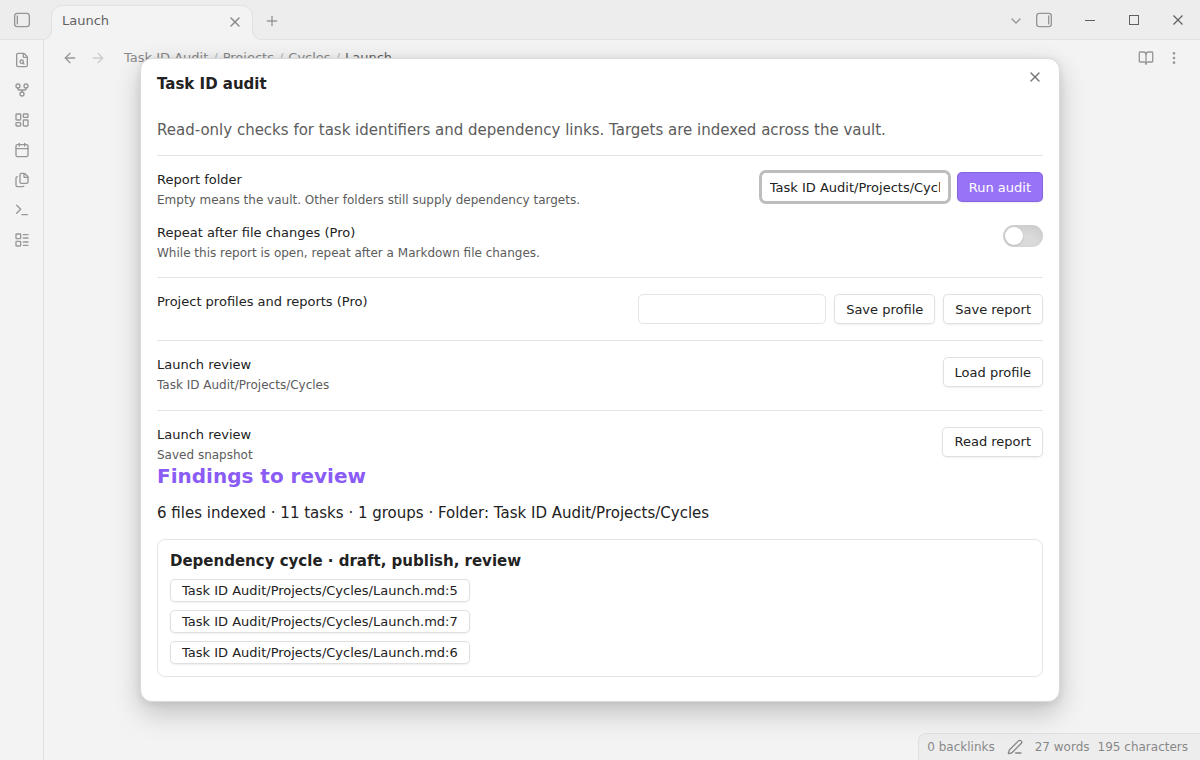
A cycle group contains the IDs in a connected dependency loop and their source locations. For example, a depends on b, b depends on c, and c depends on a. A larger connected loop is one group. Self references appear separately. The search uses an iterative graph algorithm to avoid recursive calls on long chains.
Filter a report to a folder
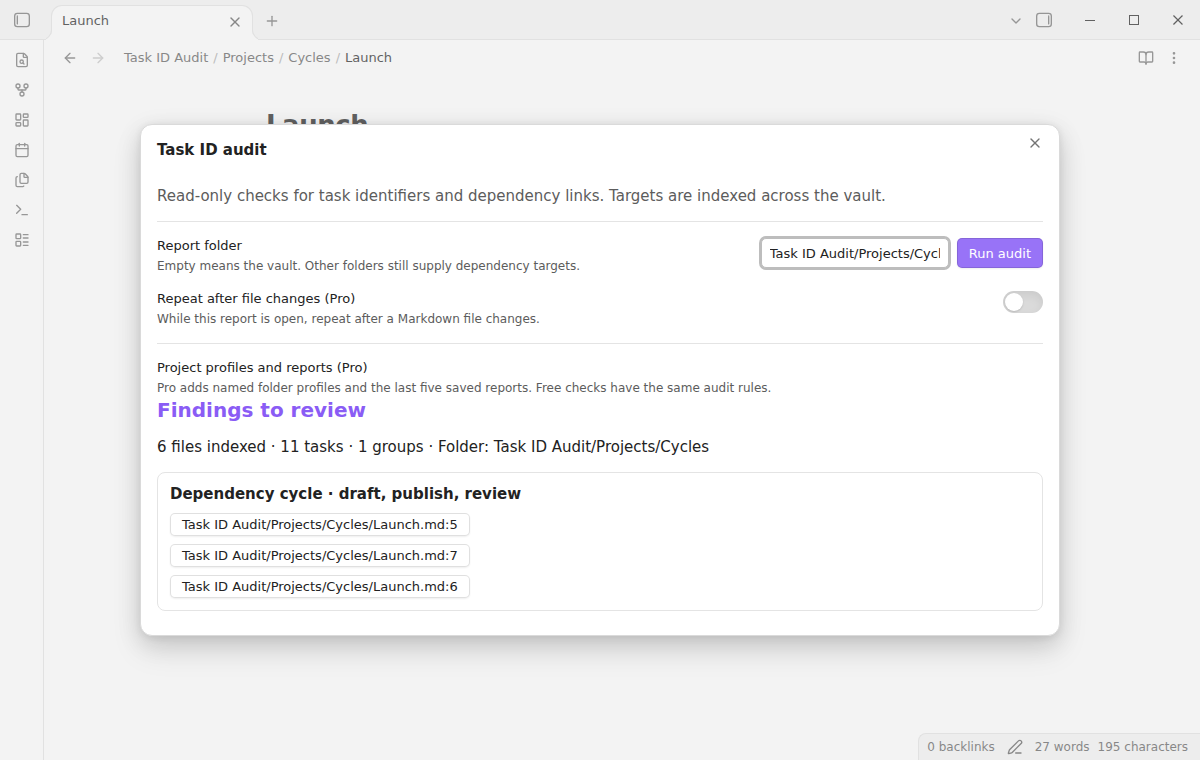
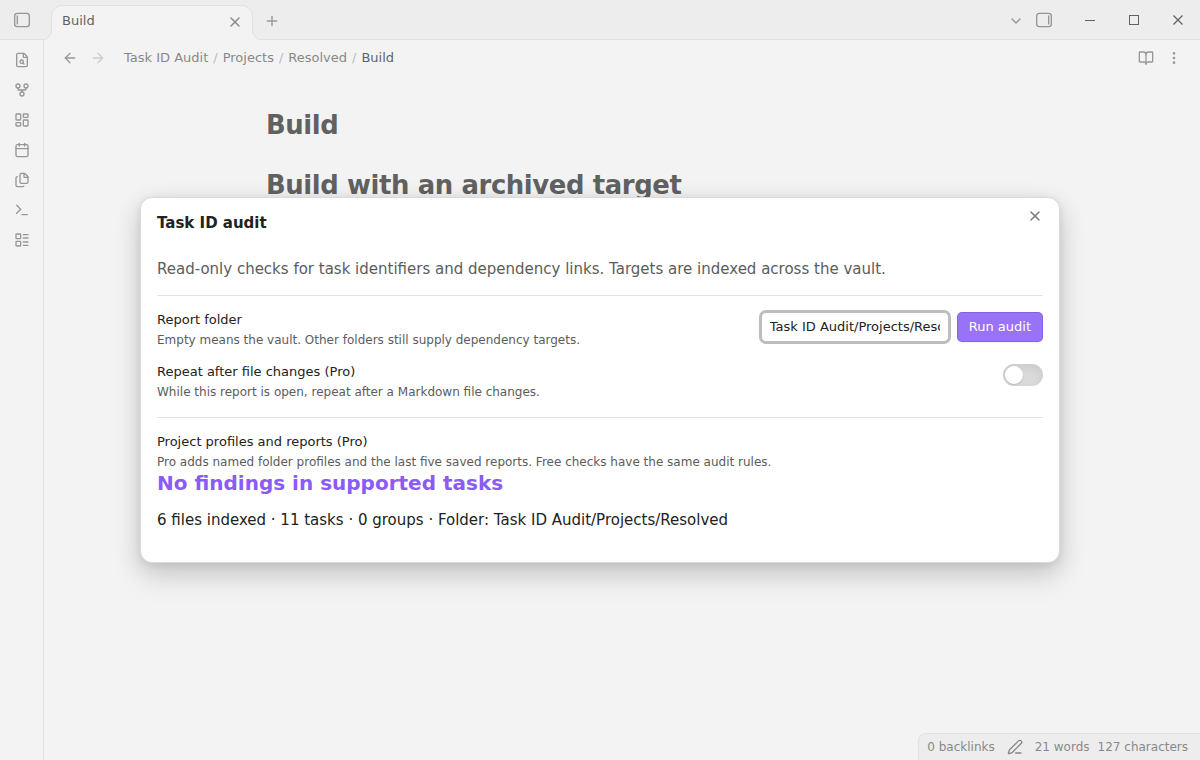
Enter a vault-relative folder, such as Projects, then select Run audit. The target index still includes Markdown notes outside that folder. A dependency in Projects can therefore resolve to a completed task in Archive. A group is visible if a source path is in the selected folder; related paths outside it stay visible for context.
Open a source line
Select a path and line button to close the report and open the note in its editor. The editor moves to that physical line. Line numbers belong to the scan result. If another edit moves the task, run the audit again before you use the location.
Save project profiles and reports (Pro)
Enter a name to save the current folder as a project profile. Load profile opens a fresh audit with that folder. Saving with the same name replaces that profile. The limit is 20 profiles. Save report keeps a text snapshot with issue types, IDs, and source locations. Read report opens the saved text. Plugin data holds the five newest reports; a report larger than 100,000 characters is rejected.
Repeat after file changes (Pro)
Turn on Repeat after file changes while the report is open. Markdown file creation, edits, deletion, and renames schedule another scan after a short quiet period. Changes outside the report folder also matter because they can add or remove a target. Closing the report turns repeat off. A profile stores the folder, not the repeat toggle. Without Pro, the toggle shows a notice with a Sponsor on GitHub button and stays off.
Install
For manual installation, copy main.js, manifest.json, and styles.css from a release into <vault>/.obsidian/plugins/task-id-audit/. Reload Obsidian, open Settings → Community plugins, and enable Task ID Audit. This build requires Obsidian 1.13.4 or later. Installation from the community directory depends on a published listing.
Usage
Open the command palette and run Task ID Audit: Open audit. Leave Report folder empty for the vault, or enter a folder path. Select Run audit after you change the filter. Review duplicate and ambiguous groups before interpreting cycles. The report does not repair dependencies or generate IDs.
YAML frontmatter and fenced code do not supply tasks. Inline code and HTML comments are excluded. Callout tasks, Dataview ID fields, malformed fields, and ID fields outside ordinary task lines appear under Skipped input. An incomplete scan labels absent targets as unresolved, because skipped input could contain them.
Settings
After a minor or major update, this plugin opens one What's new tab in the background. The tab and settings card suggest other NoteMods plugins and Zovo Chat and link to notemods.com for feedback (privacy). The tab sends no data. Turn the tab off in Settings.
The plugin settings tab contains the GitHub account controls for optional Pro access. Folder, repeat, and save controls are in the report window. Profile names, folder paths, and saved report text stay in the plugin data for the vault. Closing a report does not save a snapshot.
FAQ
What does an incomplete audit mean?
Input was skipped, a file could not be read, or a scan limit was reached. The limits are 10,000 files, 50,000 tasks, 20 million text characters in total, and two million characters per file. The file reader also rejects files larger than two million bytes. The report shows the skipped paths. A folder filter does not reduce the target index or remove those limits.
What was not tested?
Physical phones and tablets, third-party sync conflicts, unusual Markdown extensions, and a live paid sponsorship transaction were not tested. Linux and Windows were not run locally. The runtime uses public Obsidian and browser APIs. Desktop end-to-end tests cover Obsidian 1.13.4 and 1.14.4. Pro tests use a local sponsorship response, with no payment.
Payment, account and network
The core features are free. Pro features need a GitHub Sponsors sponsorship of theluckystrike: $5 a month or more, or $15 once. A total payment of $15 meets the payment requirement for Pro without further payment. Sign-in and the checks below still apply. Your notes stay readable and editable with or without Pro.
GitHub handles the payment. Sponsor at https://github.com/sponsors/theluckystrike. You need no account for the free features. Pro needs the GitHub account that sponsors.
Until you select "Sign in with GitHub" in the settings, Task ID Audit makes no network requests. Sign in uses the GitHub device flow. Task ID Audit sends its public client ID and the scope read:user to https://github.com/login/device/code and shows you a code. While you enter the code at https://github.com/login/device, it asks https://github.com/login/oauth/access_token every few seconds to check the sign-in status. The scope permits profile reads only. GitHub needs this access to show the sponsorship tier. It grants no repository scope and no write access.
After sign in, Task ID Audit sends one query to https://api.github.com/graphql. It checks if the signed-in account sponsors theluckystrike. It asks for the tier and the total payment to theluckystrike. The plugin reuses a successful check for 7 days. Failed checks can retry after 6 hours. Select Refresh to request an earlier check. It sends no note content, file names or other vault data, and it has no telemetry.
After a successful check, Pro can work offline for up to 14 days. Sign out or a negative sponsorship answer turns Pro off. The plugin stores the GitHub token through the secret storage API of Obsidian. It does not put the token in its saved settings or its local sponsorship data. The local storage of this device keeps your GitHub login, the tier and the time of the last check. Sign out clears the token. You can also revoke the access in your GitHub settings, under Applications.
Support
Report problems through this repository's issues when the repository is published. Include the Obsidian version, the report status, and a small sample with private text removed. For a parser problem, include the original task line and the warning you expected. Do not include a GitHub token.
The code uses the MIT license. See LICENSE for its terms.