Task Format Bridge
 theluckystrike1 downloads
Preview and convert task date fields between emoji and Dataview syntax.
- Overview
- Scorecard
- Updates1
Your notes can contain task dates in two forms: 📅 2026-10-21 and [due:: 2026-10-21]. The Tasks plugin reads one selected format at a time. Changing its setting does not convert the text already in your notes. Task Format Bridge gives you a preview before you change those fields.
Open a note, choose a target format, and inspect the proposed lines. Apply the conversion when the result is correct. Your task descriptions and checkbox states stay in place. You can use the editor's undo command to reverse the change.
The free commands support the active note. Pro adds a folder migration report to help you find notes that need attention. The report reads source text and lists the work by file.
Features
Convert the active note
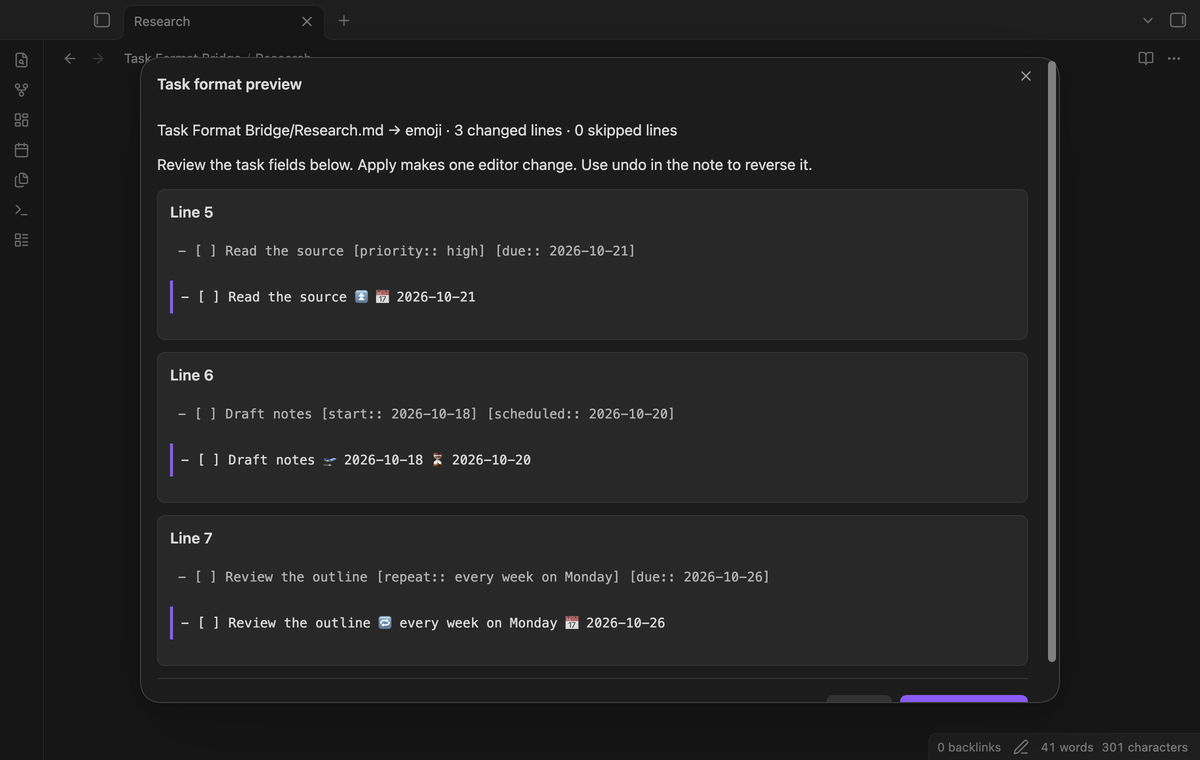
Use Preview note as Dataview fields to replace supported emoji fields with bracketed fields. Use Preview note as emoji fields for the reverse direction. A preview shows the source line above its proposed replacement. The summary gives the number of changed lines and skipped lines.
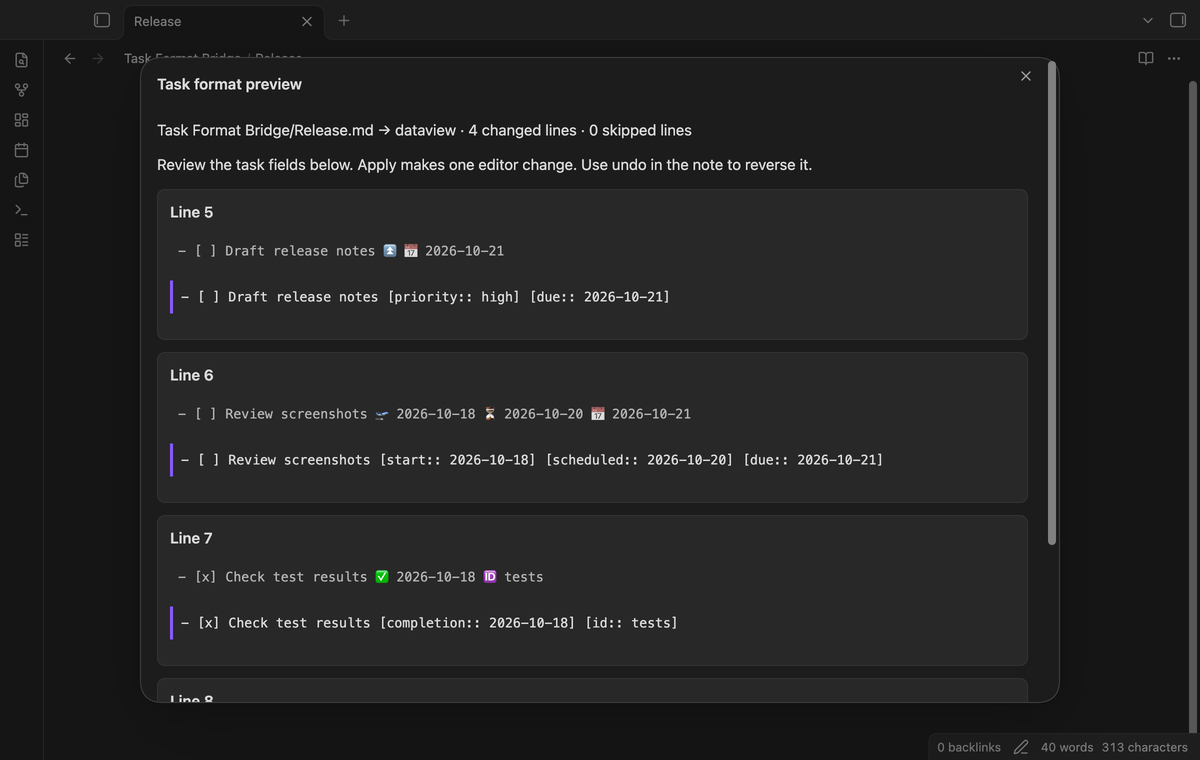
The supported fields are created, start, scheduled, due, completion and cancelled dates. Due dates accept 📅, 📆 and 🗓. Scheduled dates accept ⏳ and ⌛. Dates must use the ISO form shown in the example. The converter also handles the five explicit priority levels, recurrence text, task IDs, dependency IDs, and keep or delete completion actions. Normal priority has no explicit emoji.
Descriptions, tags and trailing block IDs remain in the task line. Tags can precede or follow the trailing fields. The converter keeps their positions and spacing. It keeps the order of recognized fields. It accepts Dataview fields in square brackets or parentheses. A converted field uses square brackets. A field already in the chosen format keeps its existing text. Conversion from Dataview uses 📅 for due dates and ⏳ for scheduled dates.
Review skipped input
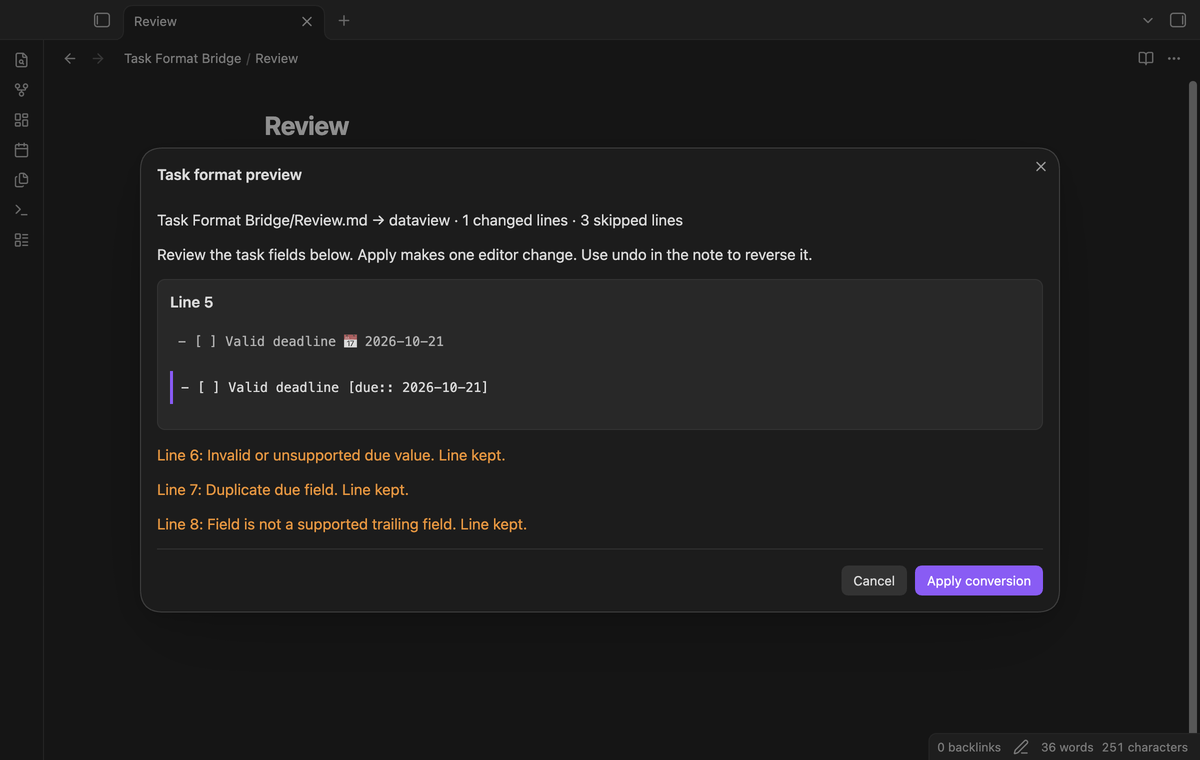
An uncertain line stays unchanged. The preview explains the reason beside its line number. Duplicate fields, impossible calendar dates, timed dates and fields inside a description need manual review. A known field before an unknown trailing field is also skipped. This keeps the converter from guessing where your description ends.
Frontmatter, fenced code and comment blocks do not become conversion input. A task with an inline comment stays unchanged and gets a warning. Comment markers inside matched backtick code spans stay ordinary text. Nested tasks can use tabs or spaces under a list parent. Conversion keeps their indentation. A deeply indented task without a list parent stays unchanged as possible code. Notes larger than 1,000,000 characters receive a limit warning. Review those notes in smaller parts outside this tool.
Check a folder with Pro
The Open folder migration report (pro) command checks which notes contain convertible lines. Set a folder and target format, then select Scan folder. Leave the folder empty to scan the vault. A file button opens its source note. From there, use the free preview command to make a change.
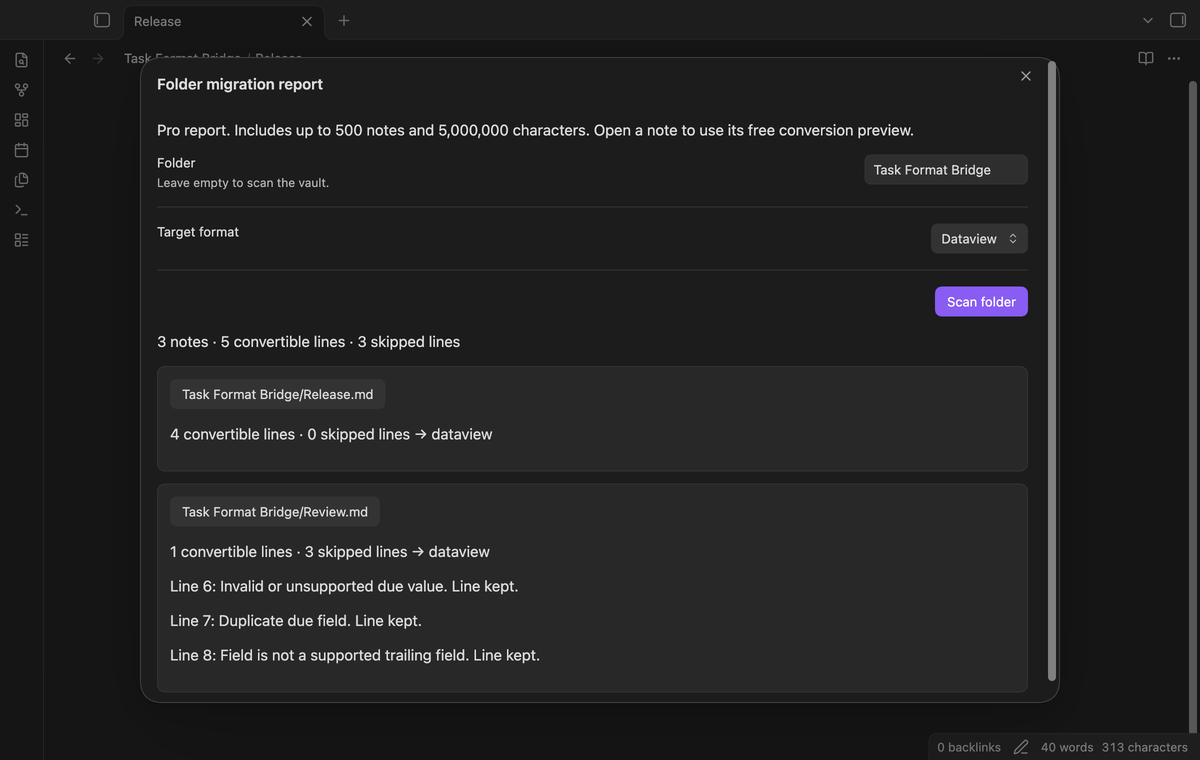
The report includes subfolders. A folder named Work does not include Work2. Each report includes up to 500 files and 5,000,000 characters. A large or unreadable file gets a warning. Reaching a scan limit marks the report incomplete. This report does not write notes or change your Tasks setting.
Install
This source has not been submitted to the community directory. For a local installation, build the product and copy main.js, manifest.json and styles.css into .obsidian/plugins/task-format-bridge/ in a test vault. Enable the plugin in Community plugins after you reload Obsidian.
Use Obsidian 1.13.4 or later. Try the commands on a copied note before you migrate working notes. Keep a vault backup for a larger migration. You do not need Tasks or Dataview installed to convert text. Those plugins determine how the resulting fields behave in your workflow.
Usage
- Open a Markdown note in the editor.
- Open the command palette.
- Select a Task Format Bridge preview command.
- Read the proposed replacements and skipped reasons.
- Select Apply conversion.
- Check the resulting note.
Select Cancel or close the dialog to leave the source unchanged. Apply uses one editor transaction. Return to the note and use undo if you need the previous text. A preview expires when its source text changes, its file path changes, or another editor becomes active. Open a new preview after such a change.
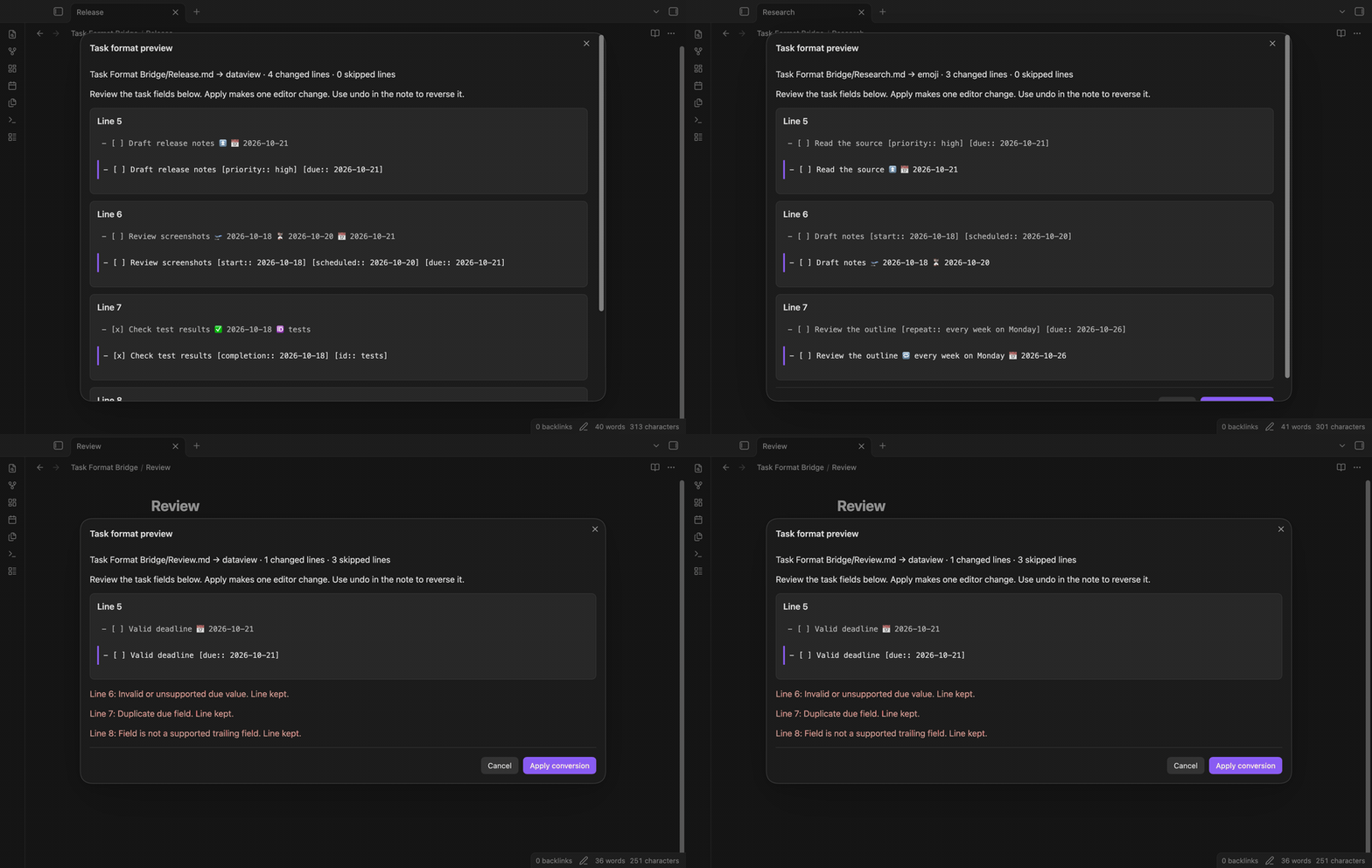
Fields must form a trailing group before optional tags and a block ID. For example, - [ ] Task 📅 2024-01-01 #tag becomes - [ ] Task [due:: 2024-01-01] #tag. A due date followed by ordinary prose is skipped. The tool does not validate the meaning of a recurrence rule. It preserves supported recurrence text for Tasks to interpret.
After conversion, choose the matching format in Tasks settings yourself. Task Format Bridge does not read that setting. A folder report is a snapshot of the text read during its scan. Open a fresh report after editing notes when you need current counts.
Settings
The settings page explains the preview workflow and provides the shared GitHub Sponsors controls. There is no background watcher, automatic conversion switch or default target to maintain. The command you select determines the target for that preview. The folder and format controls in a report apply to that report session.
Signing out removes Pro access to folder reports. The note preview commands remain available. Source notes use ordinary Markdown fields and remain readable after you disable the plugin.
FAQ
Does this make Tasks read both formats together? No. It converts source text into one format. Tasks still uses its selected format.
What happens to custom inline fields? A custom field in the description remains text. An unsupported trailing field can stop conversion of that line. Read its warning before editing it by hand.
Does a second run add duplicate fields? A conversion to the current target makes no further change. Duplicate known fields in the source cause a skipped line.
Can I migrate a folder automatically? Pro reports the work. Conversion still happens through the free note preview. This keeps the source review close to the edit.
Are time values supported? No. A value such as a date followed by 09:00 is skipped. The supported date grammar contains a calendar date without a time.
Payment, account and network
The core features are free. Pro features need a GitHub Sponsors sponsorship of theluckystrike: $5 a month or more, or $15 once. A total payment of $15 meets the payment requirement for Pro without further payment. Sign-in and the checks below still apply. Your notes stay readable and editable with or without Pro.
GitHub handles the payment. Sponsor at https://github.com/sponsors/theluckystrike. You need no account for the free features. Pro needs the GitHub account that sponsors.
Until you select "Sign in with GitHub" in the settings, Task Format Bridge makes no network requests. Sign in uses the GitHub device flow. Task Format Bridge sends its public client ID and the scope read:user to https://github.com/login/device/code and shows you a code. While you enter the code at https://github.com/login/device, it asks https://github.com/login/oauth/access_token every few seconds to check the sign-in status. The scope permits profile reads only. GitHub needs this access to show the sponsorship tier. It grants no repository scope and no write access.
After sign in, Task Format Bridge sends one query to https://api.github.com/graphql. It checks if the signed-in account sponsors theluckystrike. It asks for the tier and the total payment to theluckystrike. The plugin reuses a successful check for 7 days. Failed checks can retry after 6 hours. Select Refresh to request an earlier check. It sends no note content, file names or other vault data, and it has no telemetry.
After a successful check, Pro can work offline for up to 14 days. Sign out or a negative sponsorship answer turns Pro off. The plugin stores the GitHub token through the secret storage API of Obsidian. It does not put the token in its saved settings or its local sponsorship data. The local storage of this device keeps your GitHub login, the tier and the time of the last check. Sign out clears the token. You can also revoke the access in your GitHub settings, under Applications.
Support
When you report a parsing problem, include a short task line with private text removed. State the target format, your Obsidian version, and the warning you saw. Include the surrounding fence or comment markers when they affect the result. Keep credentials and unrelated note content out of the report.
The source and issue tracker are at Task Format Bridge on GitHub.