Task Field Labels
 theluckystrike3 downloads
Show text labels for dates, priority, and recurrence in rendered tasks.
- Overview
- Scorecard
- Updates2
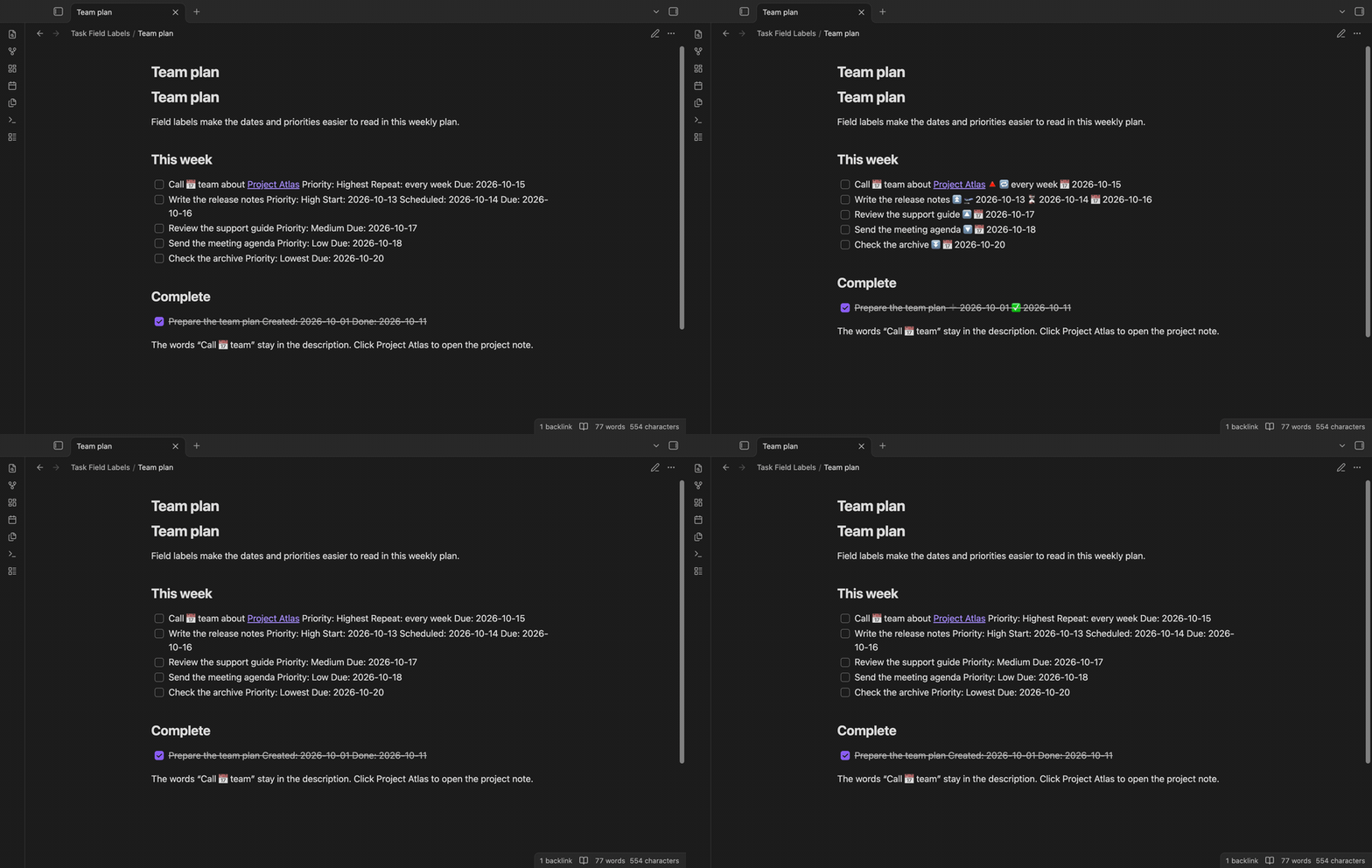
Task Field Labels shows English text for the dates, priority, and recurrence in tasks rendered by the Tasks community plugin. A due field such as 📅 2026-10-15 becomes Due: 2026-10-15. The note keeps its Markdown source. This helps when a report has several kinds of date and you do not want to look up the meaning of each icon.
The free version supplies fixed labels. It supports the field structure of Tasks 8.5.0. The optional Pro version adds custom labels, saved display presets, folder rules, and compact spacing. You can read the fixed labels without a payment or a GitHub account.
Features
Fixed English field labels
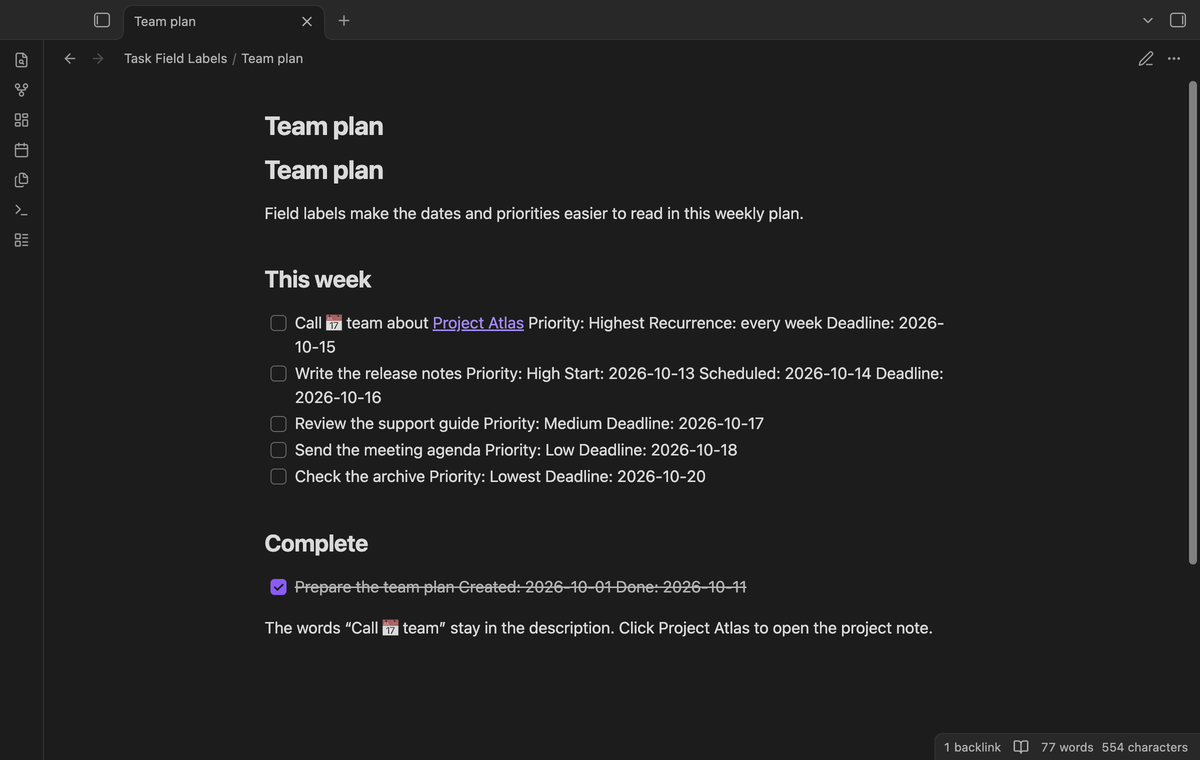
Read Due, Start, Scheduled, Created, Done, and Cancelled before date values. Priority fields show Highest, High, Medium, Low, or Lowest. Recurrence shows Repeat before the rule text. A recurring task can show Priority: Highest and Repeat: every week beside its description.
Only recognized field containers are changed. The words Call 📅 team in a task description stay as written. Unknown fields, short mode icons, and fields with a different structure are left alone. The plugin does not add missing fields to a task.
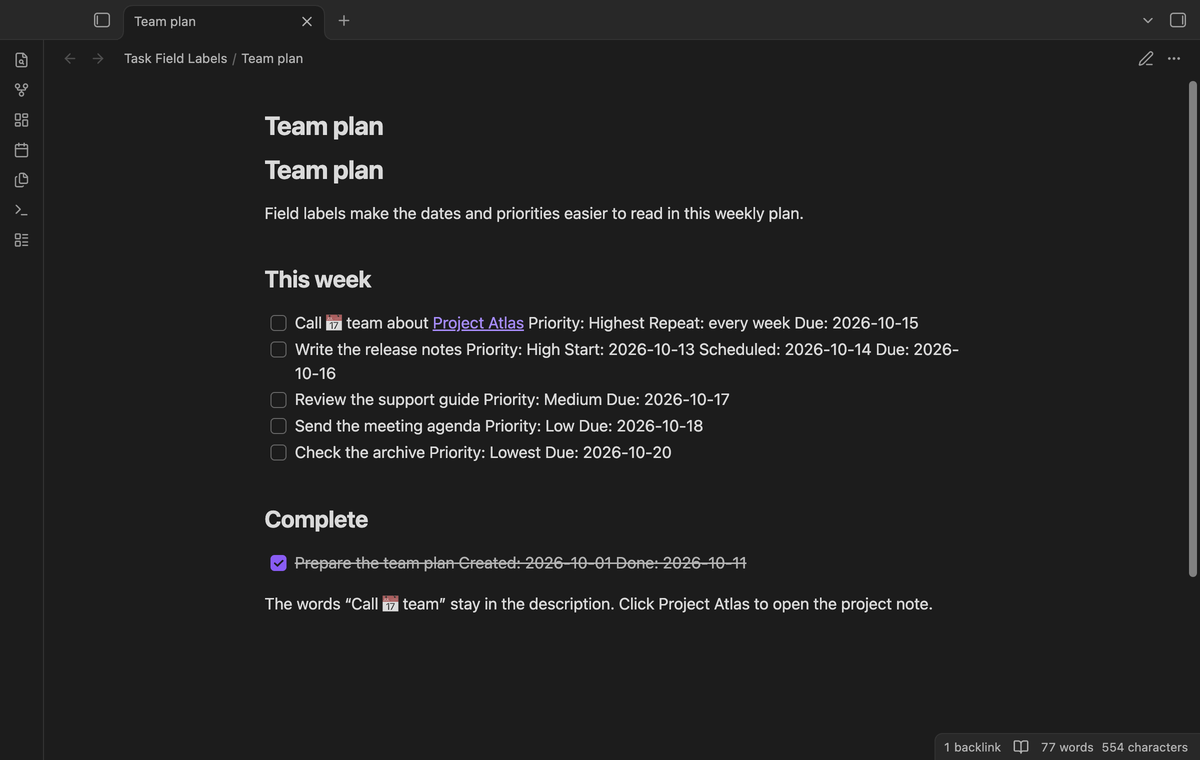
Labels in query reports
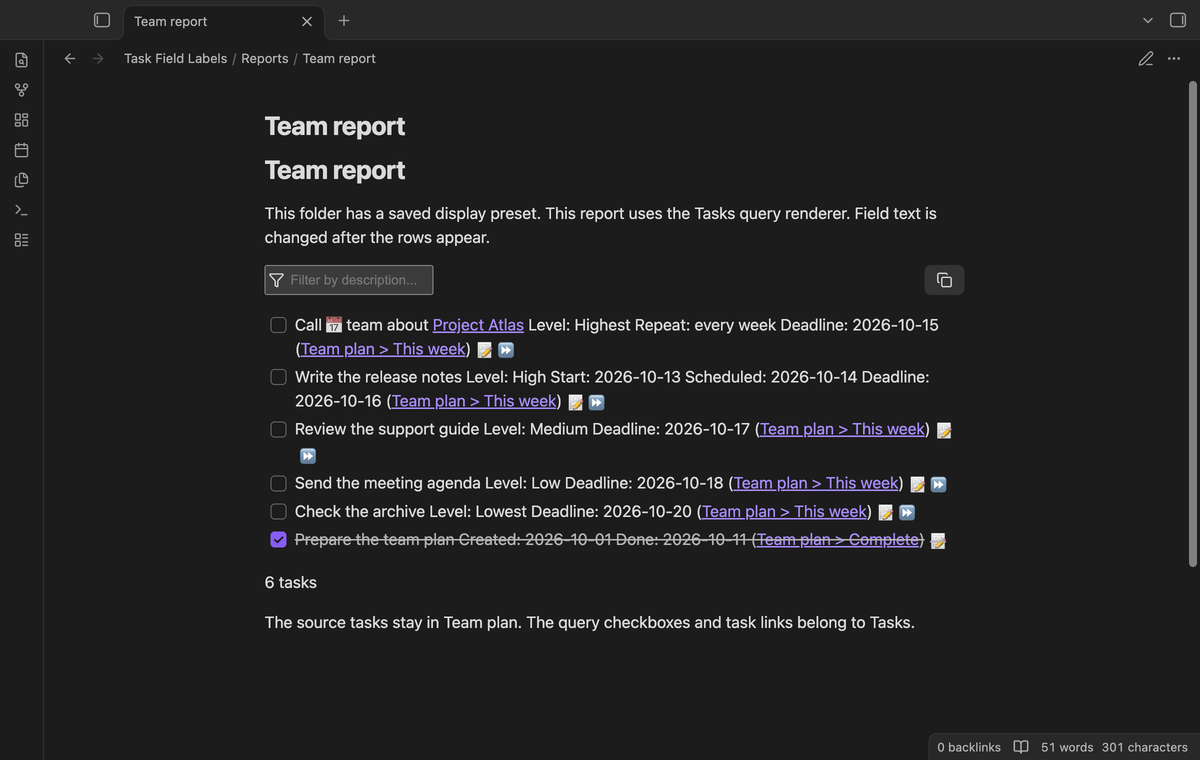
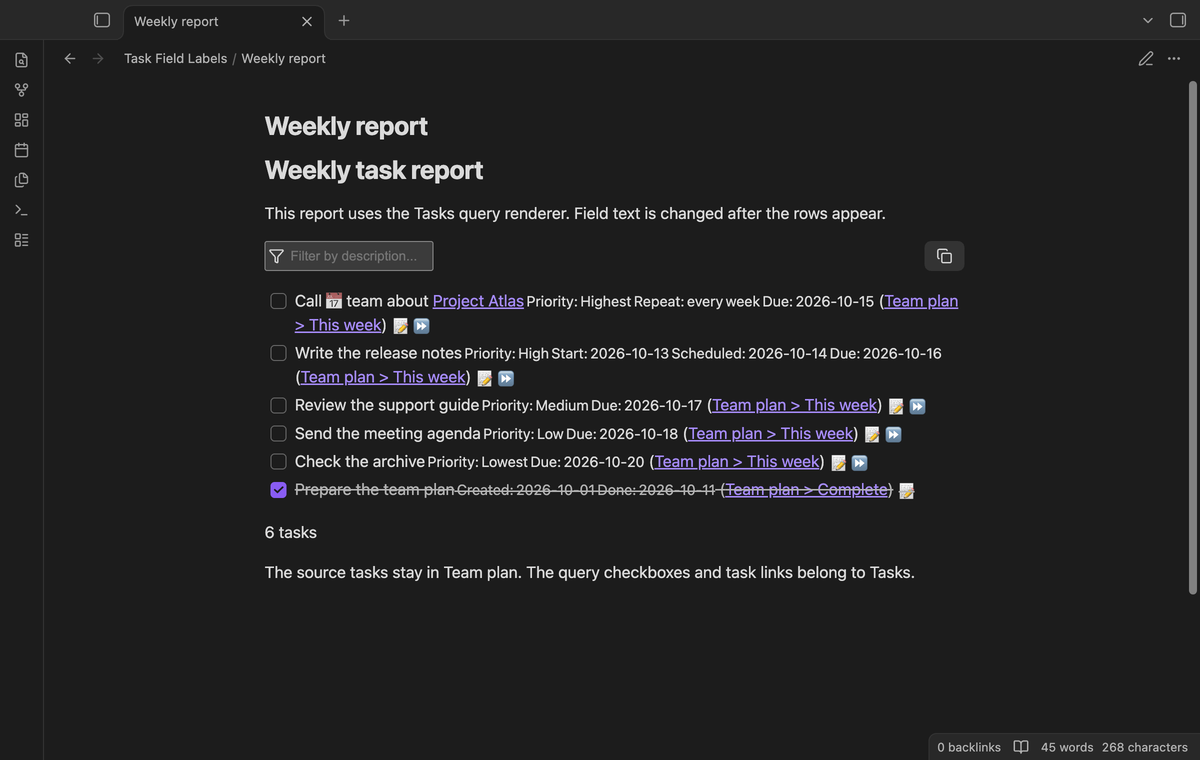
Inline tasks get labels in Reading view. Tasks query results get labels in Reading view and Live Preview. When Tasks adds or replaces query rows, a scoped observer checks the new field text. Processing the same labeled row again does not add a second label.
Inline Markdown tasks in Live Preview are outside this adapter. Switch the note to Reading view to see their labels. A query block in Live Preview uses the Tasks renderer and can show labels there.
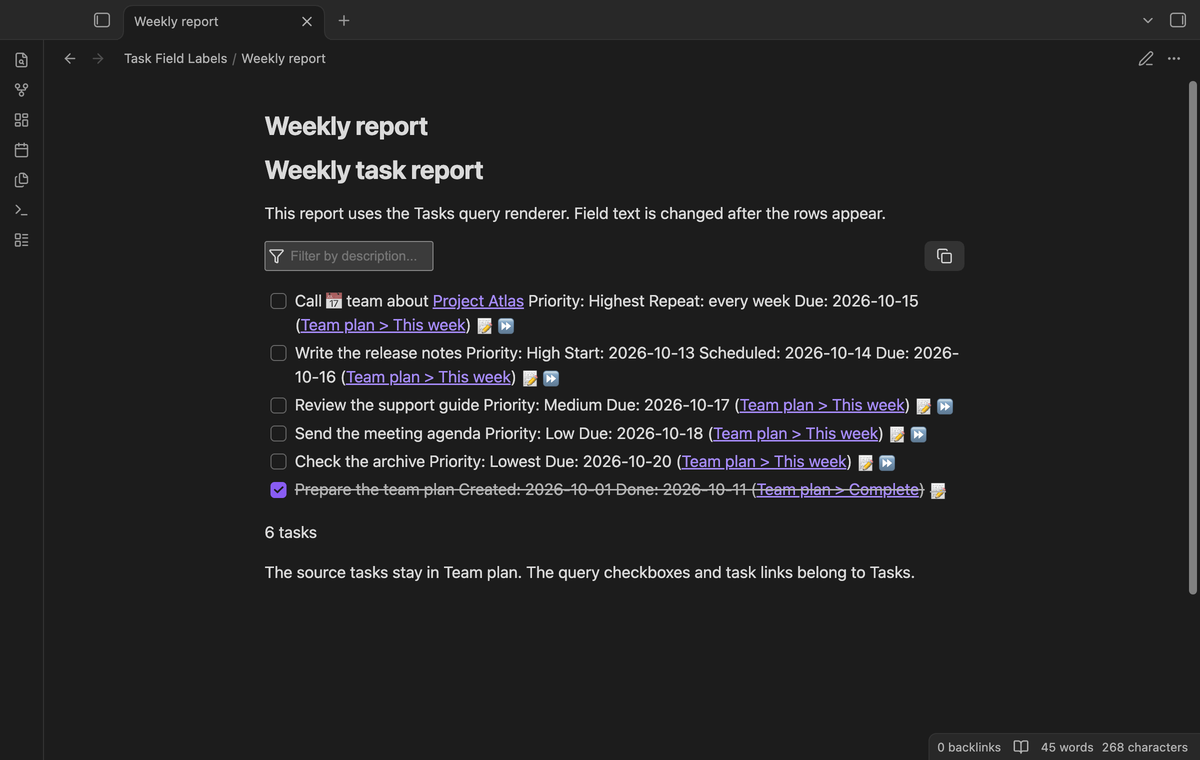
Keep task controls
The adapter changes a field text node and keeps its enclosing elements. Tasks retains its date editor, right-click date menu, task links, and checkbox handlers. Click a date to use the Tasks date editor. Right-click it for the Tasks menu. The plugin does not add another checkbox action.
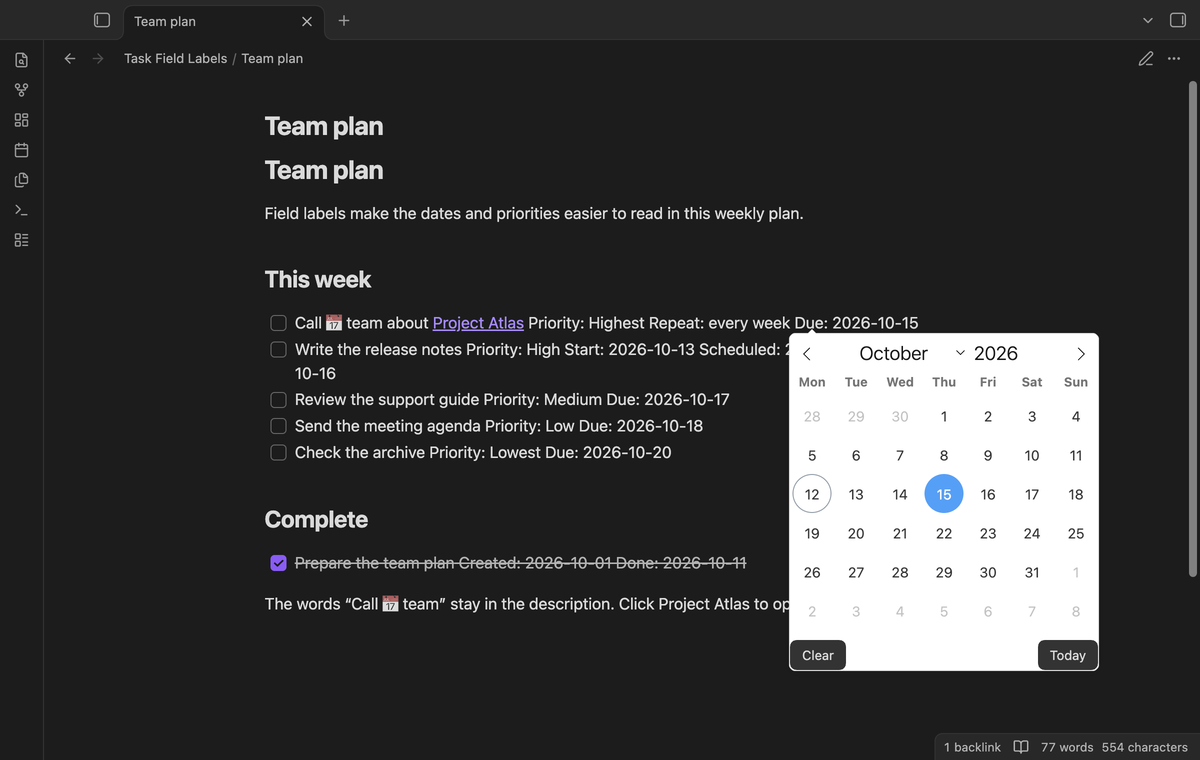
Restore the original text
Turn off Show field labels to restore the field text that the adapter changed. Disabling the plugin also restores that text and stops its observers. If another plugin has replaced a field value, cleanup leaves that replacement in place. Turning labels on again checks the displayed fields.
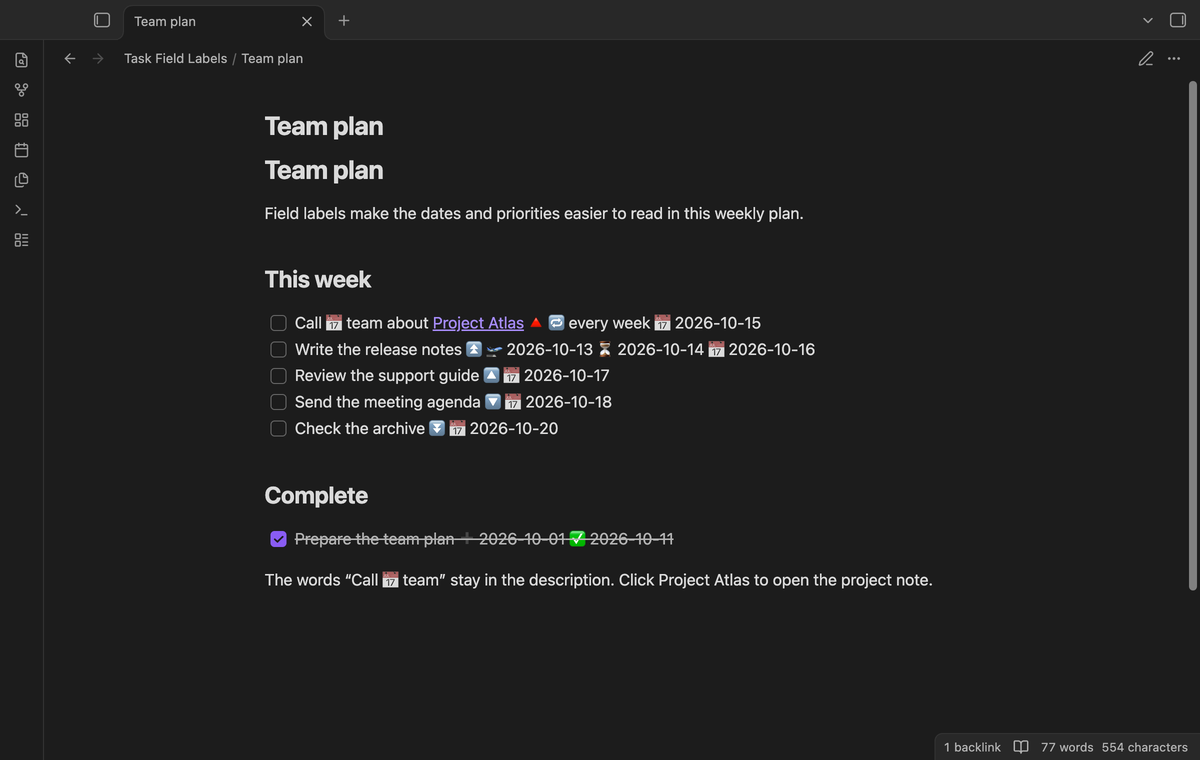
Custom labels and display presets (Pro)
Set your own plain text for the supported labels. For example, use Deadline for Due and Recurrence for Repeat. Labels accept up to 40 characters; empty or longer values use the fixed English text. A colon and the field value follow the label.
Save the current custom labels and compact option under a preset name. Select that preset to use its saved copy. Saving with the same name replaces the saved copy. Choose Current labels to use the values in the label controls again. The plugin stores up to 30 presets. When all 30 are in use, save over an existing preset name.
Folder display rules (Pro)
Write one rule per line, such as Reports|Team or Archive|off. A rule selects a saved preset or turns labels off for that folder. The longest matching folder wins. A rule for Work does not match Workshop. An unknown preset name uses the current display choice.
Rules use the path of the displayed note or query report. They do not select a different preset for each query row based on its source note. Put reports in separate folders when those reports need different displays.
Compact field layout (Pro)
The compact option reduces the text size and word spacing of recognized field containers. It can help when dates and recurrence make a long report wide. It keeps the field values. The layout still depends on the available width and your theme. Choose fixed spacing again by turning the option off.
Install
Install Tasks and enable it first. This adapter was checked with Tasks 8.5.0. Install Task Field Labels from the community directory when it is listed, then enable it. For a manual install, copy main.js, manifest.json, and styles.css from a release to .obsidian/plugins/task-field-labels/ in your vault.
Obsidian 1.13.4 is the minimum version. Open a task note in Reading view. A recognized due date should show Due before its date value. If the fields keep their icons, check that Tasks is enabled and that Show field labels is on.
Usage
Write task fields with the Tasks emoji format, then view the note or a Tasks query. Continue to use Tasks to edit dates, complete tasks, and set recurrence. Labels affect the display; editing the Markdown source shows the original icons. The example plan and query in the screenshots use local sample notes.
Settings
Show field labels is on by default. The remaining display controls are marked Pro and need an eligible GitHub Sponsors check. Changes apply to the active render children. Pro values remain saved after sign out, while the display returns to fixed English labels and standard spacing. Folder exclusions also stop applying after sign out.
Preset names cannot be empty or use the reserved name off. Use the Save preset button after changing the name, labels, or compact choice. A saved preset does not change when you later edit Current labels. To update it, save that preset name again.
FAQ
Does this change my task source? The adapter writes to rendered DOM text nodes. It does not call the vault write API. Tasks can still change the source when you use a Tasks control.
Why do some icons remain? This version accepts the nested span structure and full emoji fields of Tasks 8.5.0. Short mode, tooltips, arbitrary fields, and unknown structures are excluded. A theme can also hide or restyle fields.
What was not tested? Physical iOS and Android devices, Linux and Windows desktops, other Tasks versions, third-party themes, very large vaults, and live GitHub sign in or real payments were not tested. Desktop Live Preview tests check the recurring query action. Pro tests use a local Sponsors response. These checks do not prove mobile runtime behavior.
Payment, account and network
The core features are free. Pro features need a GitHub Sponsors sponsorship of theluckystrike: $5 a month or more, or $15 once. A total payment of $15 meets the payment requirement for Pro without further payment. Sign-in and the checks below still apply. Your notes stay readable and editable with or without Pro.
GitHub handles the payment. Sponsor at https://github.com/sponsors/theluckystrike. You need no account for the free features. Pro needs the GitHub account that sponsors.
Until you select "Sign in with GitHub" in the settings, Task Field Labels makes no network requests. Sign in uses the GitHub device flow. Task Field Labels sends its public client ID and the scope read:user to https://github.com/login/device/code and shows you a code. While you enter the code at https://github.com/login/device, it asks https://github.com/login/oauth/access_token every few seconds to check the sign-in status. The scope permits profile reads only. GitHub needs this access to show the sponsorship tier. It grants no repository scope and no write access.
After sign in, Task Field Labels sends one query to https://api.github.com/graphql. It checks if the signed-in account sponsors theluckystrike. It asks for the tier and the total payment to theluckystrike. The plugin reuses a successful check for 7 days. Failed checks can retry after 6 hours. Select Refresh to request an earlier check. It sends no note content, file names or other vault data, and it has no telemetry.
After a successful check, Pro can work offline for up to 14 days. Sign out or a negative sponsorship answer turns Pro off. The plugin stores the GitHub token through the secret storage API of Obsidian. It does not put the token in its saved settings or its local sponsorship data. The local storage of this device keeps your GitHub login, the tier and the time of the last check. Sign out clears the token. You can also revoke the access in your GitHub settings, under Applications.
Support
Report a problem with your Obsidian version, Tasks version, display mode, and a small task example. Remove private content before sharing it. State whether the problem remains after turning field labels off. The source uses the MIT license. Task Field Labels is an independent plugin published by theluckystrike. See notemods.com for the publisher's products.