Task Block
 n-kort41 downloads
Keep tasks in self-sorting blocks with created, completion and cancelled dates.
- Overview
- Scorecard
- Updates6
Obsidian plugin that manages blocks of tasks/todos that stay very organized.
Features
- Task blocks wrapped in
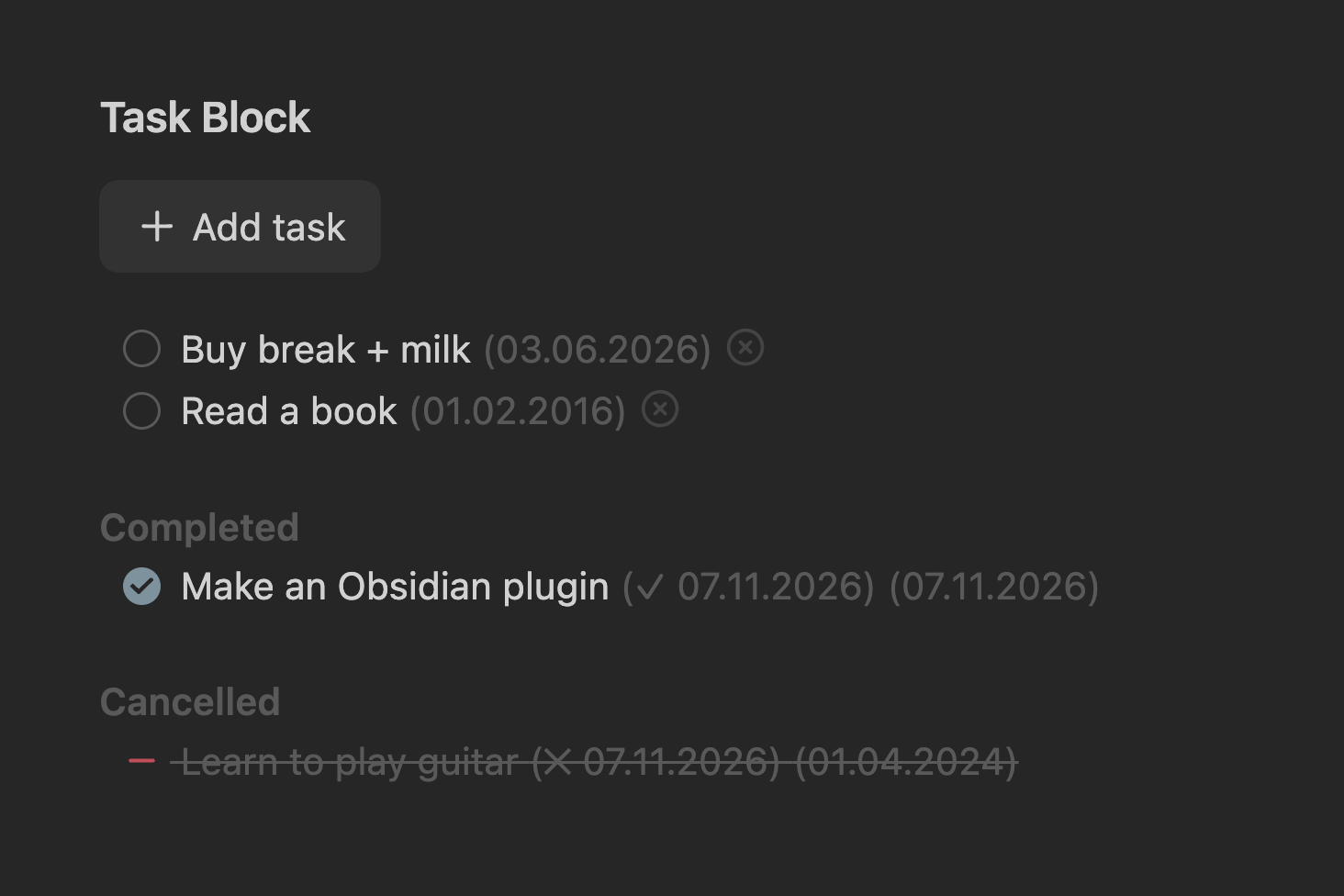
%% tasks %%…%% /tasks %% - Sorts automatically: open tasks first, then completed, then cancelled, with optional section titles
- Adds created, completion and cancelled dates as inline fields (
[created:: 2026-11-07]), shown in a format you choose. Select a date to edit it - Add task button and an optional cancel button on open tasks
- Enter on a task creates a new dated task below it
- Statuses: open, in progress (
/), complete, cancelled (-) - Works in live preview and reading view
Usage
- Insert a block with the Insert task list command or from the editor context menu
- Override labels per block in its opening marker:
%% tasks button: Add item completed: Bought cancelled: Skipped %%. Each is optional - Add tasks with the button, the Add task command, or Enter on an existing task
- Change status by ticking the checkbox, from the context menu, or with the Mark as … commands
- Configure it in Settings → Task Block: date format, button text, cancel button, section titles
- Configure per-block labels in the opening
%% tasks %%tag. For example,%% tasks button: Add item completed: Bought cancelled: Not needed %%for a shopping list
How it works
- Tasks are plain Markdown checkboxes. Dates are stored as inline fields:
[created:: …],[completion:: …],[cancelled:: …] - Sorting and date stamps are written to the note itself, so the file stays organized without the plugin
- Notes that change while not open in an editor (reading view, sync, other plugins) are re-sorted in the background
- No network access; nothing leaves your vault
Installation
- Open Settings → Community plugins and select Browse
- Search for Task Block, then select Install
- Select Enable
HealthExcellent
ReviewSatisfactory
About
Keeps tasks/todos/shopping lists nice and organized.Details
Current version
1.1.1
Last updated
11 hours ago
Created
6 days ago
Updates
6 releases
Downloads
41
Compatible with
Obsidian 1.13.0+
Platforms
Desktop, Mobile
License
0BSD