Target Copy
 Tanjialin Labs40 downloads
Copy notes and selections as rich text or source-preserving Markdown for Google Docs, Word, Notion, Slack, email, and WeChat. Processes everything locally.
- Overview
- Scorecard
- Updates3
Copy an Obsidian selection or note in a format tailored for the app where it will be pasted. Every conversion runs locally inside Obsidian.
Target Copy 1.0.2 is the current open-source desktop release.
Read the Target Copy product story (Chinese) for its design intent and a closer look at the workflow.
Why destination-aware copying?
Google Docs, Microsoft Word, Slack, and email clients interpret clipboard data in different ways. Target Copy asks for the destination and adapts the surrounding HTML while preserving the user's source, content, links, images, and code by default. Destination-specific handling appears as a compatibility note after copying.
Destinations
| Destination | Clipboard output | Important behavior |
|---|---|---|
| Google Docs | Rich HTML + plain text | Semantic headings, bordered tables, nested lists, inline styles |
| Microsoft Word / WPS | Office-friendly HTML + plain text | Heading outline metadata, Calibri defaults, tables and code blocks |
| Notion | Semantic HTML + plain text | Clean pages, lists, tables, callouts, and code blocks |
| Slack | Lightweight HTML + plain text | Tables use aligned monospace text in both representations |
| Inline-CSS HTML + plain text | Portable light palette for Gmail, Outlook, and Apple Mail | |
| WeChat Official Account | Fully inline HTML + plain text | Mobile typography with original links, images, and source code preserved |
| Portable Markdown | Plain text | Standard Markdown with clickable Obsidian links for wikilinks |
| Plain text | Plain text | Readable headings, lists, tables, blockquotes, and code |
| Original source (optional) | Plain text | Exact source, including whitespace, properties, and markup |
| HTML source (optional) | Plain text | Portable HTML markup with inline styles |
All rich targets write both text/html and text/plain, allowing the receiving
application to choose its preferred representation. Slack receives readable text
when the editor uses the plain-text clipboard representation.
Source and output formats
The source export destinations can be enabled in settings. Original source copies editor selections or whole Markdown/HTML files exactly. For an exact source selection, use the editor; Reading view supplies rendered content.
| Input | Portable Markdown output |
|---|---|
| Markdown containing a fenced HTML example | The complete fenced code example |
| Markdown containing raw HTML | The original HTML, as supported by Markdown |
| HTML file or Reading view selection | Markdown headings, links, emphasis, lists, tasks, and simple tables |
| Merged/nested tables, SVG, audio, video, or complex HTML | HTML preserving the structure and resource references |
Clickable wikilinks use obsidian:// and open the original vault. Recipients need
access to that vault to follow them. The destination editor controls support for
these links; Google Docs may retain only their labels and styling. The plain-text
clipboard representation includes the complete link address.
Portable Markdown represents highlighted text with inline <mark> elements.
Current features
- Copy a selection in Edit, Live Preview, or Reading view; copy the whole note when nothing is selected.
- Hover Copy for target… in editor and file context menus to open the enabled destinations as a native submenu, then select one to copy immediately.
- Open the destination picker from the ribbon or command palette, or bind a hotkey to each destination.
- Choose which destinations appear in the picker and command palette.
- Use a fixed default destination for Quick Copy or explicitly repeat the last-used destination.
- Follow the system language or choose English, Simplified Chinese, Traditional Chinese, Japanese, or German. English covers other system languages.
- Preserve YAML frontmatter, Obsidian comments, formulas, and fenced code by
default. Wikilinks become clickable Obsidian links; settings can instead keep
[[source syntax]]or visible text only. - Keep Mermaid, Dataview, Tasks, PlantUML, Graphviz, and every other fenced block as editable source.
- Embed local vault images as data URLs.
- Keep LaTeX and diagram source editable.
- Preserve SVG and Canvas markup for rich targets; text targets receive their serialized source; Markdown retains SVG markup. Canvas portability is reported for each destination.
- Keep ordinary raster image bytes unchanged, with optional user-configured per-image and total safety limits.
- Preserve external links in WeChat output and report WeChat-specific link handling.
Screenshots
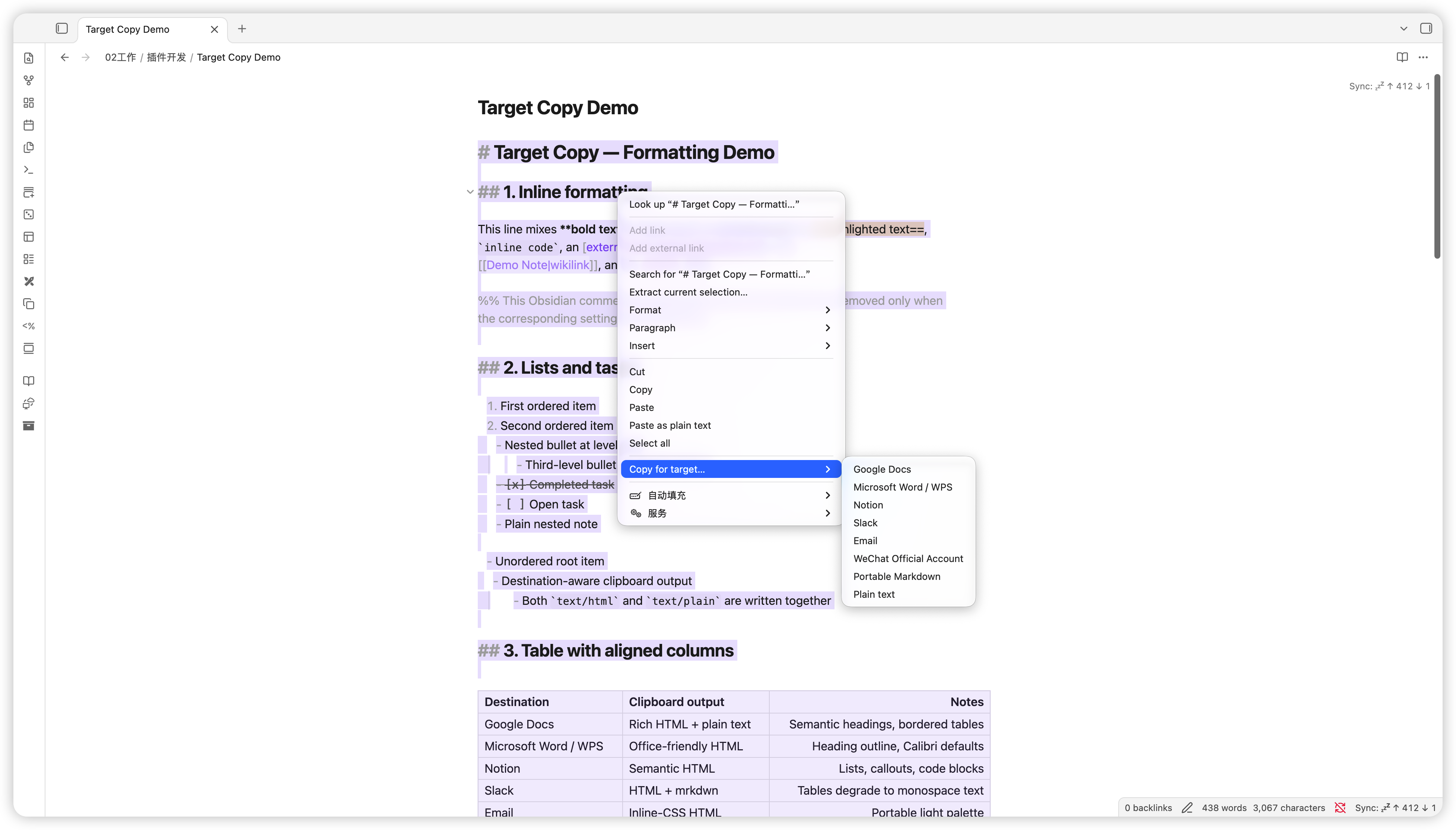
Choose a destination from the context menu
Hover Copy for target… to open the enabled destinations, then choose one to copy immediately.
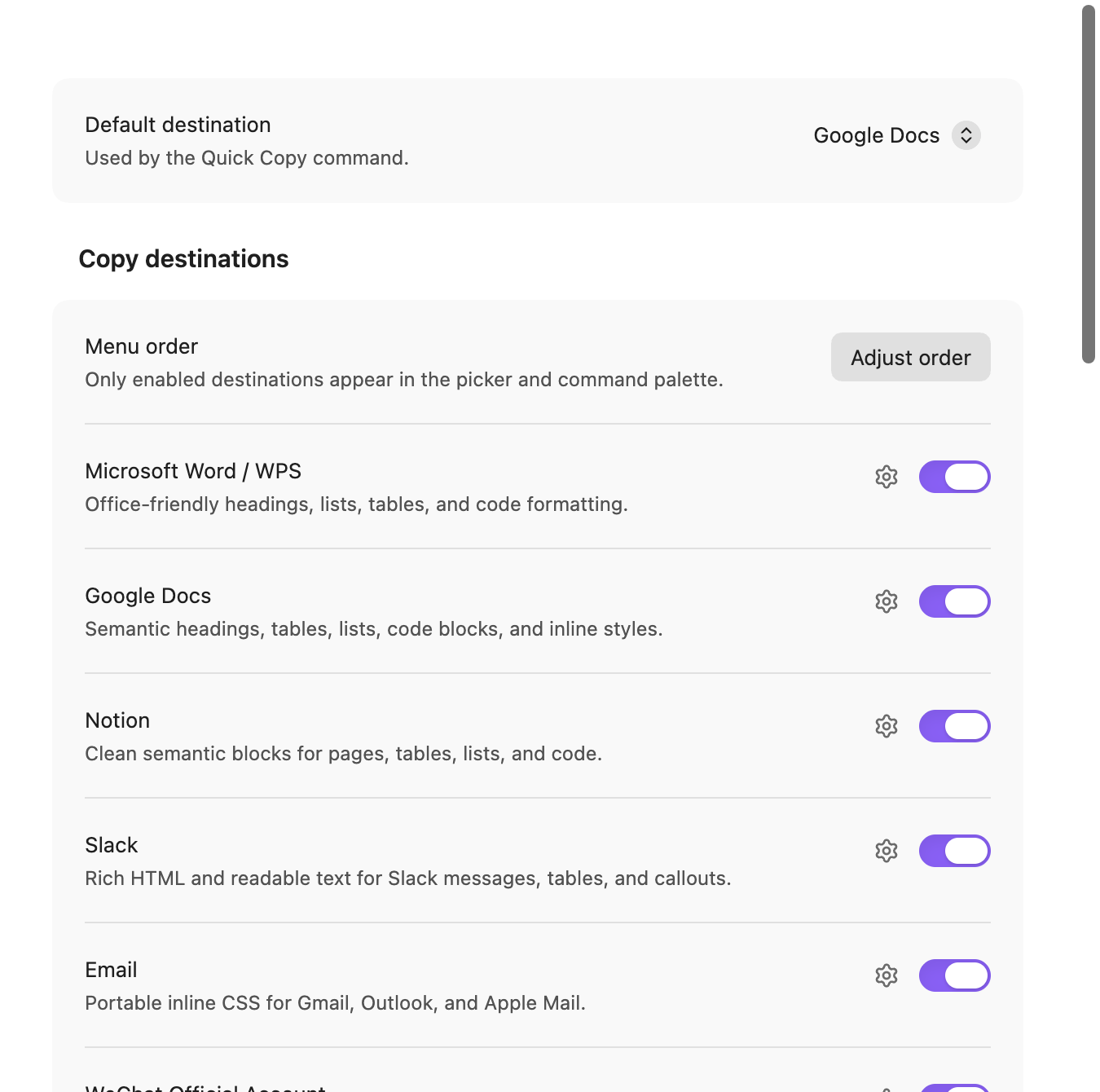
Keep the destination list focused
Enable only the apps and formats used in your workflow. The picker, context menu, and command palette show the same enabled destinations.
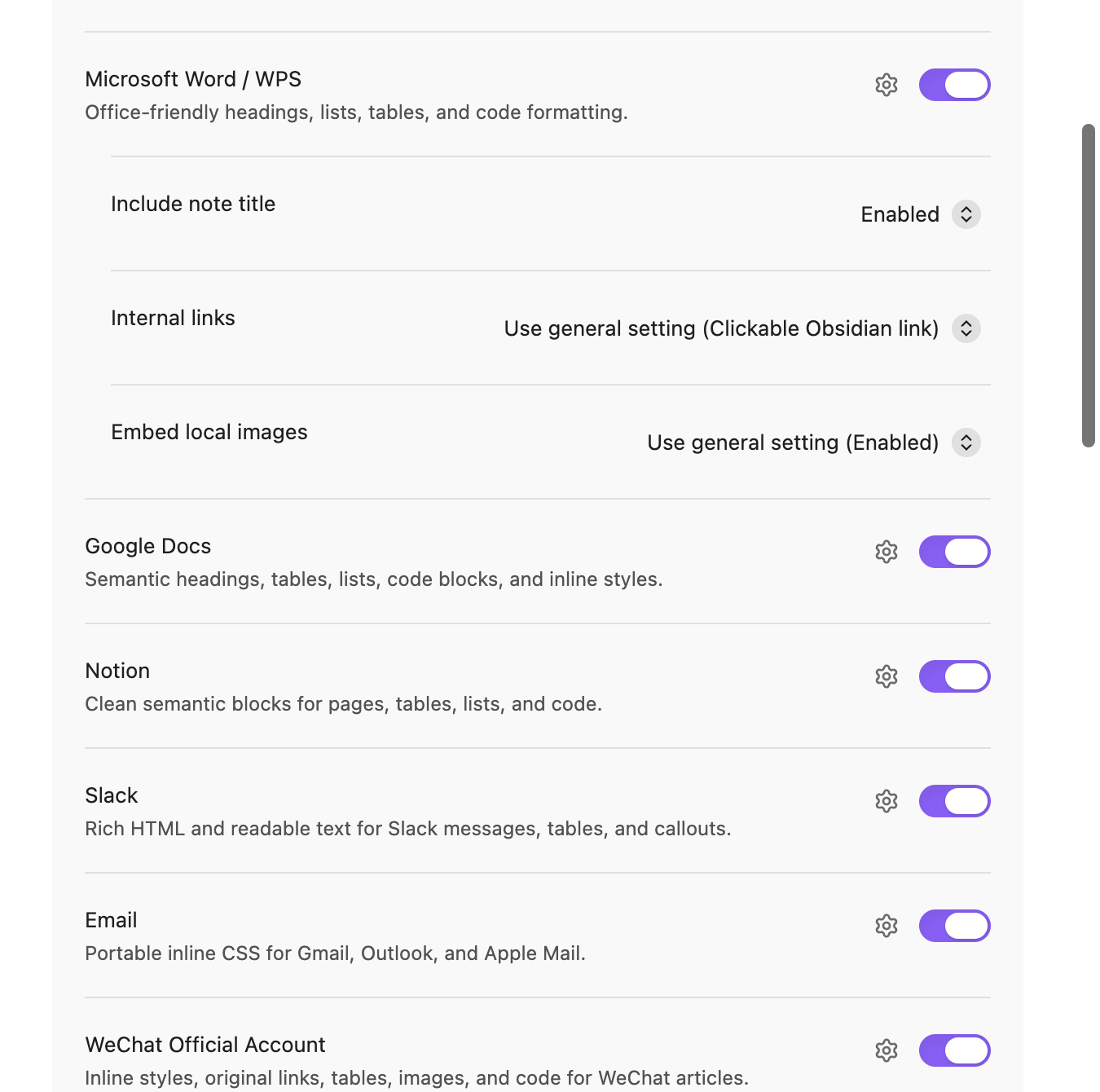
Control what is carried to the destination
Open the gear beside a destination to adjust its title, internal links, and local images. Each inherited option displays its current value.
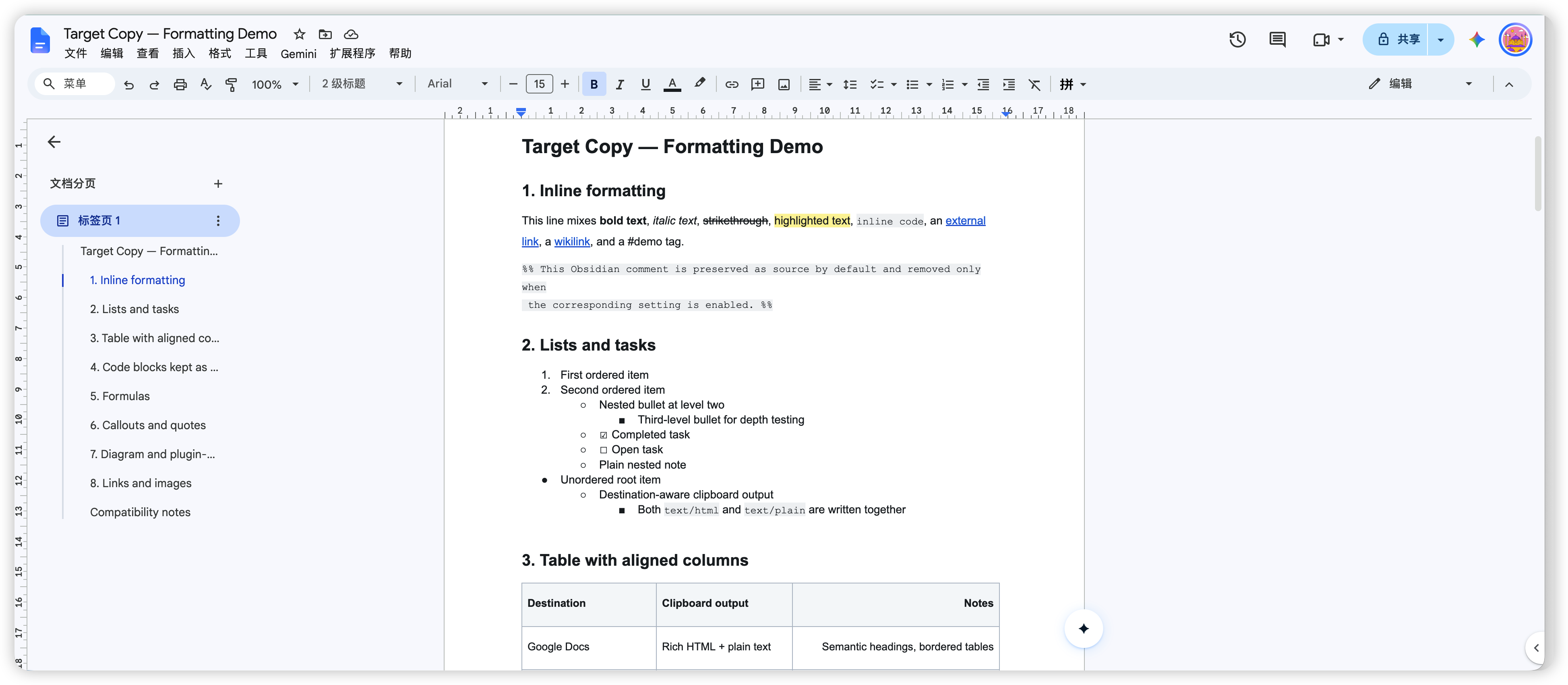
Paste into Google Docs
The copied content retains headings, inline formatting, lists, task states, tables, links, and source blocks in Google Docs.
Copy controls
The picker shows whether it will copy a selection or the whole document, the source format, and each destination's clipboard format. Destinations keep a stable order, with a marker on the last-used target.
In Settings → Target Copy, choose the Quick Copy destination at the top. In Copy destinations, toggle the apps you use, choose Adjust order to move them, or open the gear beside an enabled target to set its title, links, and image preferences. Inherited options show the current general value. Advanced settings contains optional limits for embedded images and note expansion. Limits default to unlimited.
Editor selections include the reference-link and footnote definitions they use. Original source remains an exact copy of the selected text.
Long-running conversions offer a Cancel copy button and command. The Last copy details command shows all compatibility notices from the latest successful copy. Copy-progress and compatibility notifications have separate settings.
Local processing
Every conversion runs inside Obsidian. Target Copy processes the selection or note chosen by the user, expands referenced local Markdown notes, resolves vault images when image embedding is enabled, and writes the destination format to the system clipboard. Remote image references remain URLs for the destination editor to handle.
Manual installation
- Run
npm ciandnpm run buildin this directory. - Create
<your-vault>/.obsidian/plugins/target-copy/. - Copy
main.js,manifest.json, andstyles.cssinto that directory. - Reload Obsidian, open Settings → Community plugins, and enable Target Copy.
The release archive contains exactly those three installable files.
Commands
The picker, Quick Copy, and Repeat Last commands are always available. Dedicated destination commands are registered only for destinations enabled in settings, so the command palette stays compact.
Target Copy: Copy for target…Target Copy: Quick copy using the default targetTarget Copy: Repeat the last copy targetTarget Copy: Cancel copywhile a conversion is runningTarget Copy: Last copy detailsTarget Copy: Copy for …for each enabled destination
Compatibility notes
- Slack receives rich HTML plus readable plain text for its message editor.
- Mermaid, SVG, Dataview, Excalidraw, and other plugin syntax is preserved as editable source for the destination application to render.
- Version 1.0.2 targets Obsidian Desktop and its desktop clipboard implementation.
- Word and WPS receive Office-friendly HTML; the receiving editor controls its final layout.
- The WeChat editor may re-upload pasted images. Always confirm every image in the editor before publishing.
Development
npm ci
npm run check
npm run dev starts an esbuild watcher. Release archives package the generated
main.js with manifest.json and styles.css.
The conversion pipeline is:
selection or note
  → source cleanup
  → Obsidian MarkdownRenderer
  → semantic DOM normalization
  → destination adapter
  → text/html + text/plain clipboard bundle
See the architecture and dependency and license notes.
Open source
The complete plugin source, tests, translations, public documentation, build scripts, and public CI configuration are published under the MIT License. The plugin is a self-contained local Obsidian runtime. The production bundle uses Obsidian and its desktop clipboard bridge as host APIs; build and test tools are documented separately.
- Read CONTRIBUTING.md before opening a pull request.
- Report vulnerabilities privately as described in SECURITY.md.
- Use SUPPORT.md for safe bug-reporting guidance.