Tag Group Organizer
 aki183 downloads
Organize tags into flexible groups and blocks without changing your tag structure.
- Overview
- Scorecard
- Updates3
English | 简体中文
Tag Group Organizer lets you arrange existing Obsidian tags into visual groups and blocks without changing their original tag structure.
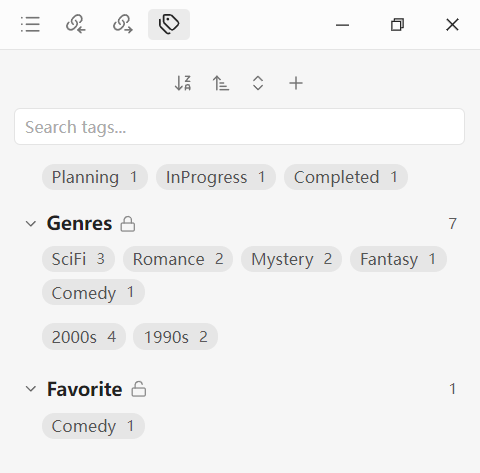
Overview
Tag Group Organizer is a local Obsidian plugin for arranging existing vault tags into custom groups and blocks.
Regular grouping, moving, and sorting operations only change the plugin's organization data. They do not modify tags inside your notes.
Features
- Organize existing tags into custom groups.
- Divide a group into multiple tag blocks.
- Move or copy tags with drag and drop.
- Lock groups to prevent accidental changes.
- Sort tags and groups by name or usage frequency.
- Search tags in the current vault.
- Select a tag to search for matching notes in Obsidian.
- Manage group membership from the tag context menu.
- Rename or delete groups.
- Rename tags in supported Markdown content and YAML tag lists.
- Batch-select tags for faster organization of large vaults.
- Automatically use English or Chinese based on Obsidian's interface language.
Installation
- Open Settings → Community plugins in Obsidian.
- Select Browse and search for Tag Group Organizer.
- Select Install.
- Once installed, select Enable.
Quick start
- Select the tag icon in the ribbon, or run the Open tag manager command.
- Select the plus button in the toolbar to create a group.
- Drag a tag onto a group header to add it to the group's first block.
- Drag a tag to the drop zone at the bottom of a group to create a new block.
- Select a group header to expand or collapse it.
- Select the lock icon to lock or unlock a group.
Drag-and-drop behavior
- Between blocks in the same group: moves the tag.
- From one group to another: copies the tag and keeps it in the source group.
- Onto a group header: adds the tag to the target group's first block.
- Onto the drop zone at the bottom of a group: creates a new block containing the tag.
- Locked groups do not accept dropped tags and cannot be modified.
Dragging a tag into the Obsidian editor still inserts the standard #tag format.
Context menus
Right-click a tag to:
- Remove it from the current group.
- Rename the tag.
- View its group membership and add it to or remove it from other unlocked groups.
Right-click a group header to:
- Rename the group.
- Delete the group.
Deleting a group only removes the plugin's organization data. It does not delete tags or notes from the vault.
Sorting and frequency
The toolbar can sort by name or usage frequency. Usage frequency is the number of notes containing a tag; repeated uses of the same tag in one note count only once.
Tag rename notes
Renaming a tag modifies vault files. Back up your vault or use version control before renaming important tags.
The current rename operation supports:
- Tags in Markdown content.
tagsstored as a list in YAML frontmatter.
Tag names cannot contain spaces.
Batch selection
For vaults with a large number of existing tags, Tag Group Organizer includes a batch selection mode to speed up initial organization and large-scale cleanup.
Enable multi-select mode from the toolbar, then select multiple tags at once. Selected tags remain selected even when you change the search query.
Available batch actions include:
- Add to group
- Create group from selected
- Clear selection
When all selected tags come from the same group, you can also:
- Remove from current group
- Move to group
On desktop, open the batch menu with a right-click. On mobile, use a long press.
Data and privacy
- Plugin data is stored locally in
data.jsoninside the plugin folder. - The plugin does not send telemetry.
- The plugin does not send vault content to external services.