Tag Buddy
 moremeyou6k downloads
Add, edit, and remove tags in reading mode. Copy, move, or edit tagged blocks in reading and edit mode.
- Overview
- Scorecard
- Updates11
Unlock powerful tag editing features in Reading Mode. Add, remove, and edit tags across your vault, in the active note or a single instance. Use tag summaries to roundup and process tagged content like an inbox.
🔎 Documentation below ⬇️
🎬 As seen in Capture and curate ideas: Modern note taking for creatives
✏️ Add tags to note
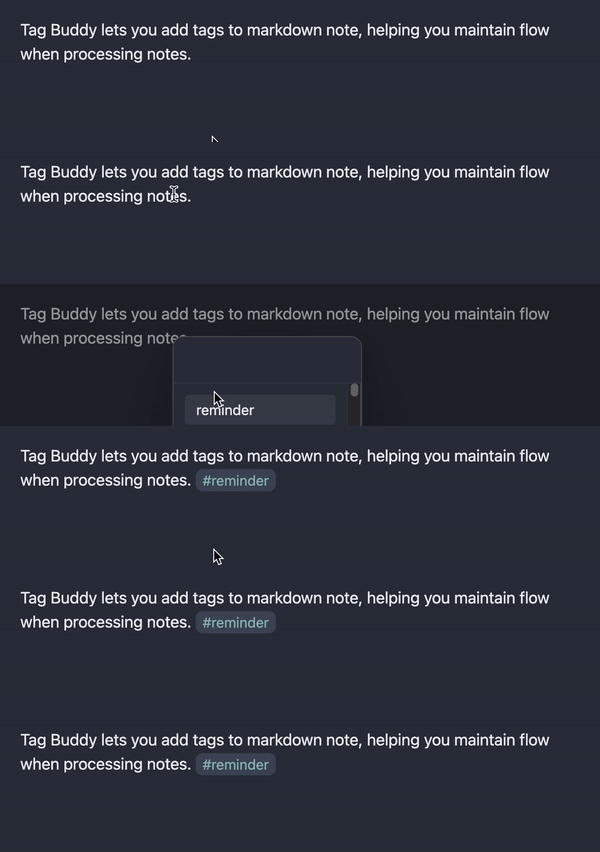
CMD+RIGHT-CLICK (or TRIPLE-TAP on mobile) displays a tag selector to chose a recent/favorite tag or create a new tag in any native markdown note, embedded content or tag summary (explained below).
🧼 Remove tags and nested tags
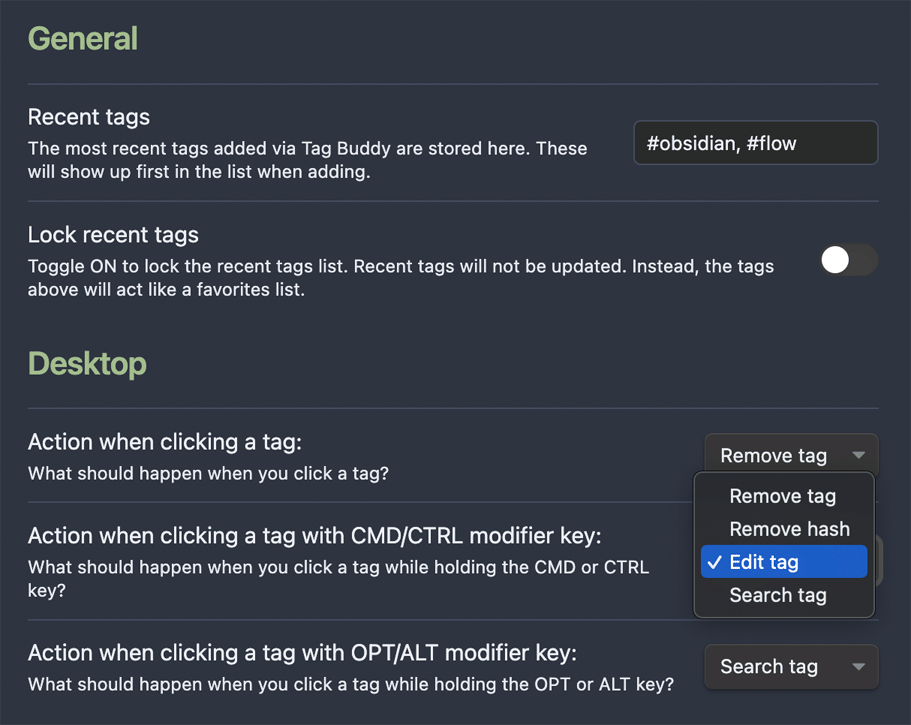
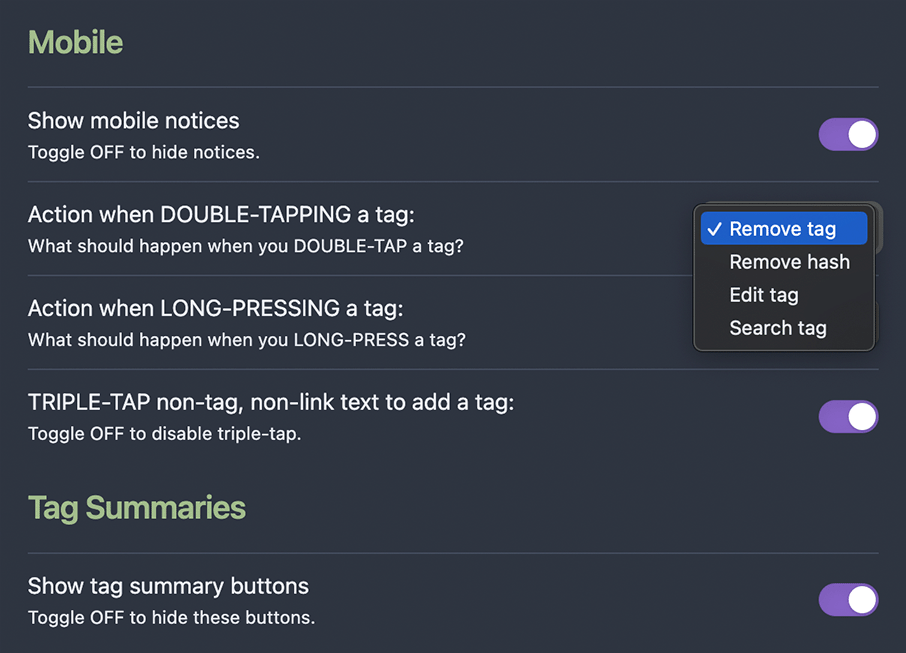
By default, a CLICK (or DOUBLE-TAP on mobile) removes a tag. Nested tags will be removed from the deepest tag first. And you can customize these actions with modifier keys. For example: you can preserve native tag search when CLICKING and assign CMD+CLICK to remove the tag. More on settings below.

🫥 Edit tags individually, all in note or across the vault
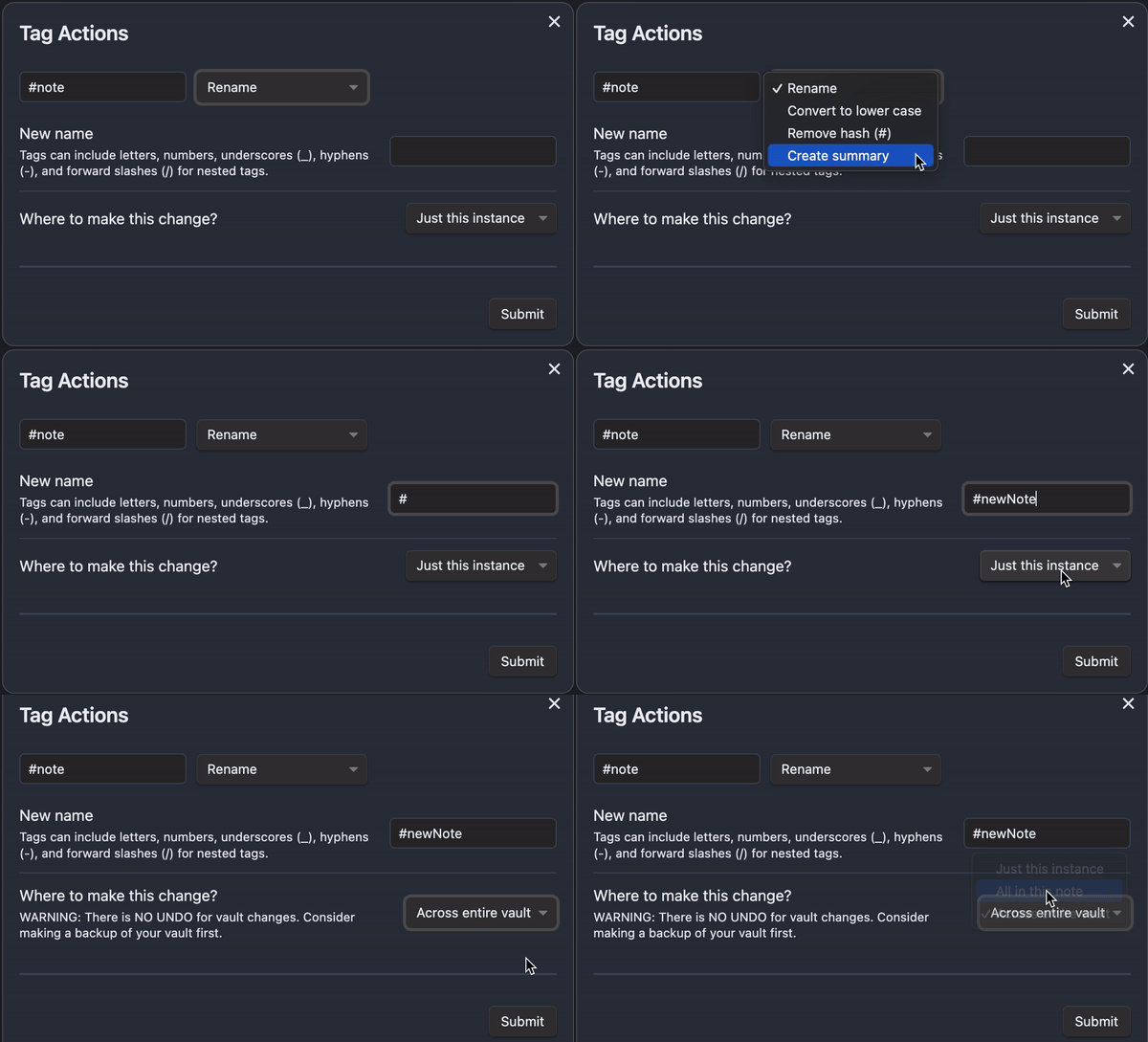
By default, CMD+CLICK (or LONG-PRESS on mobile) on a tag reveals the Tag Action modal. From here you apply the following actions to just the clicked tag, all of the same tag in this note, or all of the same tag across the entire vault:
- Rename tag
- Change case
- Convert to text
- Create tag summary

🔎 Generate and interact with tag summaries
Tag summaries can be auto-generated when editing a tag (as seen above) or with this basic syntax. Use the same interaction for adding, removing or editing tags within summaries or native embeds, just as you would elsewhere.
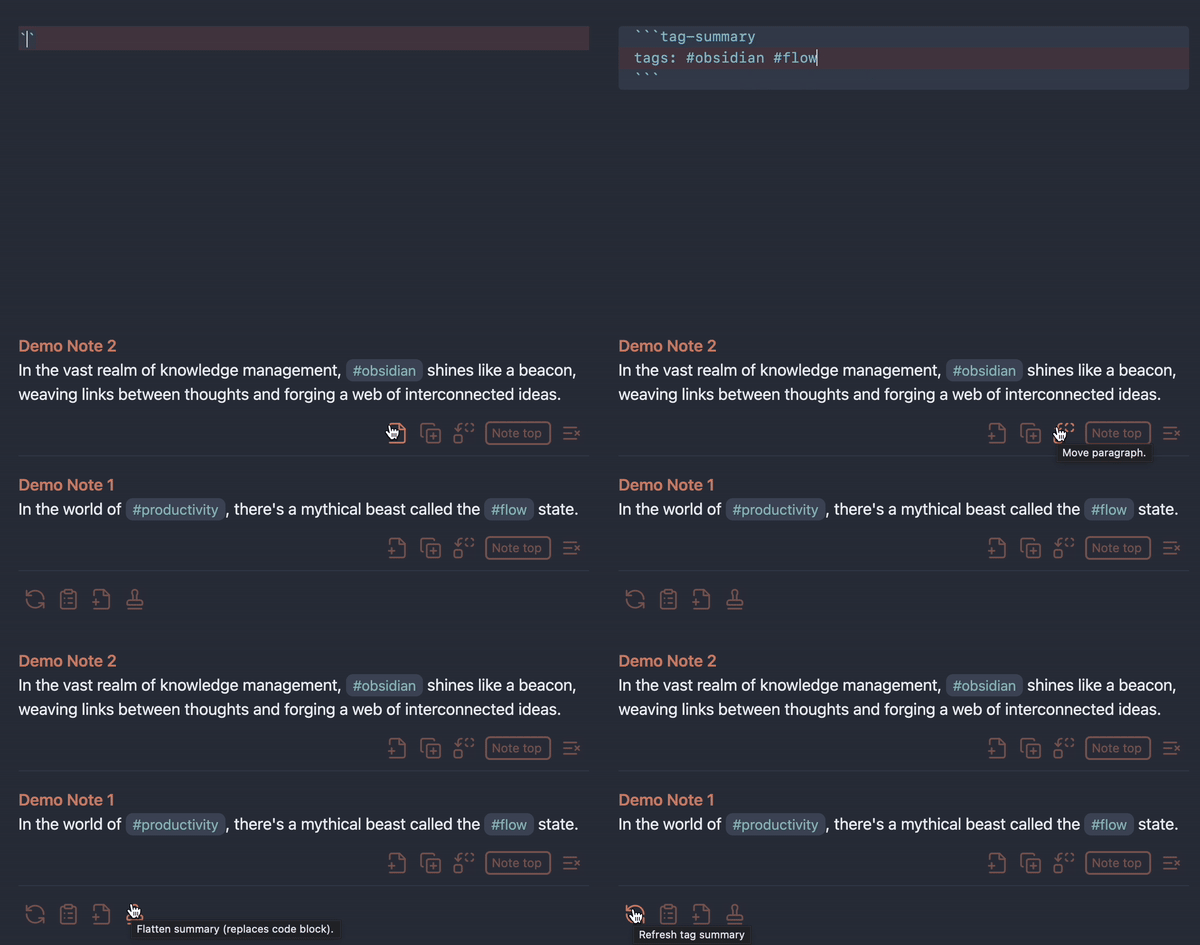
Interact with results in tag summaries:
- Copy paragraph to section in this note.
- Copy paragraph to section in another note.
- Move paragraph to section in this note. To achieve this, Tag Buddy first removes the queried tag from the paragraph, then copies it to the section.
- Section dropdown is explained below.
- Remove tag button removes the tag but doesn’t copy the paragraph.
Interact with the entire summary with summary buttons:
- Reload the summary. Useful if you’re updating tags in queried notes.
- Copy to clipboard copies the entire summary as markdown.
- Copy the entire summary to another note.
- Flatten summary converts the dynamic summary to standard markdown (replacing the code block).
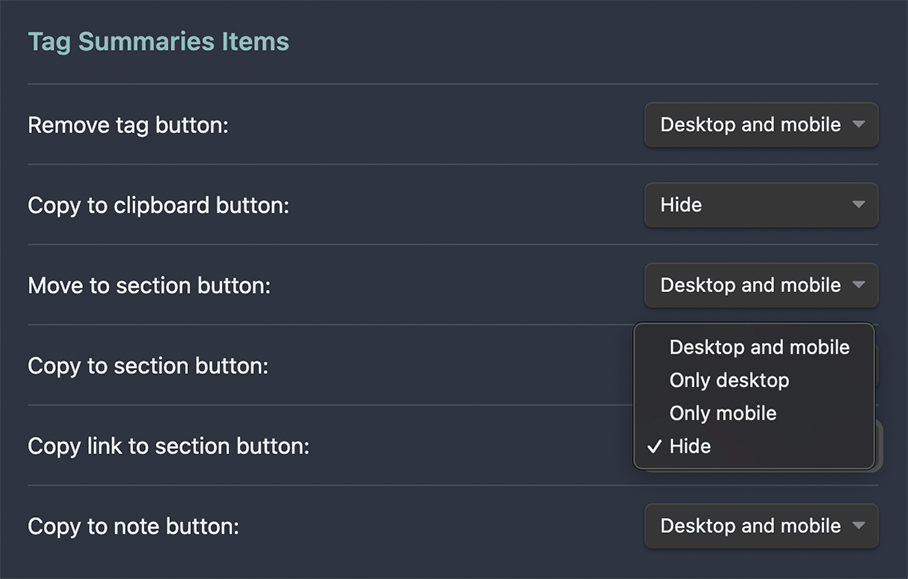
All these buttons can be hidden in the settings outlined below.
📚 Copy or move paragraphs to a section
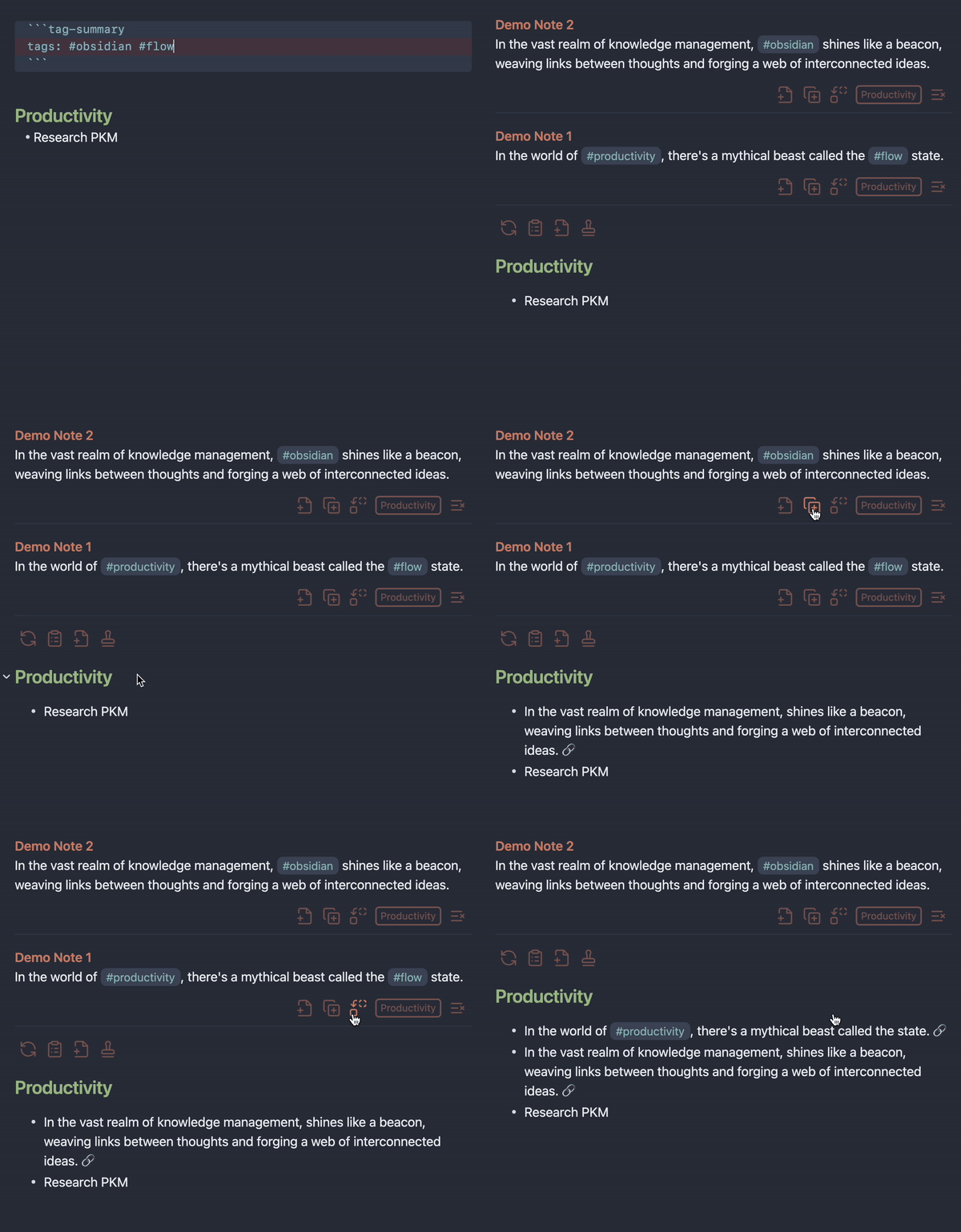
As noted above, each paragraph includes a dropdown to specify where the move or copy buttons should paste the tagged paragraph. “Top of note” and “End of note” are always available. But if you include a header section title in the tag summary, this will also become an option in the dropdown, as seem below. If a section is chosen, when copying or moving to another note, Tag Buddy will look for that section to paste the content. If the section isn’t found, it will paste to the top of the note. In all cases, when pasting Tag Buddy will try to detect the list type below the section header.
🧩 Tag summary code block
This is the full syntax for all the parameters you can pass to the tag-summary code block. Using the include, exclude, and max parameters of the tag summary code block you can easily customise and build new notes from tagged content.
```tag-summary
tags: #tag1 #tag2 // Results can have either of these tags
include: #tag3 #tag4 // Results must have both these tags (optional)
exclude: #tag5 #tag6 // But not have these tags (optional)
section: Productivity // Header sections (optional)
max: 3 // Limits the results in the summary (optional)
```
Thanks to Tag Summary Plugin for the original code behind the summaries.
⚙️ Settings
Customize how Tag Buddy looks and functions across desktop and mobile.
🧐 Why is this useful to me?
I use tags to connect ideas, but also as a flexible I/O or state/status management system. For example, most of my content comes in through daily notes with tags. Then I have specialized notes that query those tags into an "Inbox" section of the specialized note so I can review and process on-demand.
Why only Reading Mode?
Tag Buddy is about maintaining your flow state when reading or reviewing your notes. Tag editing functionality in Reading Mode means you can, for example, remove “new” from “#book/highlight/new”, or quickly add “#todo” without switching to Edit or Source Mode.
👍 Support a buddy
There’s lots to do and I’d like this plugin to grow with Obsidian and the community. Your support will ensure on-going development and maintenance.
📦 Install now
Obsidian approved December 6th, 2023! 🤘
- If you're already using community plugins, click here to install from the Obsidian plugin store.
- If you're new to Obsidian:
- Open Settings > Community Plugins
- Tap “Turn on Community Plugins” to access the store
- Search for Tag Buddy.
- Tap Install.
- After installation, tap Enable.
- Enjoy!
✨ Updates
Recent updates since the original main branch:
Safer Reading Mode tag editing
- Better source-position checks before editing rendered tags.
- Stale or out-of-sync rendered tags are blocked instead of editing the wrong source.
- Clearer refresh notices when Tag Buddy needs the rendered tag positions rebuilt.
- Safer handling for active notes, native embeds, and tag-summary results.
Improved Tag Actions modal
- Rename, remove hash, lower-case, and create-summary actions are cleaner and more reliable.
- Scope options support just this instance, all matching tags in this note, or matching tags across the vault.
- Tag input is normalized and validated before source edits are made.
Tag summary layout and controls
- Summary query tags and summary-level buttons now live in a configurable header.
- Default summary controls are quieter: query tags plus refresh only.
- Summary item links, copy/move buttons, and section dropdowns are aligned on one compact row.
- Mobile sizing, truncation, spacing, and dividers were refined.
Cleaner tag-summary output
- Copied, flattened, and new-note summary output removes matched query/include tags from body text.
- Leading tag-only lines compact onto the following body line.
- Link and paragraph line breaks are preserved more cleanly.
Better add/remove/edit reliability
- Add-tag behavior has safer source detection and clearer failure notices.
- Remove/edit actions avoid unsupported contexts such as Canvas and unknown non-Markdown views.
- Frontmatter/properties tags are skipped when comparing rendered Reading Mode body tags to source tags.
Settings and UI cleanup
- New visibility settings for summary header buttons.
- Recent tag settings validation is clearer.
- UI text and notices were centralized for consistency.
Maintenance and release cleanup
- TypeScript/tooling dependencies were updated.
- Tag parsing and summary parsing patterns were centralized.
- README media assets moved into
docs/assets/with branch-relative links. - Release artifacts can be built and verified before publishing.
👍 Support a buddy
There’s lots to do and I’d like this plugin to grow with Obsidian and the community. Your support will ensure on-going development and maintenance.
🗒️ Notes
- Switch to editing to undo any edits in the active note.
- **Edits are permanent in embeds/summaries (unless that note is open in a tab).
- Known limitations:
- Editing tags within some other plugins or unknown view types is not supported, for now. Please reach out if you have a use case.
- Checkboxes are superficially functional in summaries. But the state change isn't applied to the source file. This functionality might be beyond the scope of this plugin.
- Two (or more) tag summaries or embeds in the same note referencing the same tags will lose sync with each other. Warnings have been implemented. WORKAROUND: Use the Refresh button below the tag summary to manually update.
Disclaimer
This plugin modifies your notes. And while there are multiple safety precautions, this plugin comes with no guarantee of any kind. Neither the author nor Obsidian are responsible for any loss of data or inconvenience. Use this plugin at your own risk. See complete license here.