Tab Tray
 iceblyte57 downloads
Browser-style tab groups you can open and collapse in one click, plus a compact pinned row. Built so groups never disappear after a restart.
- Overview
- Scorecard
- Updates4
Tab Tray
Browser-style tab groups for Obsidian desktop.
Named, coloured groups you open and collapse in one click — plus a compact pinned row. The point is not the grouping; it is that the groups are still there tomorrow.
中文说明见 README.zh-CN.md。
Why another tab plugin
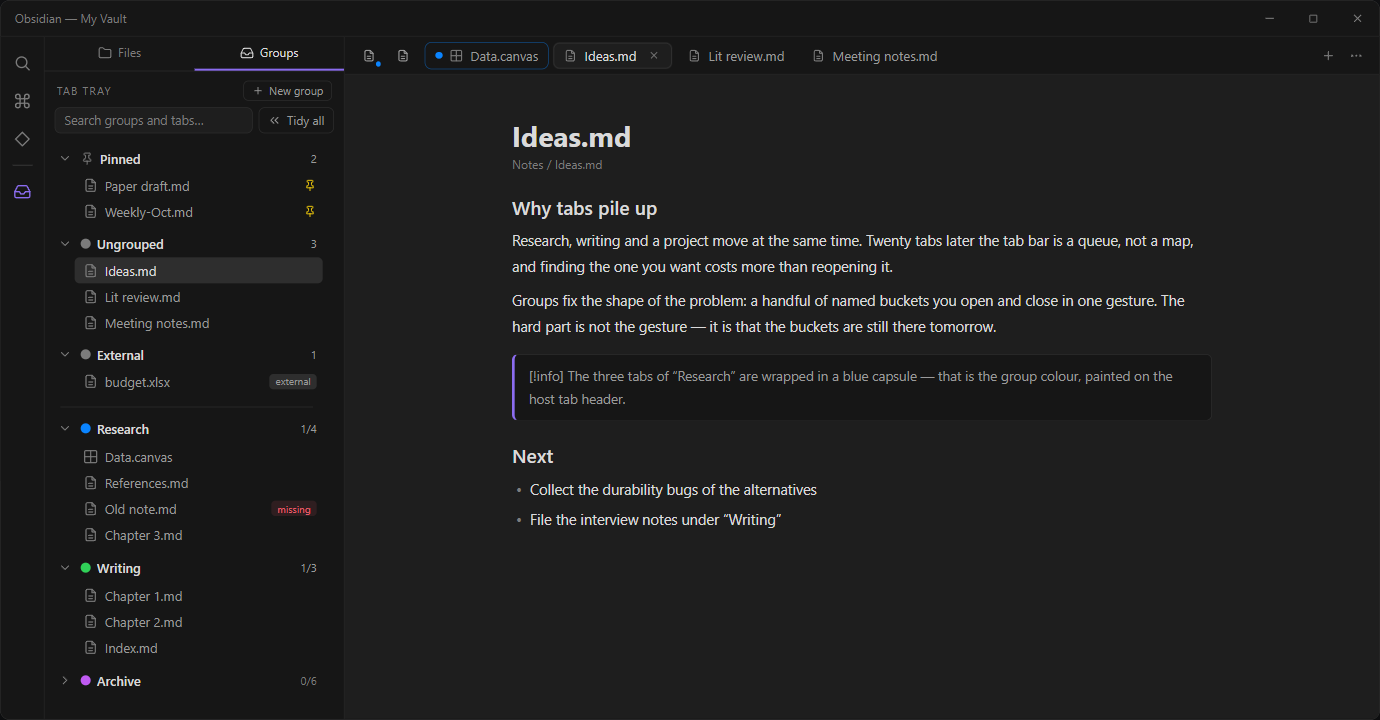
Research, writing and a project move at the same time. Twenty tabs later the tab bar is a queue, not a map, and finding the one you want costs more than reopening it.
Groups give it a shape: a handful of named buckets you open and close in one gesture. The hard part was never the gesture — it is that the buckets are still there tomorrow. Tab Tray is built around that: every mutation goes through one validated path, writes are debounced and atomic, and a file that cannot be parsed falls back to a backup instead of taking your groups with it.
The panel
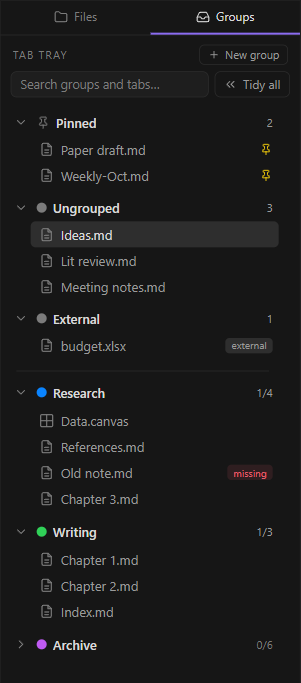
One list, not two modes. The panel opens with three derived sections — the tabs you pinned, the tabs in no group, and the tabs opened from outside the vault — then a rule, then your groups. The three sections are always drawn, even when empty, so their counts are readable at a glance.
- Pinned — tabs you pinned in Obsidian. A pinned tab can never be a group member, so this section is where it lives.
- Ungrouped — open vault files that belong to no group yet. Drag one onto a group to file it.
- External — files opened from outside the vault. They have no durable vault path, so they are never grouped, never tinted and never counted.
- Groups — every persistent member, with an
n/mcounter that deduplicates across panes and windows. - Search — matches a group name (the whole group is shown) or a file name.
- Tidy all — collapse every group in this window in one go.
Open and collapse
Expanding a group replaces the tabs in the pane you are in, so a group is a place you go rather than a pile you add to. Hold Ctrl/Cmd while expanding to append instead. Collapsing closes the group's tabs in the current window only — other windows, including popouts, are never touched.
Opening and closing are deliberately buttons: the two chevrons that appear on hover. A click on the group row folds the list, which is what a row click looks like it should do. Clicking a member focuses its tab if it is already open and opens a new tab otherwise; it never replaces what you are reading.
Pinned tabs
Pinned tabs shrink to icons at the start of the tab bar, with the native tooltip intact and all three click behaviours unchanged. Because the plugin decorates the host's own tab headers rather than rebuilding them, left, right and middle click keep working.
Pinning is a membership-ending action: pin a member and it leaves the group, with a notice saying where it went. Unpinning does not put it back — add it again once it is a normal tab. Nothing about pin state is stored, so there is no state to repair after a restart.
Colour
Members of a group are tinted with that group's colour, drawn on the host's own tab variables so the body, outline and the two bottom corner curves stay in sync. Files outside a group are never tinted. The palette is ten fixed colours, one light and one dark variant each, so it reads correctly in either theme.
Your data
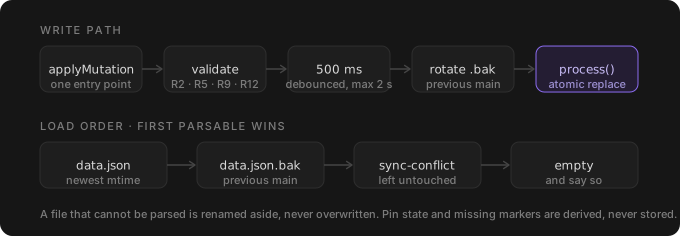
Groups live in .obsidian/plugins/tab-tray/data.json.
- Every change is written within about 500 ms using an atomic replace, after
rotating the previous contents into
data.json.bak. - If the main file cannot be parsed, the backup is loaded instead and you are told. The unreadable file is renamed aside, never overwritten.
- If a sync tool leaves a conflict copy (
data.sync-conflict-*.json), the newest parsable version wins and the conflict file is left alone. - Disabling or uninstalling the plugin never deletes your data.
- No network requests, no telemetry. The plugin reads file paths and metadata only, never file contents.
Pin state and "missing file" markers are derived at runtime and deliberately never written to disk, so they cannot go stale.
Install
Tab Tray is in the community plugin store. Open Settings → Community plugins → Browse, search for Tab Tray and install it — or open obsidian.md/plugins?id=tab-tray directly.
To install by hand, for a vault that cannot reach the store:
- Download
main.js,manifest.jsonandstyles.cssfrom the latest release. - Put them in
<your vault>/.obsidian/plugins/tab-tray/. - Enable Tab Tray in Settings → Community plugins.
Obsidian desktop 1.14.0 or newer. Desktop only: the plugin works on the tab bar and the workspace layout, which mobile does not have.
Release assets are built by GitHub Actions from the tagged commit and carry a build provenance attestation:
gh attestation verify main.js --repo iceblyte/tab-tray
Commands
| Command | What it does |
|---|---|
| New group | Create a group; it asks for a name and a colour |
| Open group sidebar | Reveal the panel, creating it in the left sidebar if needed |
| Collapse the active group's tabs | Collapse whichever group owns the file you are reading |
| Collapse all groups | Same as Tidy all in the panel |
| Open group: name | One per group, usable with the panel closed |
| Collapse group: name | One per group |
Everything is bound to no hotkey by default; assign them in Settings → Hotkeys.
Development
npm install
npm run dev        # esbuild watch -> main.js
npm run build      # typecheck + production bundle
npm test           # Vitest, core and planning layers
npm run lint       # Biome
npm run typecheck  # tsc --noEmit
Architecture, the persistence design and the decision log are in
docs/DESIGN.md; the requirement baseline is
docs/PRD.md; the manual acceptance checklist is
docs/ACCEPTANCE.md. The UI prototypes that led to the
implementation are in prototype/ — they predate the
merged sidebar, so treat them as design history. The screenshots above are
rendered from the real styles.css by
docs/images/build-preview.mjs.
Support
If Tab Tray saves you some tab wrangling, you can sponsor the author on Afdian.
License
MIT