SyncLab
 strider-ape48 downloads
Review your changes and sync your vault with a GitLab repository in one press.
- Overview
- Scorecard
- Updates8
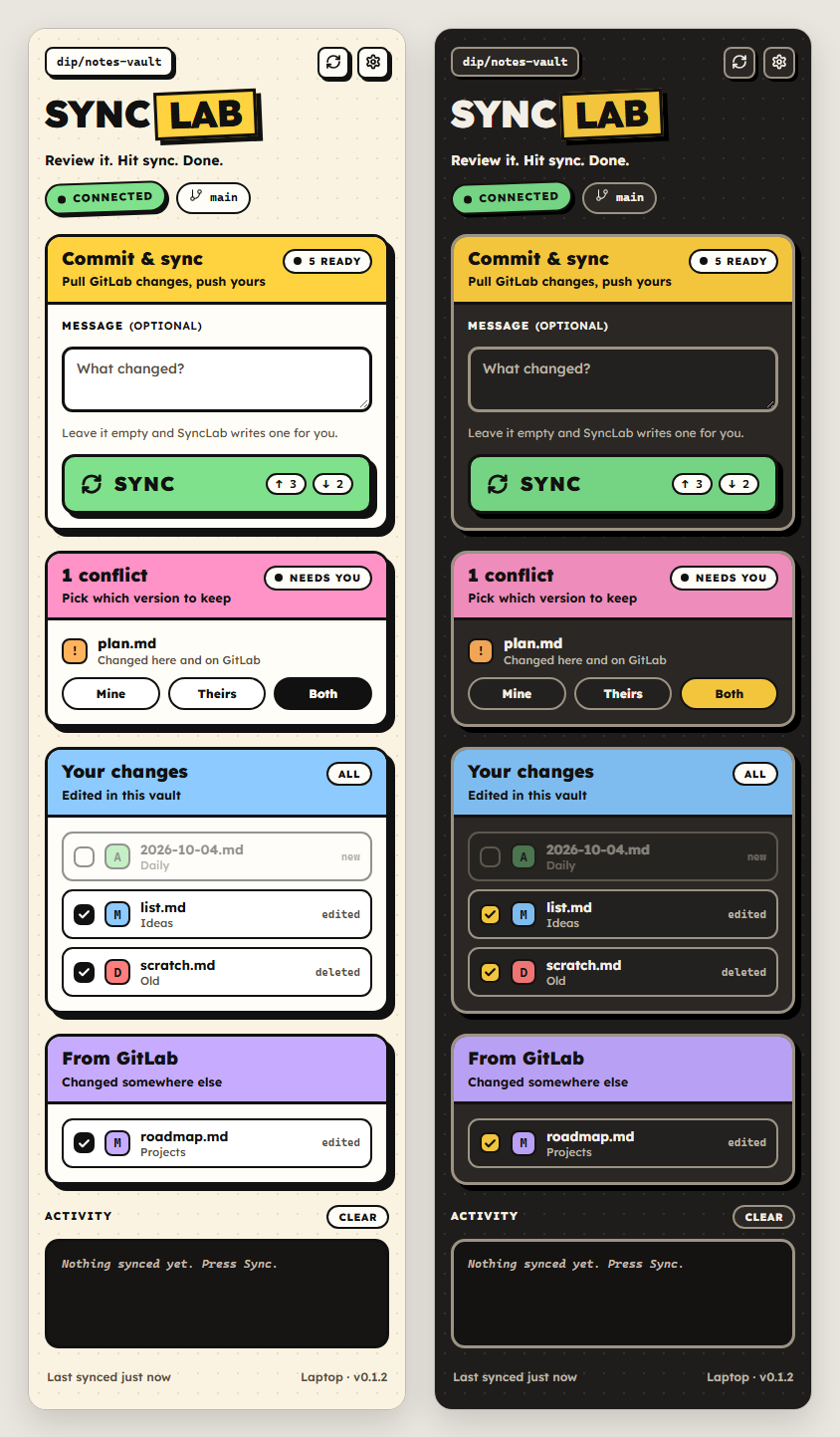
Review your changes and sync your Obsidian vault with a GitLab repository in one press.
SyncLab does one job: keep a vault (or one folder of it) and one GitLab branch identical, without ever losing a note. It talks to GitLab's API directly, so there's no git to install and it works on desktop and mobile.
How it works
- Review. The SyncLab sidebar lists what changed in your vault and what changed on GitLab, like a source control panel. Click a file to compare versions, or the note button beside it to open the note. Untick anything you don't want in this sync.
- Sync. Press the big button. SyncLab pulls GitLab's changes, then pushes yours as a single commit, with your message or a generated one.
- Decide conflicts. If a note changed in both places, SyncLab never guesses. You pick:
- Mine: your version is kept and replaces GitLab's.
- Theirs: GitLab's version is kept, and yours goes to the trash.
- Both: yours stays, and GitLab's copy is saved next to it.
Getting started
You need Obsidian 1.11.4 or newer and a GitLab account. That's all: no git, no command line, no SSH keys.
1. Install SyncLab
In Obsidian, open Settings → Community plugins and choose Turn on community plugins if you see it. Obsidian asks for this once per vault before any plugin can run.
Until SyncLab is listed in Obsidian's plugin directory, install it with BRAT, a plugin for installing plugins straight from GitHub. This works on desktop and mobile:
- Under Community plugins → Browse, search for BRAT, install it and turn it on.
- In BRAT's settings, choose Add beta plugin and enter
https://github.com/strider-ape/SyncLab. - Back under Community plugins, turn SyncLab on.
Once SyncLab is in the directory, search for it under Community plugins → Browse and install it like any other plugin.
2. Connect GitLab
Click the SyncLab icon (two circular arrows) in the left ribbon, or press Ctrl/Cmd+P and run SyncLab: Open sidebar. Then press Connect GitLab and follow the five steps:
- Where's your GitLab? GitLab.com, or your own server's address.
- Connect your account.
- Create a token on GitLab opens GitLab's token page with the name and the
apipermission already filled in. - Pick an expiry date, create the token, copy it and paste it back.
- The token is stored in this device's secure keychain, never in your vault.
- Create a token on GitLab opens GitLab's token page with the name and the
- Pick a project. Choose an existing one, or Create a new private project right there.
- Pick a branch. Usually the default one.
- What should sync? The whole vault, or just one folder.
3. Your first sync
The sidebar lists everything that differs between your vault and the project. Press Sync.
- Nothing is ever deleted on a first sync, on either side.
- Notes only in your vault are uploaded.
- Notes only on GitLab are downloaded.
- Notes that exist in both places but differ show up as conflicts for you to decide.
Every day after that
Edit as usual. When you want to sync, open the sidebar, optionally type a message, and press Sync. Notes changed on another device show up under From GitLab and are pulled in the same press.
Already have your notes on GitLab? (New device)
Create or open an empty vault, install SyncLab and connect it to that project. The first sync downloads every note.
If the vault isn't empty:
- identical notes are simply recognised as already in sync;
- notes that differ become conflicts;
- notes only in the vault are uploaded.
Adding another device
Repeat steps 1 and 2 on each device and pick the same project and branch. The token isn't copied between devices, so you paste one on each. A separate token per device is best: if you lose a phone, you revoke just that one.
Good to know
- Syncing happens when you press Sync. There's no background syncing yet.
- Tokens expire. GitLab allows at most a year. When yours does, SyncLab says GitLab rejected the token. Create a new one and set it under Settings → SyncLab → GitLab token, or run the setup again.
- Your
.obsidianfolder is never synced, and neither are other dot-files such as.gitignore. Themes, plugins and settings stay per device, and files like that in the repository are left alone. - Files over 20 MB are skipped on both sides. You can raise the limit in SyncLab's options.
- Use one sync tool per vault. Running SyncLab alongside Obsidian Sync, iCloud, Dropbox or Syncthing on the same vault makes the tools fight over the same files. SyncLab does skip Syncthing's own conflict and temporary files.
- Git LFS isn't supported. Files stored with LFS would arrive as small pointer files.
What SyncLab promises
- Nothing is silently overwritten. Files that changed on both sides, or that differ on a first sync, become conflicts for you to decide.
- Syncing twice changes nothing the second time. If a sync is interrupted (closed app, lost connection), pressing Sync again finishes the job without duplicates.
- If GitLab changes while you sync, the commit is refused and SyncLab re-checks instead of overwriting someone's work.
- Deleted files go to the trash, following Obsidian's "Deleted files" setting. Large batches of deletions ask first.
- Your files are copied byte for byte. Images, PDFs and other binaries are never re-encoded.
Network use and privacy
SyncLab needs a GitLab account and connects only to the GitLab server you configure. It sends requests there to list, read and write files in the project and branch you chose. It has no telemetry, no analytics and no other network requests. The font it uses is bundled with the plugin.
Vault access. To know what changed, SyncLab lists and reads the files in the folder you sync (or the whole vault, if that's what you chose) and compares them with GitLab. It writes or trashes files only when a sync brings in a change. It never touches the .obsidian folder or other dot-folders.
Base64, and only for uploads. GitLab's commit API takes file contents as base64 text, so SyncLab encodes each file it uploads. That's what keeps images, PDFs and other binary files byte-exact. It's the only place SyncLab uses base64, and it never decodes or runs anything.
Release files you can verify. Each release's main.js, styles.css and manifest.json carry a signed GitHub build attestation, so you can check they were built from this repository. Use gh attestation verify main.js --repo strider-ape/SyncLab.
Development
npm install
npm run dev            # watch build into main.js and styles.css
npm run build          # type checks + production build
npm test               # unit, engine, property-based and contrast tests
npm run lint           # ESLint with Obsidian's plugin rules
npm run preview        # browser preview of the sidebar in dev/preview
npm run install-plugin -- "<vault path>"   # copy a build into a test vault
npm run test:contract  # opt-in checks against a real GitLab project (see the test file)
Releasing:
- Run
npm version patch(orminor). This updatesmanifest.jsonandversions.jsonand creates a tag. - Run
git push --follow-tags. GitHub Actions then checks, builds and publishes the release withmain.js,manifest.jsonandstyles.css.
The design and the reasoning behind it are in docs/PLAN.md.
License
SyncLab is free and unencumbered software released into the public domain under The Unlicense. Copy it, change it, build your own version or sell it. No permission or credit needed.
It ships with a few open source pieces that keep their own permissive licenses:
- Svelte, esm-env and ignore (MIT);
- diff (BSD-3-Clause);
- the Lexend typeface (SIL Open Font License).
Their notices are in THIRD-PARTY-NOTICES.md and at the top of the release files.