SVG Sticker
 rimpk90148 downloads
Assign custom SVG stickers to notes, folders, and Make.md Spaces in Obsidian.
- Overview
- Scorecard
- Updates3
Bring your Obsidian vault to life with custom SVG icons!
SVG Sticker is a plugin for Obsidian that lets you assign custom SVG icons to notes, folders, and Make.md Spaces.
Choose icons from your own collection, customize the icon folder, and organize your vault visually.
✨ Features
- Custom SVG icons — use your own SVG icon collection.
- Note stickers — assign icons to individual notes.
- Folder stickers — personalize folders in the native Obsidian File Explorer.
- Make.md integration — assign SVG icons to Make.md Spaces without modifying Make.md source code.
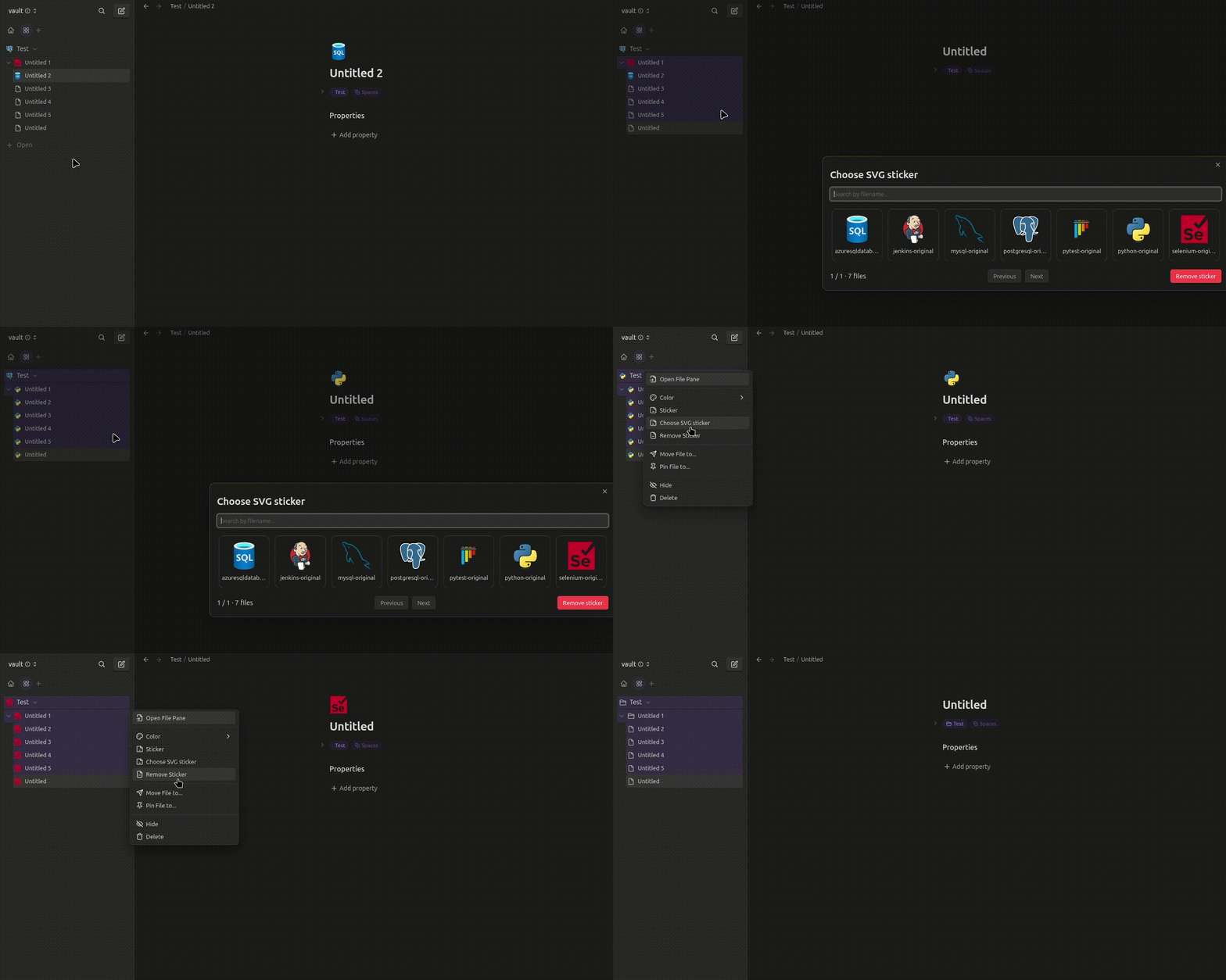
- Bulk assignment — select multiple Make.md items and assign the same icon to all of them at once.
- Icon picker — browse icons in a visual grid with search and pagination.
- Custom icon folder — choose any folder in your vault as the icon source.
- Multilingual interface — English, Russian, Korean, and Chinese.
- Automatic language detection — use your Obsidian language or select one manually.
🎬 Demo
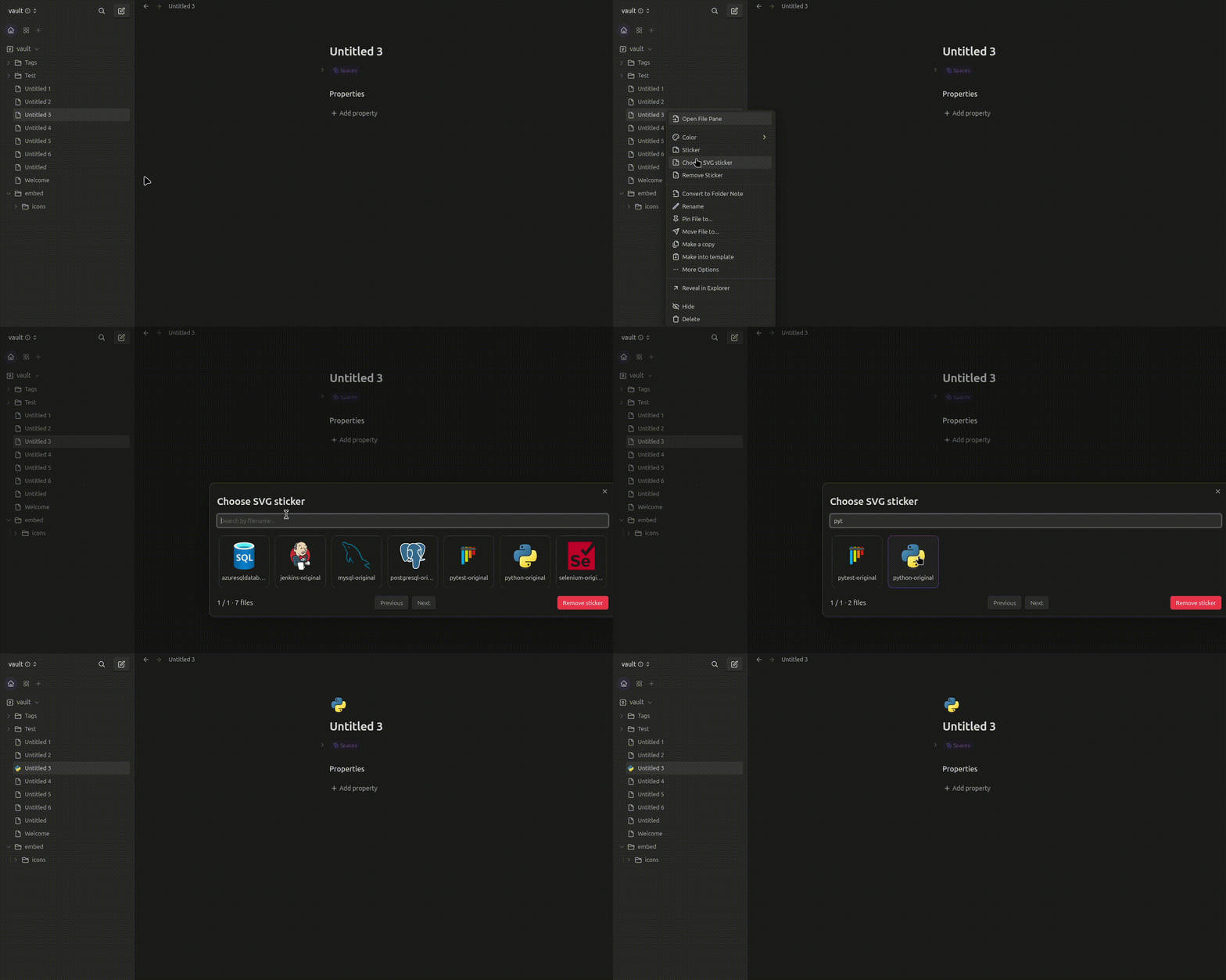
1. Assigning an icon to a note or folder (without Make.md)
Choose an SVG icon and assign it to a regular note or folder in Obsidian.
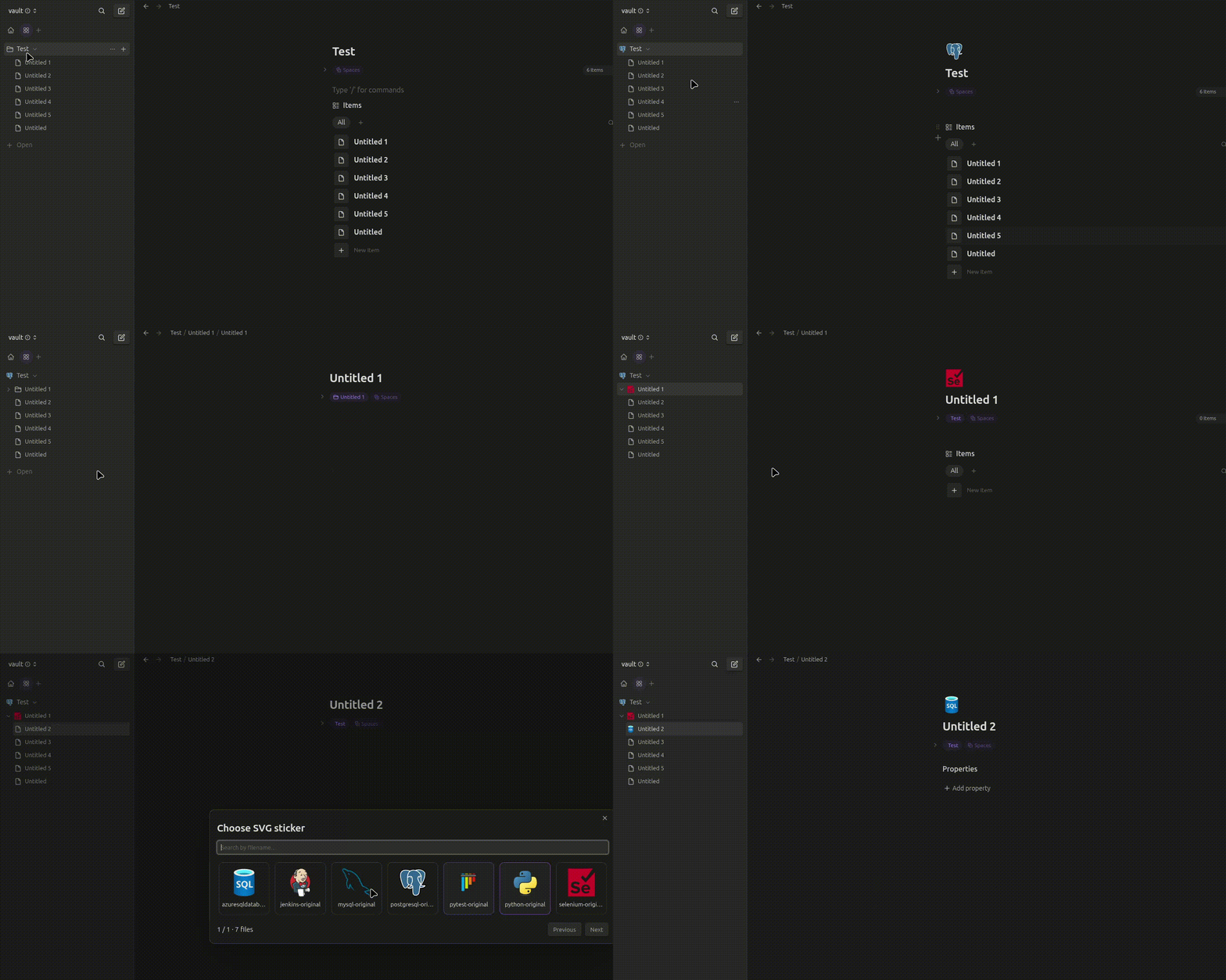
2. Make.md integration
Assign custom SVG icons to Make.md Spaces using the context menu.
3. Bulk icon assignment
Select multiple Make.md items and assign the same SVG icon to all of them in one action.
📦 Installation
Manual installation
Download the latest release from the Releases page.
Open your Obsidian vault folder.
Navigate to:
.obsidian/plugins/Create a folder named:
svg-stickerCopy the plugin files into that folder:
main.jsmanifest.jsonstyles.css
Restart Obsidian or reload plugins.
Enable SVG Sticker in Settings → Community plugins.
⚙️ Configuration
Open:
Settings → Community plugins → SVG Sticker
Icon folder
Specify the folder containing your SVG files, relative to your vault root.
Default:
embed/icons
Example:
Assets/Icons
Leave the field empty to search for SVG files throughout the entire vault.
Language
The plugin supports:
- Automatic — follows your Obsidian interface language.
- English
- Русский
- 한국어
- 中文
Your language preference is saved automatically.
🖼️ Preparing SVG icons
- Create an icon folder inside your vault.
- Add your
.svgfiles. - Set the folder path in SVG Sticker settings.
- Open the icon picker and choose an icon.
Example folder structure:
MyVault/
├── Assets/
│   └── Icons/
│       ├── book.svg
│       ├── folder.svg
│       ├── work.svg
│       └── star.svg
└── Notes/
    ├── Projects.md
    └── Ideas.md
SVG Sticker uses the original SVG files from your vault.
🔌 Make.md integration
SVG Sticker supports Make.md through an external adapter.
- No Make.md source code modifications.
- No replacement of Make.md components.
- Uses Make.md's runtime API to assign and restore icons.
- Supports individual and bulk assignments.
Note: Make.md integration relies on internal APIs that may change in future Make.md updates. Compatibility may need to be adjusted after major updates.
🛠️ Development
Clone the repository:
git clone https://github.com/rimpk901/obsidian-svg-sticker.git
cd obsidian-svg-sticker
Install dependencies:
npm install
Build the plugin:
npm run build
For development:
npm run dev
📁 Project structure
svg-sticker/
├── src/
│   ├── main.ts
│   ├── StickerModal.ts
│   ├── MakeMDAdapter.ts
│   ├── i18n.ts
│   └── types.ts
├── styles.css
├── manifest.json
├── package.json
├── tsconfig.json
└── esbuild.config.mjs
🤝 Contributing
Bug reports, suggestions, and pull requests are welcome!
If you find a bug or have an idea for a new feature, feel free to open an issue.