Substitutions
 bambuscontrol9k downloads
Automatically replace text fragments with symbols or different text
- Overview
- Scorecard
- Updates12
Automatically substitute text fragments with symbols or different text.
This is a plugin for Obsidian: substitutions.

Requires Obsidian 1.5.12 or newer and works on desktop and mobile.
Usage
The plugin replaces text while you type in the editor. It checks the end of the text you have typed so far and replaces it when it matches a rule. Substitutions are triggered by direct typing, so the plugin does not retroactively rewrite existing note content. Because the input handler only handles single-character direct input, multi-character insertions such as pasted text may not trigger substitutions.
The plugin does not start empty.
It includes built-in defaults such as --> -> →, <-- -> ←, != -> ≠, and 1/2 -> ½.
You can edit, disable, or remove those defaults just like your own rules.
To manage rules, open Settings -> Substitutions.
There you can enable or disable rules, add rules, remove rules, and search or filter by source or replacement text.
Each rule row also includes icon-only actions with tooltips: Swap from and to swaps the source and replacement values, and Use Regular Expressions toggles regex mode.
If you want to add a rule while editing, run the Add Substitution command.
If text is selected, that selection is prefilled as the source for the new rule.
Settings
Use Settings -> Substitutions to review and manage your rules.
You can edit built-in defaults and your own rules in the same list and use the search field to quickly find rules by source or replacement text.
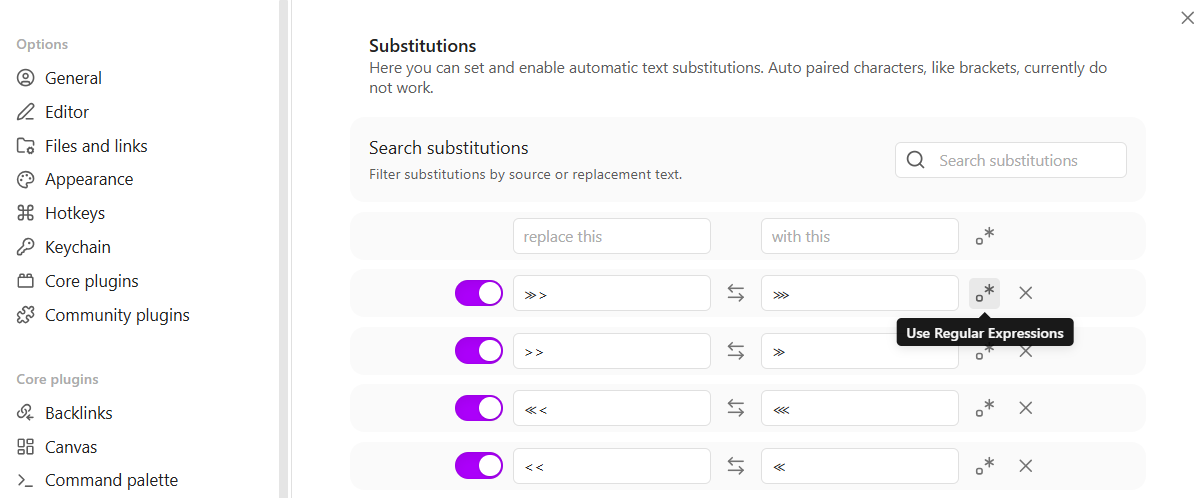
Regex substitutions
When regex mode is enabled for a rule, the source must use /pattern$/flags syntax.
The trailing $ is required because matches must end at the current cursor position.
Flags g and y are not supported, but other standard JavaScript flags such as i are supported.
In the replacement text, regex rules support normal JavaScript String.replace capture placeholders such as $1 and $2.
Invalid regex rules are ignored until fixed and are visibly marked invalid in settings. If any enabled invalid regex rules exist, the plugin shows a notice on load saying they will be ignored and can be fixed in settings.

Add Substitution
Run Add Substitution from the Command Palette while editing to create a new rule without leaving the note.
If text is selected, that selection is prefilled as the source.
Replacement field escapes
These escapes are supported only in the replacement field: \n, \t, \b, and \\.
They are not special syntax inside regex patterns.
Undo the last replacement
Press Backspace once immediately after a substitution, before you move the caret elsewhere, to restore the text you had typed before that replacement.