Smart Order List
 Howe2k downloads
Smartly stylize and manage Parallel and Nest Lines (Lists).
- Overview
- Scorecard
- Updates8
Smart Order List maintains ordered and nested list prefixes as you edit in Obsidian. It supports numbers, letters, Chinese numerals, bullets, and task checkboxes.
[!NOTE]
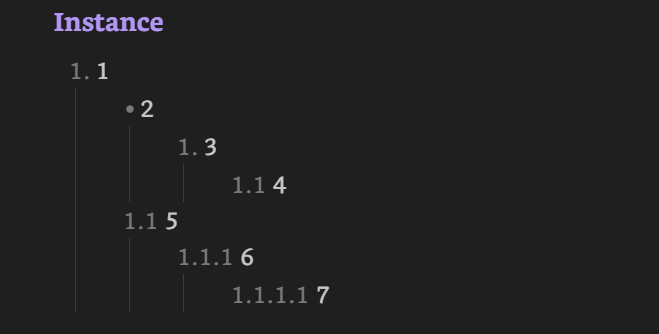
Lists Instance (code) Click to expand
1. 1
    - 2
        1. 3
            1.1 4
    1.1 5
        1.1.1 6
            1.1.1.1 7
1. Insight
the Line: exclusive to the lines of which the meta-component is list
1. Element's consecution is Parallel (cross Line) and Nested (cross Nest) from Upper-Level Line. Check Consecution Principle.
- Parallel Principle (same-layer nest):
- Parallel lists apply self-consistent consecution with each other in default.
- Nest Principle:
- $\text{Nest-Layer} = {\text{root}, \text{parent}, \text{child}}$
- $\text{Nest-Status} = {\text{non-nested}, \text{nested}}$
- $\text{Nests-Relationship} = {\text{parallel}, \text{crossed}}$
2. Passive behavior
- Single
Enterto new line for consecution. - Append
Spaceto activate prefix. Tabto nest.
3. Proactive behavior
- Repeatedly
Enterto strip prefix gradually. - Edit elements to manually initialize prefix.
- Insert
\as escape char before element separator..
2. Features
- Continue and adjust list prefixes with
Enter,Space, andTab. - Combine numeric and alphabetic elements in nested ordered prefixes.
- Use task checkboxes with ordered prefixes, including inside plain blockquotes.
- Choose between fixed and dynamic Reading-view indentation.
3. Usage
3.1 Quick start
- Type
1.followed bySpace, then enter an item. - Press
Enterto start the next item. - Press
Tabon a list item to nest it, orShift+Tabto move it back.
For example, indenting the second item produces a nested prefix:
1. Parent
    1.1 Child
3.2 Full reference

Click the cover to watch on YouTube
3.2.1 Description
- File hierarchy:
Smart Order List/ ├── README.md └── Assets/ ├── Archive.md └── attachments/ - What is the package:
- The author's (Howe-Ren) full mindset journey on Smart Order List
- The full reference for plugin: terminology, principles, examples, and development notes
- Who needs:
- Repo README: Concise and simple, for basic usage
- Package README: Precise logic and detailed principles & instances, for better use
- How to use the package: Extract under vault's root and enable Smart Order List. Check details in demonstrations
3.2.2 Demonstration (video)
- Where to download the package:
Smart-Order-List-Reference-3.0.1.zipfrom Release 3.0.1 page - How to extract the compressed package: Extracted > Enter decompression's root-dir > Copy folder
./Smart Order Listto vault's root path - How to make the package files effective: Enable the plugin
4. Element table
An Element is the smallest component of a Prefix-Part: for example, 1 and 2 are Elements in 1.2. The table summarizes the supported elements and their properties.
| element_id | element_name | description(&sample) | range | type_primary | type_secondary | variation | slot_max | mix_part | mix_mixture |
|---|---|---|---|---|---|---|---|---|---|
| 1 | Numeral.1 | classic #hotkey , 1. 1. 2. 1.1 3. 1.1.1 4. 1.1.1.1 |
non-negative-Int1: Initial Shuffle Mechanism, 0: the manual introduction |
ordered | Numeral | classic | 4 | T | T |
| 2 | Numeral.2 | parenthesized, 1. (1) Nested Prefix Fallback Mechanism |
parenthesized positive-Int | ordered | Numeral | parenthesized | 1 | F | T |
| 3 | Alphabet.1 | uppercase, 1. A. 2. A.A 3. A.A.A 4. A.A.A.A |
A~Z | ordered | Alphabet | uppercase | 4 | T | T |
| 4 | Alphabet.2 | lowercase, 1. a. 2. a.a 3. a.a.a 4. a.a.a.a |
a~z | ordered | Alphabet | lowercase | 4 | T | T |
| 5 | Chinese.1 | classic 1. 一、 Nested Prefix Fallback Mechanism |
一~一百 | ordered | Chinese | classic | 1 | F | T |
| 6 | Bullet | bullet #hotkey 1. - |
- | unordered | Bullet | classic | null | F | F |
| 7 | Checkbox | checkbox #hotkey 1. - [ ] 2. - [-] 3. - [x] |
- | unordered | Checkbox | classic | null | F | T |
T means true, and F means false. slot_max is the maximum number of slots in a prefix-part; mix_part indicates whether the element can occur in a multi-slot ordered prefix-part; mix_mixture indicates whether it can participate in a checkbox and ordered-list mixture. Numeric values are limited to JavaScript's largest safe integer, 9,007,199,254,740,991. Manually introduced 0 is supported in all-numeric prefix-parts, subject to the ordering rules.
Numeric and alphabetic elements can form ordered prefixes with up to four slots when the nesting rules allow. A single numeric or alphabetic element ends with a dot, such as 1. or a.. In a multi-slot prefix, dots go only between elements: use 1.2, not 1.2..
When a recognized ordered prefix exceeds its supported range or nesting rules, it can fall back to a bullet while retaining the line's indentation and content. For example, the item after z. falls back to a bullet.
5. Indentation profiles
Choose a profile under Settings → Smart Order List → Indentation Profile:
| Profile | Live Preview | Reading view |
|---|---|---|
| Profile 1 (default) | Fixed indentation | Fixed indentation |
| Profile 2 | Fixed indentation | Dynamic indentation based on parent prefixes |
6. List shortcuts
[!TIP] Advice
You could assign hotkeys in advance for better use of the plugin (Obsidian native feature)
1. Assign
hotkey
- Path: Obsidian Settings > Hotkeys >
- Toggle bullet list: (Bullet Line) E.g.,
Ctrl+.- Toggle numbered list: (Numeral.1 Line) E.g.,
Ctrl+Numpad1- Toggle checkbox status: (Checkbox Line) E.g.,
Ctrl+L2. Tips
- Manual shuffle helps to relieve disorder e.g., Bullet
hotkey
7. Known limitation
Nested lists inside callouts can still be misaligned in Live Preview.
8. Installation
See the release page for installation instructions and downloadable plugin files.