Single Choice Property
 Moy454 downloads
Keep selected list properties to only their latest value.
- Overview
- Scorecard
- Updates3
English | 简体中文
This is a simple single-feature plugin: Single Choice Property (SCP for short — yes, I'm on purpose.).
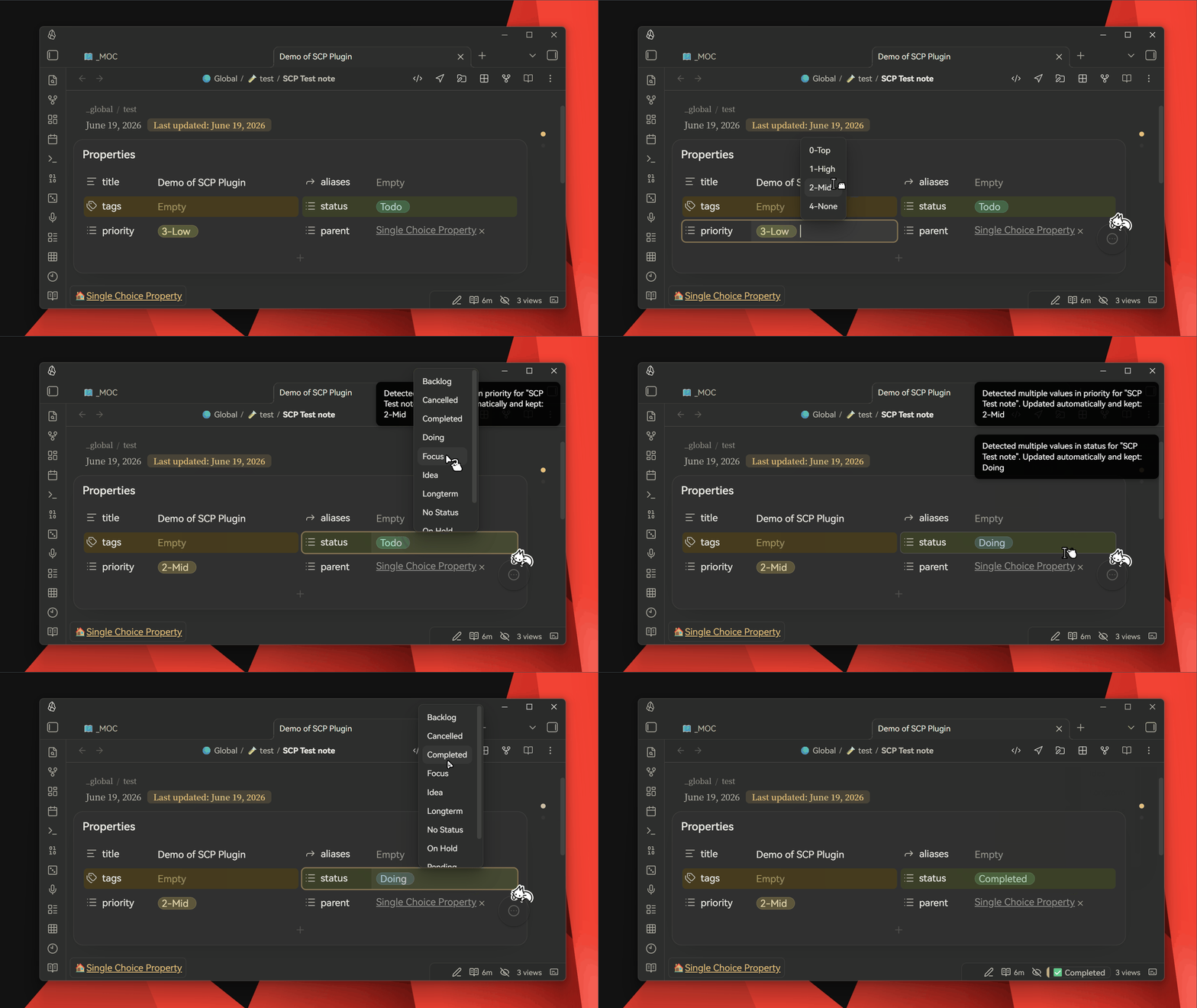
Its function is as shown in the image: it can restrict a specific list property to a single value. When added, it directly overwrites the original value without needing to manually delete the old one.
WHY?
Although I think the functionality is self-explanatory... in simple terms, for properties like status or priority, they naturally don’t require "multiple values" (you can’t have a task that is both "in progress" and "cancelled," right?). But having to delete the old value and then add a new one each time is a bit tedious, so I wrote this plugin to automate it for me.
In a word, it's a lazy person's plugin—it doesn't add any new functionality, it just saves you one step :P
FROM:
Click, Ctrl+A, Backspace, Select New Value

⬇️ TO:
Click, Select New Value
Saving 50% of the operations! 😎
Once Obsidian supports "single-select" property, this plugin will no longer be necessary.
The Capsule Style
The beautiful colorful capsule style is provided by Typify - this plugin is the source of inspiration for me to create SCP — it's simple, elegant, and I truly recommend it. ❤️
How it works
By default, the plugin watches the status property.
You can add or remove watched property names in the plugin settings.
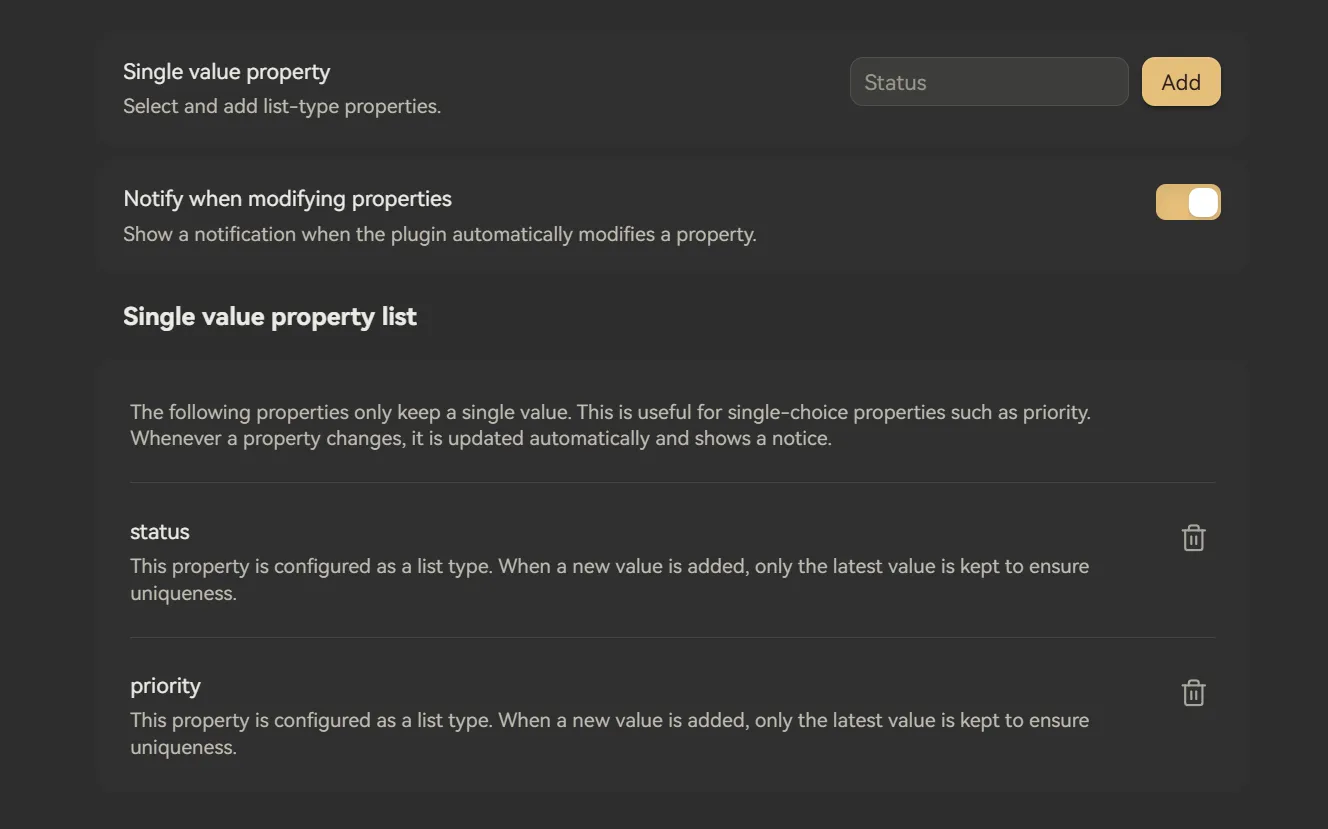
When a watched property becomes a list with more than one value, the plugin keeps only the last value and can show a Notice.
单选属性
English | 简体中文
这是个功能非常单纯的插件:单项——选择——属性(Single Choice Property,简称 SCP,没错,我故意的)
作用如图:可以把某个特定的列表属性限制为只能留一个值。添加新值时,直接覆盖原来的值,不需要你手动先删掉旧值。
虽然我觉得这个功能本身已经挺直观了……简单来说,像 status、priority 这类属性,本来就天然不需要“多个值”(你总不能让一个任务同时是“进行中”和“已取消”,对吧?)。但每次都要先删除旧值再添加新值还是有点麻烦,所以我写了这个插件帮自己自动处理。
一句话概括,这是一个 懒人插件:它不会带来什么全新能力,只是帮你少点一步 :P
原来的操作:
点击,全选,删除,选择新值

⬇️ 现在:
点击,选择新值
省了50%的操作噢! 😎
等 Obsidian 官方支持“单选”属性之后,这个插件就没有存在的必要了。
顺带一提,属性漂亮的彩色胶囊样式来自 Typify——它也是我制作 SCP 的灵感来源:简洁、优雅,我超推荐! ❤️
工作方式
默认情况下,插件会监听 status 属性。
你可以在插件设置中添加或移除需要监听的属性名。
当某个被监听的属性变成包含多个值的列表时,插件会只保留最后一个值,并且会(可选)弹出 Notice 提示。