Sidecar Notes
 rosemary18121k downloads
A sidecar note workflow with split view, synced quotes, and companion note files.
- Overview
- Scorecard
- Updates9
English | 中文
Read on the left. Capture on the right.
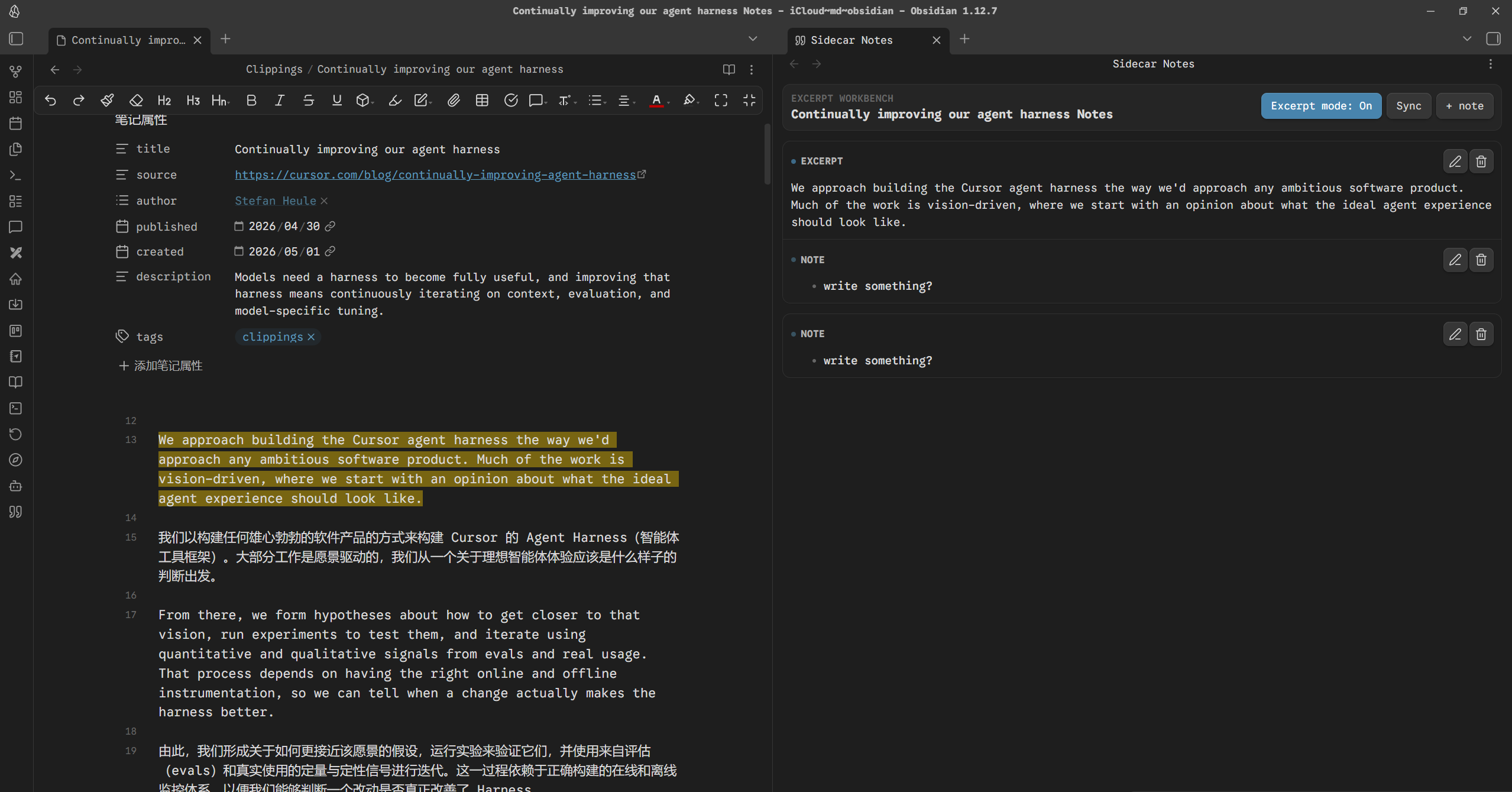
Sidecar Notes is an Obsidian desktop plugin for excerpt-based reading notes. It gives you a dedicated workbench on the right side, so you can keep reading in the source note while collecting quotes, comments, and side notes without turning the workflow into a rigid template.
Overview
Sidecar Notes is built for a simple loop:
- Open a Markdown note.
- Open Sidecar Notes.
- Select text on the left.
- Review and annotate excerpts on the right.
- Sync everything into a Markdown note when you want.
Screenshots
Quick Start
- Open a Markdown note in Obsidian.
- Run
Sidecar Notes: Toggle excerpt workbenchor click the ribbon icon. - Keep
Excerpt mode: Onin the right-side workbench. - Select text in the source note.
- The selected text is captured as an excerpt card on the right.
- Search, sort, annotate, or click an excerpt card to return to the source text.
- Click
Syncwhen you want to update the exported Markdown note immediately.
What It Does
- Keeps reading and excerpting in a split workflow instead of forcing everything into one editor.
- Captures selected text into a right-side excerpt workbench.
- Lets you choose how the source text is marked:
highlight,bold,italic, ornone. - Lets you search excerpts and notes in the current workbench.
- Shows capture time for excerpt and note cards, with newest/oldest sorting.
- Lets you click an excerpt card to jump back to the matching source text.
- Supports notes attached to each excerpt.
- Supports standalone notes that are not tied to a quote.
- Renders excerpt content and notes as Markdown.
- Supports long-excerpt expand/collapse in the workbench.
- Syncs the workbench into a Markdown note automatically or on demand.
- Can export excerpts as quote blocks or Obsidian callouts.
- Can add bidirectional links between the source note and the exported note.
Settings
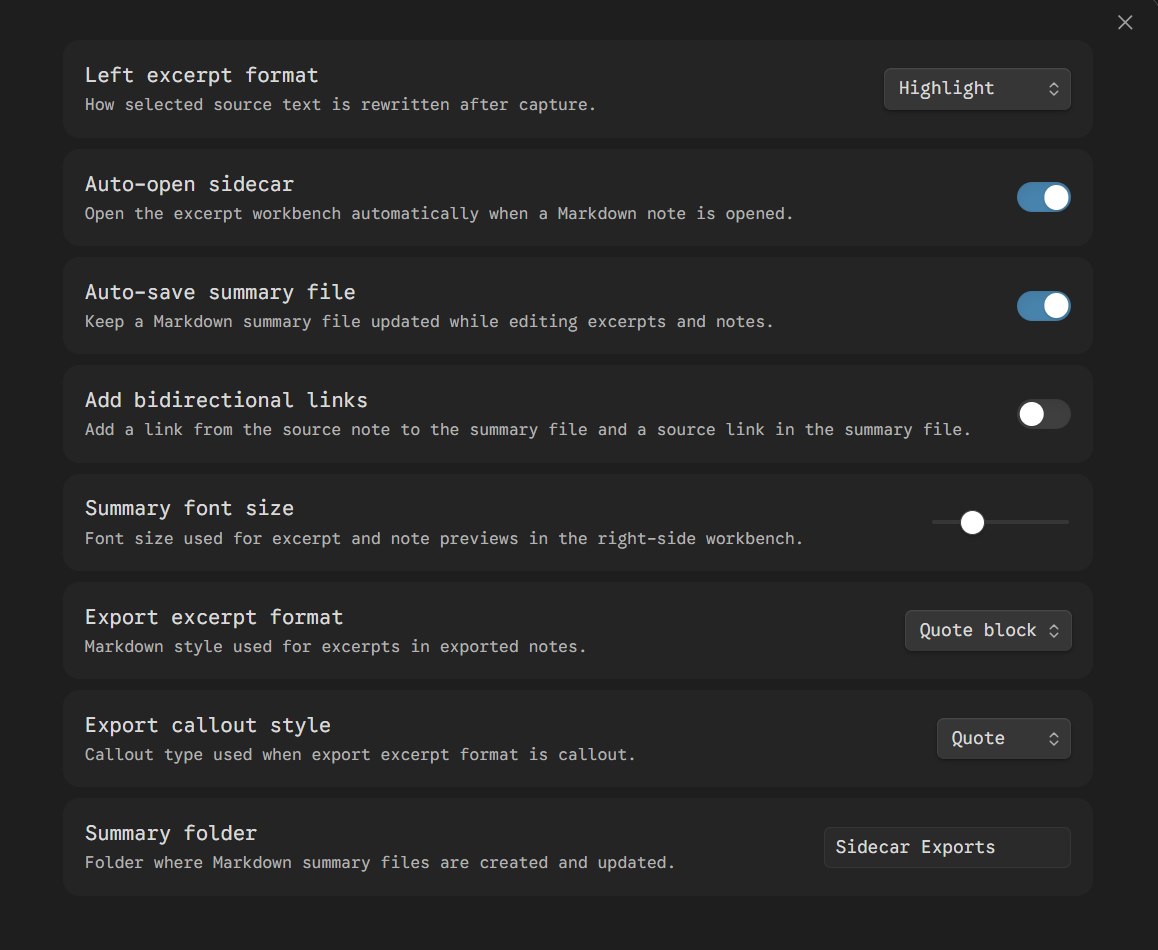
Left excerpt formatControls how selected source text is marked after capture.Summary font sizeAdjusts the preview text size in the right-side workbench.Auto-open sidecarAutomatically opens the workbench when you open a Markdown note.Auto-save summary fileKeeps the exported Markdown note updated while you edit excerpts and notes.Add bidirectional linksAdds a link from the source note to the exported note and a source link in the exported note.Export excerpt formatChooses whether excerpts are written as quote blocks or callouts.Export callout styleChooses the Obsidian callout type when callout export is enabled.Summary folderSets the folder where exported Markdown notes are created. Use/for nested folders, such asSidecar Exports/Books.
Exported Note
When auto-save is enabled, Sidecar Notes creates or updates a note like this:
Sidecar Exports/{source note name} Notes.md
Workbench state is also stored in plugin data, so excerpts and notes can be restored when you reopen the same source note.
Good Fit
Sidecar Notes works best if you want to:
- read and excerpt in parallel
- collect quotes while keeping short commentary nearby
- build reading notes without forcing a fixed template
- export a clean Markdown note after reviewing your excerpts
It is not trying to be:
- an automatic summarizer
- a rigid reading-note template
- a full writing system built around predefined sections
Manual Installation
Copy these files into:
<vault>/.obsidian/plugins/sidecar-notes/
Required files:
main.jsmanifest.jsonstyles.cssversions.json
Reload Obsidian and enable Sidecar Notes.
Development
npm install
npm run build
For watch mode:
npm run dev
Release Files
Upload these files for each GitHub release:
main.jsmanifest.jsonstyles.cssversions.json