Sequencer
 alieron383 downloads
Organise and traverse through notes as a sequence using a doubly-linked list like system.
- Overview
- Scorecard
- Updates6
Sequencer helps you move through a set of notes in a fixed order. It stores the order with two frontmatter properties, prev and next, so your notes stay normal Markdown files and the sequence remains easy to inspect or edit by hand.
Use it for reading lists, lesson notes, project logs, daily workflows, drafts, or any folder where "previous" and "next" are more useful than a loose collection of links.
How It Works
Each note can point to the note before it and the note after it:
---
prev: "[[Chapter 1]]"
next: "[[Chapter 3]]"
---
When a note has either prev or next, Sequencer adds previous and next arrow buttons to the note header. Click an arrow to open the linked note, or Ctrl-click/Cmd-click to open it in a new tab.
Getting Started
- Open the first note in your sequence.
- Run Sequencer: Insert note after current note from the command palette.
- Choose an existing note, or type a new note name to create one.
- Move to the next note and repeat until the sequence is complete.
Sequencer writes the matching links needed to keep the chain connected. For example, inserting Chapter 2 after Chapter 1 adds next: "[[Chapter 2]]" to Chapter 1 and prev: "[[Chapter 1]]" to Chapter 2.
Commands
Insert Note Before Current Note
Command palette name: Sequencer: Insert note before current note
Opens a note picker and inserts the chosen note immediately before the current note. Sequencer updates the chosen note, the current note, and the previous neighbor so the chain stays connected.
If the chosen note does not exist yet, type its name in the picker to create it.
Insert Note After Current Note
Command palette name: Sequencer: Insert note after current note
Opens a note picker and inserts the chosen note immediately after the current note. Sequencer updates the current note, the chosen note, and the next neighbor so the chain stays connected.
If the chosen note does not exist yet, type its name in the picker to create it.
Delete Current Note From Sequence
Command palette name: Sequencer: Delete current note from sequence
Deletes the current note and reconnects its previous and next notes. Sequencer asks for confirmation by default, and the confirmation dialog includes an option not to ask again.
Remove Current Note From Sequence
Command palette name: Sequencer: Remove current note from sequence
Removes the current note from the sequence without deleting the file. Sequencer clears the current note's prev and next properties, then reconnects the previous and next notes around it.
Unlink Current Note From Sequence
Command palette name: Sequencer: Unlink current note from sequence
Does the same thing as Remove current note from sequence. This alias exists so the command is easier to find by either term.
Navigation
Sequencer shows arrow buttons in the note header when the open note has sequence frontmatter:
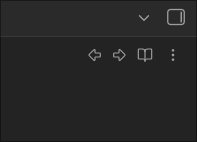
- Previous arrow: opens the note in
prev - Next arrow: opens the note in
next - Ctrl-click or Cmd-click: opens the target note in a new tab
If a linked note cannot be found, Sequencer shows a notice instead of changing notes.
Settings
Create Reciprocal Links
When enabled, Sequencer keeps both sides of the relationship in sync while adding links. This is the recommended setting for most sequences.
Only Show Sibling Notes
When enabled, the note picker only suggests notes in the same folder as the current note. This keeps sequence-building focused when your vault has many notes.
Turn this off if your sequences often cross folder boundaries.
Repair Sequences When Deleting Notes
When enabled, Sequencer watches for normal Obsidian file deletes. If a deleted note had prev or next sequence links, Sequencer reconnects the neighboring notes automatically.
Confirm Sequence Note Deletion
When enabled, Delete current note from sequence asks before deleting the note. Turn this off if you want the command to delete and reconnect immediately.
Frontmatter Example
This sequence:
Chapter 1 <-> Chapter 2 <-> Chapter 3
is stored like this:
<!-- Chapter 1.md -->
---
next: "[[Chapter 2]]"
---
<!-- Chapter 2.md -->
---
prev: "[[Chapter 1]]"
next: "[[Chapter 3]]"
---
<!-- Chapter 3.md -->
---
prev: "[[Chapter 2]]"
---
Tips
- Keep each sequence in one folder if you want the note picker to stay compact.
- Use clear note names so the previous and next arrows are easy to follow.
- You can edit
prevandnextmanually if you need to repair or reshape a sequence.