Secret Copy
 lordhelmchen27 downloads
Blurs {{secrets}} in your notes and adds a one-click copy button. Reveal on hover, copy without showing the value on screen.
- Overview
- Scorecard
- Updates2
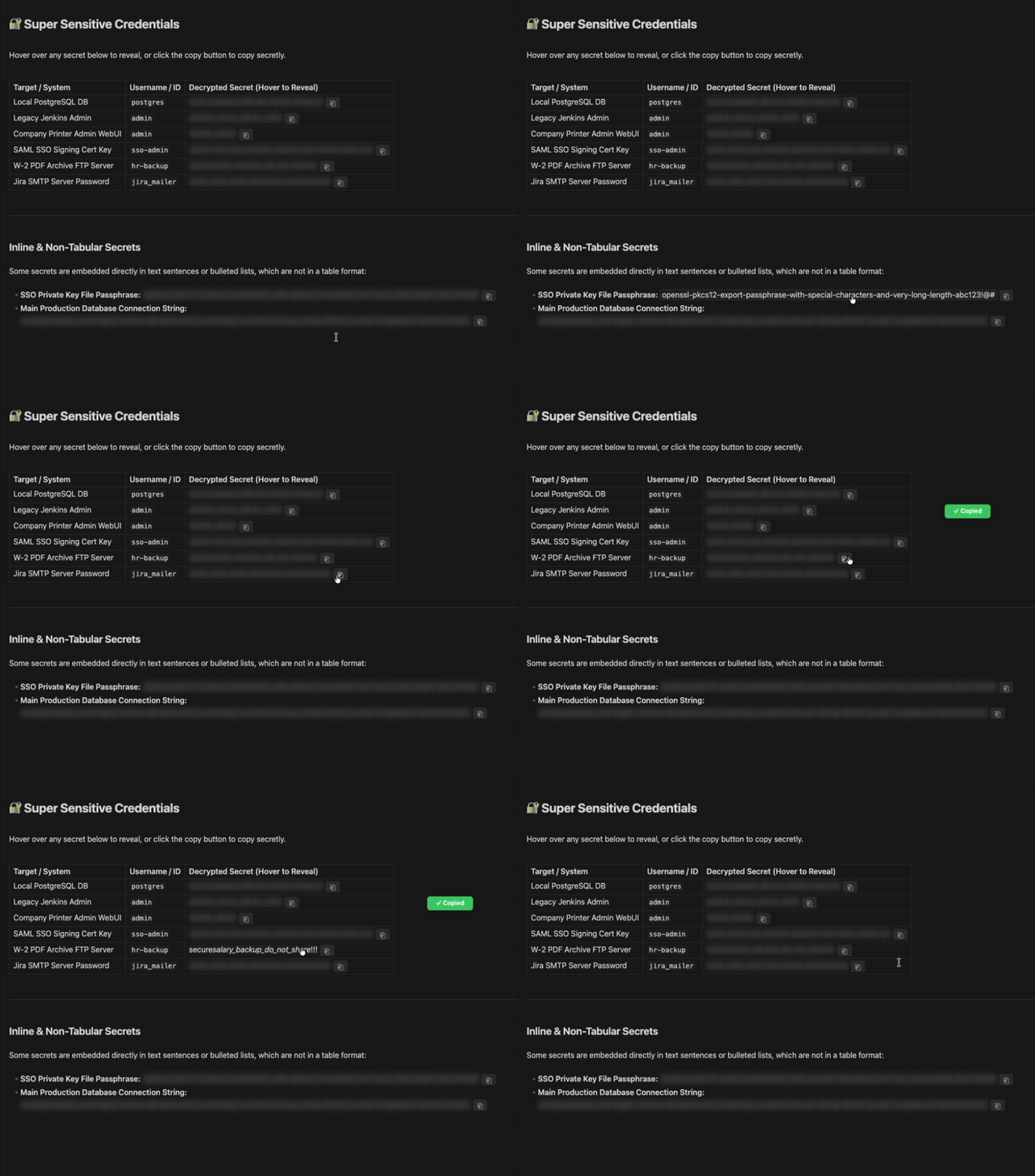
Keep passwords, API keys and tokens in your notes without showing them on screen. Wrap a value in {{double curly braces}} and Secret Copy blurs it and puts a copy button next to it. Hover to peek, click ⎘ to copy, and the value never has to be visible.
Useful when you share your screen, present, or work where people can see your monitor.
Features
- Blurred by default: every
{{secret}}is blurred until you hover over it. - One-click copy: the
⎘button copies the value and shows a short "✓ Copied" confirmation. - Exact values: copies the value exactly as written, even if it contains
*,_,|or spaces. - Works everywhere: reading view, Live Preview, source mode and tables.
- Plays well with highlights: normal
==highlights==are left alone, and=={{secret}}==gives you a highlighted secret.
Usage
Wrap any value in double curly braces:
Wi-Fi password: {{correct horse battery staple}}

| Service | Token            |
|---------|------------------|
| GitHub  | {{ghp_abc123}}   |
| OpenAI  | {{sk-proj-xyz}}  |
Rules
- A secret must fit on one line and cannot contain
}}. {{…}}inside inline code or code blocks is left as plain text, so you can still write about the syntax.{{date}},{{time}}and{{title}}are placeholders of Obsidian's core Templates plugin and are not treated as secrets.
Security note
Secret Copy hides values visually. It does not encrypt them. Your secrets are still stored as plain text in the .md file, so anyone or anything with access to your vault files can read them: sync services, backups, other plugins and Obsidian's search.
Clipboard: the plugin only writes to the clipboard, when you click ⎘. It never reads the clipboard.
Use it to stop people reading over your shoulder or on a shared screen. For real protection at rest, keep sensitive credentials in a password manager or an encrypted vault.
Installation
From Community plugins
- Open Settings → Community plugins → Browse.
- Search for Secret Copy, then install and enable it.
With BRAT
- Install the BRAT plugin.
- In BRAT's settings, click Add Beta Plugin.
- Enter
https://github.com/LordHeImchen/obsidian-secret-copy. - Enable Secret Copy in Settings → Community plugins.
Manually
- Download
main.js,manifest.jsonandstyles.cssfrom the latest release. - Copy them to
<your-vault>/.obsidian/plugins/secret-copy/. - Reload Obsidian and enable Secret Copy in Settings → Community plugins.
Development
There is no build step: main.js and styles.css are loaded by Obsidian as they are. To try a change, copy both files into your vault's .obsidian/plugins/secret-copy/ folder and run Reload app without saving from the command palette.