Search...Search plugins and themes...
⌘K
Sign in
  • Get started
  • Download
  • Pricing
  • Enterprise
  • Account
  • Obsidian
  • Overview
  • Sync
  • Publish
  • Canvas
  • Mobile
  • Web Clipper
  • CLI
  • Learn
  • Help
  • Developers
  • Changelog
  • About
  • Roadmap
  • Blog
  • Resources
  • System status
  • License overview
  • Terms of service
  • Privacy policy
  • Security
  • Community
  • Plugins
  • Themes
  • Discord
  • Forum / 中文论坛
  • Merch store
  • Brand guidelines
Follow us
DiscordTwitterBlueskyThreadsMastodonYouTubeGitHub
© 2026 Obsidian

Right-Click Task Status

Alex TotoliciAlex Totolici1 downloads

Right-click any task in a note to set its status. Works with the Tasks plugin: uses your Tasks statuses, done and cancelled dates, and creates the next recurring task.

Add to Obsidian
  • Overview
  • Scorecard
  • Updates1

Right-click any task in your notes and pick its status. No typing symbols between brackets, no remembering which character means "in progress".
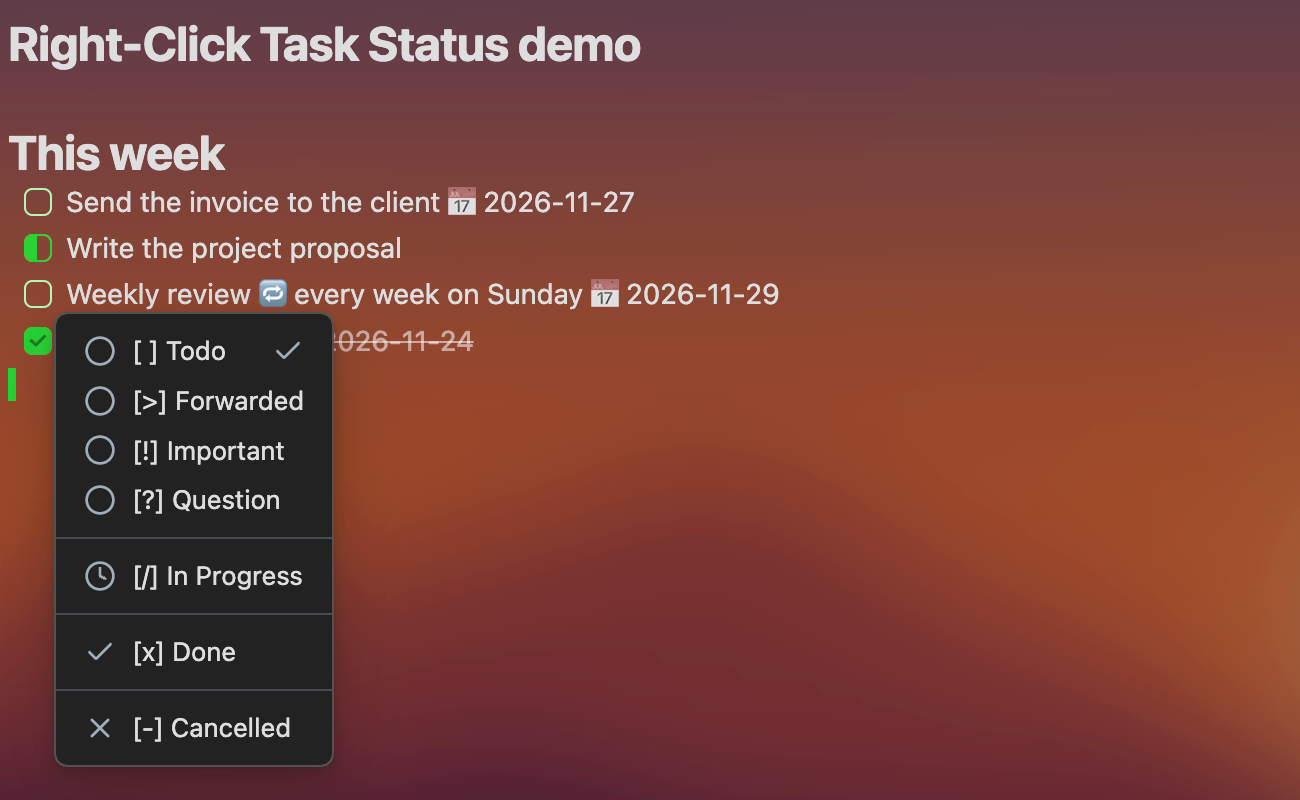
Right-click a checkbox to pick a status

Made for the Tasks plugin

If you use Tasks, this plugin works through it, so a status change behaves exactly like it does in Tasks:

  • Your Tasks statuses. The menu lists the statuses from your Tasks settings, custom ones included, grouped by type: to do, in progress, done, cancelled.
  • Recurring tasks keep recurring. Mark a 🔁 task done and the next occurrence is created, just like clicking its checkbox.
  • Done and cancelled dates (✅, ❌) are added when your Tasks settings say so.
  • Your other Tasks settings apply too: where the new occurrence goes (above or below), the global filter and the task format.
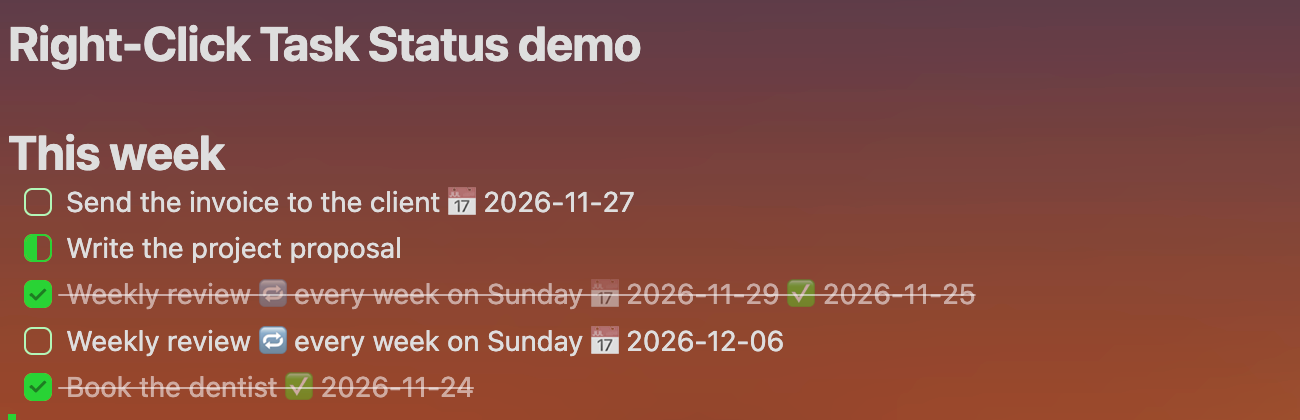
A recurring task marked done gets its done date and the next occurrence

Change a status in Tasks' settings and the menu follows. Nothing to set up twice.

Right-click where you are

  • Checkbox: right-click the checkbox to open the status menu straight away.
  • Task text in the editor (Live Preview and source mode): a Task status submenu is added to Obsidian's own right-click menu.
  • Reading view: right-click a task to open the status menu.
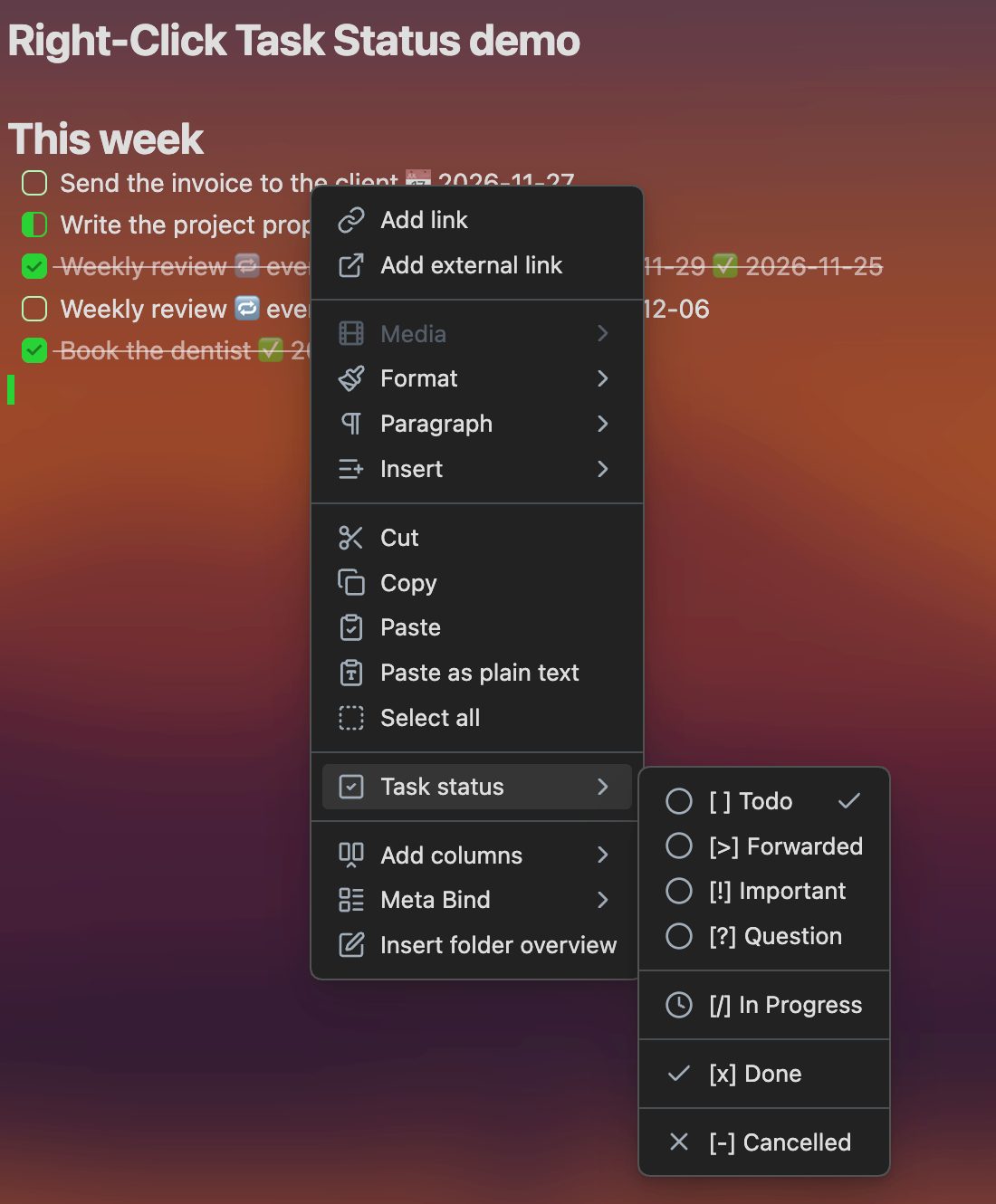
The Task status submenu in the editor menu

In the editor, every change is one step you can undo with Ctrl/Cmd+Z.

Without the Tasks plugin

The plugin also works on its own. It then uses its own status list (Todo, In progress, Done, Cancelled by default), which you can edit in the settings: each status is one character, a name and a type. Only the character between the brackets changes.

Settings
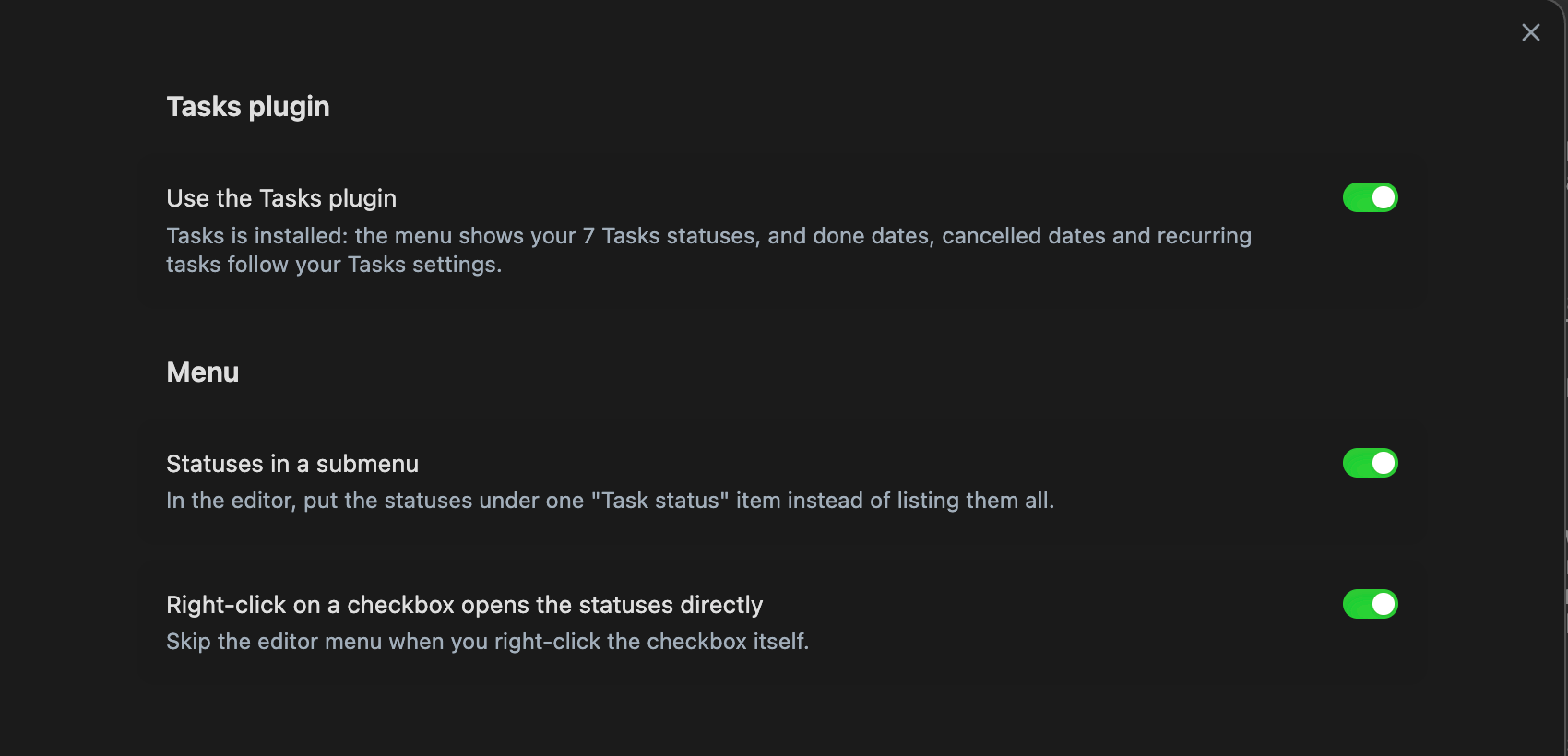
Settings

  • Use the Tasks plugin: on by default when Tasks is installed. Turn it off to use the plugin's own statuses.
  • Statuses in a submenu: keep the editor menu short with one "Task status" item, or list every status directly.
  • Right-click on a checkbox opens the statuses directly: on by default.

Installation

From Obsidian: Settings → Community plugins → Browse → search for "Right-Click Task Status" → Install → Enable.

Manually: download main.js, manifest.json and styles.css from the latest release, put them in <your vault>/.obsidian/plugins/right-click-task-status/, then enable the plugin in Settings → Community plugins.

Phone and tablet

Long-press a task instead of right-clicking.

Also by me

Right-Click Tag Colors: right-click any tag to give it a color.

License

MIT

HealthExcellent
ReviewPassed
About
Change a task's status by right-clicking any task or its checkbox and pick from your Tasks plugin's statuses, including custom statuses and grouped types. Preserve recurring tasks and apply done/cancelled dates per Tasks settings, or fall back to an editable standalone status list if Tasks isn't installed.
TasksInterface
Details
Current version
1.0.0
Last updated
13 hours ago
Created
13 hours ago
Updates
1 release
Downloads
1
Compatible with
Obsidian 1.5.0+
Platforms
Desktop, Mobile
License
MIT
Report bugRequest featureReport plugin
Author
Alex TotoliciAlex Totolicialex-totolici
www.alex-totolici.com/
GitHubtoto1384
  1. Community
  2. Plugins
  3. Tasks
  4. Right-Click Task Status

Related plugins

Hider

Hide interface elements such as tooltips, status bar, titlebar, and more.

Meta Bind

Make your notes interactive with inline input fields, metadata displays, and buttons.

Tasks

Track tasks across your vault. Supports due dates, recurring tasks, done dates, sub-set of checklist items, and filtering. Maintained by Clare Macrae and Ilyas Landikov, created by Martin Schenck.

Note Toolbar

Add customizable toolbars to your notes.

TaskNotes

Note-based task management with calendar, pomodoro and time-tracking integration.

Vault Todos

Collect all outstanding TODOs from your vault and presents them in lists Today, Scheduled, Inbox and Someday/Maybe.

Day Planner

Turn tasks from daily notes, the Tasks plugin, and calendars into time blocks on an editable timeline, with built-in time tracker.

Agent Client

Chat with Claude Code, Codex, Gemini CLI, and more via the Agent Client Protocol — right from your vault.

Editing Toolbar

The Editing Toolbar is modified from cMenu, which provides more powerful customization settings and has many built-in editing commands to be a MS Word-like toolbar editing experience.

Force note view mode

Force the view mode for a note by using frontmatter: YAML block with 'obsidian_ui_mode' as key.