Project Workbench
 PHLens39 downloads
A mobile-compatible Markdown-backed project workbench for Obsidian.
- Overview
- Scorecard
- Updates6
Project Workbench is a mobile-compatible Obsidian plugin for project planning, research tracking, and progress review. It keeps Markdown as the source of truth and provides a visual workbench for projects, problems, tasks, notes, and explicitly pending inputs.
Preview
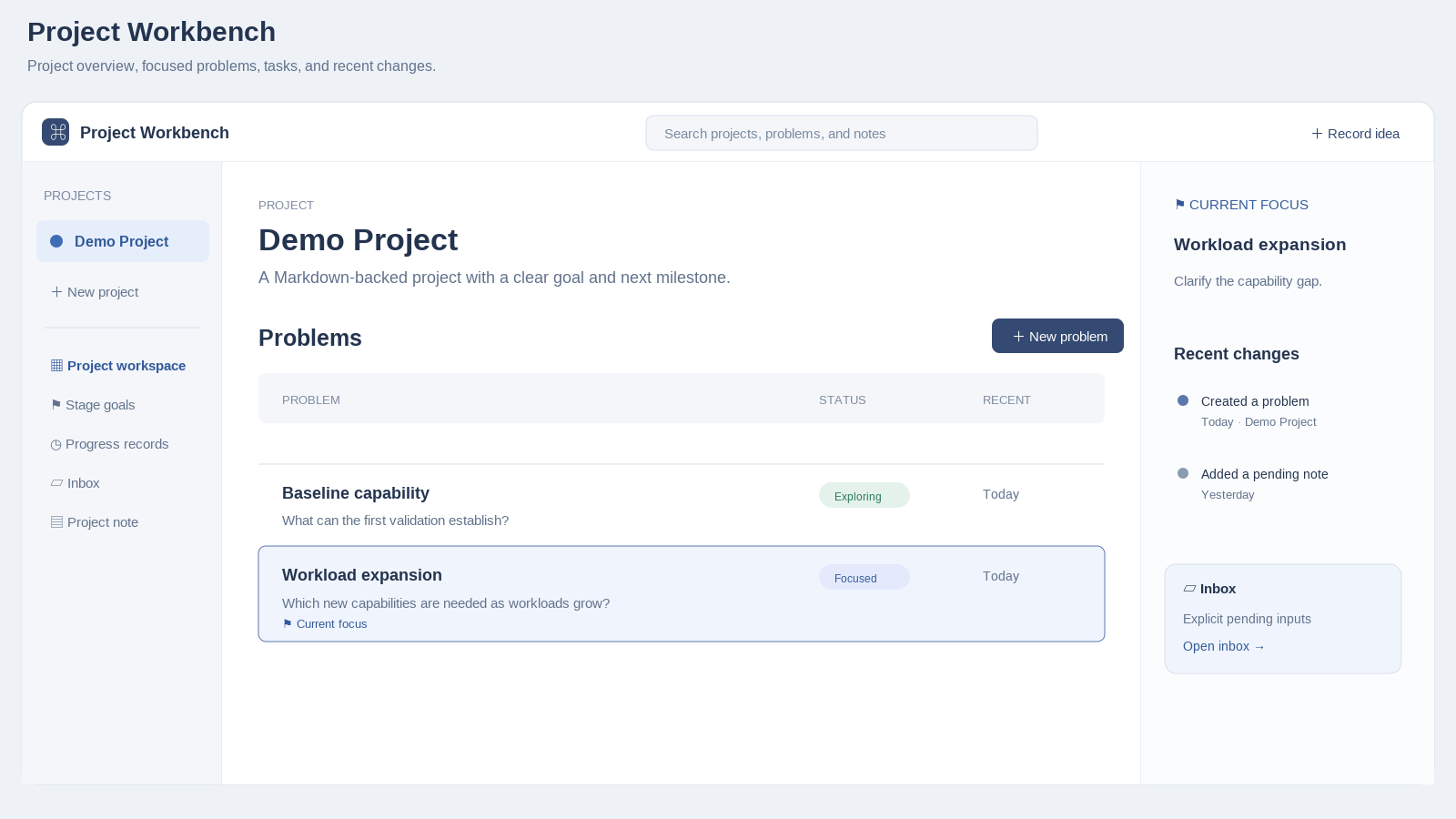
The illustration shows the workbench's three regions: project navigation on the left, the active project and problems in the center, and focus/timeline/inbox context on the right.
The workbench provides:
- left project and navigation sidebar;
- center project summary and layered problem cards;
- right focus panel, timeline, related tasks, and pending inbox;
- adjustable side columns and responsive drawers for narrow panes;
- search, full-text opt-in, multi-select filters, and archived-item toggle;
- create, edit, associate, focus, archive, and open actions;
- conflict-aware Markdown frontmatter writes.
Data model
Project Workbench reads existing Markdown files. It does not create a database or a second project-state store.
- Projects:
type: project,status,problems,focus_problems,current_gate,next_milestone. - Problems:
type: problem,status,stage,research_role,up, and the## Next Stepsection. - Tasks: TaskNotes-compatible
status,priority,due,projects, andtagsfields. - Pending inputs:
pending: trueandprocessing_status(pendingorprocessed).
Existing values are preserved when read. The plugin does not batch-migrate or rename existing notes.
Development and test Vault
All development is performed in the repository's test-vault/. The fixture is intentionally generic and contains a Demo Project; it is safe to reset or delete.
npm install
npm test
npm run typecheck
npm run build
node scripts/check-device-configs.mjs --vault test-vault
The test fixture contains separate .obsidian-desktop and .obsidian-mobile configurations. Both configurations must contain the same plugin bundle and manifest. The checker compares their bundle hashes.
To try the plugin in Obsidian:
- Open
test-vaultas a Vault. - Install or copy the same
main.js,manifest.json, andstyles.cssinto the plugin directory for the active device configuration. - Enable Project Workbench in Community Plugins.
- In Project Workbench → Data scope, configure
Projects,Problems,Tasks,Inputs, andRecordsfor the respective directory fields. - Run Open project workbench from the command palette, select a project, and try the create/edit, focus, filter, and association actions.
Directory configuration
Directory lists are empty on first use. Configure the project, problem, task, pending-input, and progress-record directories in the plugin settings. Paths are relative to the vault; multiple directories are separated by commas, and subdirectories are included. New notes are created in the first configured directory for their type. Empty lists disable that data category.
The workbench reads Markdown only in the configured directories. Search and panel changes use the loaded snapshot; changes outside the configured directories do not schedule a reload.
Settings are stored by Obsidian in <config-dir>/plugins/research-workbench/data.json, where <config-dir> is the vault's active configuration directory. The same location applies to separate desktop and mobile configuration directories. Keep this file local to the vault; distribute only main.js, manifest.json, and styles.css when updating the plugin. Updates preserve existing settings.
Inbox capture and direct editing
The Inbox is available before the first project exists. Use Add material in the shared header or New entry in the Inbox to capture a paper, idea, or note with a title. Project and problem associations are optional during capture and can be added later. Capture from a project or problem starts with that context selected.
Use Reference existing note to select a Markdown note from the vault. This creates a reference entry in the configured input directory while preserving the source note. Source directories do not become part of background loading.
Pending means provisionally valuable material whose value is not fully confirmed. Processed means its value has been confirmed and the source has been organized for traceability. Neither association nor reading progress completes this review. Existing association-oriented labels are displayed as pending until explicit confirmation; stored notes are not bulk-migrated.
The header Inbox icon and sidebar badge show the global pending backlog. Clicking them opens pending reviews with stale filters cleared. Simply opening Inbox does not clear the badge. Panel tabs and the project rail show scoped counts.
Each Inbox entry supports multiple project/problem associations. Association changes preserve its processing state. Pending, processed, and all-item views keep entries accessible after processing. Problem View material and the project rail open a filtered Inbox; shared Inbox navigation returns to the global list.
Click problem status, stage, role, or tags to edit that field. Project status, current gate, and next milestone also support direct editing. Pick an existing value or enter a custom one; Escape cancels. Tags support multiple values, and longer goal text uses save/cancel controls. A note changed externally while its editor is open produces a conflict message and preserves the entered value.
Adjustable columns and problem cards
Drag the separators to adjust navigation and context widths. Focus a separator and use the arrow keys to resize it; Home or a double click restores its default width. Header controls collapse either side and restore it, and the focus control temporarily shows only the main area. Requested widths and visibility are stored in the active configuration's local data.json.
Narrow panes show the side columns as drawers. Open them from the header, close with Escape or an outside tap, and return to the saved column layout when more space is available.
Each problem card separates its overview, editable properties, Next Step, and footer actions. Focused problems stay first. The Next Step preview shows three entries and expands to the full list, preserving source order and completion states. It reads checklist, bullet, and numbered entries under ## Next Step, ## Next Steps, or ## 下一步. The preview is read-only; Original note opens the current source section for editing. Default problem search covers the overview and every Next Step entry.
Build output
npm run build produces:
dist/main.js— the Obsidian plugin bundle;dist/cli/export-context.js— the Node CLI context exporter.
Only the plugin entry bundle is intended for mobile Obsidian. The plugin bundle contains no Node.js or Electron imports.
Optional formal Vault handoff
The formal Vault is never touched by ordinary tests or builds. Before a handoff, create a readonly baseline outside the Vault:
node scripts/verify-formal-vault-readonly.mjs \
  --vault /path/to/formal-vault \
  --write-baseline /path/to/backup/formal-baseline.json
After the baseline and a separate configuration backup exist, installation requires an explicit apply flag and the baseline:
node scripts/install-formal-vault.mjs \
  --repo /path/to/project-workbench \
  --vault /path/to/formal-vault \
  --formalVault /path/to/formal-vault \
  --backup /path/to/backup/project-workbench-install \
  --baseline /path/to/backup/formal-baseline.json \
  --apply true
The installer accepts the target Vault only when the user supplies it explicitly, requires --apply true, keeps backups outside the Vault, copies the same bundle to desktop and mobile configuration directories, and checks that non-target files retain their baseline hashes.
Privacy and repository hygiene
Do not commit personal Vault content, absolute home-directory paths, usernames, local backups, generated bundles, or Obsidian workspace state. The repository's .gitignore excludes generated output and local backups. Replace /path/to/... placeholders with local paths only in shell commands; do not write those paths into tracked files.
License
MIT License. See LICENSE.