Relations


Visualise relationships between notes — for worldbuilding, fiction, TTRPG campaigns, genealogies, or any project where seeing how things connect matters.
- Overview
- Scorecard
- Updates26
Relations
See how your notes connect.
Visualise relationships between notes — for worldbuilding, fiction, TTRPG campaigns, genealogies, or any project where seeing how things connect matters. Note-driven via frontmatter, with portraits, typed line styles, true family-tree and graph-style family views, and embeddable graphs that work inside callouts and infoboxes.
Install · Quick start · Embedding · Family views · Legend · Settings
Why
Obsidian's built-in graph shows every link in your vault, all at once, undifferentiated. Relations shows just the connections you care about — the ones you've explicitly named — and shows them with meaning: who's allied with whom, who's married, who's a rival, who descended from whom.
Useful for:
- Worldbuilding — factions, organisations, cities, gods, dynasties
- Fiction writing — story casts, dramatis personae, conflict webs
- TTRPG campaigns — NPC networks, allegiances, rivalries, family lines
- Historical research — genealogies, political networks, succession charts
- Anything else where you've got a cast of linked notes and want to see it
Install
Via Obsisian
The plugin can be installed via the Community.Obsidian.md site or directly from within Obsidian.
Via BRAT (recommended)
BRAT is the standard way to install community plugins that aren't (yet) in Obsidian's official catalogue. It also handles updates automatically.
- Install the Obsidian42 - BRAT plugin from Settings → Community plugins → Browse.
- Open BRAT's settings and click Add Beta plugin.
- Paste this repository URL:
https://github.com/Obsidian-TTRPG-Community/Relations - Click Add Plugin. BRAT downloads it and installs.
- Settings → Community plugins → enable Relations.
BRAT will notify you of updates and apply them when you click through.
Manual install
- Download
main.js,manifest.json, andstyles.cssfrom the latest release. - Drop them into
<your-vault>/.obsidian/plugins/relations/(create the folder if it doesn't exist). - In Obsidian, Settings → Community plugins → enable Relations.
Quick start
Add a portrait and some relationships to any note's frontmatter:
---
npcimage: "[[merlin-portrait.png]]"
ally:
  - "[[Arthur]]"
spouse: "[[Nimue]]"
mentor:
  - "[[Arthur]]"
family:
  - "[[Morgana]]"
---

# Merlin

The court magician of Camelot…
Open the graph from the users ribbon icon in the left sidebar, or run Open Relations graph from the command palette. Click any node to open that note. Right-click for open in tab / open in pane.
The view has a Full / Active note toggle:
- Full — every connected note in the vault.
- Active note — the currently open note plus everyone within N hops (configurable, 1–6).
Embedding a graph in a note
Use a fenced code block with the relations language tag anywhere in a note:
```relations
size: small
depth: 1
```
[!TIP] Don't want to type the fences? Open the command palette and run Insert relations code block to drop a bare block at the cursor, or Insert relations code block (with all options) to get every option pre-filled as commented-out lines you can selectively enable.
[!NOTE]
```npc-graphworks too as a legacy alias if you have older notes from before the rename.
Inside callouts and infoboxes
This is the killer feature for character sheets. Drop a relations block inside any callout — [!info], [!note], the popular ITS Theme infobox, the Fancy a Story fas-infobox, anything — and it auto-renders in compact "mini" mode: smaller portraits, no border, transparent background, tightly packed.
> [!infobox|right]
> # Merlin
> ![[merlin.png|cover hsmall]]
> ###### Relationships
> ```relations
> ```
The empty block uses sensible defaults — direct neighbours of the host note, mini size, depth 1. You can override with explicit size: small or size: large if you want the bigger format inside a callout.
All code-block options
| Option | Default | Notes |
|---|---|---|
size |
small |
mini (small (large (~600px) |
depth |
size-dependent | hops from the focus note. mini is forced to 1; small defaults to 1; large defaults to 3. Only relationships reachable within depth hops are drawn — depth: 1 is the focus note's own relationships (hub-and-spoke), cross-links between two outermost nodes wait until the next depth. An explicit depth also bounds scope: connected |
scope |
local |
local (this note + N hops), connected (everyone transitively linked to this note; bounded by depth if you set one) or full (entire vault) |
tree |
false |
generic top-down dagre layout for any graph — not family-specific |
family-graph |
false |
family view, graph-style: generation-aligned, drawn with Cytoscape edges (marriage / informal partnership / parent→child). See below. |
family-tree |
false |
family view, true tree: generation-aligned, drawn with orthogonal right-angle connectors. See below. |
zoom |
1.0, 1.4 for mini |
zoom multiplier applied after fit. 1.5 or "150%" zooms in 50% |
height |
size default | override the embed's height. Accepts px, em, rem, vh, vw, or % |
center |
host note | wikilink or path of a different note to focus on, e.g. "[[King Arthur]]" |
labels |
(inherits setting) | true/false to show or hide note names under nodes for this block, overriding the global Show node labels setting |
spacing |
1.0 (0.55 in mini family views) |
node spacing multiplier, for every layout. Higher = more room between nodes so names and lines stay readable in crowded graphs; lower = tighter, with larger nodes once the view fits (good for infoboxes). Range 0.2–3 |
id |
none | a stable identifier for this block. Required to lock the layout — see below |
groups |
none (show everything) | only show some kinds of relationships, e.g. groups: Social or groups: "Social, Family". See Show only some kinds of relationships |
hide |
none (show everything) | relationship types to hide in this graph, e.g. hide: parent, spouse. The graph's Filter button writes this line for you. See Hide some relationships in one graph |
Hide some relationships in one graph
Each graph in a note has its own Filter button. Untick a relationship type and it disappears from that graph only. Other graphs, in this note or any other, don't change.
Relations remembers what you hid by writing a hide: line into the graph's code block:
```relations
size: small
hide: parent, spouse
```
You can type that line yourself too. To show everything again, tick the types back on or delete the hide: line.
So two graphs on one character page can show different things:
```relations
hide: ally, enemy, friend, rival
```

```relations
hide: parent, family, spouse
```
The first one shows family, the second shows everyone else.
Good to know
- Big or small letters don't matter:
hide: Parentworks. - The side panel (the Relations view in the sidebar) has its own Filter, separate from the graphs in your notes.
- If you have lots of types, groups can be quicker:
groups: Family. - Small graphs inside callouts have no Filter button (no room), but a typed
hide:line still works.
Show only some kinds of relationships
Sometimes a graph gets crowded. On a family page you might only want family. On a guild page you might only want friends and enemies. groups: lets you pick.
Step 1: put your relationship types into groups. Open Settings → Relations. Each relationship type has a Group box. Type the same word into the boxes of types that belong together, for example:
| Type | Group |
|---|---|
| ally, enemy, friend, rival | Social |
| family, parent | Family |
| spouse, lover | Love |
Step 2: ask for a group in your code block.
```relations
groups: Social
```
Now this graph only shows Social lines (ally, enemy, friend, rival). Family and Love lines are hidden, along with anyone who was only connected by them.
Want more than one group? Use a comma: groups: "Social, Love".
Good to know
- Big or small letters don't matter:
socialworks the same asSocial. - A type with an empty Group box is hidden whenever you use
groups:. - Leave
groups:out and you see everything, just like before. - This only changes the one code block. Other graphs aren't affected.
- If someone is only connected through a hidden line, they're hidden too. You won't get people floating around with no line back to your note.
- The same is true when you switch a type off with the filter button in the side panel.
Notes you haven't written yet
You don't have to write every note before you link to it. Say Uther's note says:
enemy: "[[Gorlois]]"
but there's no Gorlois note yet. Gorlois still shows up on the graph as a faded circle with a dashed edge. That means "this note doesn't exist yet".
Click the faded circle to create the note. Obsidian makes it in your usual new-note folder and opens it, and the circle turns into a normal one.
Good to know
- Only real links in
[[ ]]do this. Plain words likeenemy: Nobodydon't make a circle. [[gorlois]]and[[Gorlois]]are the same missing note, so you only get one circle.- Right-click the circle for Create note in new tab.
- Don't want them? Turn off Show notes that don't exist yet in Settings → Relations.
- If you use Required tags, missing notes are hidden, because a note that doesn't exist can't have a tag.
Family views
Relations has two layouts built for genealogy. Both are focused on the host note and align generations in horizontal rows — parents above, the focus and any partners on the middle row, children below. They differ only in how connections are drawn:
family-tree— a true family tree, with orthogonal right-angle connectors.family-graph— the graph-style view, keeping Cytoscape's own typed edges.
(These are distinct from the plain tree option, which is a generic top-down dagre layout for any graph and has no family-specific logic.)
# Arthur's note
parent:
  - "[[Uther]]"
  - "[[Igraine]]"
spouse:
  - "[[Guinevere]]"
```relations
size: large
family-tree: true
```
Swap family-tree: true for family-graph: true to get the graph-style version instead.
family-tree — a true family tree
Bloodlines are drawn as classic right-angle connectors: a vertical drop from each parent couple, a horizontal distribution bar across the siblings, and an individual drop to each child. Marriage and partnership lines between partners keep their styled appearance (a heavy double line for spouse, a dotted line for an inferred partnership). The result reads like a hand-drawn family chart.
family-graph — the graph-style view
Bloodlines stay as Cytoscape's own edges rather than right-angle connectors. This is the original family view — useful, compact, and quick to read, though less obviously "a tree":
- Solid line between two people = declared marriage (any
pair-flagged relationship likespouse) - Dotted line between two people = informal partnership (see below)
- Arrowed line = parent → child (genealogy edge), pointing in the natural reading direction
Shared behaviour
Both views behave identically apart from the connector style:
- Informal partnership is inferred automatically. When two people share a child but have no declared marriage between them, a dotted partnership line appears. You don't have to model it — just declare the child's parents. (This line also gets its own legend entry; see The legend.)
- Declared spouses go to the LEFT of the focus, informal partners to the RIGHT — a deterministic convention so the chart reads the same way every time, regardless of the order Obsidian indexed the frontmatter.
- Only family appears — ancestors, descendants, partners. Allies, enemies, mentors and other types are hidden so the family structure reads cleanly. Switch to the Full or Active-note views to see those.
Write it on the parent's note or the child's note, either works
You can say who someone's parents are on the child's note:
# Varinka's note
parent: "[[Amalayin]]"
or who someone's children are on the parent's note:
# Amalayin's note
children: "[[Varinka]]"
You can even do both. The family tree comes out the same, with one line between them.
The parent type works straight away. For children (or whatever you call it), tell Relations that it points down the family tree:
- Open Settings → Relations and find the
childrentype. Add it if you don't have one yet. - Tick Gen ("this is a family-tree line").
- Tick Child ("the note this is written on is the parent").
If you forget step 3, Relations thinks the child is the parent and draws the tree upside down. If you forget step 2, children is treated like ally or enemy and doesn't show in family views at all.
Use scope: full to see everything
By default a family view builds a neighbourhood around the active note. To show the whole vault's family in one view, add scope: full:
```relations
size: large
family-tree: true
scope: full
```
Giving a crowded graph more room
When a note has many relationships, the names and lines around it can overlap. Add spacing above 1 to push the nodes further apart; it works in the normal graph, tree: true, and both family views:
```relations
size: large
spacing: 2
```
Try 1.5–2 first. The view still zooms to fit everything, so if names get small, raise height (e.g. height: 700px) as well.
Tightening the tree for small embeds
In a narrow space — an infobox, a callout, a mini embed — the default spacing can leave nodes looking small and far apart, because the view zooms out to fit the whole tree. mini embeds already use tighter spacing automatically, but you can tune any family embed with spacing:
```relations
size: small
family-tree: true
spacing: 0.5
```
Lower values pull nodes closer together (shorter edges, larger nodes once the view fits); higher values spread them out. The accepted range is 0.2 to 3.0.
The legend
When Show legend is enabled (Settings → Relations, on by default), non-mini graphs show a legend strip listing every relationship type present in the view, each with its colour swatch drawn in that type's line style, plus a small symbol for one-way (→) and paired (⚭) types.
In a family view, the legend also gains an informal partnership entry — a dotted grey swatch — whenever the view contains an inferred (unmarried co-parent) partnership, so that automatically-drawn line is always explained.
The legend can be turned off globally in settings, and is always hidden in mini embeds to save space.
Locking a layout in place
By default the graph lays itself out automatically each time it renders — which means a force-directed graph can shuffle slightly between refreshes, and any nodes you drag around snap back when the note re-renders. To pin everything exactly where you want it:
- Drag the nodes into the arrangement you want.
- Hover the graph and click the lock button in the top-right corner.
That's it. If the block doesn't already have an id, the plugin generates one (like rel-7f3a9c2b) and writes it into the code block for you — the id is what keys the saved positions, and having it in the block keeps the layout portable if you sync or share the note. You can rename it to something friendlier (e.g. id: arthur-court) any time.
The node positions are saved (in the plugin's own data) and restored on every future render — surviving note refreshes, switching away and back, and restarting Obsidian. While locked, the auto-layout is skipped so nothing reshuffles.
Adjusting a locked layout. You can keep dragging nodes after locking. When you've nudged things into a better arrangement, click the button again (it now shows a save icon) to capture the new positions — this updates the saved layout in place without resetting anything else, and without a disruptive re-render.
Resetting. A separate reset button (the circular arrow, shown next to the save button while locked) clears the saved positions and returns the graph to automatic layout.
If you'd rather set the id yourself up front, you still can:
```relations
size: large
id: arthur-court
```
Notes:
- The
idmust be unique within your vault. Reusing the sameidin two blocks makes them share one saved layout. - Locking is per-block, stored by
id— editing other parts of the note won't disturb it. - If you add new related notes after locking, the new nodes appear via auto-layout while the locked ones stay put; drag them where you want and hit save to capture them.
Relationship types
Configure types in Settings → Relations. Each type has a name (= frontmatter property name), a color, and a set of behaviour flags:
| Flag | Effect |
|---|---|
| Sym | Symmetric — declaring on either note creates the relationship both ways. Off = one-way (drawn with an arrow). |
| Pair | Pulls paired nodes very close, with a heavy connector. Use for spouse, partner, bonded. |
| Tree | When this type dominates a graph (≥60% of edges), auto-switches to top-down layout. |
| Gen | Genealogy — counts as a bloodline edge in the family views (family-tree / family-graph). Typically parent. |
| Child | For Gen types only: this property is written on the parent's note and names the child (e.g. a children: property). Relations flips the edge internally so it doesn't matter which side of a bond is declared — parent-side, child-side, or both produce the same tree, and a bond declared from both sides draws as a single line. |
| Line | solid, dashed, dotted, or double. Useful for marking "secret", "former", "rumored" relationships. |
Defaults shipped:
| Name | Colour | Sym | Pair | Tree | Gen | Line |
|---|---|---|---|---|---|---|
| ally | #22c55e emerald |
✓ | solid | |||
| enemy | #dc2626 crimson |
✓ | solid | |||
| family | #eab308 gold |
✓ | ✓ | solid | ||
| friend | #0891b2 deep cyan |
✓ | solid | |||
| rival | #fb923c tangerine |
✓ | dashed | |||
| spouse | #d946ef fuchsia |
✓ | ✓ | double | ||
| lover | #fb7185 rose |
✓ | dashed | |||
| mentor | #8b5cf6 violet |
dotted | ||||
| parent | #b45309 bronze |
✓ | ✓ | solid |
The palette is chosen so each line is distinguishable from every other at the typical edge widths used in the graph view, on both Obsidian dark and light themes. Greens read as positive, reds and oranges as adversarial, gold and bronze as kinship, pinks as romantic, violet for the asymmetric mentor relationship.
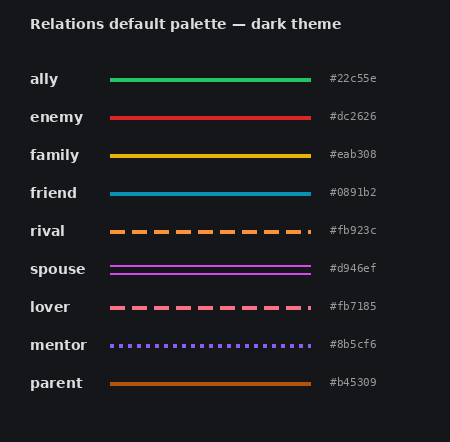
Rename, recolour, add, or delete freely — they're just defaults.
Portraits
The portrait property name is configurable in settings (default: npcimage). Accepted forms:
npcimage: "[[merlin.png]]"                     # vault wikilink (recommended)
npcimage: "Assets/Portraits/merlin.png"        # vault path
npcimage: "https://example.com/merlin.png"     # external URL
The plugin uses Obsidian's resource path resolution, so vault images load even if your vault isn't web-served.
Frontmatter formats accepted for relationship properties (click to expand)
ally: "[[Bob]]"                     # single
ally: ["[[Bob]]", "[[Alice]]"]      # YAML inline list
ally:                               # YAML block list
  - "[[Bob]]"
  - "[[Alice]]"
ally: "[[Bob]], [[Alice]]"          # comma-separated
Headings ([[Bob#background]]) still point to the note Bob. A nickname after a | ([[Bob|Bobby]]) also points to Bob, and it changes the name shown on the graph. See the next section.
Nicknames: show what each character calls the others (click to expand)
People don't always use each other's real names. Mordred calls Arthur "Father", not "Arthur". You can show that on the graph.
How to do it: inside the link, after the note name, type a | and then the nickname.
# Mordred's note
parent:
  - "[[Arthur|Father]]"
  - "[[Morgana|Mother]]"
Now open Mordred's note. On his graph, Arthur's circle says Father and Morgana's says Mother. The links still go to the right notes.
Each character keeps their own nicknames. The graph uses the nicknames of whichever note you are looking at:
| You are looking at… | Arthur's circle says… |
|---|---|
Mordred's note ([[Arthur|Father]]) |
Father |
Kay's note ([[Arthur|Little Brother]]) |
Little Brother |
| Guinevere's note (no nickname) | Arthur |
| The whole-vault graph | Arthur |
Good to know
- Nicknames only change the circles for notes that your note links to. Everyone else shows their normal name.
- The note you're looking at always shows its own real name.
- The whole-vault graph always shows real names, because it isn't anyone's point of view.
- The nickname must be inside
[[ ]]. WritingArthur|Fatherwithout the brackets won't work. - What if you give someone two different nicknames, like
enemy: "[[Arthur|Tyrant]]"andparent: "[[Arthur|Father]]"? The plugin picks the one whose relationship type is higher in your settings list. A link with no nickname never wipes out a nickname. - Want to try it? Open Mordred, Kay, Lancelot or Merlin in the example notes.
Including notes in the graph — folder and tag scoping (click to expand)
By default, any note with at least one configured relationship property qualifies. Notes pointed at by another note's relationship are pulled in too.
For stricter scoping, set Folder scope or Required tags in settings:
- Folder scope — only scan notes under specific folders, e.g.
World/People, World/Factions. - Required tags — only include notes with one of these tags, e.g.
character, organisation.
Useful if your vault has lots of incidental wikilinks you don't want polluting the graph.
Building from source
git clone https://github.com/Obsidian-TTRPG-Community/Relations.git
cd Relations
npm install
npm run build
Then copy main.js, manifest.json, and styles.css into <vault>/.obsidian/plugins/relations/ and enable the plugin.
Roadmap
- Filter chips by relationship type / tag inside the graph
- Edit relationships directly from the graph (right-click → add ally)
- Per-relationship metadata (notes, strength) via richer frontmatter
- Group/cluster by faction tag
- Export graph as PNG/SVG
Acknowledgements
Built on Cytoscape.js for graph rendering, with fcose for force-directed layouts and dagre for top-down trees.
License
MIT.