Regex Search Bar
 Patrick Stephens43 downloads
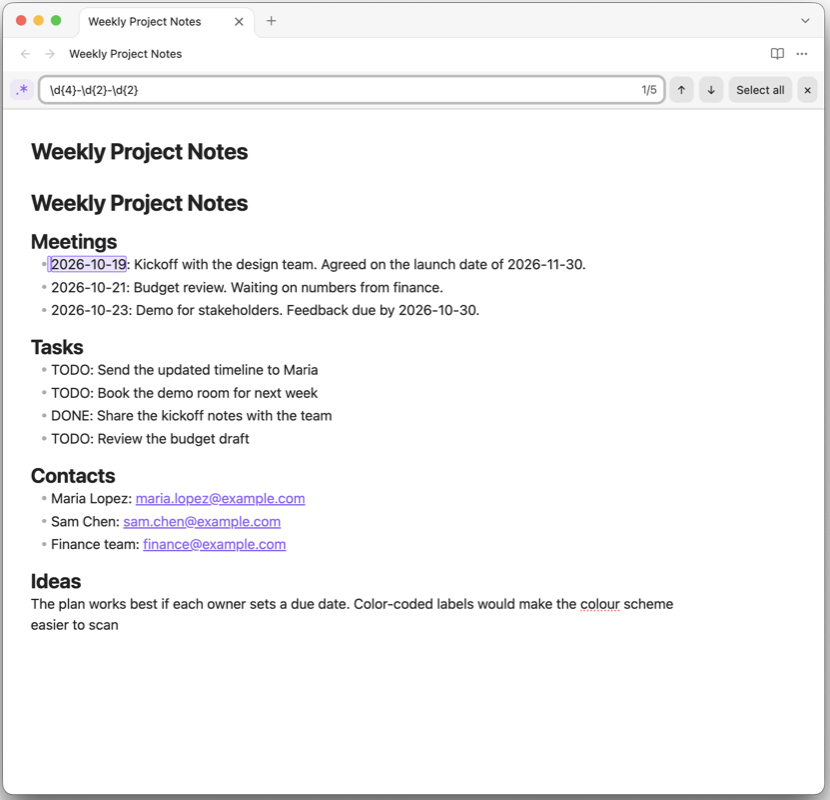
Find matches in the current note using a regex or plain-text pattern, with live highlighting, next/previous navigation, and select-all-to-edit.
- Overview
- Scorecard
- Updates1
Find matches in the current note using a regex or plain-text pattern, with live highlighting, next/previous navigation, and select-all-to-edit.
This plugin is desktop only (it isn't available on Obsidian mobile). I built and tested it on macOS. It should work the same on Windows and Linux, but I haven't tried those, so please open an issue if something doesn't work.
Usage
- Make sure Regex Search Bar is turned on. Open Settings → Community plugins and switch on the toggle next to Regex Search Bar.
- Open a note and make sure it's in editing mode.
- Press
Cmd/Ctrl+Pto open the command palette, type "Regex Search Bar", and choose Regex Search Bar: Open search bar. The search bar appears at the top of the note with your cursor already in the search box. If you had text selected in the note, it's filled in for you. (To skip the command palette, set up a hotkey.) - Type what you want to find. Every match in the note is highlighted as you type, and the current match has an outline.
- Press
Enterto jump to the next match, orShift+Enterto jump to the previous one. - To edit every match at once, press
Option+Shift+Enteron Mac orAlt+Shift+Enteron Windows/Linux, or click Select all. Every match is selected in the note and your cursor moves back into the note. Start typing and all of them are replaced with what you type. The search bar stays open. - To close the search bar, click the
×button, or pressEscwhile your cursor is in the search box.
If the search bar is already open, running the command again moves your cursor back into the search box and selects its text.
The search bar
From left to right, the search bar has:
- Regex toggle button (the icon at the far left, a dot next to an asterisk
.*). It switches between regex matching and plain-text matching. When the button is highlighted, regex mode is on, and that's the default. When it isn't, plain-text mode is on: the bar searches for what you typed literally, so characters like.and*are treated as ordinary characters. Hover over the button to see which mode you're in. - Search box. Type here. Matches in the note are highlighted as you type.
- Match count (inside the search box, on the right). Shows which match you're on and how many there are, such as
2/5, or "No matches". - Up and down arrow buttons (
↑and↓). Jump to the previous or next match. - Select all button. Selects every match at once as multiple cursors, so whatever you type next replaces all of them.
- Close button (
×). Closes the search bar.
Searches are not case-sensitive in either mode, so note also matches Note. If you type an invalid regex, the bar falls back to plain-text matching automatically and the match count turns red.
Regex examples
A regex (regular expression) is a pattern that can match more than one exact piece of text. With regex mode on:
colou?rmatches both "color" and "colour".cat|dogmatches "cat" or "dog".\d+matches any number, such as "7" or "2026".[A-Z]{3}matches any three capital letters in a row.^#matches level 1 headings (# Title). A level 2 heading (## Title) needs^##instead, so the pattern has to include every#in the heading. To match a heading of any level, use^#+.^means the start of a line and$means the end of a line, sodone$matches "done" only at the end of a line.
If you don't need patterns, switch to plain-text mode and search for words as you normally would.
Setting up a hotkey
No hotkey is bound by default. I recommend using Cmd/Ctrl+F, since that's where you'd normally reach for search:
- Open Settings (the gear icon at the bottom left, or
Cmd/Ctrl+,), then choose Hotkeys. - Type "Search in current file" in the search box at the top. Next to its
Cmd/Ctrl+Fhotkey, click the×to clear it. Obsidian bindsCmd/Ctrl+Fto this command by default, so the two would conflict. - Type "Regex Search Bar" in the search box. Next to Regex Search Bar: Open search bar, click the
+button, pressCmd/Ctrl+Fon your keyboard, and confirm.
If you'd rather keep the built-in search, use Cmd/Ctrl+Shift+F in step 3 instead, and skip step 2.
Manual installation
Copy main.js, manifest.json, and styles.css into <vault>/.obsidian/plugins/regex-search-bar/, then enable the plugin in Settings → Community plugins.