Refined Regex Replace and More
 hluica31 downloads
Search and replace text in the current note using exact, wildcard, or regular expression matching, with search flags and selection scope.
- Overview
- Scorecard
- Updates5
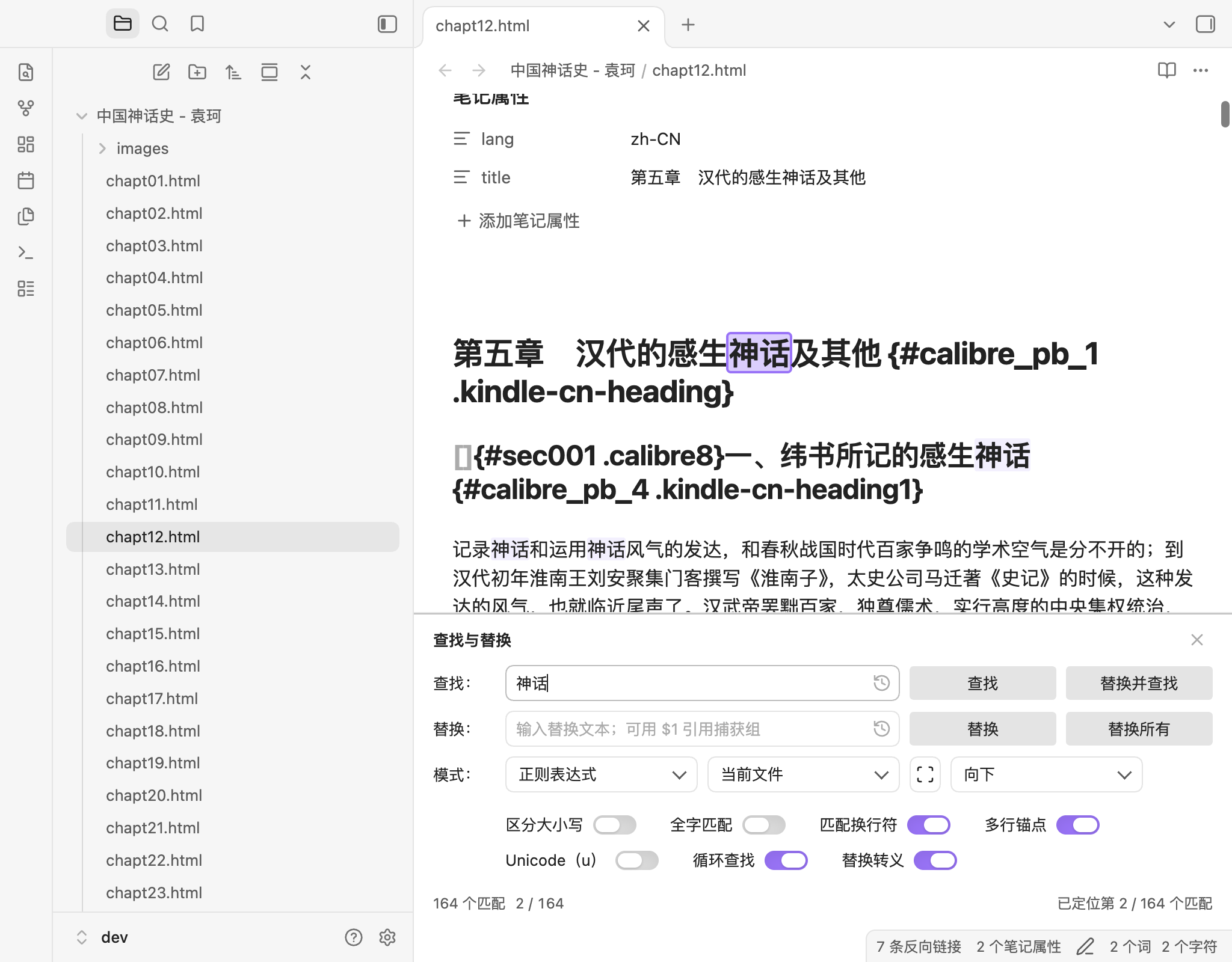
A find/replace panel for Obsidian with exact, wildcard, and regular expression matching. On desktop it is embedded at the bottom of the note area, separated by a thin line with a title and close button; on mobile it falls back to a dialog.
Features
- Three match modes: exact text, wildcard (
*,?), and JavaScript regular expressions. - Four actions: Find, Replace (one occurrence), Replace and find, Replace all.
- Mode-aware search options: native Obsidian toggle switches for case sensitive, whole word, wrap around, Match newlines, and Replace escapes. Exact mode shows 4; wildcard adds Match newlines (5); regex adds Match newlines, Multiline anchors, and Unicode (u) (7). Match newlines uses the
sflag: in wildcard mode*/?can cross lines; in regex mode.can cross lines. Multiline anchors (m) are regex-only. Toggle options use generous spacing (28px desktop, 16px compact/mobile) and wrap naturally; the panel height follows the rows. - Inline desktop panel: embedded at the bottom of the note display area, separated by a single high-contrast 1px line, with a title and close button. It takes layout space instead of covering the note, so the editor stays visible and interactive.
- Multi-window: each Obsidian window has its own panel; the command targets the editor of the window it is invoked in and closing one window’s panel does not close the others.
- All-match highlighting: every match in the active search region is highlighted; the current match has a stronger outline, so the result set is visible while you type or step through it.
- Current position: a persistent
3 / 164indicator follows Find, selection changes, replacements, and panel reopen. - Zero-width matches:
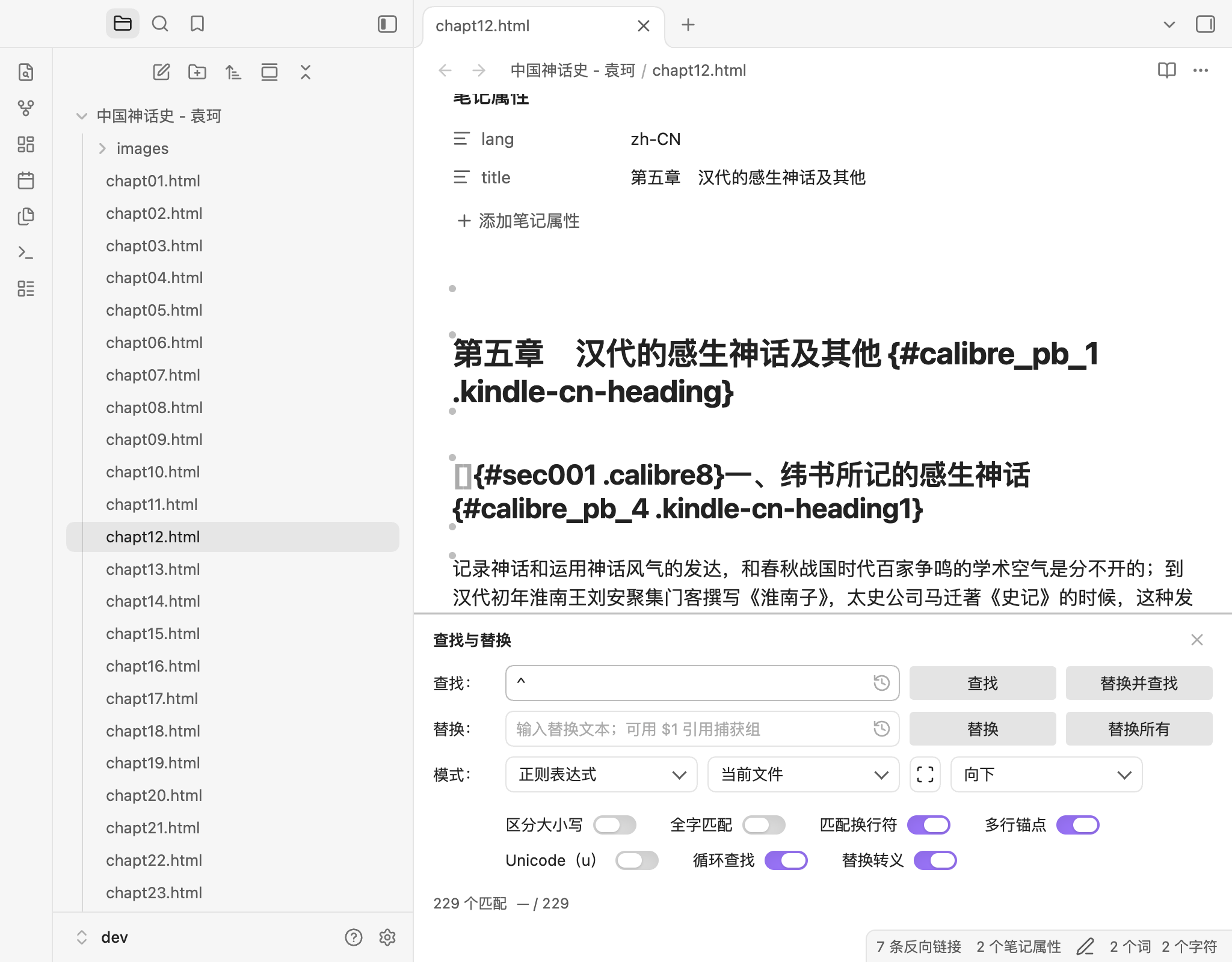
^,\b, and lookahead matches get a small translucent gray dot above the caret position; the active match gets a filled accent dot with a halo. The dots add no layout width. - Newline matches: matches containing a line break (
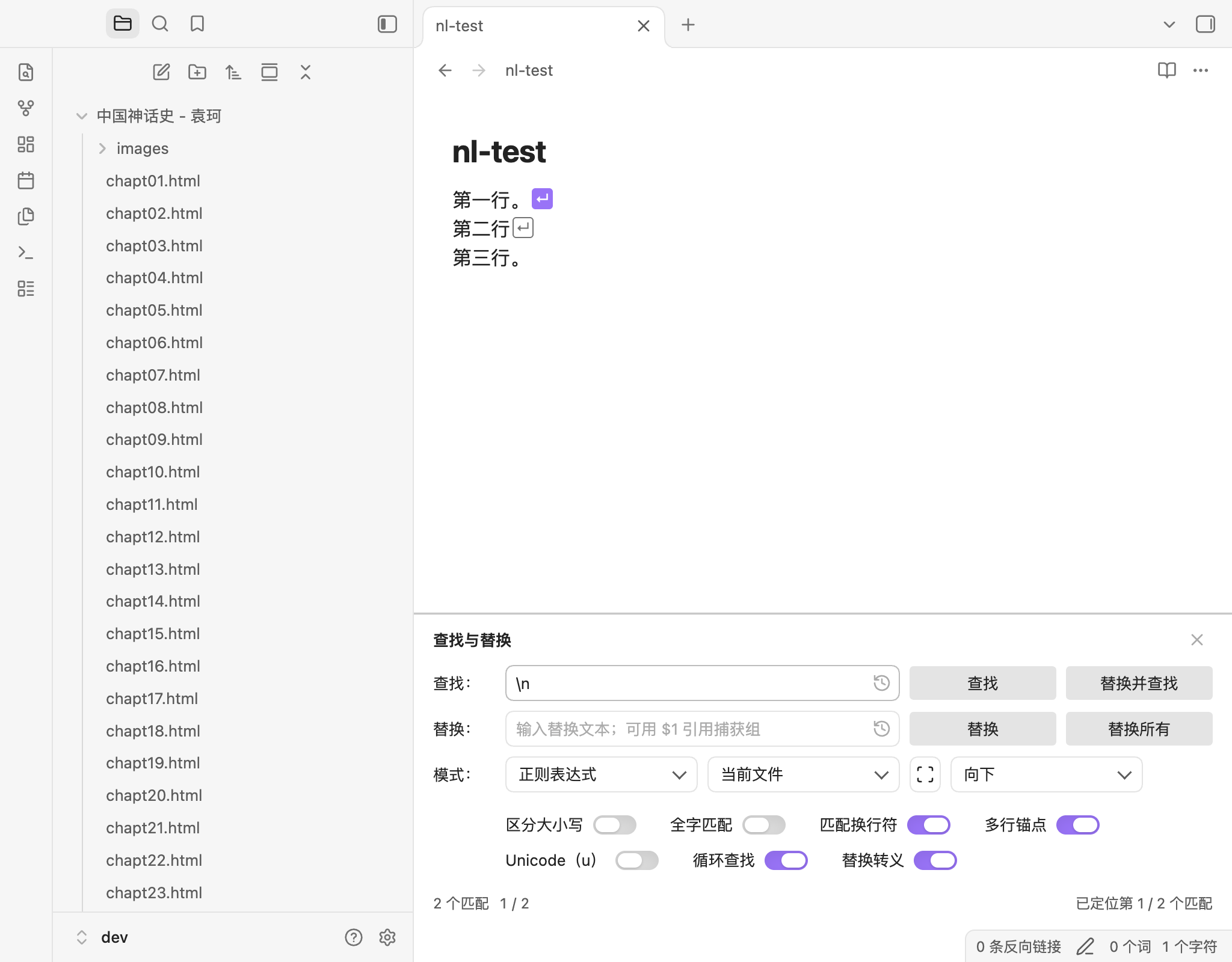
\n,。\n, or dotAll matches crossing lines) show a small↵pill at the affected line end, so an otherwise invisible newline is visible and the active break is highlighted. - Editor-focus navigation: F3, Shift+F3, and Escape work while the editor has focus, not only while the find field has focus.
- Unicode (u): a regex-only toggle that enables
\p{...}property escapes and code-point matching; astral characters count as one match. - Accessibility: labeled region/heading, named controls, live status, keyboard-operable toggles, and a labeled options group.
- Themes: Catppuccin and Minimal tested; all UI uses Obsidian CSS variables.
- Compact actions: the four action buttons use a desktop size close to Obsidian settings controls, with hover and pressed (accent) feedback.
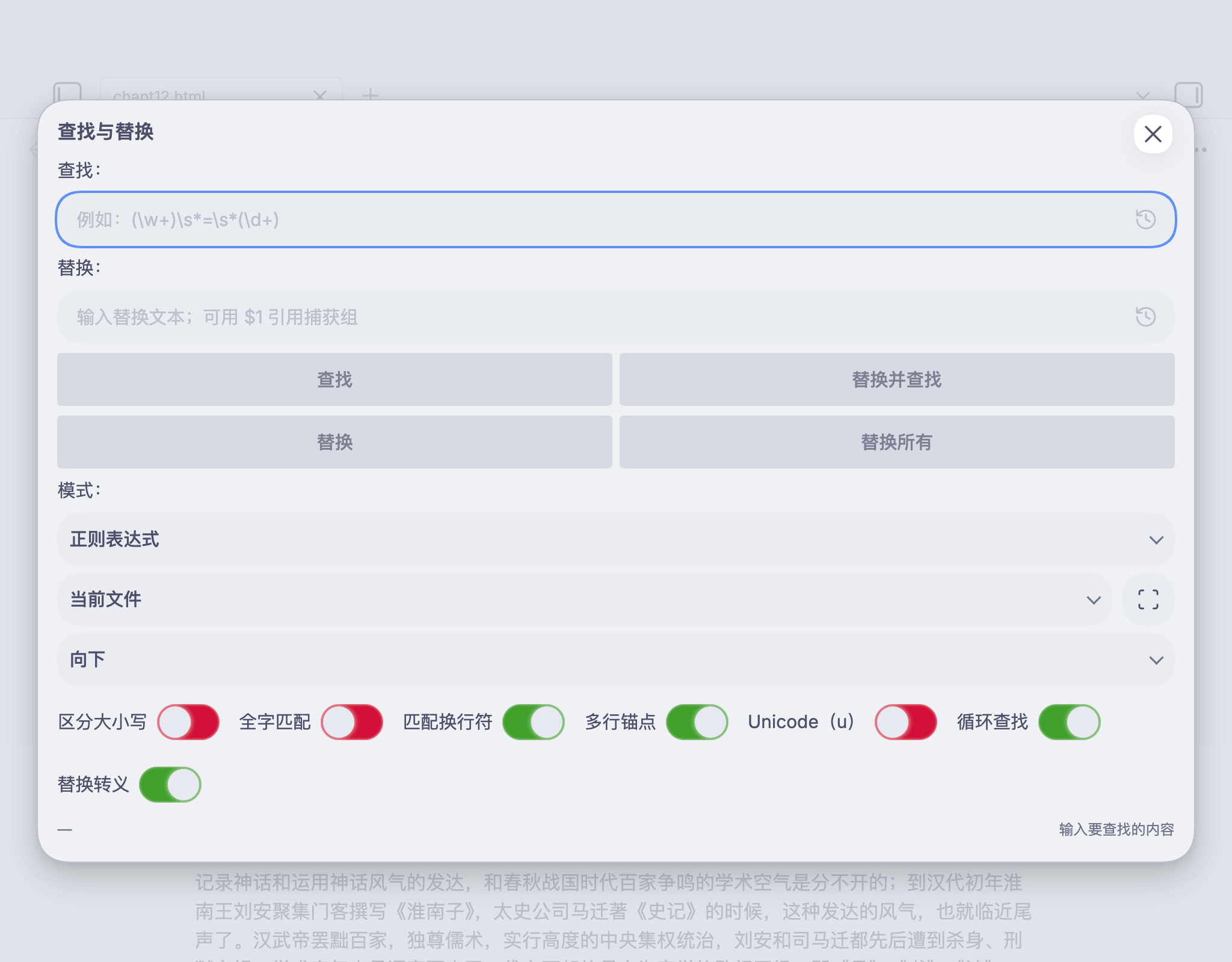
- Mobile / fallback: the same controls in a modal dialog when Obsidian reports mobile mode.
- Scope and direction: current file or captured selection; Use current selection refreshes the captured range without reopening the panel; down or up.
- Wrap-off bounds: Current file searches from the cursor to the document edge; Selection always searches the whole captured selection from its top (down) or bottom (up), independent of the cursor.
- Match count and status: live count, invalid-regex errors, wrap/boundary feedback with separate document and selection messages, replacement results.
- History: last 20 search and replacement terms, with a clear action.
- Undo-safe: every replacement is a single
editor.transaction; one undo restores it. - Unicode-aware whole word: works for Latin and CJK text, without regex lookbehind.
- Bilingual: English and Simplified Chinese, following Obsidian's language.
Status
Current version: 0.3.4, released on 2026-11-12 from tag 0.3.4. The 0.2.6 baseline is listed in Obsidian's community directory; the 0.3.4 community-directory update is the remaining distribution step. Release audit: COMMUNITY-READINESS.md · Changes: CHANGELOG.md.
Installation
From the community directory
- In Obsidian, open Settings → Community plugins and turn off Restricted mode if needed.
- Browse the community directory and install Refined Regex Replace and More.
- Enable the plugin.
- Optionally assign a hotkey to Find and replace in current file in Settings → Hotkeys.
The plugin id is regex-replace-rev.
From a GitHub release
Download main.js, manifest.json, and styles.css from the latest release, place them in <your-vault>/.obsidian/plugins/regex-replace-rev/, and enable the plugin.
From source
See Development below. Build with npm install && npm run build, then copy the three build files into the vault plugin folder.
Usage
Run Find and replace in current file from the command palette (command id regex-replace-rev:open-find-replace).
On desktop, the command opens the panel at the bottom of the active note. Running it again focuses the existing panel. Close it with the panel’s ✕ or Escape. The panel belongs to the note view it was opened in.
Keyboard
| Focus | Key | Action |
|---|---|---|
| Find field | Enter | Find next in the current direction |
| Find field | Shift+Enter | Find previous once |
| Find / replace fields | Mod+Enter | Replace all |
| Find / replace fields | F3 / Shift+F3 | Find next / previous |
| Replace field | Enter | Replace and find |
| Replace field | Shift+Enter | Replace once |
| Panel | Escape | Close the inline panel |
| Editor (panel open) | F3 / Shift+F3 | Find next / previous |
| Editor (panel open) | Escape | Close the inline panel |
| History button | Enter / Space | Open history menu |
Mod is Cmd on macOS and Ctrl elsewhere. Buttons are reachable with Tab and Enter/Space.
Matching syntax
Exact
The find text is literal; *, ?, ., $ are ordinary characters. The replacement is inserted literally (no $1 expansion). Case sensitivity and whole-word options apply.
Wildcard
*— any sequence (including empty).?— any single character.\*,\?,\\,\n,\r,\t— escapes.- By default
*and?do not cross line breaks; enable Match newlines to let them cross lines. - A trailing
*consumes the rest of the line (or the rest of the document with Match newlines on); a*in the middle stops at the next literal so repeated matches do not swallow the document. - Each
*/?is a capture group, in order. Replacement supports$1…$n,$&, and$$. - Character classes (
[abc]) and quantifiers ({n,m}) are not supported in wildcard mode; use regex mode for those.
Example: 第*章 with replacement 第$1节 turns 第1章 into 第1节.
Regular expression
- JavaScript
RegExpsyntax. Enter the pattern only; do not include/.../flags. gis implicit. The Case sensitive option removes theiflag; Match newlines addss; Multiline anchors addsm; Unicode (u) addsu.- Replacement supports
$1…$99,$&,$$,$`,$', and$<name>. - Zero-width matches (e.g.
^,\b,(?=...)) are supported and marked in the editor. uenables\p{...}property escapes and matches astral characters as one code point. It is available only in regex mode.- Lookbehind is intentionally not used, for iOS compatibility.
Whole word
Whole word uses a Unicode boundary filter (letters, numbers, marks, and _), not \b. It works with CJK text: 项目 matches in 项目: but not inside 本项目.
Known edge case: with a regex alternation such as foo|foobar, the engine may match foo first and reject it at the boundary instead of trying foobar. Put the longer alternative first or add explicit boundaries.
Replacement escapes
Enable the Replace escapes toggle in the panel to convert \n, \r, \t, and \\ in the replacement before $ expansion. The toggle is saved with the rest of the panel state. This is useful because the input fields are single-line.
Scope
- Current file — the whole document.
- Selection — the selection captured when the panel opens or when you switch the scope to Selection. The captured range is updated after replacements. It resets to Current file if the note content changes to another document.
- Use the Use current selection (scan) button next to the scope selector to refresh or switch to a new selection without reopening the panel.
Settings
- Remember the last search and options — restore the last pattern, replacement, and options.
- Prefill the find field from the selection — use a single-line selection when opening.
- Remember search history — keep the last 20 terms; turning it off clears the history.
- Default match mode — used when remembering the last state is off.
All data is stored in the plugin's data.json under plugin.settings. Panel-driven saves are debounced; the settings tab saves immediately.
Accessibility
- The panel is a labelled
region; the inline title is a level-2 heading. - Find/replace inputs have labels, mode/scope/direction selects have descriptive
aria-labels, and every icon button has an accessible name. - Toggles are native checkboxes with labels; the options row is a labelled group.
- History buttons expose
aria-haspopup="menu"andaria-expanded. - The status message uses
aria-live="polite"; errors are textual, not color-only. - Keyboard: Tab reaches controls, Space toggles switches, Escape closes the panel.
- The Chromium accessibility tree was audited (the same tree Chromium maps to Windows UIA); a full VoiceOver/Narrator session is still outstanding.
Limitations
- Find and replace are limited to the current file (or captured selection); there is no vault-wide replace.
- The input fields are single-line; use regex
\nor the panel's Replace escapes toggle for line breaks. - All-match highlighting is capped at 5,000 rendered ranges, 1,000 zero-width dots, and 1,000 line-break markers; the count and position still report the full result up to the scan cap.
- A newline-only match has no visible glyph of its own; it is shown by the
↵marker rather than a text background. - Replace all asks for confirmation above 5,000 matches and is blocked above the 100,000-match action cap; this keeps the single undoable transaction bounded.
- Word-level regex alternation has the boundary caveat described above.
- The inline panel sits at the bottom of the editor content column; in a narrow split pane it switches to a compact stacked layout. Below 260px panel width the four action buttons stack one per row. Very narrow windows cap it at 70vh and scroll internally, so the status row can be below the fold.
- On mobile the panel is presented as a dialog rather than embedded; the modal does not draw custom highlights, but the position indicator and native selection work.
- Real iOS/Android devices and Windows/Linux were not re-tested for 0.3.4; mobile emulation was used.
- Third-party themes tested: Catppuccin and Minimal. Other themes may define unusual highlight/selection variables.
- Accessibility was audited through the Chromium accessibility tree; a full screen-reader session on macOS/Windows is still outstanding.
Development
npm install
npm test
npx tsc -noEmit
npm run lint
npm run build
The build produces main.js at the project root; copy it with manifest.json and styles.css to a vault plugin folder. The inline panel is a CodeMirror 6 showPanel extension (top: false → bottom). The project uses TypeScript, esbuild, Vitest, ESLint with eslint-plugin-obsidianmd, and CodeMirror 6 packages provided by Obsidian at runtime.
Acknowledgments
- The plugin is generated by DeepSeek-V4.1-flash-1017.
- The plugin is inspired by obsidian-regex-replace.
- Its UI is inspired by Calibre Ebook-Editor.
License
MIT. See LICENSE.