Search...Search plugins and themes...
⌘K
Sign in
  • Get started
  • Download
  • Pricing
  • Enterprise
  • Account
  • Obsidian
  • Overview
  • Sync
  • Publish
  • Canvas
  • Mobile
  • Web Clipper
  • CLI
  • Learn
  • Help
  • Developers
  • Changelog
  • About
  • Roadmap
  • Blog
  • Resources
  • System status
  • License overview
  • Terms of service
  • Privacy policy
  • Security
  • Community
  • Plugins
  • Themes
  • Discord
  • Forum / 中文论坛
  • Merch store
  • Brand guidelines
Follow us
DiscordTwitterBlueskyThreadsMastodonYouTubeGitHub
© 2026 Obsidian

Red Sheet

Caio Valle BertanteCaio Valle Bertante19 downloads

Hide marked text behind a virtual red sheet and reveal it to test your recall, inspired by the Japanese study technique.

Add to Obsidian
  • Overview
  • Scorecard
  • Updates2

Study with the Japanese red sheet technique (赤シート) in Obsidian: write the answers in red, cover them with a red sheet, try to remember, then move the sheet away to check.
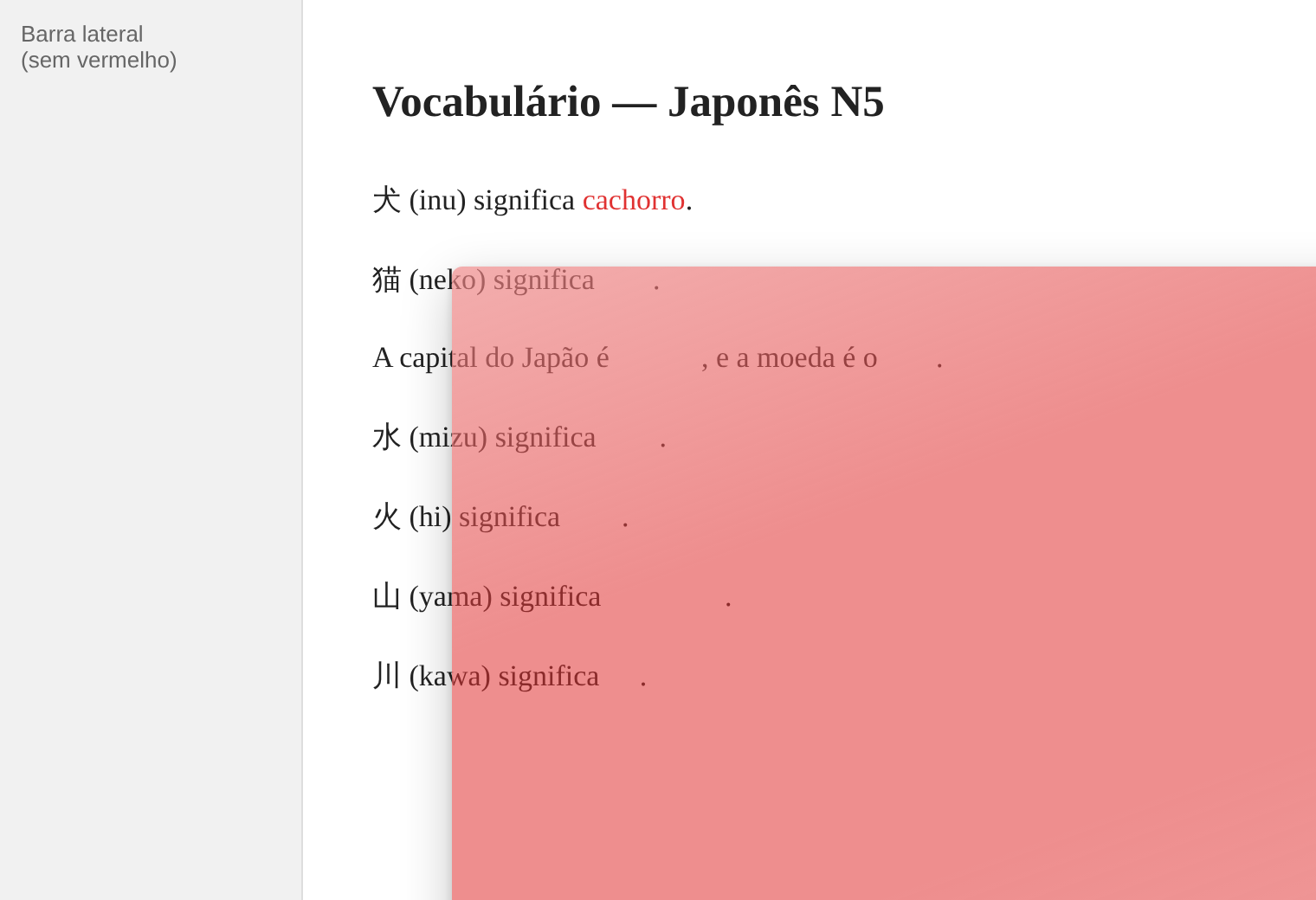
The red sheet lying over a note

Marking what to memorize

  • Double braces: The capital of Japan is {{Tokyo}}. shows "Tokyo" in red pen. The braces are hidden in Live Preview and Reading view.
  • Text colored red or orange with inline HTML, for example <span style="color:red">water</span> or <font color="#ff6a00">fire</font>. Can be turned off in settings.
  • Highlights (optional): turn on "Also hide ==highlights==" in settings to treat ==highlighted text== as marked.

Marks inside code blocks, inline code and math are ignored.

Studying

Red sheet

Click the layers icon in the ribbon, or run the command Toggle red sheet. A sheet of red plastic lies over the note area, like on a desk:

  • Grab it anywhere and drag. It can slide past the edges of the note.
  • Resize it from the bottom-right corner.
  • Red text disappears wherever the sheet covers it, and reappears line by line as you slide the sheet away.
  • Hover a covered mark to peek at it (can be turned off).
  • The note still scrolls underneath the sheet.
  • If the sheet gets lost, run Move red sheet back onto the note.

Red filter

Click Filter in the status bar, or run Toggle red filter over the note. The whole note area turns red and every mark disappears. Turn it off to check your answers.
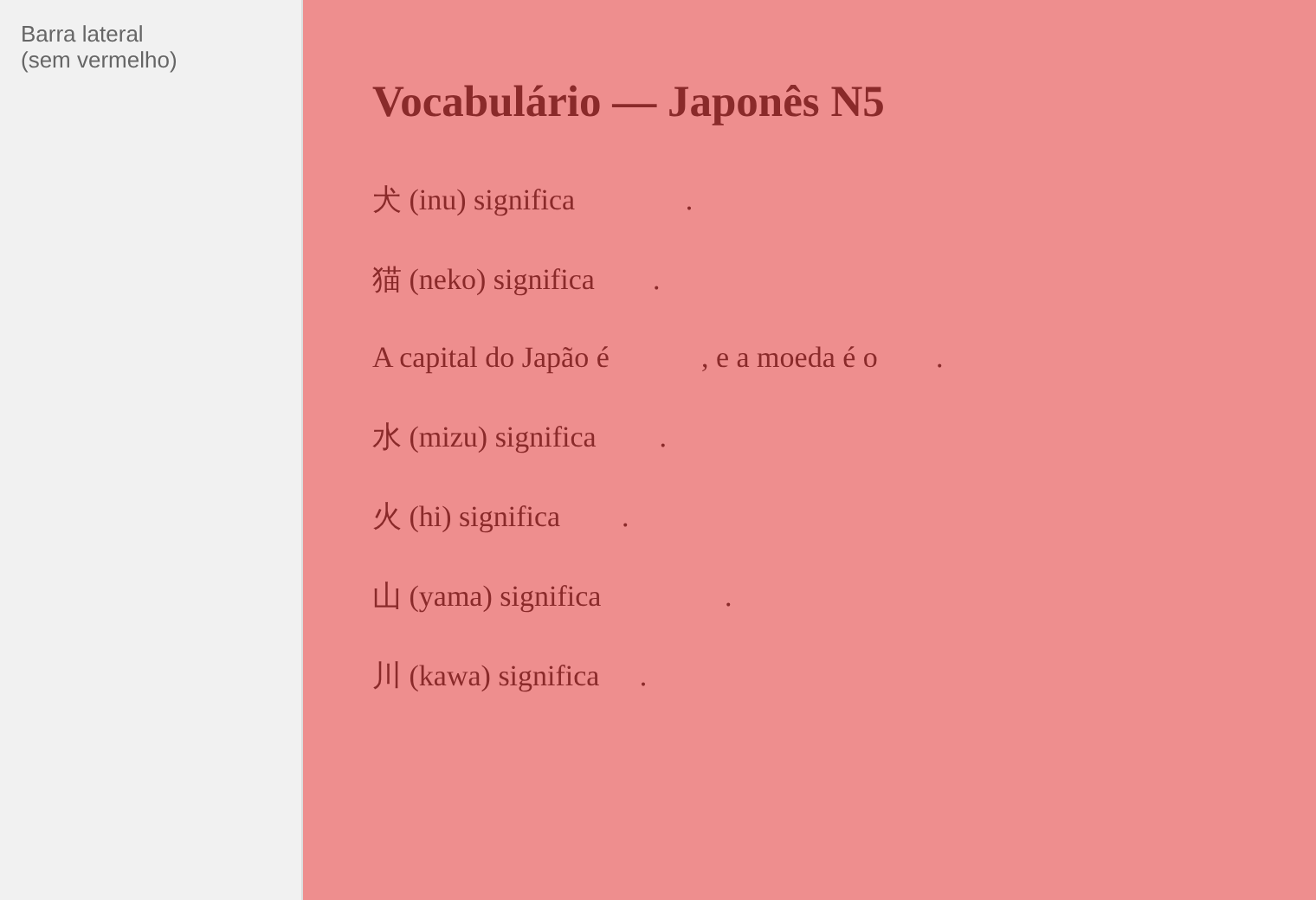
The red filter over the whole note

Settings

  • Detect red-colored text
  • Also hide highlights
  • Pen color
  • Peek on hover
  • Sheet color and strength

The interface follows Obsidian's language: Portuguese when Obsidian is set to Portuguese, English otherwise.

Installation

From Obsidian: Settings → Community plugins → Browse, search for "Red Sheet".

Manually: download main.js, manifest.json and styles.css from the latest release into <vault>/.obsidian/plugins/red-sheet/, then enable the plugin.

Development

npm install
npm run build   # type-checks and bundles src/ into main.js
npm run lint

License

MIT

HealthExcellent
ReviewSatisfactory
About
Study with the Japanese red-sheet method in Obsidian. Mark answers using double braces or red/orange text, then cover them with a draggable, resizable red overlay that hides marks and lets you peek on hover. Toggle a full-note red filter to hide all marks for testing.
FlashcardsInterface
Details
Current version
0.4.1
Last updated
4 days ago
Created
4 days ago
Updates
2 releases
Downloads
19
Compatible with
Obsidian 1.5.0+
Platforms
Desktop, Mobile
License
MIT
Report bugRequest featureReport plugin
Author
Caio Valle BertanteCaio Valle Bertantehello-my-neighborhood
hello-my-neighborhood.github.io/sessao/
GitHubhello-my-neighborhood
  1. Community
  2. Plugins
  3. Flashcards
  4. Red Sheet

Related plugins

Hider

Hide interface elements such as tooltips, status bar, titlebar, and more.

Meta Bind

Make your notes interactive with inline input fields, metadata displays, and buttons.

Note Toolbar

Add customizable toolbars to your notes.

Agent Client

Chat with Claude Code, Codex, Gemini CLI, and more via the Agent Client Protocol — right from your vault.

Editing Toolbar

The Editing Toolbar is modified from cMenu, which provides more powerful customization settings and has many built-in editing commands to be a MS Word-like toolbar editing experience.

Force note view mode

Force the view mode for a note by using frontmatter: YAML block with 'obsidian_ui_mode' as key.

Floating Search

Search text by using Obsidian default search view.

Typewriter Mode

Typewriter scroll, writing focus, current line highlight, paragraph dimming, and more!

Spaced Repetition

Fight the forgetting curve by reviewing flashcards & entire notes.

Hover Editor

Transform the Page Preview hover popover into a fully working editor instance.