Quran Helper
 Ammar Alakkad2k downloads
Find and insert any Quran Ayah (verse) in your notes.
- Overview
- Scorecard
- Updates30
إضافة لـ Obsidian يساعدك على العثور على إدراج آيات القرآن في ملاحظاتك.
Quran Helper (English)
A plugin for Obsidian that helps you search and insert Quran ayahs and surahs into your notes. Supports fuzzy search by ayah text, surah name, or numeric reference, with multiple output formats.
Features
- Fuzzy search for ayahs by Arabic text, surah name, or reference number
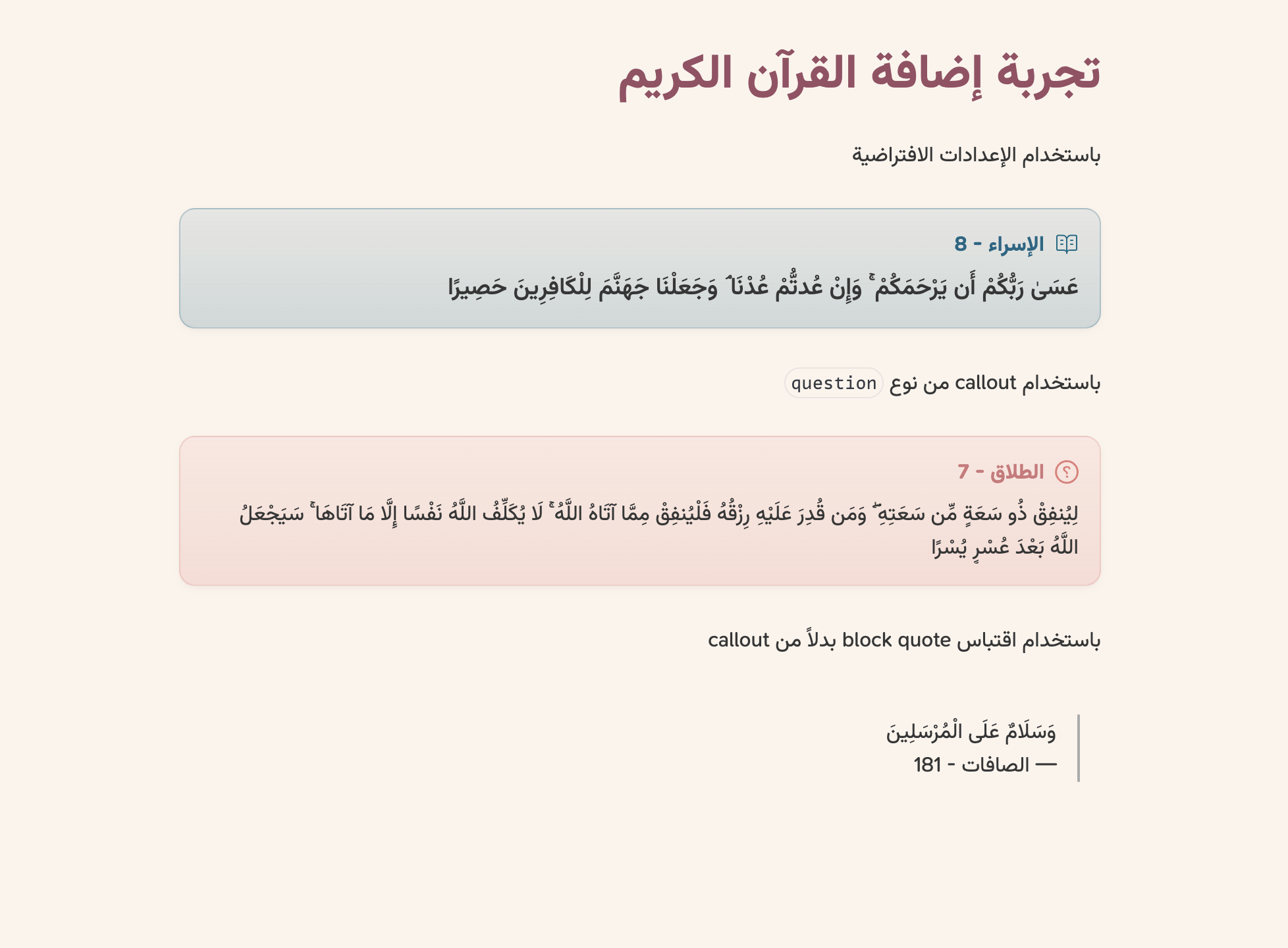
- Insert ayahs as blockquote, callout, or inline text
- Search and insert full surahs
- Search and insert by page number (1—604)
- Create ayah notes linked to your vault
- Customizable output format and callout type
- Offline-first, works without internet
Installation
- Open Obsidian Settings
- Go to Community Plugins → Browse
- Search for "Quran Helper"
- Click Install then Enable
Usage
- Insert Ayah — Search and insert a specific ayah
- Insert Surah — Search and insert a full surah
- Insert Page — Search and insert by page number
- Create Ayah Note — Create a standalone note for an ayah
- Press
Mod+Enter(Cmd/Ctrl) to insert inline without changing your default format
لقطات الشاشة
1) بدء الإدراج
| من Command Palette | من Ribbon |
|---|---|
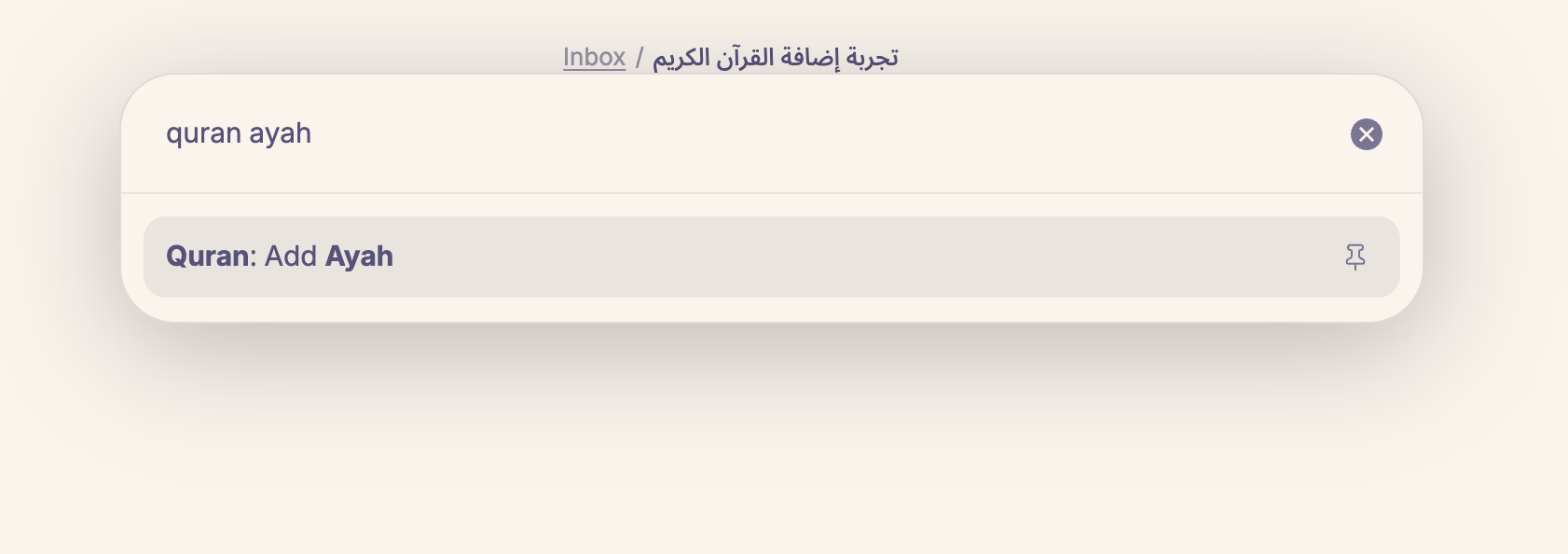 |
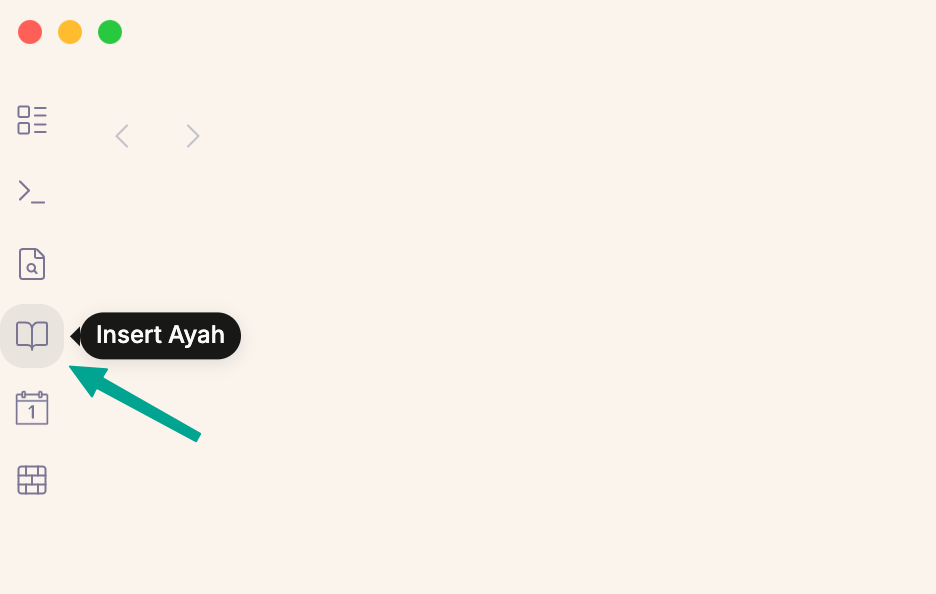 |
2) البحث عن الآية
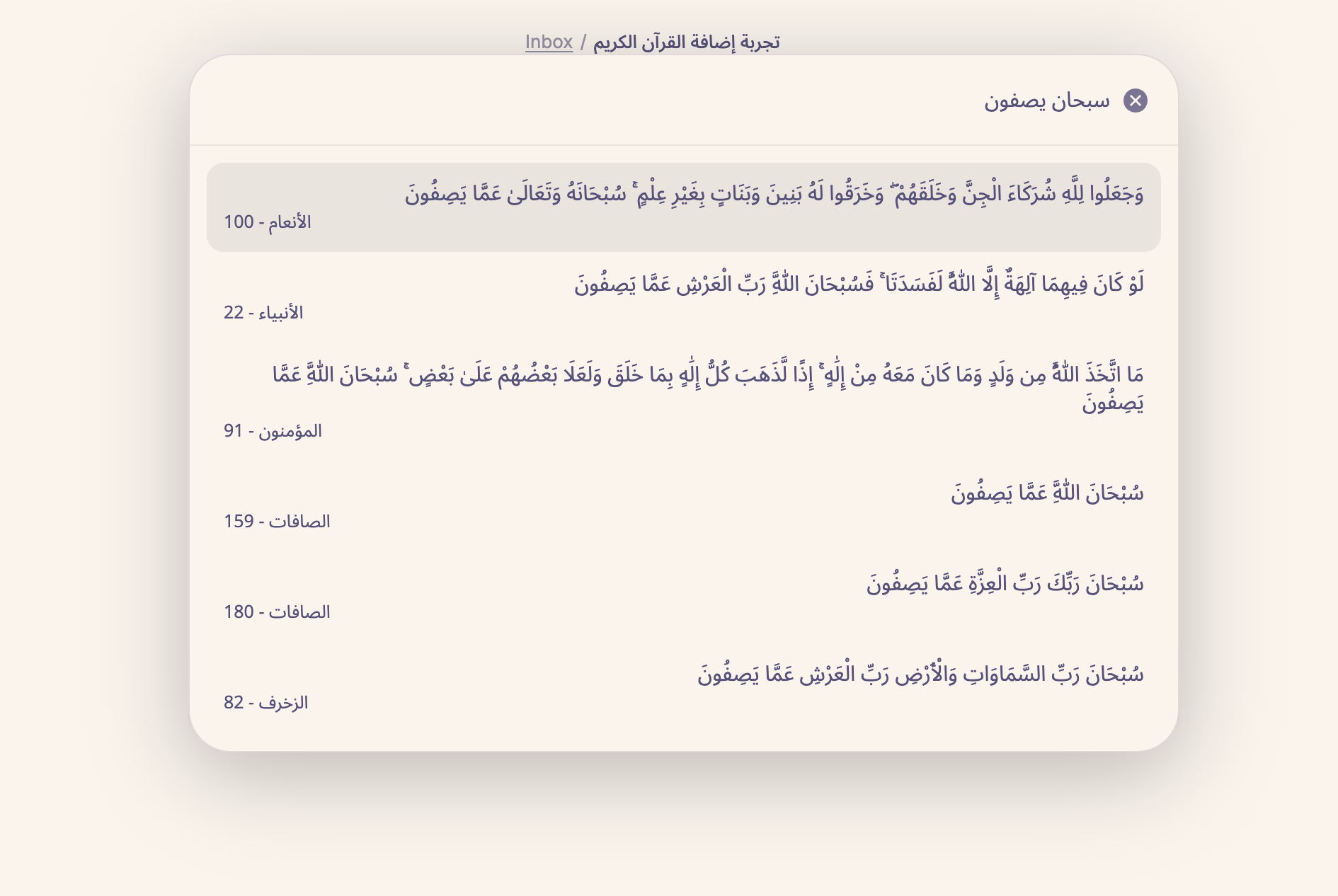
3) شكل الناتج بعد الإدراج
4) الإدراج المدمج (Inline)
يمكنك إدراج الآية كنص مدمج داخل الفقرة بدلاً من كتلة منفصلة:
استخدم Mod+Enter (Cmd على Mac / Ctrl على Windows) عند اختيار الآية لإدراجها بهذا الشكل.
5) نمط إضافة لقطات الميزات الجديدة
لتحسين تجربة القراءة مع زيادة عدد الصور، أضف كل ميزة جديدة بنفس التسلسل:
- بدء الميزة (الأمر أو الأيقونة)
- البحث/الاختيار داخل النافذة
- النتيجة النهائية داخل الملاحظة
يفضل أن تكون أسماء الملفات وصفية وثابتة، مثل:
surah-start-command-palette.pngsurah-search.pngsurah-rendered.png
الميزات
- إدراج آية محددة في الملاحظة عبر
Insert Ayah (إدراج آية) - إدراج سورة كاملة عبر
Insert Surah (إدراج سورة) - إدراج صفحة من المصحف (1-604) كاملة أو اختيار آية منها عبر
Insert Page (إدراج صفحة) - إنشاء ملاحظة مستقلة لآية محددة عبر
Create Ayah Note (إنشاء ملاحظة آية) - ثلاث صيغ إدراج: Callout، Blockquote، ومدمج (Inline)
- إدراج مدمج سريع عبر
Mod+Enter(Cmd/Ctrl) دون تغيير الإعدادات - بحث سريع بمطابقة جزئية (Fuzzy) يدعم التطبيع العربي والبحث بالأرقام (رقم السورة/الآية/الصفحة)
- يعمل بالكامل دون اتصال بالإنترنت
الإعدادات
من إعدادات الإضافة يمكنك التحكم في:
- صيغة الإدراج:
CalloutأوBlockquoteأوInline(المدمج) - نوع الـ Callout: مثل
quran-ayahأو أي نوع آخر مدعوم في Obsidian - إعدادات ملاحظة الآية:
- مجلد حفظ الملاحظة
- نمط اسم/مسار الملف:
surah-ayah(مثلAl-Mulk-1)surah/ayah(مثلAl-Mulk/1)arabic-ayah(مثلالملك-1)arabic/ayah(مثلالملك/1)
- وسوم تلقائية (Tags) للملاحظات الجديدة
التثبيت
يمكن تثبيت الإضافة مباشرةً من community plugins.
- افتح إعدادات Obsidian
- انتقل إلى
Community plugins - ابحث عن
Quran Helper - انقر على
InstallثمEnable
الاستخدام
- افتح Command Palette ثم اختر أحد الأوامر:
Insert Ayah (إدراج آية)Insert Surah (إدراج سورة)Insert Page (إدراج صفحة)Create Ayah Note (إنشاء ملاحظة آية)
- أو استخدم أيقونات الشريط الجانبي (Ribbon) المقابلة لكل عملية
- إدراج مدمج سريع: عند ظهور نافذة البحث، اضغط
Mod+Enter(Cmd على Mac / Ctrl على Windows) لإدراج النص بشكل مدمج{ الآية } – السورة الرقمبغض النظر عن الإعداد الافتراضي - في إدراج الصفحة: اختر الصفحة أولاً ثم حدّد إدراج الصفحة كاملة أو آية واحدة منها
- في إنشاء ملاحظة آية: اختر الآية وسيتم إنشاء ملف جديد حسب إعداداتك
الاختلاف عن إضافة Obsidian Quran Lookup Plugin
- هذه الإضافة لا تتطلب تنسيق
Surah:Ayah - تدعم إدراج السورة كاملة وإدراج الصفحة مع اختيار آيات منها
- تدعم إنشاء ملاحظات آيات تلقائياً مع أنماط أسماء ووسوم قابلة للتخصيص
- لا يتطلب اتصالاً بالإنترنت
- يمكن البحث بمطابقة جزئية في محتوى الآيات
مصادر
الإضافة تستخدم QPC Hafs script by QUL / TarteelAL
HealthExcellent
ReviewSatisfactory
About
أدرج آيات القرآن والسور وصفحات المصحف مباشرة في ملاحظات Obsidian بصيغ Callout أو Blockquote أو مدمج داخل الفقرة. ابحث بسرعة بمطابقة جزئية مع دعم التطبيع العربي والبحث بالأرقام واعمل بالكامل دون اتصال؛ أدخل مدمجًا فورًا بالضغط Mod+Enter.Details
Current version
1.14.3
Last updated
4 months ago
Created
2 years ago
Updates
30 releases
Downloads
2k
Compatible with
Obsidian 1.8.7+
Platforms
Desktop, Mobile
License
MIT