Pocket Letter Chords
 theluckystrike1 downloads
Insert saved text with simultaneous letter keys on a physical keyboard.
- Overview
- Scorecard
- Updates1
Pocket Letter Chords inserts saved text when you hold two letter keys together. Use it for short phrases in a Markdown note with a physical keyboard. For example, save q+w as Done, hold q, and press w within 80 ms. The note receives Done once.
The keys must overlap. Typing q, releasing it, then typing w leaves qw in the note. Fast ordinary typing can also overlap. Choose rare pairs, and use the pause command for normal writing.
Features
Save two-letter chords
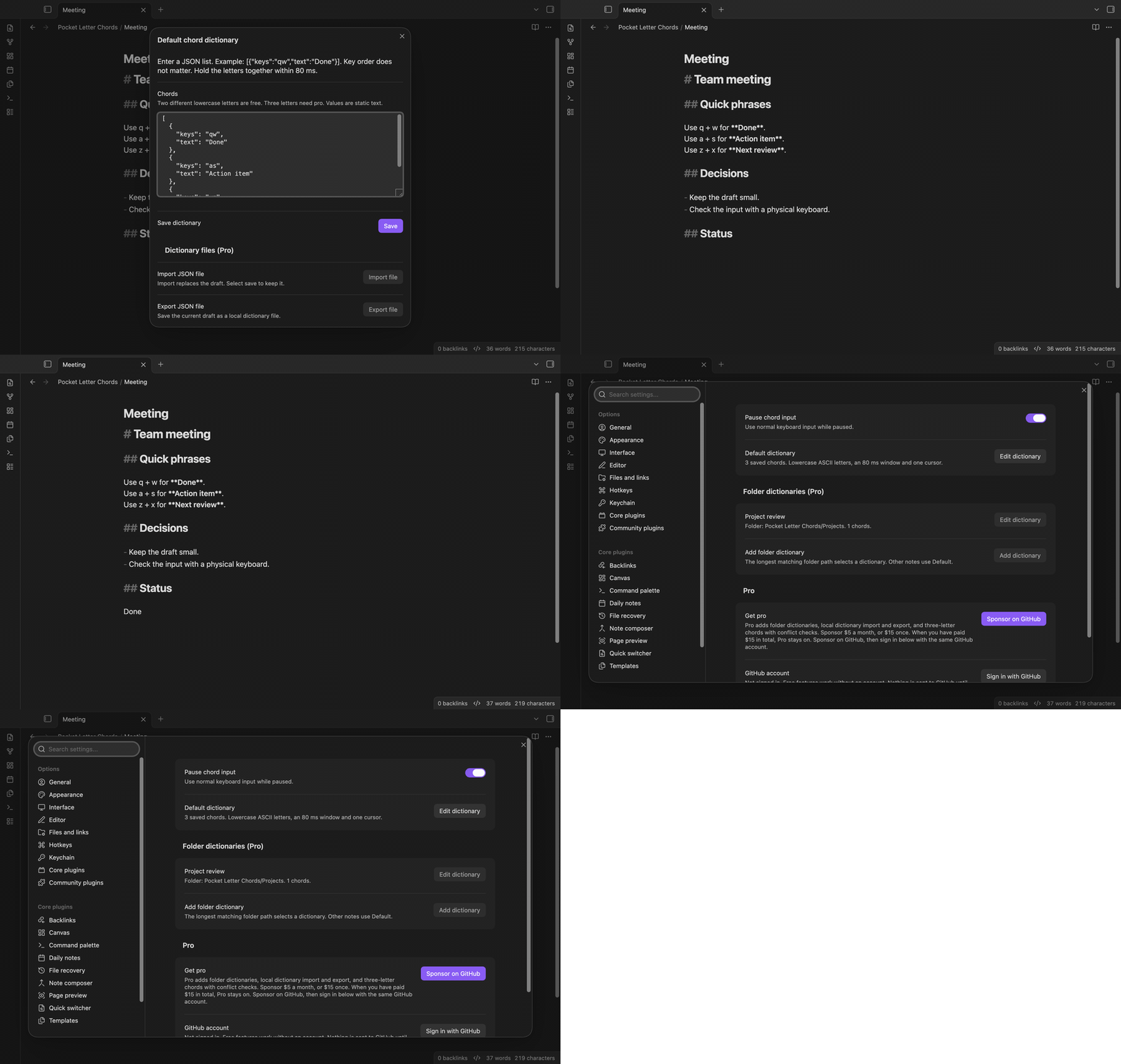
The free default dictionary holds two-letter chords and static text values. Use different lowercase ASCII letters from a to z. qw, wq and q+w refer to the same pair. A value can include a newline or Unicode text. The letters in the chord itself must be ASCII.
Open the dictionary command and edit the JSON list. Select Save to keep the changes. An invalid row shows a message and leaves the saved dictionary unchanged. An empty list removes the default chords.
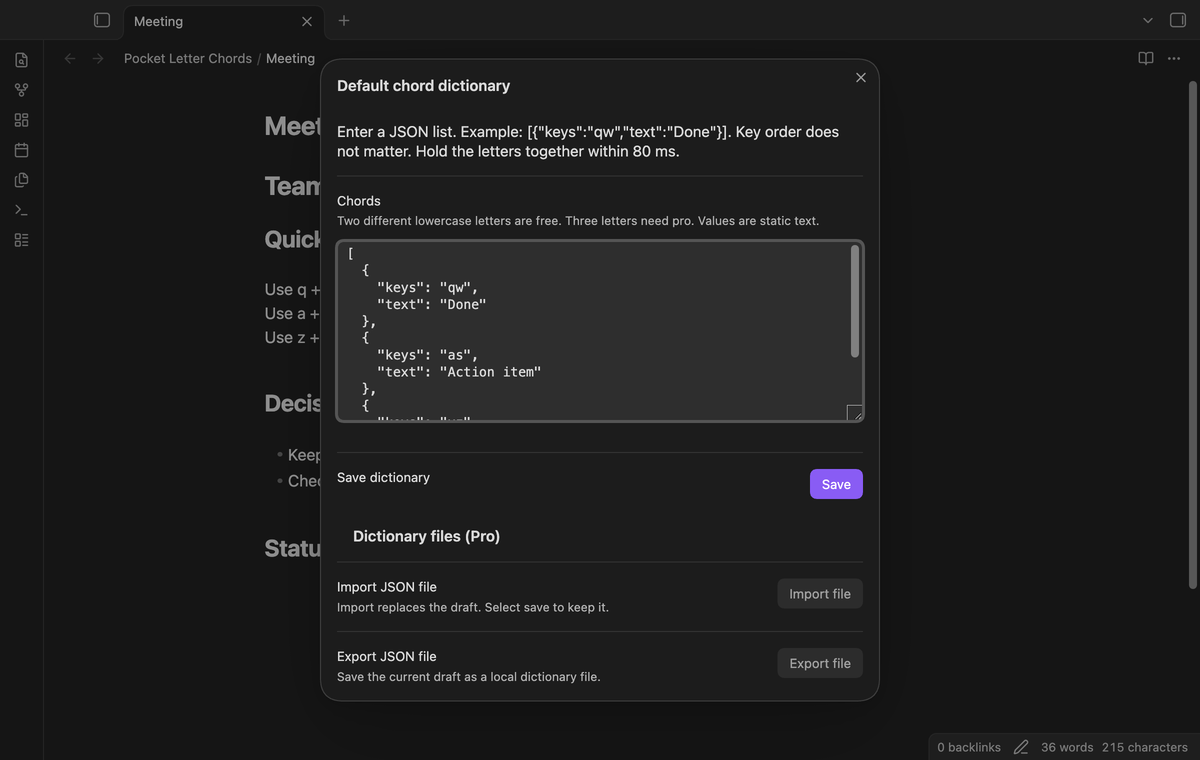
Insert with overlapping keys
The first chord letter starts an 80 ms window. Press the second letter while the first is held and before that window ends. Either order can trigger the saved value. Release the keys before the next chord cycle. A held chord key does not repeat the value.
The value replaces a selected range in the focused Markdown editor. The selection test checks that one Undo restores the previous text. The tool only intercepts an editor with one cursor. Reading view, settings fields and multiple cursors use normal input.
Keep unbound input
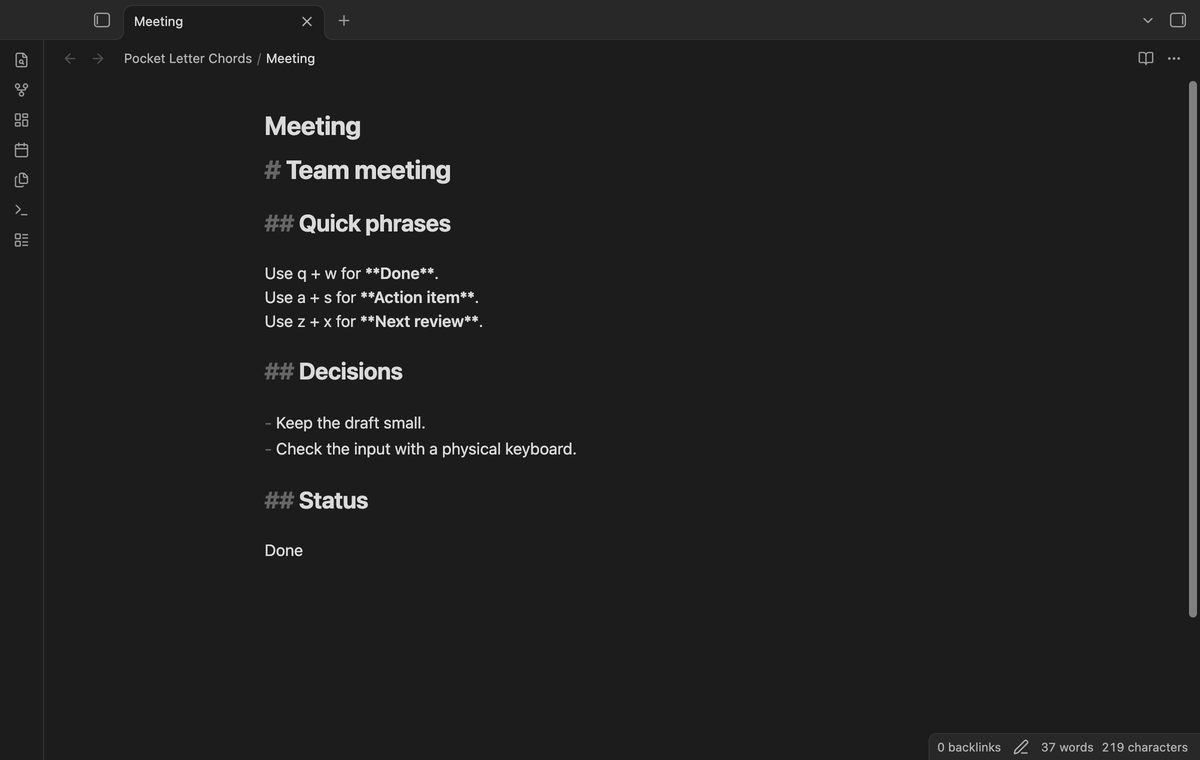
A single chord letter waits for the window to end or for its release. An unbound pair is inserted in press order. Shortcut modifiers, uppercase input and text composition pass through. Vim normal mode keys pass through. A pending letter is flushed before a shortcut, a pointer press, paste or focus loss.
The tool does not search your note for letters to remove. It prevents the editor from inserting the buffered key events, then inserts either their original letters or the saved value. This can add a short delay to an isolated chord letter.
Pause and resume
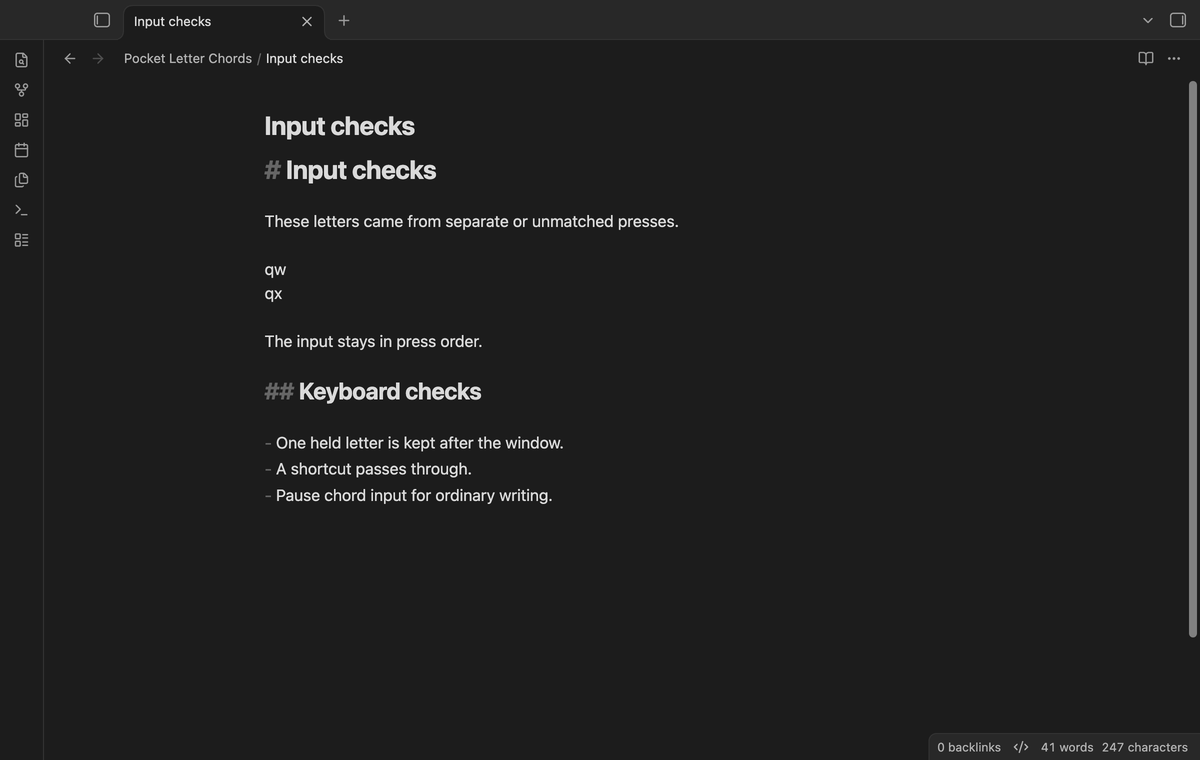
Use “Pause or resume chord input” from the command palette. While paused, keyboard input goes through the editor. The pause state and dictionary are saved in the vault plugin data. A reload keeps them. Resume when you need the saved phrases again.
The settings tab also has a pause toggle. The command has no default hotkey. You can assign a hotkey in Obsidian if your keyboard has a suitable key combination.
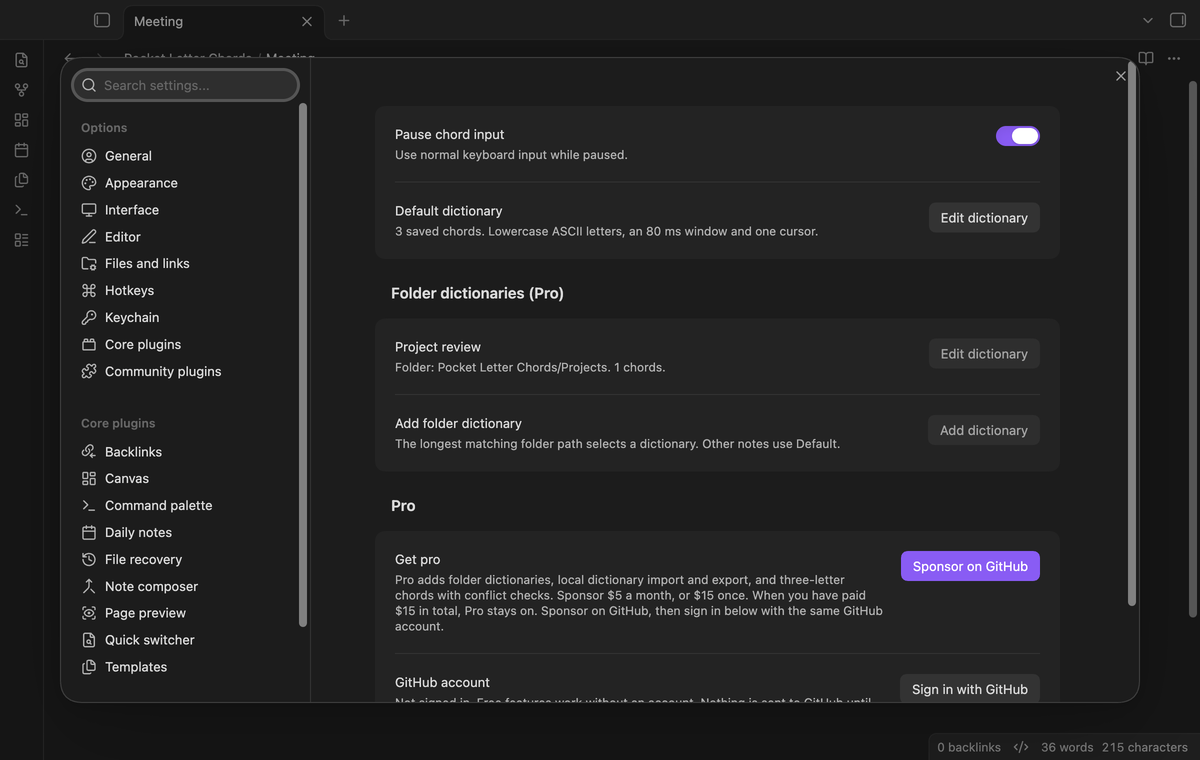
Folder dictionaries (Pro)
Add a dictionary for a vault folder, such as Projects. Notes in that folder and its child folders use the saved dictionary. When folder paths overlap, the longest complete path wins. A note under Projects/Team can use a different set from the rest of Projects.
The default dictionary is the fallback for other notes. Folder dictionaries replace that set; they do not merge with it. Without Pro, saved folder dictionaries stay in plugin data and input uses the default set.
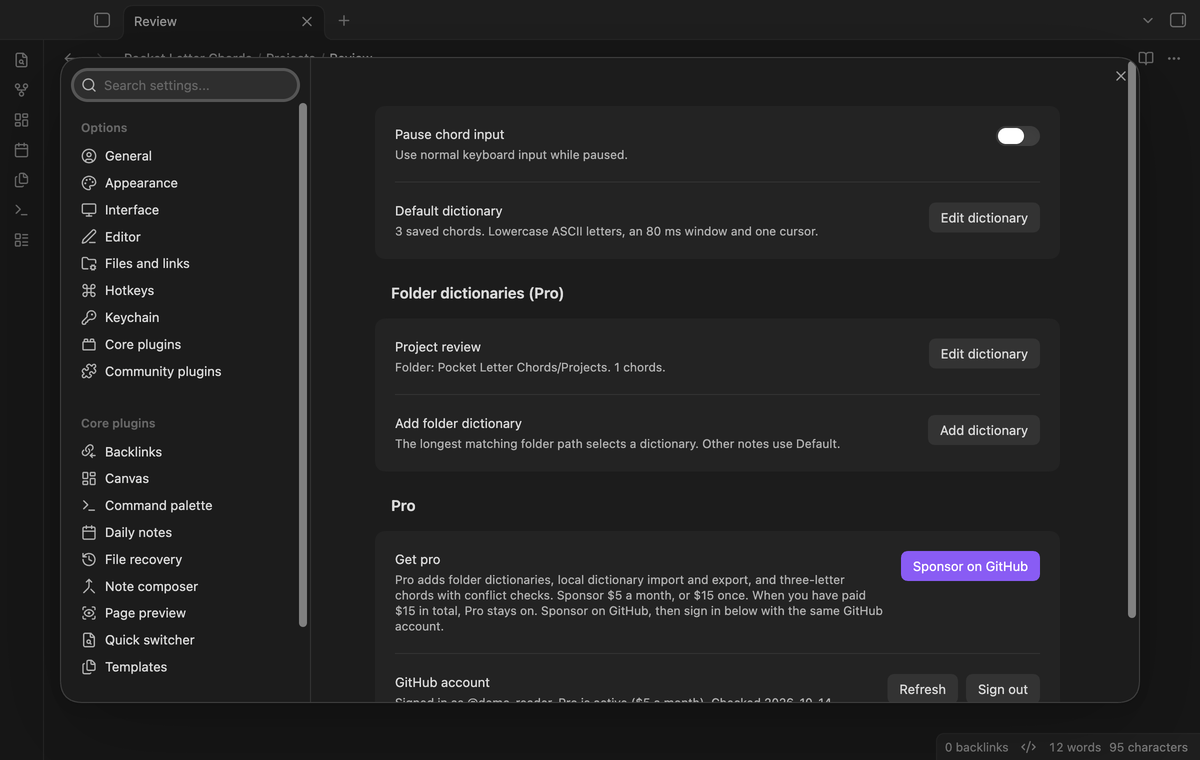
Dictionary files (Pro)
Import a local JSON file into the current draft, inspect the rows, then select Save. Export writes the current valid draft as pocket-letter-chords.json through the browser download control. The file has a version field and a list of bindings. Import rejects an unsupported version, invalid keys, empty values or conflicts.
The import file limit is 1 MB. A dictionary can contain up to 500 rows, with up to 10,000 characters per value. Import reads the file that you select, which can be outside the vault. Export uses your device download location. The download control was tested only in the desktop app. The plugin does not send dictionary files to a server.
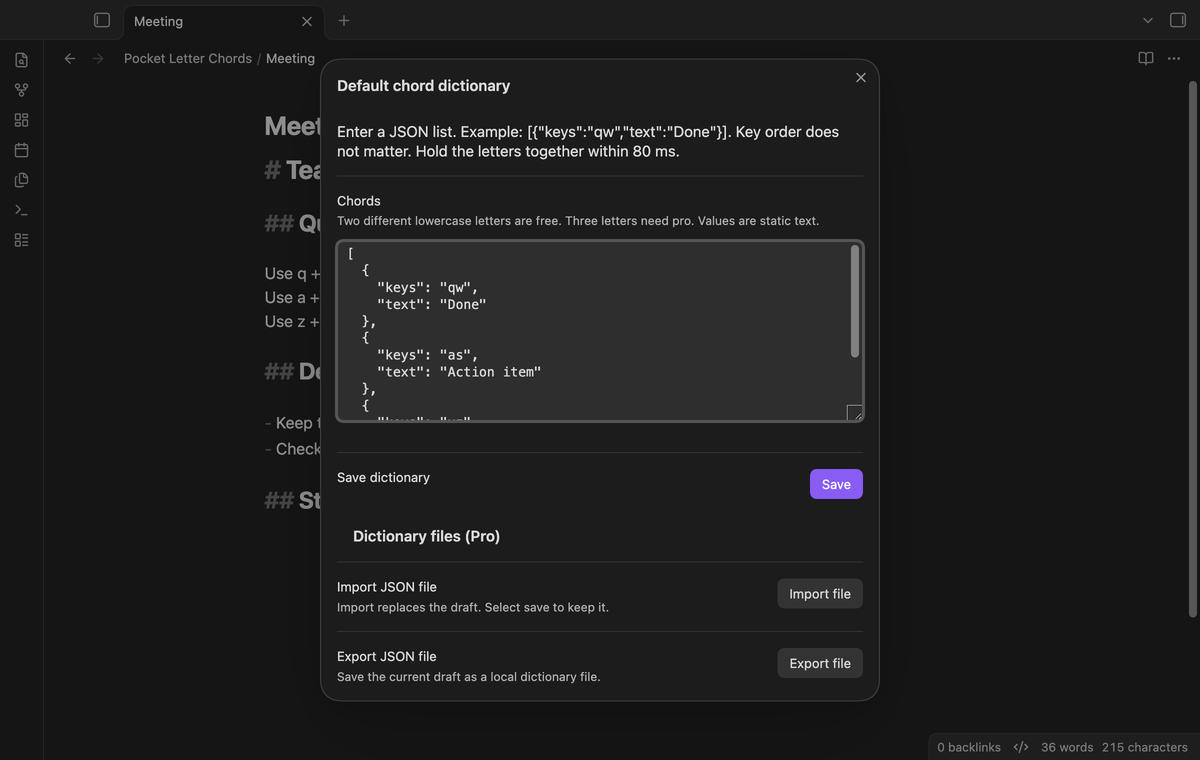
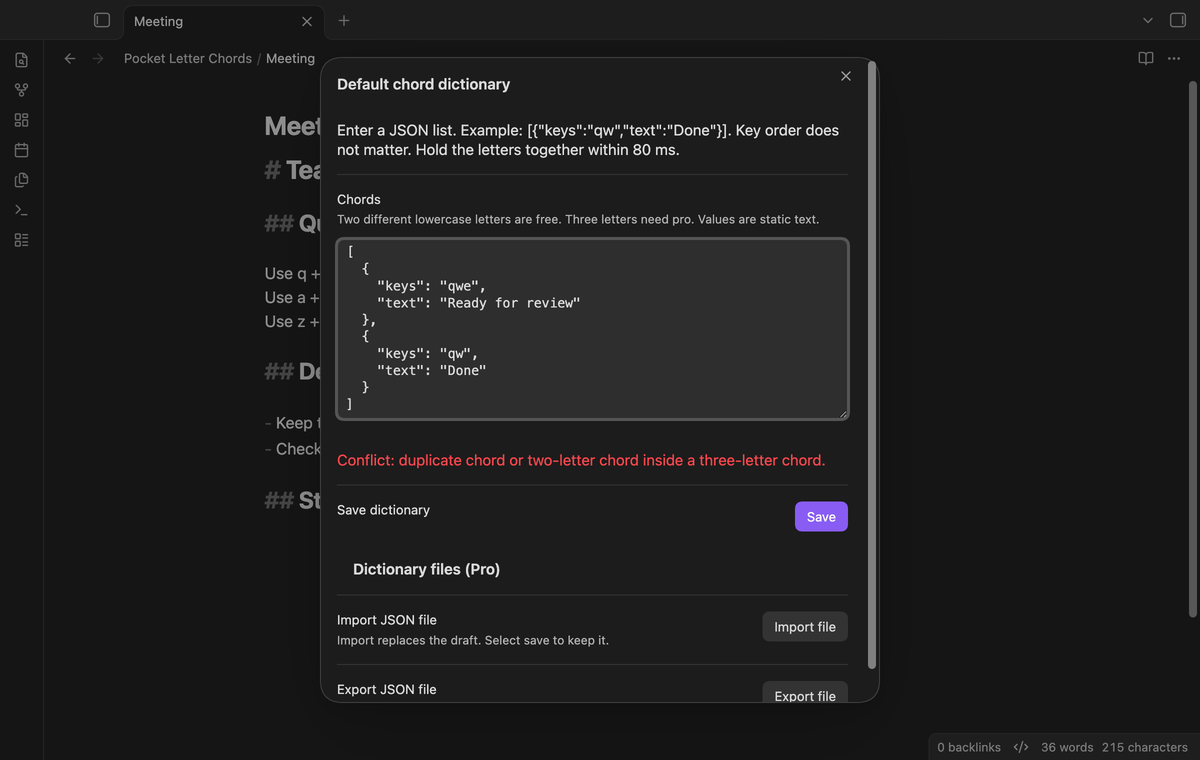
Three-letter chords (Pro)
Pro accepts three different lowercase ASCII letters. Their holds must overlap within the same 80 ms window. A pair contained in a triple is rejected, because the pair would run before the third letter could arrive. Duplicate key sets are also rejected. Separate triples can share some letters.
If Pro turns off, the default dictionary keeps its saved triples but the input handler ignores them. Remove those rows before saving a free dictionary edit. Two-letter rows in the default dictionary continue to work.
Install
For manual installation, copy main.js, manifest.json and styles.css into <vault>/.obsidian/plugins/pocket-letter-chords/. Open Community plugins in Obsidian and enable Pocket Letter Chords. This build needs Obsidian 1.13.4 or later.
Use a physical keyboard that can report overlapping letter keys. A screen keyboard that only sends completed text does not provide the key holds this tool needs.
Usage
- Run “Edit the chord dictionary” from the command palette.
- Enter
[{"keys":"qw","text":"Done"}]and select Save. - Focus a Markdown note in an editing mode. Hold q and press w before 80 ms ends.
- Release both keys. Use Undo if you need to restore the previous text.
Test a new pair in a sample note before you use it in normal writing. For a multiline value, use the JSON newline escape \n. The tool inserts literal saved text; it does not run templates, JavaScript or commands from a value.
Settings
Pause chord input controls the input handler. Default dictionary opens the free dictionary editor. Folder dictionaries shows saved folder sets. Its buttons work only with Pro. The GitHub account controls sign in, refresh and sign out.
The window is fixed at 80 ms. There is no delay slider. Name and Note folder apply to a folder dictionary. Remove deletes that folder set. Import changes the draft; Save commits it. Closing the modal without Save leaves the saved data unchanged.
FAQ
What was not tested?
Physical iPad and Android keyboards, screen keyboards, pop-out editor windows, keyboard layouts beyond lowercase ASCII and other plugins that intercept typing were not tested. Native IME candidate entry and the system clipboard need device checks. Automated tests check composition and modifier event bypass in a desktop app, using synthetic events. They do not prove device keyboard timing.
Pro checks used test answers. Live GitHub sign-in and payments were not tested. Linux, the light theme and Node 24 with npm 11 were not tested.
Why did normal typing insert a phrase?
The letters overlapped within the chord window. Use a rare pair or pause chord input. Sequential presses do not trigger a chord when the first letter is released before the second starts.
Where are the dictionaries saved?
The plugin saves dictionaries and pause state in its vault plugin data.json. A hand-edited invalid row is skipped at load. A dictionary export is a separate local file. Disabling the plugin stops interception. Notes with inserted values remain normal Markdown text.
Payment, account and network
The core features are free. Pro features need a GitHub Sponsors sponsorship of theluckystrike: $5 a month or more, or $15 once. A total payment of $15 meets the payment requirement for Pro without further payment. Sign-in and the checks below still apply. Your notes stay readable and editable with or without Pro.
GitHub handles the payment. Sponsor at https://github.com/sponsors/theluckystrike. You need no account for the free features. Pro needs the GitHub account that sponsors.
Until you select "Sign in with GitHub" in the settings, Pocket Letter Chords makes no network requests. Sign in uses the GitHub device flow. Pocket Letter Chords sends its public client ID and the scope read:user to https://github.com/login/device/code and shows you a code. While you enter the code at https://github.com/login/device, it asks https://github.com/login/oauth/access_token every few seconds to check the sign-in status. The scope permits profile reads only. GitHub needs this access to show the sponsorship tier. It grants no repository scope and no write access.
After sign in, Pocket Letter Chords sends one query to https://api.github.com/graphql. It checks if the signed-in account sponsors theluckystrike. It asks for the tier and the total payment to theluckystrike. The plugin reuses a successful check for 7 days. Failed checks can retry after 6 hours. Select Refresh to request an earlier check. It sends no note content, file names or other vault data, and it has no telemetry.
After a successful check, Pro can work offline for up to 14 days. Sign out or a negative sponsorship answer turns Pro off. The plugin stores the GitHub token through the secret storage API of Obsidian. It does not put the token in its saved settings or its local sponsorship data. The local storage of this device keeps your GitHub login, the tier and the time of the last check. Sign out clears the token. You can also revoke the access in your GitHub settings, under Applications.
Support
Report a bug in this repository's issues. Include the app version, operating system, keyboard model, key press order and a small dictionary without private text. State if the note had a selection or more than one cursor. Do not include a GitHub token or private note content.