Extensions-Activity
 Yunz933k downloads
Extensions-Activity helps you understand how you actually use third-party community extensions.
- Overview
- Scorecard
- Updates10
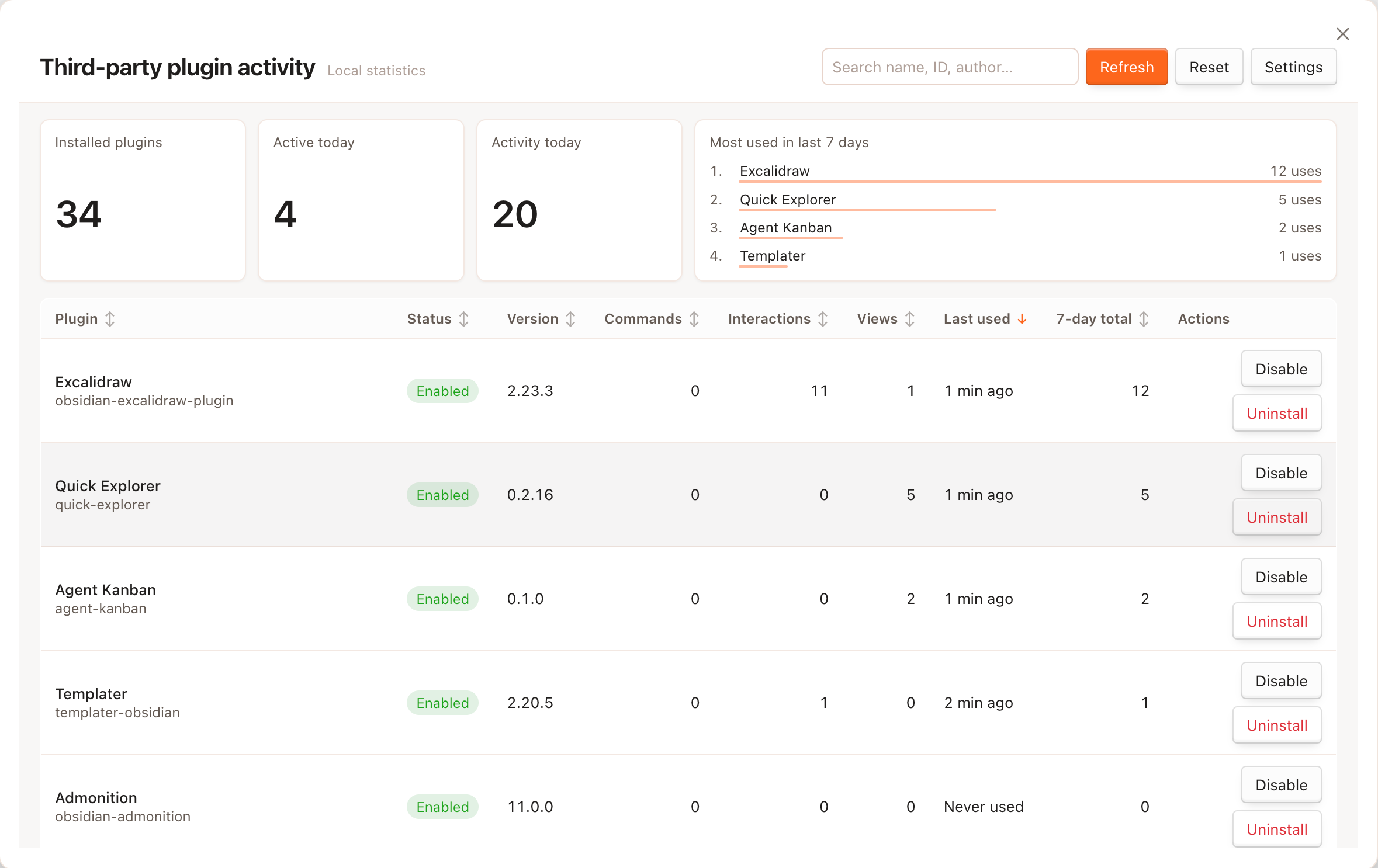
Extensions-Activity helps you understand how you actually use third-party community extensions. It records local usage over time and shows everything in one clear overview — so you can see which plugins you rely on, which ones you rarely touch, and which ones might be worth disabling.
All data stays on your device. Nothing is uploaded.
What it does
- Tracks third-party plugin usage locally — See how often you run commands, open plugin views, and interact with supported plugins.
- Shows a full overview in one place — Browse all installed third-party plugins with search, sorting, and summary stats.
- Highlights recent activity — Check last used time and 7-day totals for each plugin.
- Shows plugin update status — Summarize Obsidian's own community plugin update check and jump to the official update page.
- Keeps a daily history — Usage is grouped by day, with older data cleaned up automatically based on your preference.
- Lists plugin details — View plugin name, version, author, and whether it is currently enabled.
- Explains untrackable plugins — Some passive plugins cannot be measured reliably; the overview tells you when that happens.
- Respects your privacy — Statistics are stored only inside your vault.
How to open the overview
| Entry point | Action |
|---|---|
| Command palette | Open plugin usage overview |
| Ribbon | Click the bar chart icon |
| Settings | Turn on Open overview on startup |
Inside the overview, you can search plugins, sort the table, refresh the list, or clear all collected statistics.
Settings
Find these under Settings → Extensions-Activity:
| Setting | What it does |
|---|---|
| Enable tracking | Turn usage recording on or off |
| Exclude render activities | Do not count Markdown render processors as plugin activity |
| Retention days | Remove daily records older than the number of days you choose |
| Show disabled plugins | Include disabled third-party plugins in the overview |
| Open overview on startup | Automatically open the overview when Obsidian starts |
| Reset all statistics | Delete all stored usage data |
Privacy
- All statistics are saved locally in your vault.
- No analytics or telemetry are sent anywhere.
- Update checks use Obsidian's existing community plugin update mechanism.
- You can pause tracking or delete all data at any time.
License
HealthExcellent
ReviewPassed
About
Track local usage of third-party plugins by recording commands, views, and interactions over time. View a searchable, sortable overview with last-used times, 7-day totals, daily histories, plugin details, and automatic cleanup, keeping all data stored only in your vault.Details
Current version
0.2.2
Last updated
5 months ago
Created
5 months ago
Updates
10 releases
Downloads
3k
Compatible with
Obsidian 1.5.0+
Platforms
Desktop, Mobile
License
MIT
Author