Custom Extension Names
 AQiong 阿琼172 downloads
Customize the display names of your installed plugins and optionally keep them unchanged across updates.
- Overview
- Scorecard
- Updates10
Custom Extension Names — 自定义插件名称
自定义 Obsidian 插件的显示名称,并让喜欢的名称在插件更新后继续保留。
Custom Extension Names 让你修改已安装插件在 Obsidian 中显示的名称。名称保持是可选功能:开启后,插件更新替换 manifest.json 时,它会自动恢复你保存的名称。
🎬 演示动画
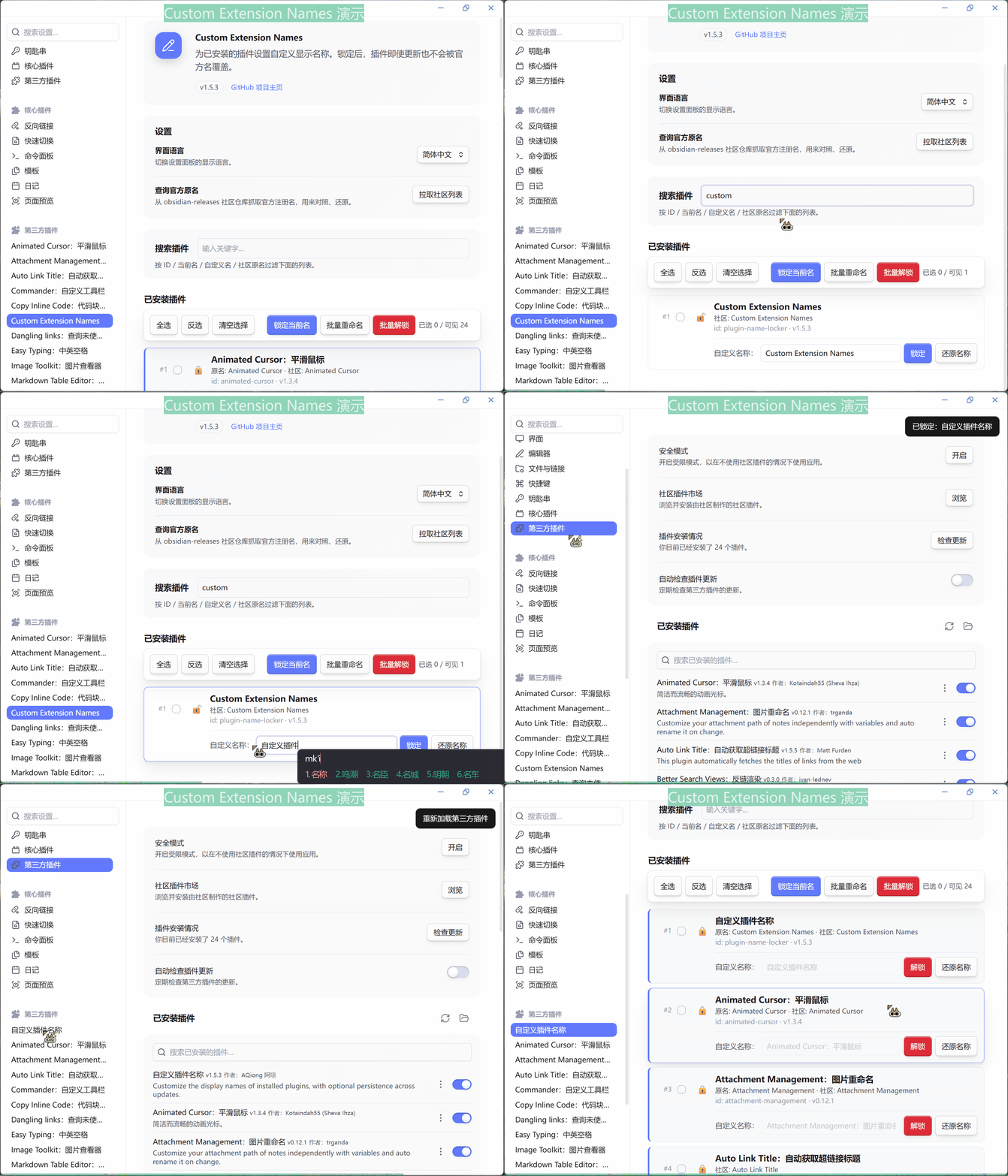
✨ 主要功能
- 自定义显示名称 — 支持中文、Emoji、前缀、后缀和任意文本。
- 可选名称保持 — 只有需要跨更新保留名称时,才开启锁定。
- 更新后自动恢复 — 插件更新完成后,重新应用已保存的自定义名称。
- 批量编辑 — 支持全选、反选、清空选择、批量重命名、模板命名和批量解锁。
- 安全恢复名称 — 单独恢复原始名称或社区名称,同时保留输入框中的自定义文本。
- 搜索和过滤 — 按插件 ID、当前名称、自定义名称或社区名称查找插件。
- 官方名称查询 — 从 Obsidian 社区插件注册表获取名称,方便对照和恢复。
- 中英双语界面 — 支持简体中文和 English,并可跟随系统语言。
- 移动端适配 — 设置页面采用响应式布局,按钮和输入框适合触摸操作。
一句话总结 — 改名由你决定,是否锁定也由你决定;插件更新不会悄悄覆盖你的命名。
🔧 工作原理
保存自定义名称时,插件会:
- 把名称保存到插件自己的设置数据中。
- 开启名称保持后,更新目标插件的
manifest.json。 - 同步修改 Obsidian 内存中的 manifest,让新名称立即显示。
当 Obsidian 更新插件时,已锁定的名称会在更新完成后自动重新应用。启动时只更新内存中的 manifest,不扫描磁盘,以减少启动开销。
📦 安装
手动安装
从最新版本下载 main.js、manifest.json 和 styles.css,复制到:
<你的库>/.obsidian/plugins/plugin-name-locker/
重启 Obsidian,然后在 设置 → 第三方插件 中启用 Custom Extension Names。
当前插件 ID 和安装目录为
plugin-name-locker。从custom-extension-names版本升级时,请将目录改回plugin-name-locker,并保留其中的data.json。
从源码构建
git clone https://github.com/agarcabin/obsidian-custom-extension-names.git
cd obsidian-custom-extension-names
npm ci
npm run build
生产构建会在仓库根目录生成 main.js。
⚠️ 注意事项和兼容性
- 插件只修改被管理插件的显示名称,不会修改被管理插件的 ID 或其他文件。
- 本插件的 ID 和安装目录为
plugin-name-locker;从custom-extension-names版本升级时请迁移目录并保留data.json。 - 自动恢复依赖 Obsidian 内部的插件安装 Hook;如果未来 Obsidian 修改该 API,自动恢复功能可能需要适配。
- 插件设置按 Vault 分别保存。
📄 许可证
MIT License
作者:AQiong 阿琼
Custom Extension Names
Source: agarcabin/obsidian-custom-extension-names · Releases
Customize the display names of your Obsidian plugins and keep your preferred names across updates.
Custom Extension Names lets you change the names shown for installed Obsidian plugins. Name locking is optional: when enabled, your preferred names are automatically restored after an update replaces a plugin's manifest.json.
🎬 Demo
✨ Features
- Custom display names — Use Chinese, emoji, prefixes, suffixes, or any text you like.
- Optional persistence — Lock a custom name only when you want it to survive plugin updates.
- Automatic restore — Reapply saved names after an updated plugin replaces its manifest.
- Batch editing — Select all, invert or clear the selection, rename multiple plugins with a template, or unlock several names at once.
- Safe restore workflow — Restore the original or community name separately while keeping your custom text available for reuse.
- Search and filter — Find plugins by ID, current name, saved custom name, or community name.
- Official name lookup — Fetch names from the Obsidian community plugin registry for comparison or restoration.
- Bilingual settings UI — English and Simplified Chinese, with system-language detection.
- Mobile friendly — Responsive settings layout with touch-friendly controls.
TL;DR — Rename plugins the way you want, lock only what needs to persist, and keep those names after updates.
🔧 How it works
When you save a custom name, the plugin:
- Stores your preferred name in its own settings data.
- Updates the installed plugin's
manifest.jsonwhen persistence is enabled. - Updates Obsidian's in-memory manifest so the new display name appears immediately.
When Obsidian updates a plugin, locked names are reapplied after the update completes. Startup only updates in-memory values and performs no disk scan.
📦 Install
Manual
Download main.js, manifest.json, and styles.css from the latest release, then copy them into:
<vault>/.obsidian/plugins/plugin-name-locker/
Restart Obsidian and enable Custom Extension Names under Settings → Community plugins.
The current plugin ID and installation folder are
plugin-name-locker. When upgrading from thecustom-extension-namesversion, move the folder back toplugin-name-lockerand keep itsdata.json.
Build from source
git clone https://github.com/agarcabin/obsidian-custom-extension-names.git
cd obsidian-custom-extension-names
npm ci
npm run build
The production build generates main.js in the repository root.
⚠️ Notes and compatibility
- The plugin customizes the display names of managed plugins; their IDs and other files are left intact.
- This plugin's ID and installation folder are
plugin-name-locker; when upgrading fromcustom-extension-names, migrate the folder and keepdata.json. - Automatic restore uses Obsidian's internal plugin installation hook. If a future Obsidian version changes that API, automatic restore may need an update.
- Plugin settings are stored per vault.
📄 License
MIT License
Author: AQiong 阿琼