Pixel Pet
 giblicious152 downloads
A pixel pet that lives in your workspace. It explores your notes, naps on your code blocks, plays in your graph and hunts the bugs your writing attracts. Starts with a gecko.
- Overview
- Scorecard
- Updates13
A pixel gecko that lives in your Obsidian workspace.
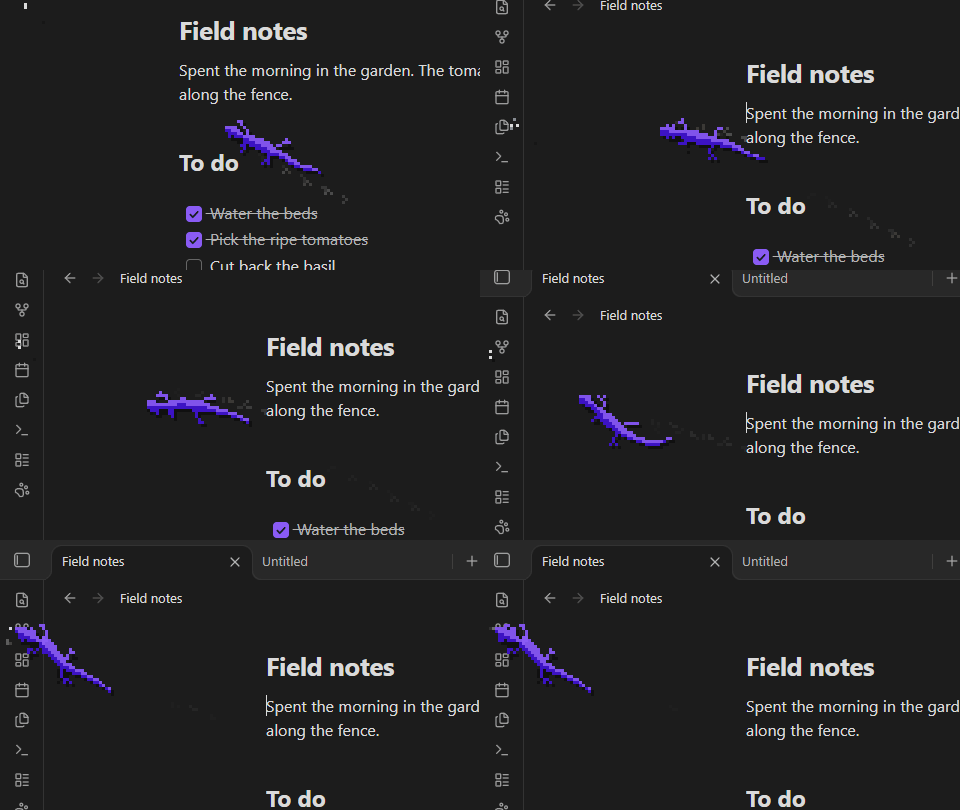
What it does
- Hunts bugs. Writing attracts flies. Finishing tasks can bring out crickets.
- Steals letters. It plucks a letter off the page and runs off with it. The letter grows back. Your note is never changed.
- Naps. It stretches out on code blocks and callouts, and heads home to sleep when you step away.
- Plays ball. In the graph view, the nodes are its toys.
- Notices things. It watches your pointer, follows your searches, chases dragged tabs, and jumps when you delete a big chunk of text.
- Can be petted. Hold the pointer still on it out in the margin.
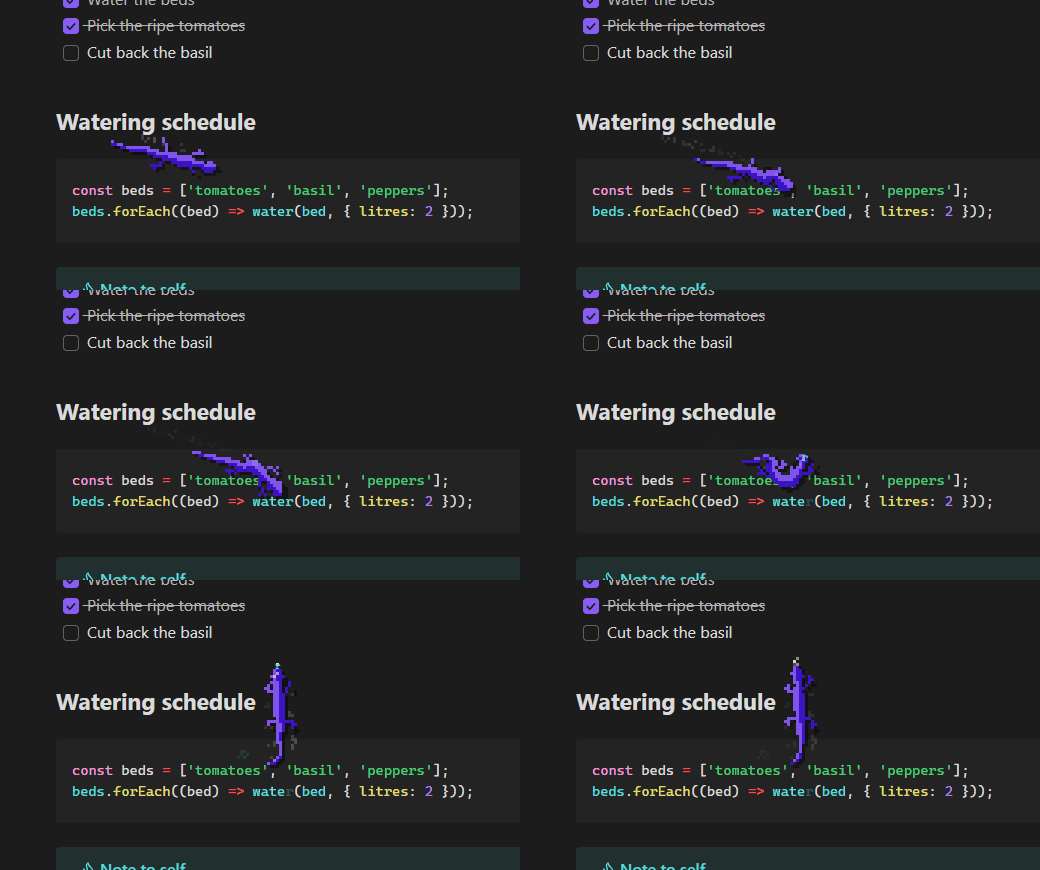
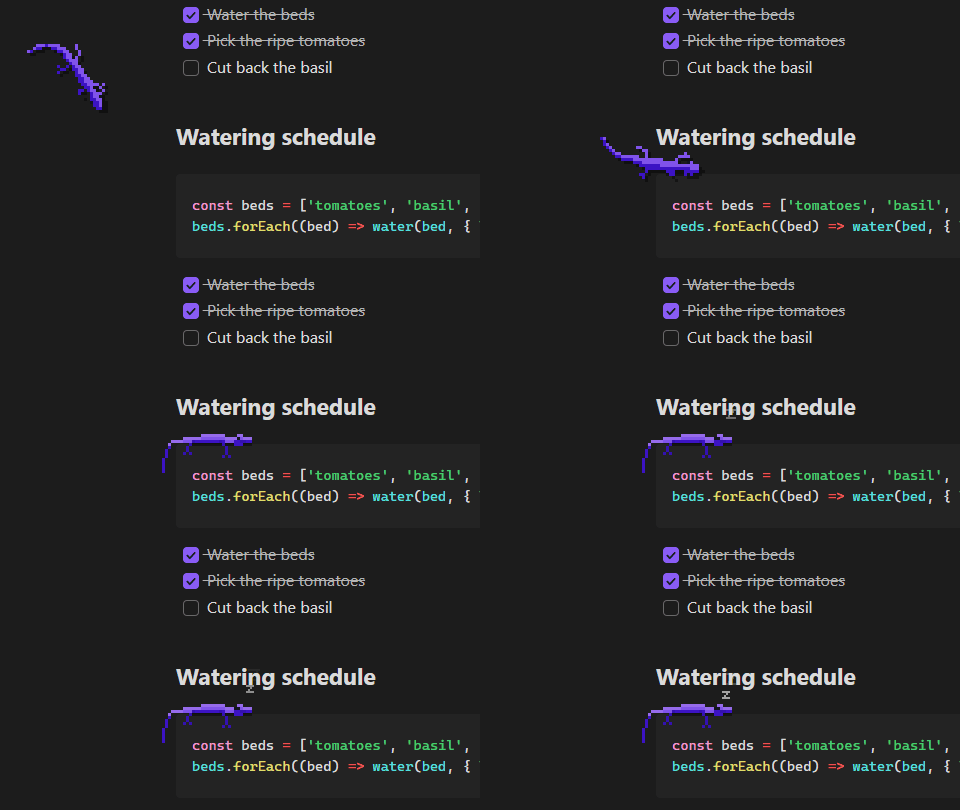
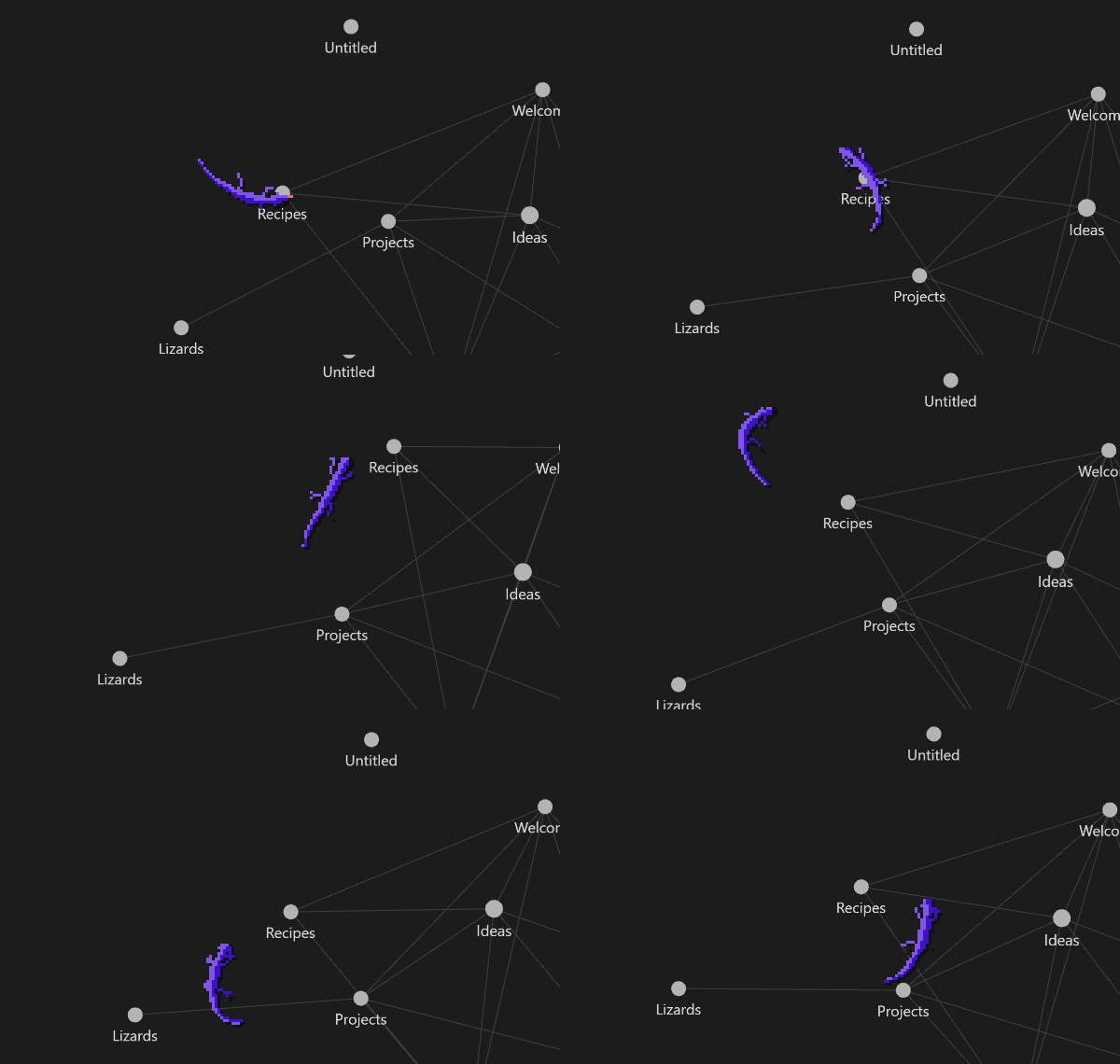
Every gecko is born with its own personality: quick or lazy, bold or jumpy, always hungry or not.
Using it
- Right-click the pet for things to ask it: come here, eat, sleep, play ball and more.
- Drag it to carry it somewhere else.
- The pet panel shows what it's doing and a diary of what it's been up to.
- Show or hide it from the paw icon in the ribbon or the command palette.
On a phone or tablet, tap near it to get its attention, press and drag to carry it, and double-tap it for its menu.
Settings
- Size and color. It follows your accent color unless you pick one.
- Temperament. Keep the nature it was born with, or nudge it lazier, livelier or bolder.
- Bugs. Choose what brings each kind out and how quick they are.
- Mischief. Off by default. When on, it now and then presses a sidebar toggle, then puts it back.
- Reduced motion. Follows your system setting.
Good to know
- It never edits your notes. Stolen letters and footprints are display only.
- Clicks go straight through it, and it stays out of the way while you type.
- It pauses when Obsidian is hidden and barely runs while asleep.
- Works on desktop and mobile. Needs Obsidian 1.13.4 or newer.
Development
npm install
npm run dev     # rebuild on change
npm run build   # main.js for Obsidian
HealthExcellent
ReviewPassed
About
Add a pixel gecko pet to your Obsidian workspace that strolls along panel seams, climbs headings and tabs, leaves inky footprints, and rides the page as you scroll.
Watch it react to UI events — freeze for dialogs, chase dragged files, pounce on notifications, play with graph nodes, and follow recent edits.Details
Current version
0.4.9
Last updated
2 weeks ago
Created
2 weeks ago
Updates
13 releases
Downloads
152
Compatible with
Obsidian 1.13.4+
Platforms
Desktop, Mobile
License
MIT
Author