Physical Activity Importer
 Benjamin Patterson23 downloads
Import your workouts and activities as notes. Sync from Garmin Connect or Strava, or import FIT files from Garmin, COROS, Wahoo, Polar, Suunto and other devices.
- Overview
- Scorecard
- Updates1
This plugin imports your workouts into Obsidian as notes, one per activity, from Garmin Connect, Strava, or FIT files from your watch or bike computer.
- 📅 Sync recent activities from either Strava, via the Strava API (needs a paid Strava subscription), or Garmin, via the free Garmin Personal API
- ⌚ Import FIT files from Garmin, COROS, Wahoo, Polar, Suunto and other devices, one at a time or zipped
- 🗄️ Import Strava bulk export CSV files for historical activities
- 📝 Handlebars.js templates for imported activities
- 💿 Customizable properties / front matter allowing for Obsidian Dataview integration
- 🏃 Per-sport icons for use with Iconize
The purpose of this plugin is not to provide a data backup, or to replace the functionality of the Garmin or Strava apps. It's simply to allow activities to be more easily referenced, tracked and visualized within Obsidian, especially through integration with existing plugins like Obsidian Dataview.
It started as a fork of Strava Sync by Howard Wilson, and is released under the same MIT license.
Examples
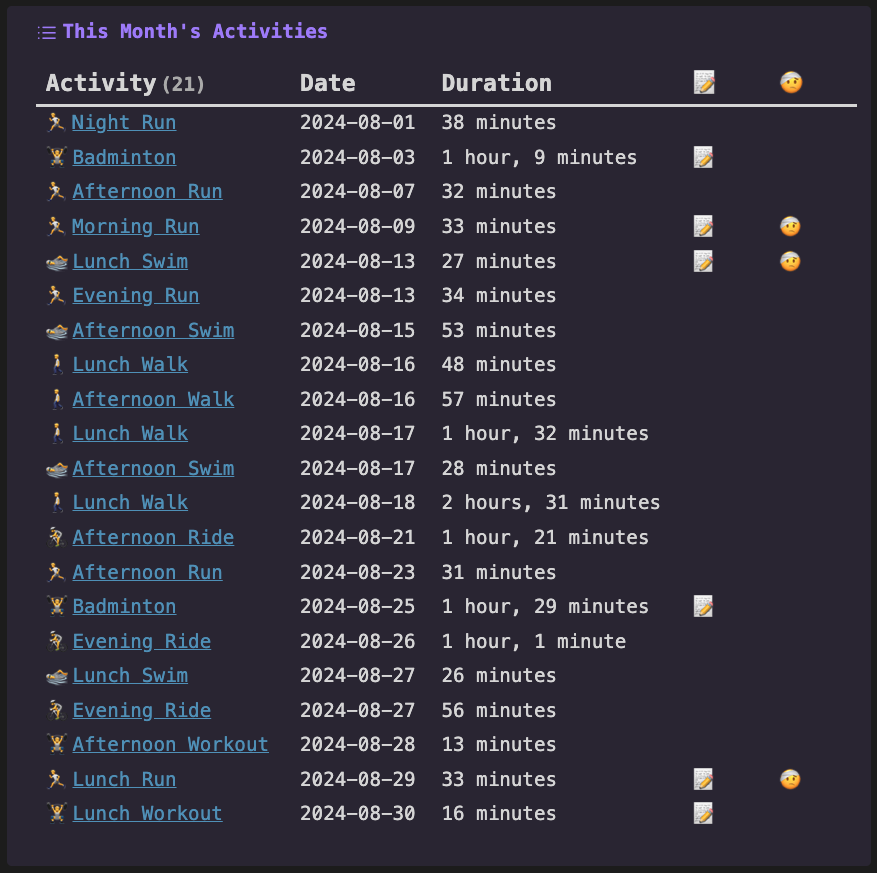
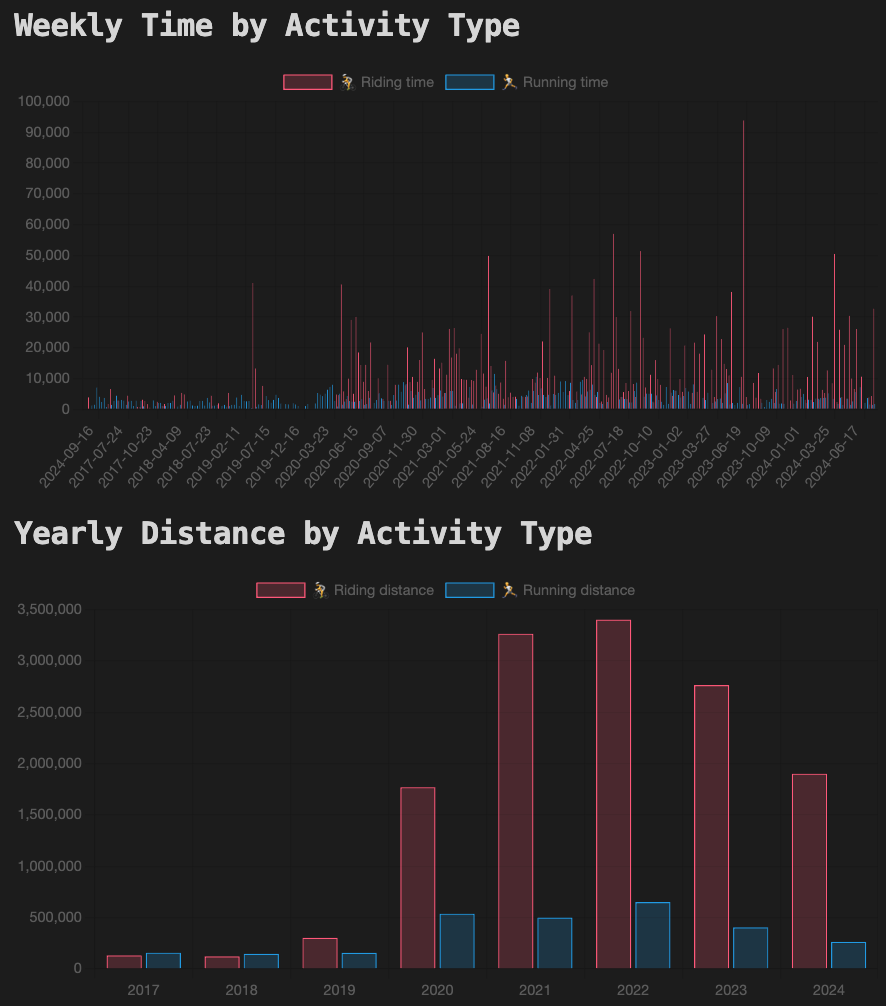
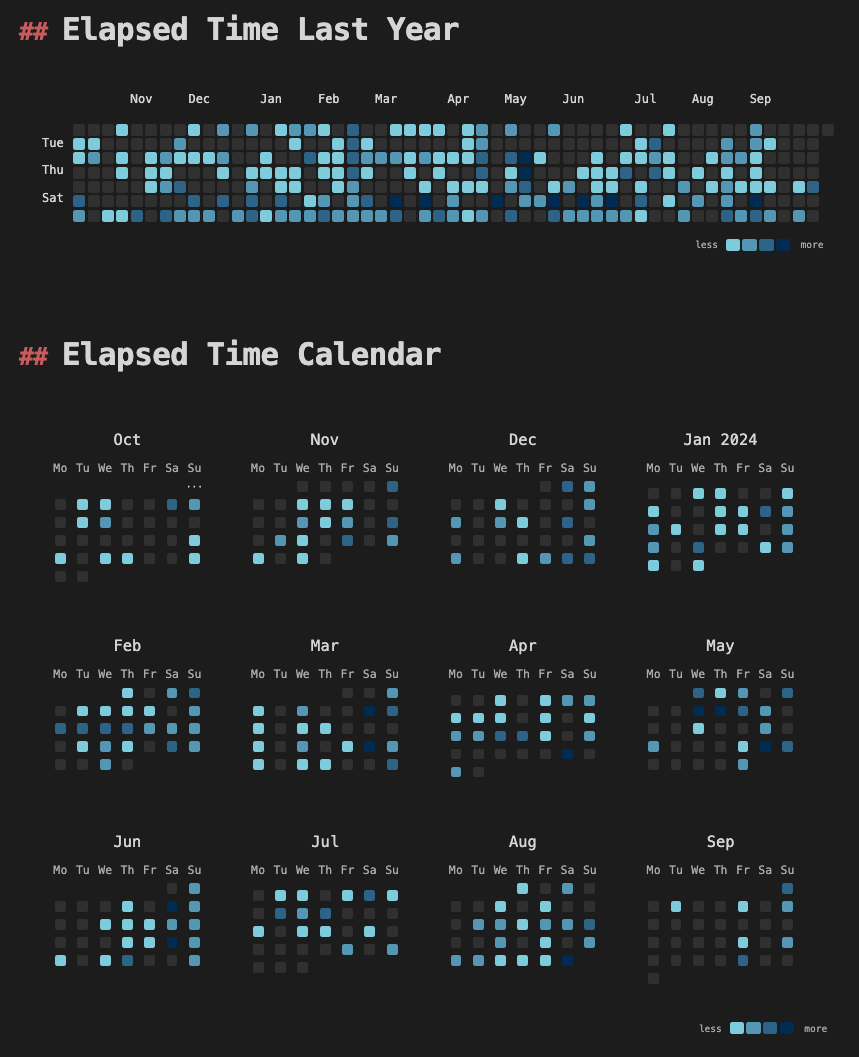
These are some examples of what can be achieved along with the Dataview, Charts and Contribution Graph plugins. See the Dataview Integration section below for more ideas.
Installation
The plugin isn't in Obsidian's community plugin directory yet. Install it with the BRAT plugin:
- Install BRAT from the Community plugins in Obsidian
- Open the command palette and run the command "BRAT: Add a beta plugin for testing"
- Paste
https://github.com/BenRuns/physical-activity-importerinto the modal that opens up - Click on Add Plugin 🎉
Manually installing the plugin
Alternatively you can install the plugin manually:
- Download the latest release from the releases page.
- Copy
main.js,styles.css, andmanifest.jsonto your vault'sVaultFolder/.obsidian/plugins/physical-activity-importer/directory.
Sync Configuration
"Import new activities" syncs from one source at a time, Strava or Garmin, chosen under "Activity source" in the plugin settings. Importing FIT files or a Strava bulk export works whichever source you choose.
| Source | Cost | What you need |
|---|---|---|
| Strava | Paid Strava subscription | A Strava API application |
| Garmin | Free | A Garmin Personal API key |
Strava
[!IMPORTANT] Since June 2026, Strava requires an active Strava subscription to create or keep using an API application. There is no separate fee for the API itself. Without a subscription, use Garmin, FIT files, or a Strava bulk export instead.
In order to configure the plugin, you will need to obtain an access token from Strava. You can do this by going to "My API Applications" here and creating a new application as follows:
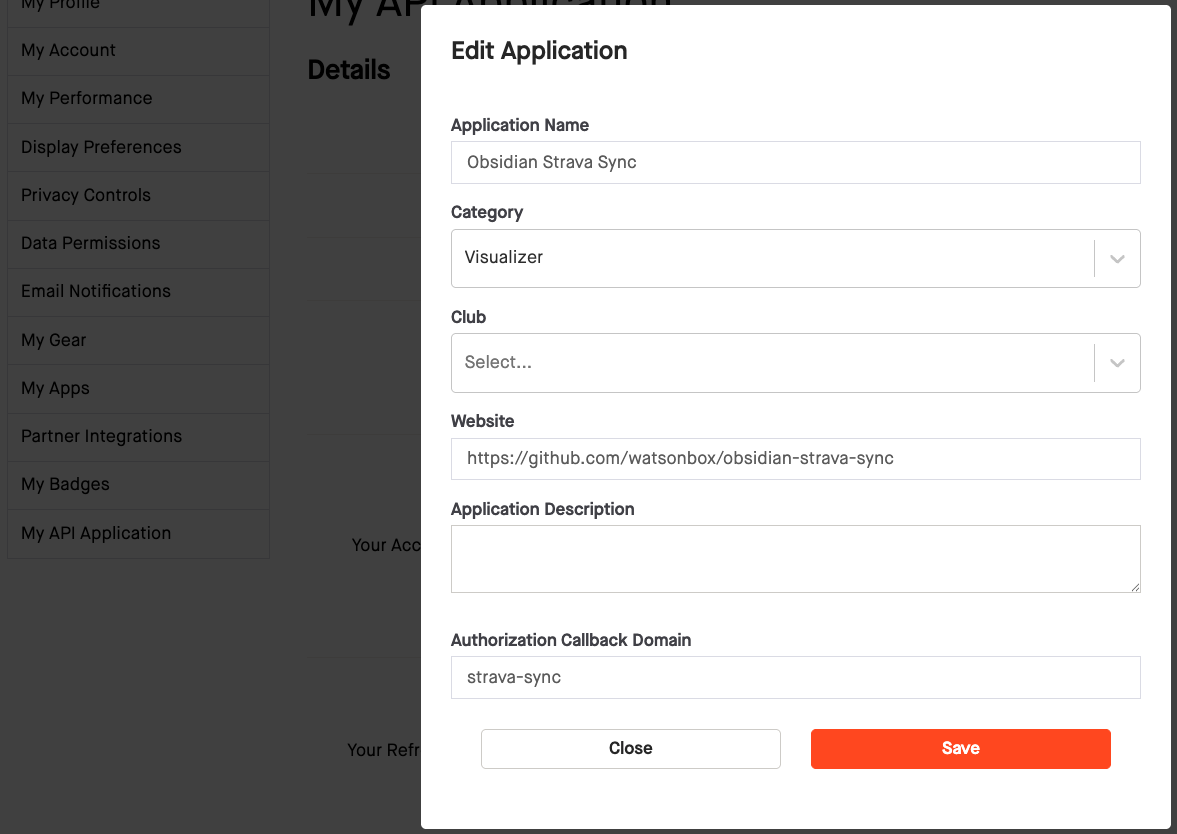
Set "Authorization Callback Domain" to physical-activity-importer (the screenshot is from the original Strava Sync plugin, which used strava-sync).
Once that's done, copy the Client ID into the plugin settings. For "Strava client secret", create a secret holding your Client Secret (or choose one you already have), then click the button next to "Authenticate with Strava". You will be redirected to Strava to login and authorize access. After successful authorization, you will be redirected back to your Obsidian vault and can close the browser window.
Secrets
On Obsidian 1.11.4 and later, the Strava client secret, the Garmin API key and Strava's sign-in tokens are kept in Obsidian's secret storage, not in the plugin's data.json. You choose the client secret and Garmin key by name, so one secret can be shared with other plugins and managed in one place. Secrets saved in data.json by earlier versions are moved there automatically.
Secret storage is kept on each device and isn't synced with your vault, so on each device you'll need to set up the secrets and authenticate with Strava again. On older Obsidian versions, secrets are saved in data.json as before.
Garmin
Garmin's Personal API gives you read-only access to your own Garmin Connect data, for free.
- In Garmin Connect, create a Personal API key (Garmin's guide). It's only shown once, and expires after the period you choose (30 to 365 days).
- In the plugin settings, set "Import new activities from" to Garmin. For "Garmin API key", create a secret holding your key (or choose one you already have, for example one another Garmin plugin uses).
Each activity is imported from its original FIT file, so Garmin activities have the same fields as imported FIT files, plus the name, description and link from Garmin Connect.
Basic Usage
Typically, once the plugin is enabled and configured, you'll want to set up templates for the activities as you import them. This can be done for the file path, the content itself, and the properties to be added.
Templating
Templates can be set up in the plugin settings.
The default file path template is physical-activities/{{start_date}}/{{id}} {{name}}, which will create a folder for each day, and a file for each activity within that folder for example physical-activities/2024-02-20/1234567890 Running with the bears.md.
The date formats themselves can also be adjusted in the plugin settings.
[!TIP] If you prefer to group files differently, that's possible too. For example, create a folder structure like
2024/09-September(with all September's activities inside) by setting the folder date format toyyyy/MM-MMMM.
Content
The default content template is:
# {{name}}
{{#if url}}

[{{url}}]({{url}})
{{/if}}
{{#if description}}

Description: {{description}}
{{/if}}
{{#if private_note}}

> [!NOTE] Private note
> {{private_note}}
{{/if}}

#{{source}}
This will produce a file similar to the following:
# Running with the bears

[https://www.strava.com/activities/1234567890](https://www.strava.com/activities/1234567890)

Description: This is a description

> [!NOTE] Private note
> This is a private note
The templating language used is Handlebars.js. The available fields are as follows (more info here):
| Field | Example(s) | Description |
|---|---|---|
id |
1218940553 | Unique identifier for the activity |
start_date |
"2024-08-28 05:07:43" | Start date and time of the activity |
name |
"Dynamo Challenge 2024" | Name of the activity |
sport_type |
"Ride", "Run", "Swim", etc. | Type of sport |
description |
"Great weather and company" | Description of the activity |
private_note |
"Take two inner tubes next time" | Private note for the activity |
elapsed_time |
38846 | Total elapsed time in seconds |
moving_time |
26010 | Moving time in seconds |
distance |
154081.0 | Distance in meters |
max_heart_rate |
180 | Maximum heart rate |
max_speed |
18.8 | Maximum speed in meters per second |
average_speed |
11.1 | Average speed in meters per second |
total_elevation_gain |
1338.0 | Total elevation gain in meters |
elev_low |
50.7 | Lowest elevation in meters |
elev_high |
60.2 | Highest elevation in meters |
calories |
1234 | Calories burned |
estimated_calories |
1180 | Calories estimated from heart rate or power (see below) |
active_calories |
1050 | The part of estimated_calories above resting burn: what the activity added to your day |
calories_method |
"heart_rate", "power" | How estimated_calories was worked out |
url |
"https://www.strava.com/activities/1218940553" | Link to the activity on Strava or Garmin Connect (none for FIT files) |
source |
"Strava", "Garmin", "FIT" | Where the activity was imported from |
icon |
🚴♂️🏃🏊⛷️🏸🛶🏋️🚶🚵⛳🦽🥾 ⛸️🛼🏄🏓🧘🧗🚣⛵🛹🏂⚽🎾 |
Activity icon |
Properties
Finally, you can also specify any of these fields to be added to the properties / front matter of each imported activity. By default the properties are name, start_date, sport_type, description, private_note, elapsed_time, moving_time, distance, and icon, for example:
---
id: 1014355555
name: Evening Run
start_date: 2024-06-02T18:31:27.000Z
sport_type: Run
distance: 4372.5
elapsed_time: 1651
moving_time: 1511
description: "Great run"
private_note: "Push it to 10km next time"
icon: 🏃
---
The property id is always added.
Importing Recent Activities
Next, either by clicking the activity icon (a pulse line) in the ribbon or using the command "Import new activities", the plugin will fetch and import your 30 most recent activities from the source chosen in settings (Strava or Garmin).
Each time new activities are imported, the start date of the last imported activity is saved, separately for each source. Next time you import new activities, only activities after that date will be imported. From Garmin, up to 500 activities are imported at a time, and if any fail to download they are tried again next time. From Strava, up to 90 are imported at a time, to stay under Strava's rate limit.
An activity whose note already exists is skipped: its note is never overwritten. The note's path comes from the folder and filename settings, so if you rename an activity, or change those settings, it's imported again as a new note.
Re-importing Activities
To import activities again, for example after deleting some notes, use the "Re-import activities since a date" command or the "Re-import activities" button in settings, and choose a date. Activities from that date on are fetched again from the source chosen in settings, and notes are created for any that are missing. Existing notes aren't changed, and the next "Import new activities" carries on from where it was.
Importing FIT Files
FIT is the activity file format used by Garmin, COROS, Wahoo, Polar, Suunto and most other devices. Either in the plugin settings, or with the command "Import activities from FIT files", select one or more .fit files, or .zip files containing them, to import. For example:
- Garmin Connect: open an activity, then ⚙️ → "Export Original"
- COROS: in the app, open an activity, then ⋯ → "Export Data" → .FIT; or export from Training Hub
FIT files don't have names, so activities are named the way Strava does, such as "Morning Trail Run". Their id is their start time (in seconds), so importing the same file twice is skipped.
[!NOTE] The same activity imported from both Strava and Garmin (or a FIT file) will create two notes, because Strava's activity IDs differ from the start-time IDs used for FIT files and Garmin.
Calorie Estimates
Device calorie figures are often well off: in validation studies, wrist devices' energy estimates are typically 20% or more out. For activities from Garmin or FIT files, the plugin can work out its own estimate from your second-by-second data and details:
- Rides with a power meter: from the work done on the pedals, at a gross efficiency of 24% (roughly 1 kcal per kJ). This is the most accurate.
- Everything else with heart rate: from Keytel et al. (2005)'s equations, using your sex, age and weight, plus VO2 max if you set it. Low heart rates never count for less than resting burn. A chest strap gives much better heart rate data than a wrist sensor.
To turn estimates on, set your sex, birth year and weight (and optionally VO2 max) under "Calories" in settings. The plugin then adds calories, estimated_calories, active_calories and calories_method to the properties, each once: if you remove one, it stays removed. The device's own figure stays in calories, so you can compare them. active_calories takes off the resting burn (1 MET) over the activity's timer time, since a daily calorie goal already counts that; it's the number to eat back. Pauses aren't counted. Activities with heart rate or power for less than half their time get no estimate. Strava and Strava bulk export imports don't have second-by-second data, so they get no estimate.
Importing a Strava Bulk Export
Strava allows you to download your activities as a bulk export as described here. This export contains all historical activities. Either in the plugin settings, or by using the "Import Strava activities from bulk export CSV" command directly, you can select the activities.csv file from the bulk export to import the entire history.
[!NOTE] Note that the Strava bulk export CSV format is not the same as the Web API activity format (JSON). This plugin allows both formats to be imported, but some fields that are not common to both formats are not imported.
[!TIP] You may prefer to exclude imported activities from the Obsidian search and graph views by adding the sync folder to "Options -> Files and links -> Excluded files" in the settings.
Dataview Integration
Once you've selected the activity attributes you'd like to include as properties, the real power of this plugin comes from the Dataview integration. You can install it through the Community Plugins tab in Obsidian, and then refer to the detailed documentation to learn how to use it.
The following are some examples of what you can do with Dataview and the Strava plugin.
List all activities with "knee" in private note
```dataview
TABLE WITHOUT id name, dateformat(start_date, "yyyy-MM-dd") AS date, private_note
FROM "Apps/Strava"
WHERE icontains(private_note, "knee")
```
List all activities for the current month in a callout
> [!EXAMPLE] This Month's Activities
>
> ```dataview
> TABLE WITHOUT id
>   link(file.path, name) AS Activity,
>   dateformat(localtime(start_date), "yyyy-MM-dd") AS Date,
>   dur(round(elapsed_time/60) + "m") as Duration,
>   choice(length(private_note) > 0, "📝", "") AS "📝",
>   choice(icontains(private_note, "pain"), "🤕", "") AS "🤕"
> FROM "Strava"
> WHERE dateformat(start_date, "yyyy-MM") = dateformat(date(now),"yyyy-MM")
> ```
Show a chart of total distance per year by activity type
Using DataviewJS gives us much more flexibility, for example the ability to use the Charts plugin to visualize historical activity data.
```dataviewjs
const pages = dv.pages('#Strava')
const dates = pages.map(p => p.start_date).values
const yearData = {};

pages.forEach(page => {
  const year = moment(page.start_date.ts).startOf('week').format('YYYY');
  const ridingDistance = page.sport_type === 'Ride' ? page.distance : 0;
  const runningDistance = page.sport_type === 'Run' ? page.distance : 0;

  if (!yearData.hasOwnProperty(year)) {
    yearData[year] = {
      ridingDistance: 0,
      runningDistance: 0
    };
  }

  yearData[year].ridingDistance += ridingDistance;
  yearData[year].runningDistance += runningDistance;
});

const years = Object.keys(yearData);
const ridingDistance = Object.values(yearData).map(data => data.ridingDistance);
const runningDistance = Object.values(yearData).map(data => data.runningDistance);

const chartData = {
  type: 'bar',
  data: {
    labels: years,
    datasets: [
      {
        label: '🚴 Riding distance',
        data: ridingDistance,
        backgroundColor: [ 'rgba(255, 99, 132, 0.2)' ],
        borderColor: [ 'rgba(255, 99, 132, 1)' ],
        borderWidth: 1
      },
      {
        label: '🏃 Running distance',
        data: runningDistance,
        backgroundColor: [ 'rgba(54, 162, 235, 0.2)' ],
    borderColor: [ 'rgba(54, 162, 235, 1)' ],
        borderWidth: 1
      }
    ]
  }
}
window.renderChart(chartData, this.container)
```
Display a contribution heat map with Contribution Graph
Not technically a Dataview integration. This example requires that the Contribution Graph plugin first be installed and enabled.
```contributionGraph
graphType: default
dateRangeValue: 365
dateRangeType: LATEST_DAYS
startOfWeek: "1"
showCellRuleIndicators: true
titleStyle:
  textAlign: left
  fontSize: 15px
  fontWeight: normal
dataSource:
  type: PAGE
  value: "#Strava"
  dateField:
    type: PAGE_PROPERTY
    value: start_date
  countField:
    type: PAGE_PROPERTY
    value: elapsed_time
fillTheScreen: false
enableMainContainerShadow: false
cellStyleRules:
  - id: Ocean_a
    color: "#8dd1e2"
    min: 1
    max: 3600
  - id: Ocean_b
    color: "#63a1be"
    min: 3600
    max: 7800
  - id: Ocean_c
    color: "#376d93"
    min: 7800
    max: 21600
  - id: Ocean_d
    color: "#012f60"
    min: 21600
    max: 100000
cellStyle:
  minWidth: 10px
  minHeight: 10px
```
Development Guidelines
- Clone this repo to a local development folder. For convenience, you can place this folder in your
.obsidian/plugins/physical-activity-importerfolder. - Install NodeJS, then run
yarn installin the command line under the repo folder. - Run
yarn devto compile the plugin tomain.js. Changes should be automatically compiled intomain.js. - Reload Obsidian to load the new version of the plugin.
- Enable the plugin in the settings window.
Live Reloading
In order to avoid reloading Obsidian every time you make a change, you can use the Hot-Reload plugin as they suggest.
Releasing
Run yarn version after updating minAppVersion manually in manifest.json. The command will bump version in manifest.json and package.json, and add the entry for the new version to versions.json
Run yarn version, enter a new version number, then push to build and prepare a draft release on GitHub.
[!NOTE] You may need to run
yarn config set version-tag-prefix ""before runningyarn versionto ensure the version tag is created correctly.
Resources
- Strava Developers - Authentication
- Strava Developers - API Reference
- Strava Developers - Getting Started + Auth
- Strava Developers - Rate limiting
- Challenges when Testing Plugins | Obsidian Collection
- Obsidian Dataview
