Pharos
 disasta-g21 downloads
Focus the file explorer on the active note and show how many open tasks each note and folder holds.
- Overview
- Scorecard
- Updates1
Focus the file explorer on the active note, and see where the work is — without expanding a single folder.
Obsidian's file explorer keeps every folder you have ever opened open. Half a working day into a project vault the tree is unreadable, and you scroll past folders that have nothing to do with what you are doing. And nothing in the tree tells you where work is still waiting: whether a project folder holds a note with open tasks only becomes visible once you expand it and open the notes one by one.
Pharos fixes both, in the tree itself.
Screenshots
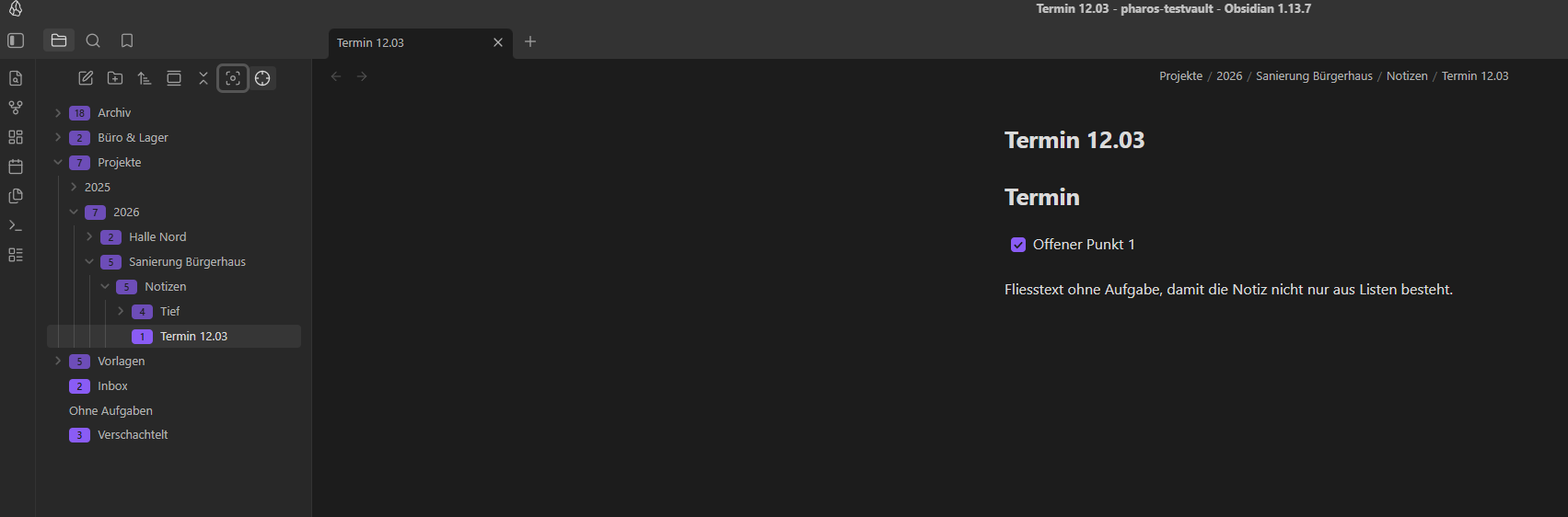
One path open, everything else collapsed, and the number of open tasks on every note and folder — the folder counts are the recursive sums.
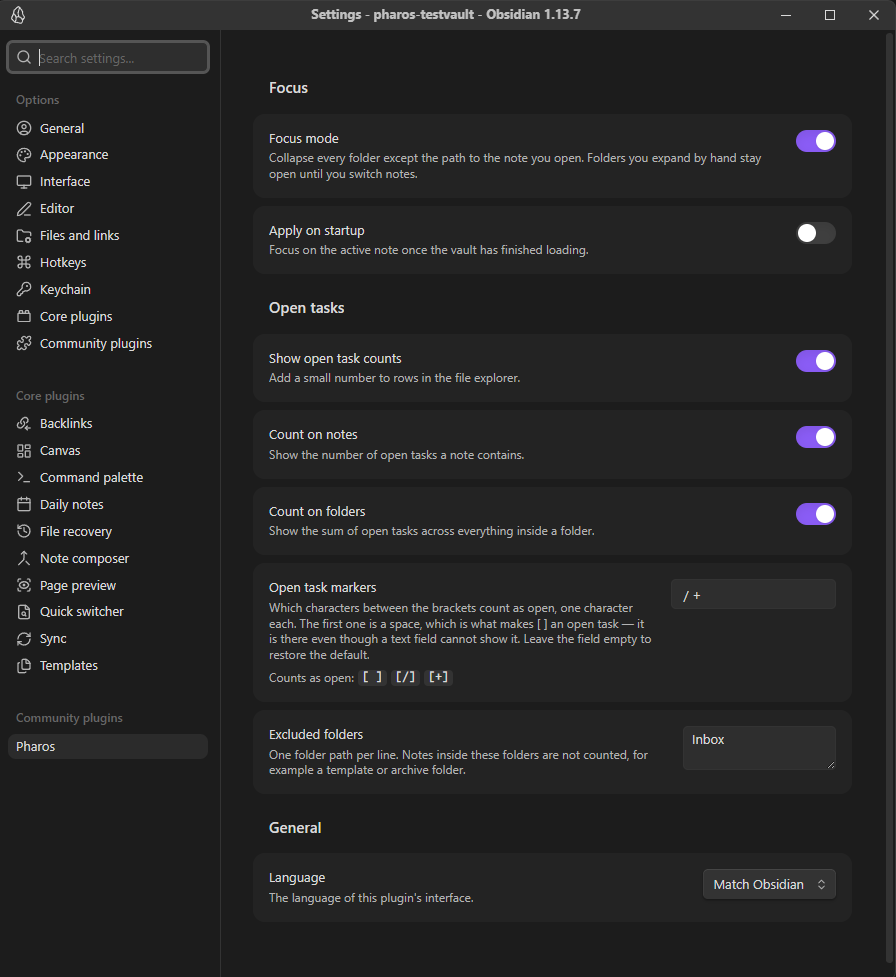
The settings tab. The marker preview under the field spells the value out as bracket pairs, so the leading space that makes [ ] an open task is visible rather than a matter of faith.
What it does
Focus. A button in the explorer header collapses every folder except the path to the note you are looking at. Focus mode does the same automatically on every note change, so only one path is ever open. The writing cursor stays in the note — the explorer scrolls, it never steals focus.
Folders you expand by hand while focus mode is on stay open until you switch notes. That is deliberate: a mode that snaps a folder shut the moment you open it is unusable.
Open tasks. Notes show how many open tasks they contain as a small number at the start of the row, in whatever colour your theme paints a ticked checkbox. Folders show the recursive sum of everything inside them.
By default [ ] and [/] count as open, and [x] and [-] do not — started work is still work. Which characters count is a setting, and the settings tab previews it as bracket pairs, because the most important marker is a space and a text field cannot show one.
Settings
| Focus mode | Follow the active note on every note change |
| Apply on startup | Focus once the vault has finished loading |
| Show open task counts | Master switch for the numbers in the tree |
| Count on notes / on folders | Either can be turned off on its own |
| Open task markers | Which characters between the brackets count as open. Default: space and / |
| Excluded folders | One path per line — a template or archive folder that should not be counted |
| Language | English, German, or whatever Obsidian uses |
Both actions are also available as commands, so they can be given a hotkey. Pharos registers no default hotkey.
How it works
Counting is free: Obsidian's metadata cache has already parsed every list item, so Pharos reads no files. After the initial scan the index is kept current by deltas — one changed note walks its chain of parent folders and nothing else is recomputed.
A caveat worth knowing before you install. Obsidian has no public API for decorating rows in the file explorer or for collapsing folders. Pharos therefore reaches into parts of the app that are not documented and that may change in any Obsidian release. This is confined to a single file, src/explorer/FileExplorerAccess.ts, and everything in it is guarded: should a future version change the structure, Pharos quietly stops working instead of breaking your explorer or throwing errors. If the buttons or the numbers ever disappear after an update, that is what happened — please open an issue.
The badge is drawn from a data attribute on the row Obsidian renders anyway, styled by a single CSS rule using Obsidian's own colour variables. Nothing is inserted into the DOM and nothing is patched, so disabling the plugin leaves the explorer exactly as it was.
Other explorer plugins. Plugins that also decorate explorer rows — for example File Explorer Note Count, or Iconize — use the same ::after position. If the two collide, the Pharos badge can be repositioned with a CSS snippet; its attribute is data-pharos-tasks on .nav-file-title and .nav-folder-title.
Privacy
Pharos is entirely local. No network requests, no telemetry, no data of any kind leaves your vault.
Installation
Not yet in the community plugin directory. Until then: download main.js, manifest.json and styles.css from the latest release into <vault>/.obsidian/plugins/pharos/, then enable Pharos under Settings → Community plugins.
Development
npm install
npm run dev     # watch build
npm run check   # build, lint, tests
Contributions are welcome. CLAUDE.md holds the working rules for the codebase; the one that matters most is that all access to Obsidian's undocumented explorer goes through FileExplorerAccess.
License
MIT