Pandoc Crossref Preview
 theluckystrike1 downloads
Show figure and equation reference numbers from Pandoc labels while you read a note.
- Overview
- Scorecard
- Updates1
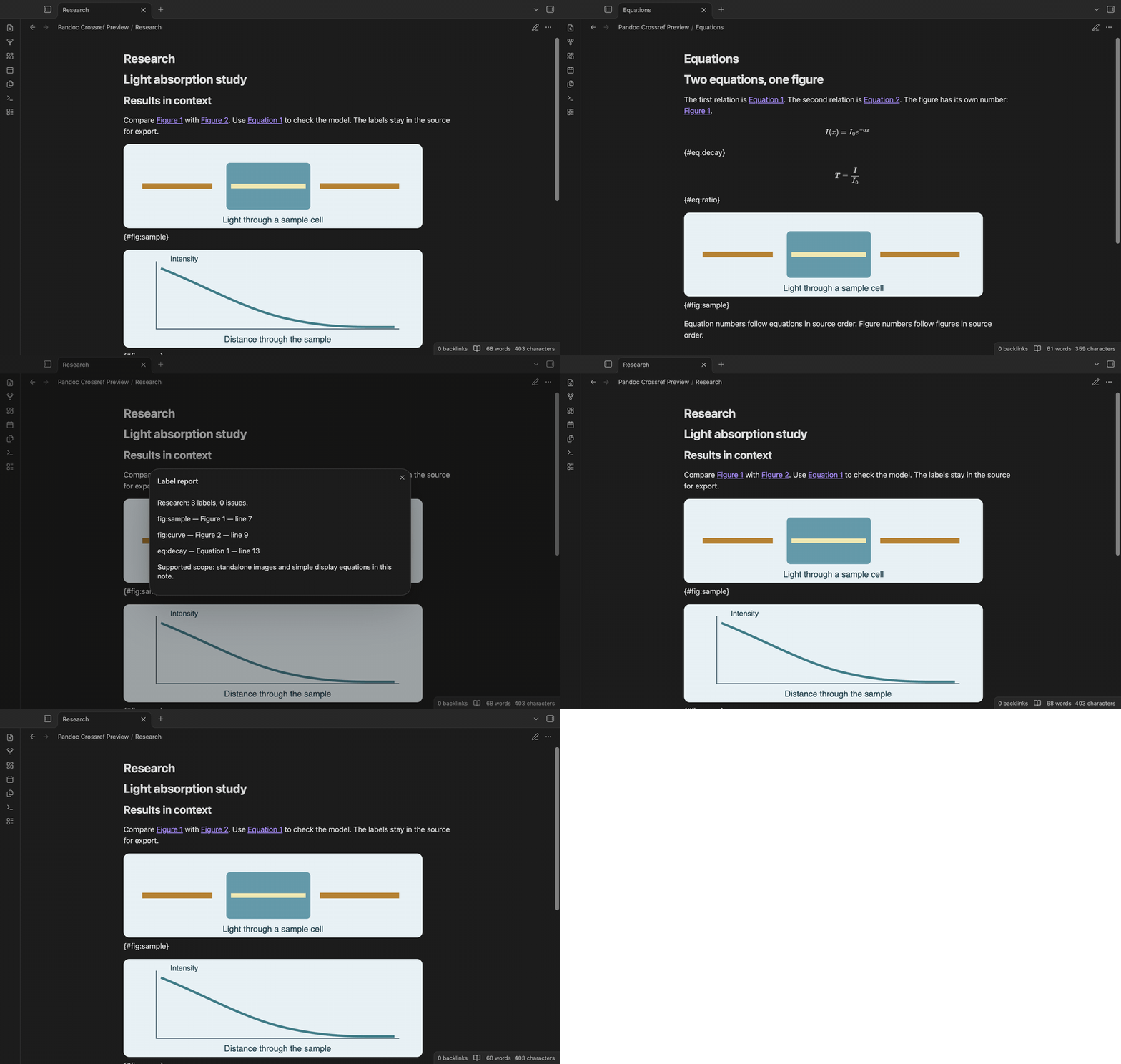
Pandoc Crossref Preview shows figure and equation reference numbers while you read one Markdown note. Write Pandoc labels in the source, then open Reading view to see references such as Figure 2 and Equation 1. Select a number to open the source line of its target.
The free core includes separate counters, references before definitions, source navigation and an on-screen label report. It does not run Pandoc, install pandoc-crossref or configure an export command. It gives a limited preview of simple labels so you can check a draft before you use your own export process.
Features
Figure references
Put a Markdown image on a line of its own. Attach a label such as {#fig:sample} after the closing parenthesis. In text, write @fig:sample. Reading view replaces a resolved reference with the figure prefix and number. The default prefix is Figure, and the first number is 1. Only labelled, supported images receive numbers.
Use blank lines around image paragraphs. Images inside prose, tables or grids are outside the supported scope.
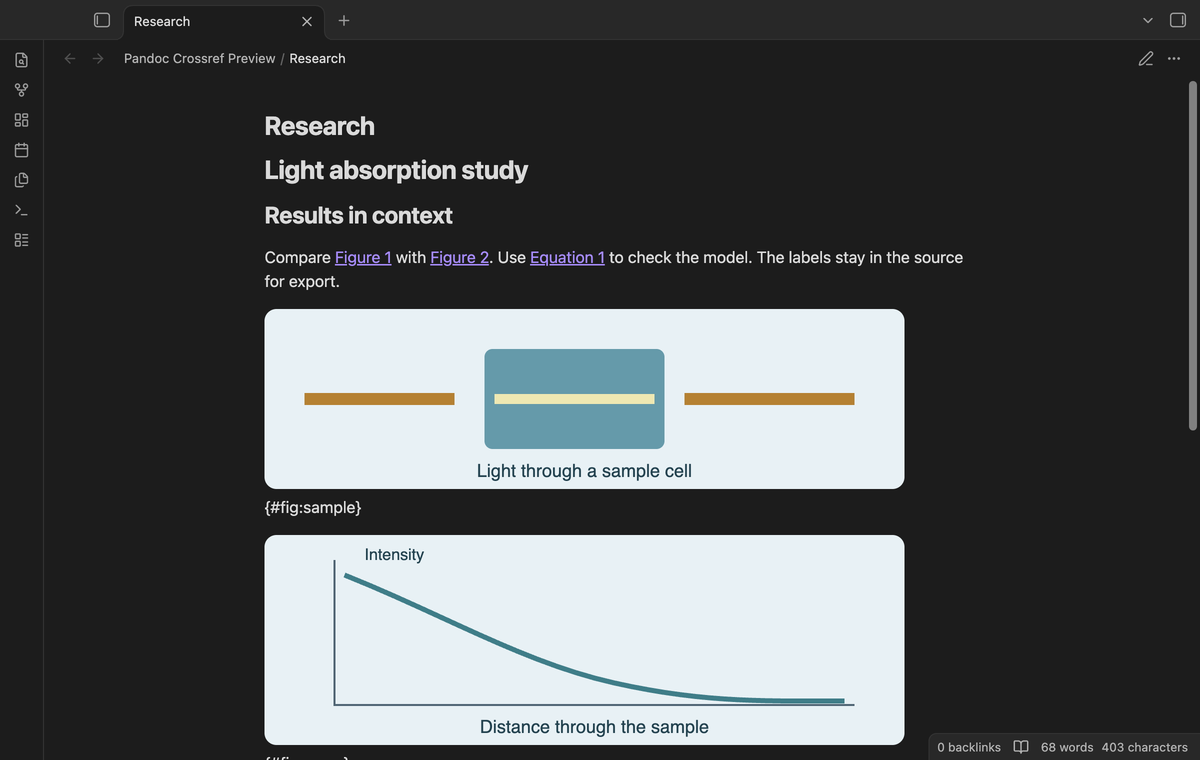
Separate equation numbers
A simple display equation starts with $$ and ends with $$. Put {#eq:decay} on the next line after the closing delimiter. Write @eq:decay in a paragraph to show its number. Equations have their own counter, so adding a figure does not increase an equation number. One-line display equations also have support.
Obsidian renders the unchanged TeX body. Closing-line labels, aligned math and grouped equations are outside the supported label grammar.
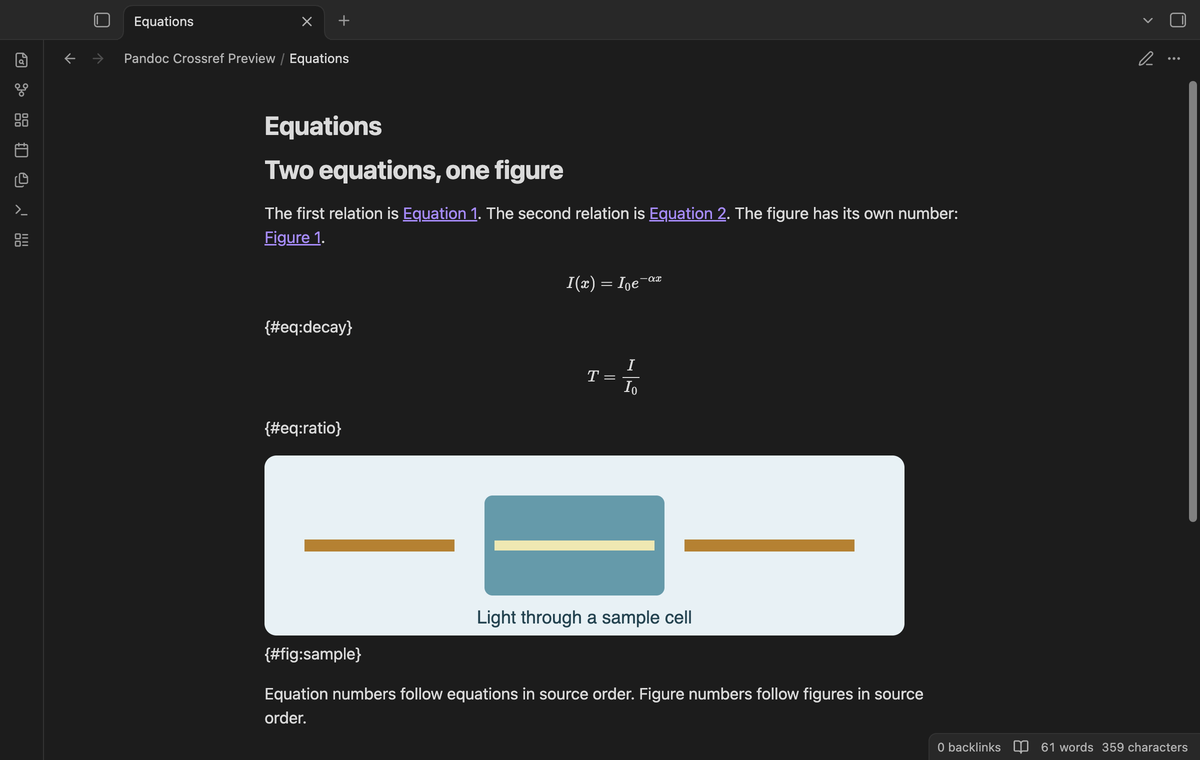
References before targets
You can refer to a figure or equation in an opening paragraph and define it later in the note. The plugin reads the complete source note for each rendered section. A reference does not need its target to have appeared on screen first. Select a resolved number to switch to source mode at the target line. For an equation, the target line is the opening display delimiter.
After you add or move a labelled object, reopen Reading view. The plugin reads the current note and calculates its numbers again. It does not write the calculated numbers into Markdown.
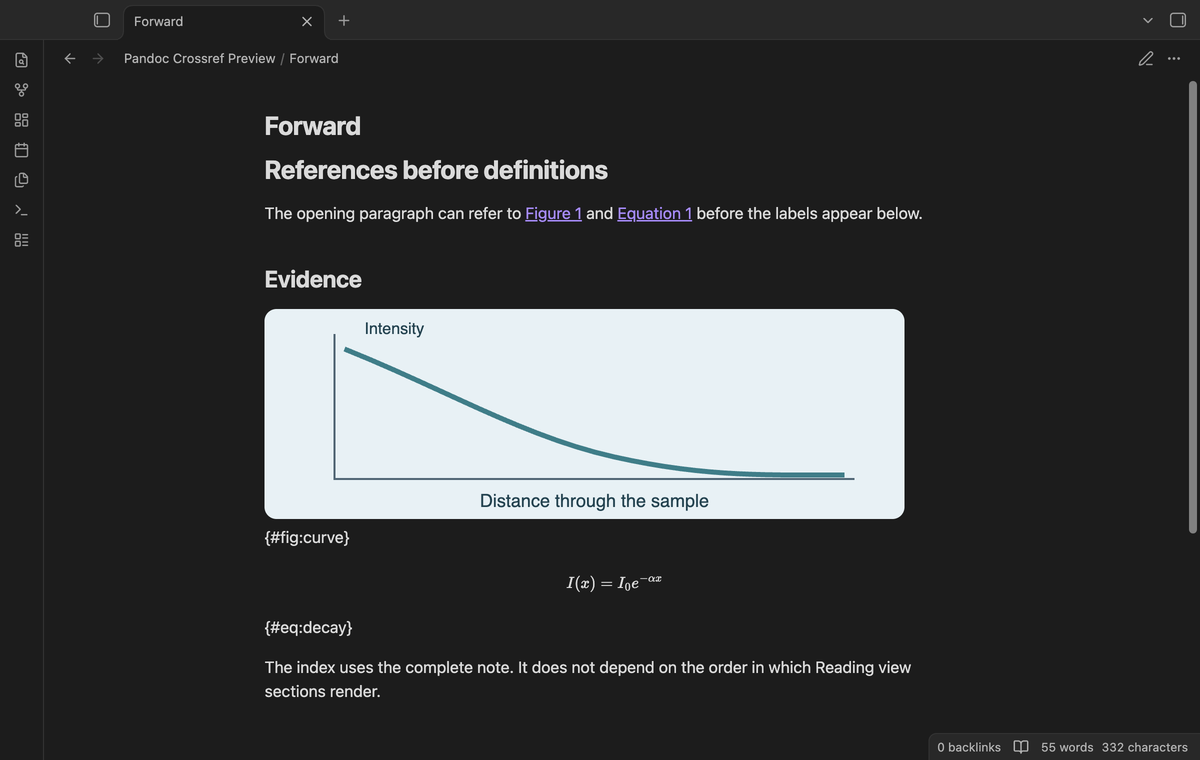
Label review
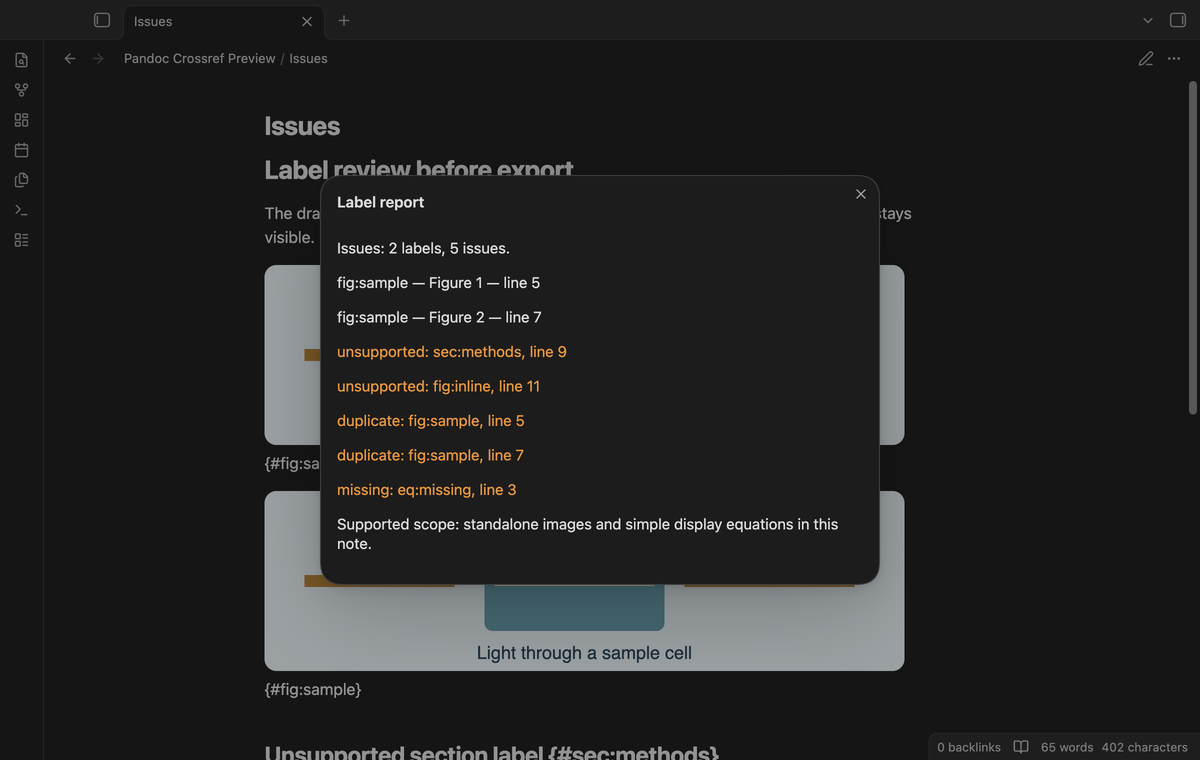
Run Show label report from the command palette. The free modal lists indexed labels with numbers and source lines. It also lists missing references, duplicate definitions and detected unsupported labels. Duplicate references stay as source text because the plugin cannot select a unique target. Missing references also stay visible, with a diagnostic title in Reading view.
A supported image and an unsupported form that reuse a label do not produce a guessed reference number.
Literal code and links
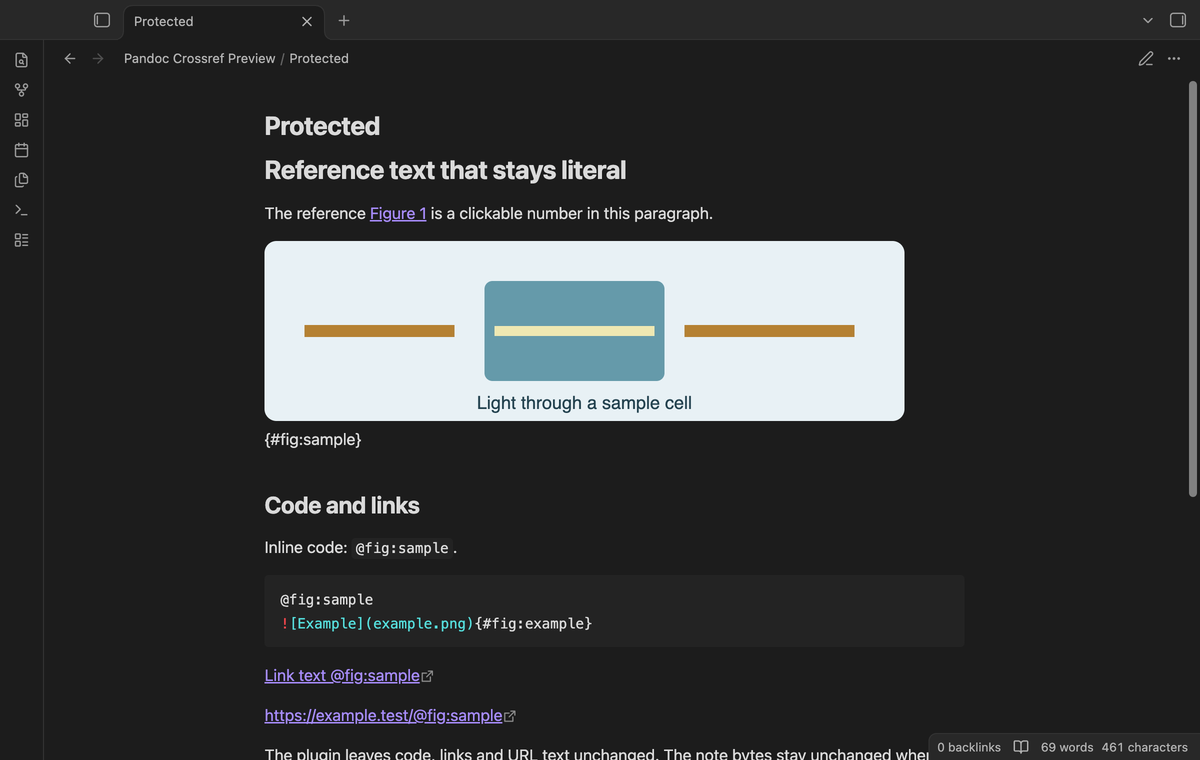
Inline code, fenced code and URL text keep their literal reference syntax. Existing rendered links and math elements also keep their content. The source index ignores frontmatter, comments, fenced code and indented code blocks after a blank line. References in nested list items and wrapped paragraph lines still get numbers. This lets you put syntax examples beside a draft without giving those examples a figure number.
A Reading view preview and an on-screen report leave the note bytes unchanged. The plugin writes its own settings when you change a setting. A saved local report is a separate Markdown file.
Saved number and prefix profiles (Pro)
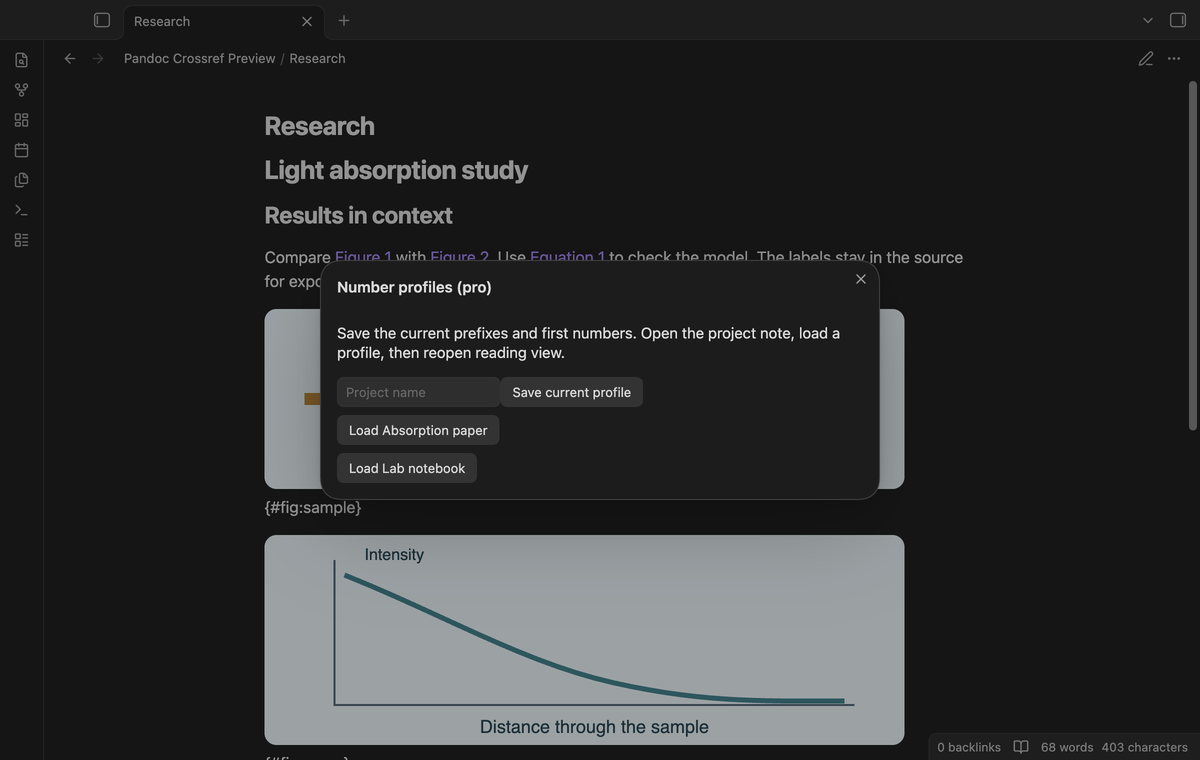
Set your current prefixes and first numbers in plugin settings. These current values are free. With Pro, use Save or load number profiles to store the current four values under a project name. Open another project note, load its saved profile, then reopen Reading view. Profiles apply to the current plugin settings; they do not select notes by folder.
A name has a limit of 60 characters. The local collection has a limit of 30 names. Saving under an existing name replaces that profile. Profile data is stored in the plugin's local settings file.
Local label reports (Pro)
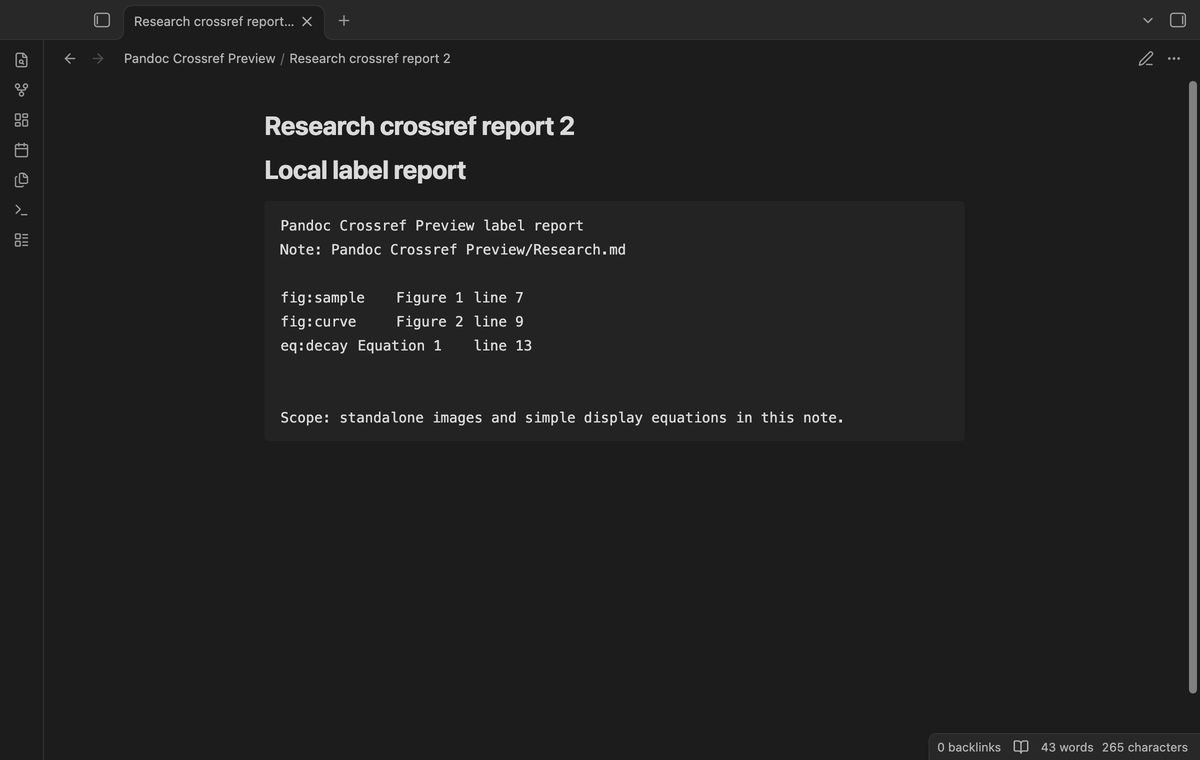
Run Save local label report to create a Markdown report beside the active Markdown note. It contains the note path, indexed labels, numbers, source lines and diagnostics. The command reads the source again before it saves. If the report path exists, it selects a new numbered filename. It leaves the Markdown note unchanged.
The report is a local checklist. Save a new report after the draft changes. This command does not start an export.
Install
This source build needs Obsidian 1.13.4 or later. For manual installation, copy main.js, manifest.json and styles.css into <vault>/.obsidian/plugins/pandoc-crossref-preview/. Open Community plugins in settings and enable Pandoc Crossref Preview. The publisher handles directory submission and releases separately.
Usage
Start with a short note. Add a standalone labelled image, a simple labelled display equation and a paragraph that refers to them. Open Reading view, check the numbers and select one to inspect its source line. Run the free label report before you export the note with your existing tools.
Labels are case sensitive. Use letters, digits, the underscore character, dots and hyphens in the identifier after fig: or eq:. Begin that identifier with a letter, digit or underscore. Keep the same spelling in the definition and reference. Use distinct labels for distinct objects.
Settings
Figure prefix and Equation prefix control text before the reference number. Prefixes have a limit of 40 characters. First figure number and First equation number accept values from 1 to 99999; saved values are rounded and limited to that range. Empty prefixes return to the default values. Reopen Reading view after a setting change.
The Sponsors rows show sign in, status, refresh and sign out controls. Saved profiles are available through the command palette and plugin settings. No default hotkey is assigned.
FAQ
Does this replace pandoc-crossref? No. This version supports a limited note-local grammar. It excludes chapter numbering, custom YAML numbering, tables, subfigures, figure grids, section references and cross-note references. It does not compare its result with Pandoc output.
What was not tested? Phone and tablet rendering, Windows, Linux desktop app execution, real paid sponsorship and Pandoc export were not tested for this build. The app tests use mocked sponsorship replies. Live Preview, raw HTML labels and complex Pandoc attributes are outside the supported scope.
Why is a reference still literal? The target can be missing, duplicated or unsupported. Code and links are also protected. Open the label report and check the source spelling and line form. A source section without public section information is left unchanged.
Payment, account and network
The core features are free. Pro features need a GitHub Sponsors sponsorship of theluckystrike: $5 a month or more, or $15 once. A total payment of $15 meets the payment requirement for Pro without further payment. Sign-in and the checks below still apply. Your notes stay readable and editable with or without Pro.
GitHub handles the payment. Sponsor at https://github.com/sponsors/theluckystrike. You need no account for the free features. Pro needs the GitHub account that sponsors.
Until you select "Sign in with GitHub" in the settings, Pandoc Crossref Preview makes no network requests. Sign in uses the GitHub device flow. Pandoc Crossref Preview sends its public client ID and the scope read:user to https://github.com/login/device/code and shows you a code. While you enter the code at https://github.com/login/device, it asks https://github.com/login/oauth/access_token every few seconds to check the sign-in status. The scope permits profile reads only. GitHub needs this access to show the sponsorship tier. It grants no repository scope and no write access.
After sign in, Pandoc Crossref Preview sends one query to https://api.github.com/graphql. It checks if the signed-in account sponsors theluckystrike. It asks for the tier and the total payment to theluckystrike. The plugin reuses a successful check for 7 days. Failed checks can retry after 6 hours. Select Refresh to request an earlier check. It sends no note content, file names or other vault data, and it has no telemetry.
After a successful check, Pro can work offline for up to 14 days. Sign out or a negative sponsorship answer turns Pro off. The plugin stores the GitHub token through the secret storage API of Obsidian. It does not put the token in its saved settings or its local sponsorship data. The local storage of this device keeps your GitHub login, the tier and the time of the last check. Sign out clears the token. You can also revoke the access in your GitHub settings, under Applications.
Support
Use the publisher's support link at notemods.com. Include the plugin version, Obsidian version and a short sample note with the issue. Remove private note text before you share a sample. The plugin is licensed under MIT. This build has no telemetry, advertisements or remote code.