Palette Vault
 JSTools Space289 downloads
Generate color palettes, preview hex codes inline, render palette blocks, and pull colors out of the images in your notes.
- Overview
- Scorecard
- Updates1
Color palettes inside Obsidian. Generate a scheme, preview hex codes inline, render palette blocks, and pull the colors out of the images in your notes.
More colors
This plugin is part of Palette Vault, a free color reference with a catalog of ready-made palettes, a page for every named color, and browser-based tools for building, extracting and checking colors.
There is a Chrome extension as well, which does the same job on any web page.
Everything runs locally. No account, no network, no telemetry.
What it does
Generate a palette
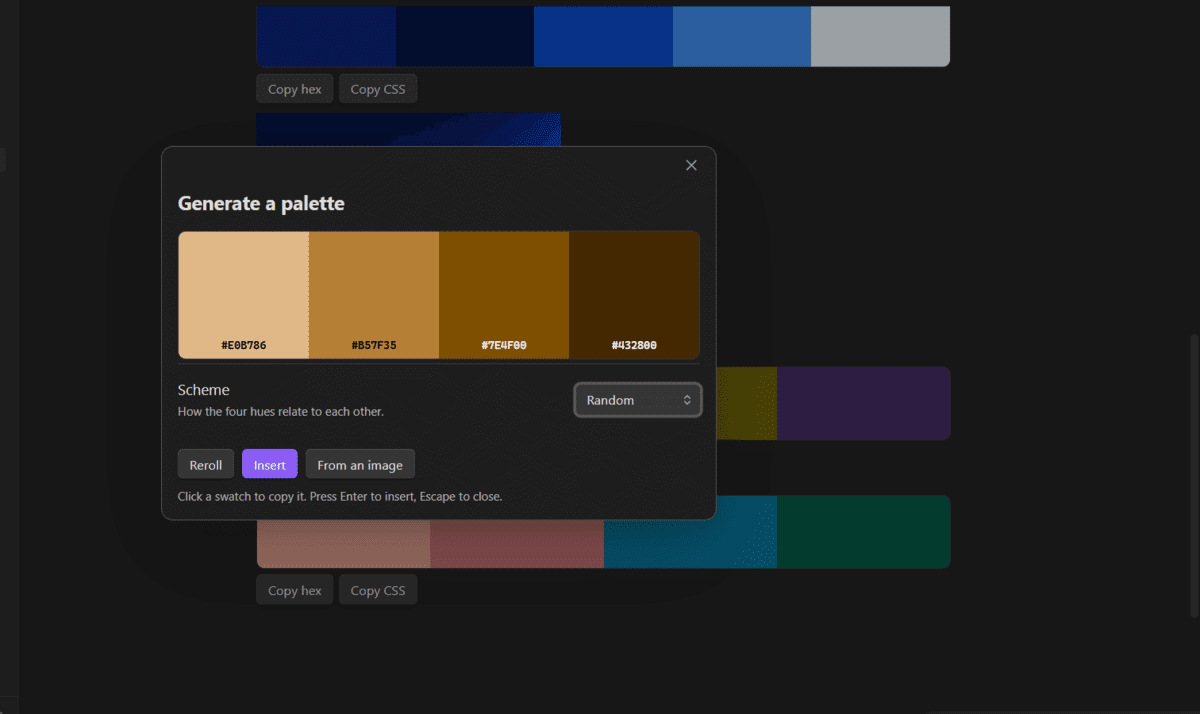
Click the palette icon in the ribbon. You get four colors that work together, a scheme picker, and a reroll button. Press Space to reroll, Enter to insert, Escape to close. Click any swatch to copy its hex.
Select a color in your note first and the palette is built around it.
See your hex codes
Every #RRGGBB in a note gets a color square beside it, in both editing and
reading mode. Hover one for its RGB, HSL and OKLCH values and its contrast
against white.
Render palette blocks
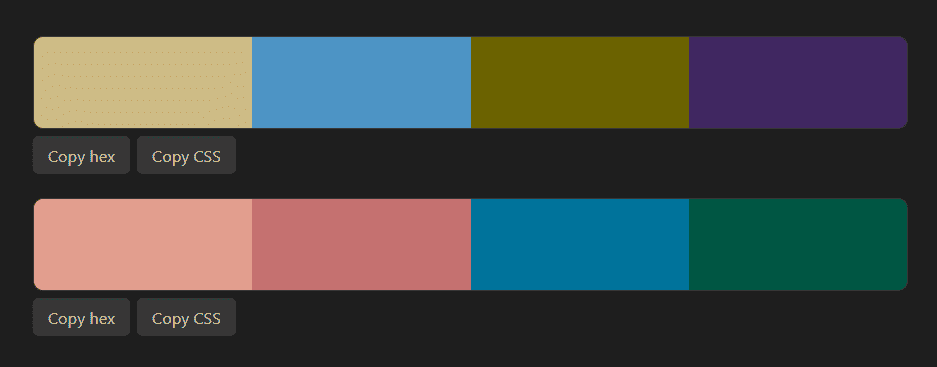
A fenced palette block becomes a strip of swatches you can click to copy.
```palette
#264653
#2A9D8F
#E9C46A
#F4A261
```
Extract from an image
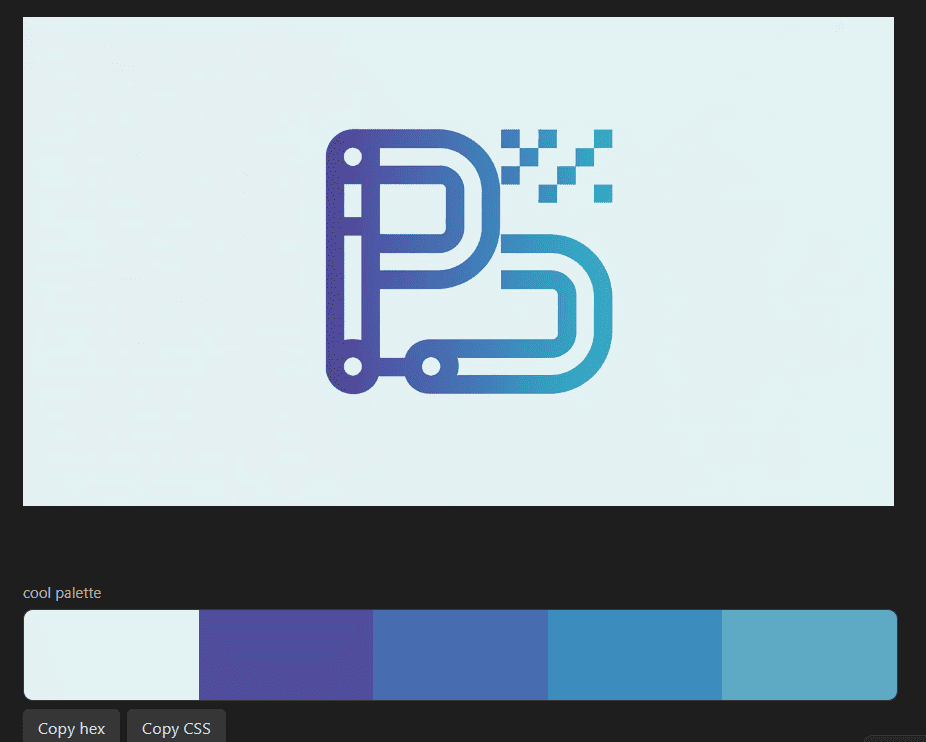
Open the panel and choose From an image to pick any image embedded in the note, or right-click a line that has an image on it. The colors are clustered by how they look rather than sampled at random, so you get the colors that actually define the picture.
Pick a color from anywhere
The Pick a color from the screen command opens an eyedropper. Click any pixel on your screen and the hex is inserted at the cursor and copied to your clipboard.
Installing
From Obsidian
Settings, Community plugins, Browse, search for Palette Vault, install and enable it.
Manually
Download main.js, manifest.json and styles.css from the
latest release
and drop them into:
<your vault>/.obsidian/plugins/palette-vault/
Then reload plugins and enable it in Settings, Community plugins.
The palette block
The body is a list of hex codes, or a set of directives, or both.
| Directive | What it does |
|---|---|
generate |
Build a palette instead of listing one. Takes a scheme name. |
base |
Anchor the generated palette to a color you supply. |
seed |
Any word or number. The same seed always gives the same palette. |
label |
A caption above the strip. |
Schemes: monochrome, analogous, complementary, split, triad,
tetrad.
```palette
label: Brand, warm variant
generate: analogous
base: #E76F51
seed: autumn
```
Use a seed for anything you intend to keep. Without one the block generates fresh colors every time the note is opened, which is useful for exploring and useless for a note you are writing down.
Commands
| Command | What it does |
|---|---|
| Insert a generated palette | Writes a palette at the cursor |
| Build a palette around the selected color | Only offered when the selection is a hex code |
| Pick a color from the screen | Eyedropper, inserts and copies |
| Extract a palette from an image in this note | Reads the image on the current line |
All four can be given hotkeys in Settings, Hotkeys.
Settings
| Setting | Options |
|---|---|
| Insert format | A palette block, plain hex codes, or CSS custom properties |
| Default scheme | Random, or one fixed hue relationship |
| Show color chips beside hex codes | On or off, applies to both editing and reading mode |
| Colors to extract from an image | 3 to 8 |
Why the colors look considered
Everything here is built in OKLCH, a color space designed so that equal numeric steps look like equal steps to the eye.
That is not true of the older ways of describing color. In HSL a yellow and a blue can claim the same lightness while the yellow glares and the blue reads as nearly black, so anything built on it comes out uneven no matter how carefully the numbers were chosen.
The same reasoning applies to extraction. Colors are clustered in OKLab rather than RGB, because two greens you would read as one color can sit further apart in RGB than a green and a grey you would never confuse. Clustering in a space that matches perception is what stops the palette from splitting one color in two and merging two others into one.
Privacy
The plugin makes no network requests of any kind. Images are read from your vault and processed on your own machine, colors are computed locally, and nothing is recorded about what you do. It works offline because there is nothing for it to be online for.
License
MIT. The palettes are yours to use, commercially or otherwise, with no attribution required.