Oxill Forms
 oxilldat518 downloads
Build forms once, then fill them in a modal to create notes, edit note properties or insert text. Speaks six languages.
- Overview
- Scorecard
- Updates7
An Obsidian plugin: fill in a window with fields — get a finished note.
Contents
- What it looks like
- Getting started
- What a form does with the answers
- Naming the note and choosing its folder
- What ends up inside the note
- Asking less
- Keeping rubbish out of the note
- What you can ask for
- When forms pile up
- If a field has to be renamed
- Moving to another vault
- Neighbouring plugins
- From code
- Reference
- Languages
- Limits
- Installing
- Development
- Support
- License
What it looks like
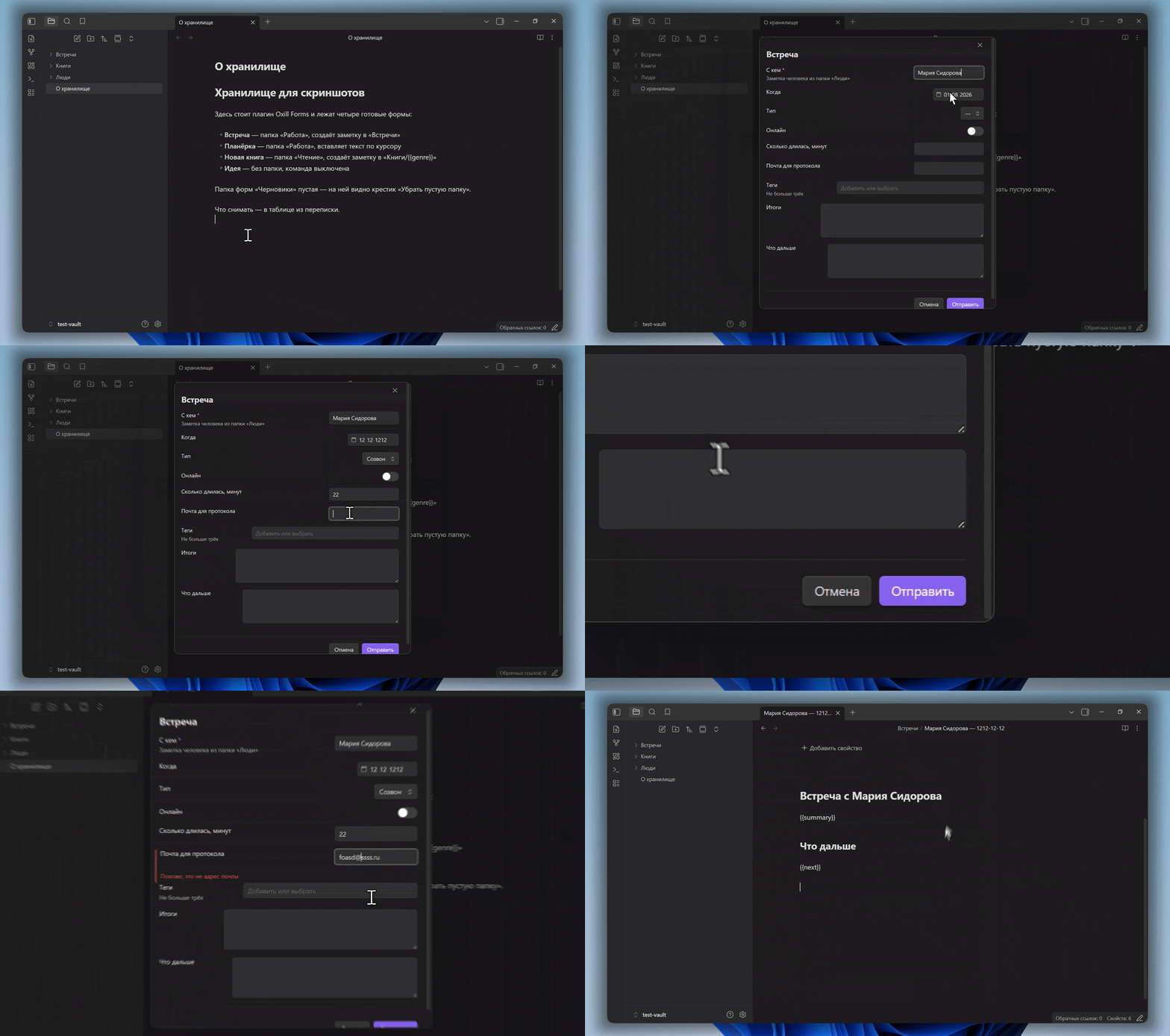
Say you write a note after every meeting: who was there, when, what you agreed on. The same thing every time — create a note, type the date, list the people. And every time slightly differently: “Participants” today, “participants” yesterday, and the day before you forgot the date entirely.
With this plugin you describe once what to ask about: who you met, when, what you decided. From then on you run a command — and a window with those fields opens. Fill it in, press Submit, and the note is ready: properties are set, the heading is in place, and the cursor sits where you continue writing.
The plugin decides nothing for you: which fields to ask about, where to put the note and what to call it — you describe all of that once per kind of note.
Getting started
Create a form. Obsidian settings → Forms → Create form. Type an identifier — a short Latin name such as
meeting— and a title, which is what you will see in the window header: “Meeting”. In the same window, further down, switch on Add a command and pick what it does: Create a new note.Describe the fields. Settings → Form list → on the “Meeting” card press Field setup → Add a field. Three will do to begin with: who you met, when, what you decided.
Fill it in. Ctrl+P → Fill in: Meeting.
That is it. Next — how to make the note carry a decent name and land in the right folder.
What a form does with the answers
Next to the command switch there is a choice called What it does. There are three options.
Create a new note. The most common case: a separate note appears after the meeting. Below it you set what to call the note and which folder to put it in.
Insert as text at the cursor. A note is already open — a project note, say — and you are adding the meeting outcome to it. The text lands where the cursor was.
Edit properties of the current note. Nothing is written into the text; only the properties of the open note change. The form opens already filled in with whatever the properties hold, so you correct a line or two instead of retyping everything.
One form does one thing. If a meeting needs both a new note and an addition to the project note, make a second form: the card in the list has a Duplicate button.
A form can be called from more than the palette. A form command is an ordinary Obsidian command, so any plugin that can run commands will pick it up: Buttons, Meta Bind, Commander. That puts the form behind a button right inside a note or an icon on the ribbon — no palette, no hotkeys. And if you write DataviewJS blocks, a form can be opened straight from the script; see “From code”.
Naming the note and choosing its folder
Left alone, a note takes the title of the form: “Meeting”, then “Meeting 1”, “Meeting 2”. That wears thin quickly.
The form properties — the same window where you switched the command on — hold two fields: Note name and Folder for notes. Both accept answers from the form: a field name in double curly braces.
Note name:        {{person}} — {{date}}
Folder for notes: Meetings
Fill the form in with “Mary Smith” and “2026-08-01”, and a note called “Mary Smith — 2026-08-01” appears in the “Meetings” folder.
person and date are not made up here: they are the identifiers you gave
the fields. You can see them in the field list, in the Identifier row.
They are written in Latin letters and start with a letter; after that digits
and underscores are allowed: date_created and person2 will do, 2date and
“дата” will not.
Folders can be assembled from answers too. Meetings/{{project}} files notes
by project, and when the project is left empty the note lands directly in
“Meetings” — no empty folder in between.
The date, right in the name. It isn't only answers that go into the name
and the folder — the current time does too, as {{date:FORMAT}}.
Note name: {{date:YYYYMMDDHHmmss}}
gives you 20260328232135: year, month, day, hours, minutes, seconds —
fourteen digits in a row. The format is assembled from letters:
YYYY |
year, four digits — 2026 |
YY |
year, two digits — 26 |
MM |
month — 03 |
DD |
day — 28 |
HH |
hours, 24-hour — 23 |
mm |
minutes — 21 |
ss |
seconds — 35 |
Anything outside that table stays as written: {{date:YYYY-MM-DD}} gives
2026-03-28. Folders are convenient to assemble this way as well —
Diary/{{date:YYYY}}/{{date:MM}} files notes by year and month without a
single field in the form.
An empty field leaves no litter behind: {{person}} — {{date}} without a
person gives you just the date, not “ — 2026-08-01”.
A typo, on the other hand, you will see: {{persn}} stays in the note name as
plain text. That is deliberate — otherwise the mistake would turn into
silence, and you would notice it forty notes later.
What ends up inside the note
The name and the folder are settled — the contents are next.
The form properties hold a large field called Note template. It is the plain text of the note to come, with answers dropped in through the same braces:
---
{{frontmatter}}
---

# Meeting with {{person}}

{{summary}}

## What next

{{next}}

{{cursor}}
The result is a note with properties on top, a heading, the outcome and a “What next” section — and the cursor waiting at the bottom, where you add the details.
Two placeholders behave unlike the rest:
{{frontmatter}}— every answer at once, as note properties. You do not list the fields one by one; add another field tomorrow and it shows up in the properties by itself.{{cursor}}— where the cursor lands once the note opens.
The template can be left empty. The plugin then assembles the note itself,
the way the Result format row above says: YAML in note properties, inline
key:: value fields, or a bullet list.
Changing an answer on the way in
Sometimes an answer should not go in verbatim. Put a vertical bar after the field name and say what to do with it:
{{ person | link }}         [[Mary Smith]] — a link to the person’s note
{{ participants | list }}   a bullet list when there are several values
{{ project | slug }}        project-name — fit for a file name
The rest of the transformations are in the reference below.
Asking less
A form of ten fields, half of them empty every time, is no less annoying than writing the note by hand. Three field settings take the surplus away.
Default value. A meeting is almost always today, so let the date fill
itself in. Field settings have a Default value row, and it understands
three words: {{today}} for today’s date, {{now}} for the current time,
{{datetime}} for both. It understands {{date:FORMAT}} as well — the same
format as in the note name. The field opens already filled, and you correct it
on the rare day when the meeting was yesterday.
Required. Tick the box and the form will not be submitted while the field is empty. For a meeting that is the person: a note without them means nothing.
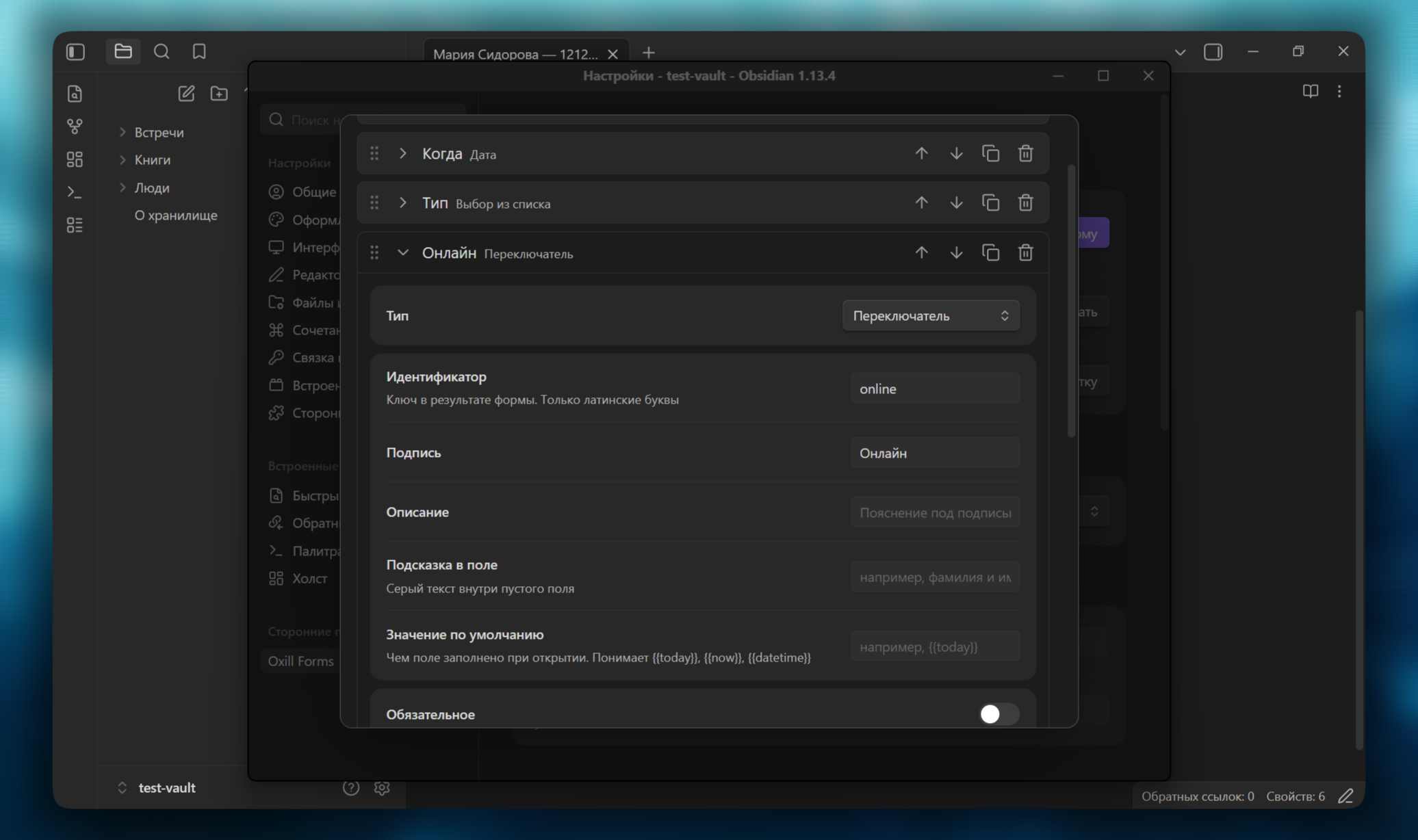
Show condition. Add a toggle called “Online”, then give the “Recording link” field a condition: show it when “Online” is on. While the toggle is off, the field simply is not there — it appears when it is needed.
A condition reads as a whole sentence: “show the field when online is on”.
You can compare against being filled in, equality, containing text, the start
and the end of a string, and — for numbers — greater and less.
The value is asked for the same way the field it watches asks for it: a list offers its own options, a date and a time open a picker, a note and a folder suggest from the vault. No guessing how an option is spelled or how a date is formatted.
Sections. A field of type Section is not a question but a heading inside the form. It splits a long form into parts; and if you put a condition on the section itself, every field up to the next heading hides with it. That is for forms which branch by whole blocks rather than by a single field.
Keeping rubbish out of the note
“Required” watches that an answer exists at all. Checks watch that it looks like the truth.
For free. The Email and Phone field types are checked without a single setting: no at sign, no submitting.
Numbers. Give the “How long, minutes” field No less than 5 and No more than 600 — a typo of three extra zeros will not get through.
Text length. The outcome field can demand at least twenty characters: an entry saying “ok” will tell you nothing a month from now.
Counts. Tags and multi-select count values rather than characters: “At most 3 values” stops a meeting from collecting ten tags.
Your own rule. When it has to be strict, there is Matches the
expression: ^\d{4}-\d{2}$ lets nothing but 2026-08 through. Next to it
sits Error message — worth filling in, because the expression itself
explains nothing to the reader.
Checks run on submit: the error appears under its own field, and the bottom of the window says how many fields need attention. An empty field is left alone by checks — emptiness is what “Required” is for.
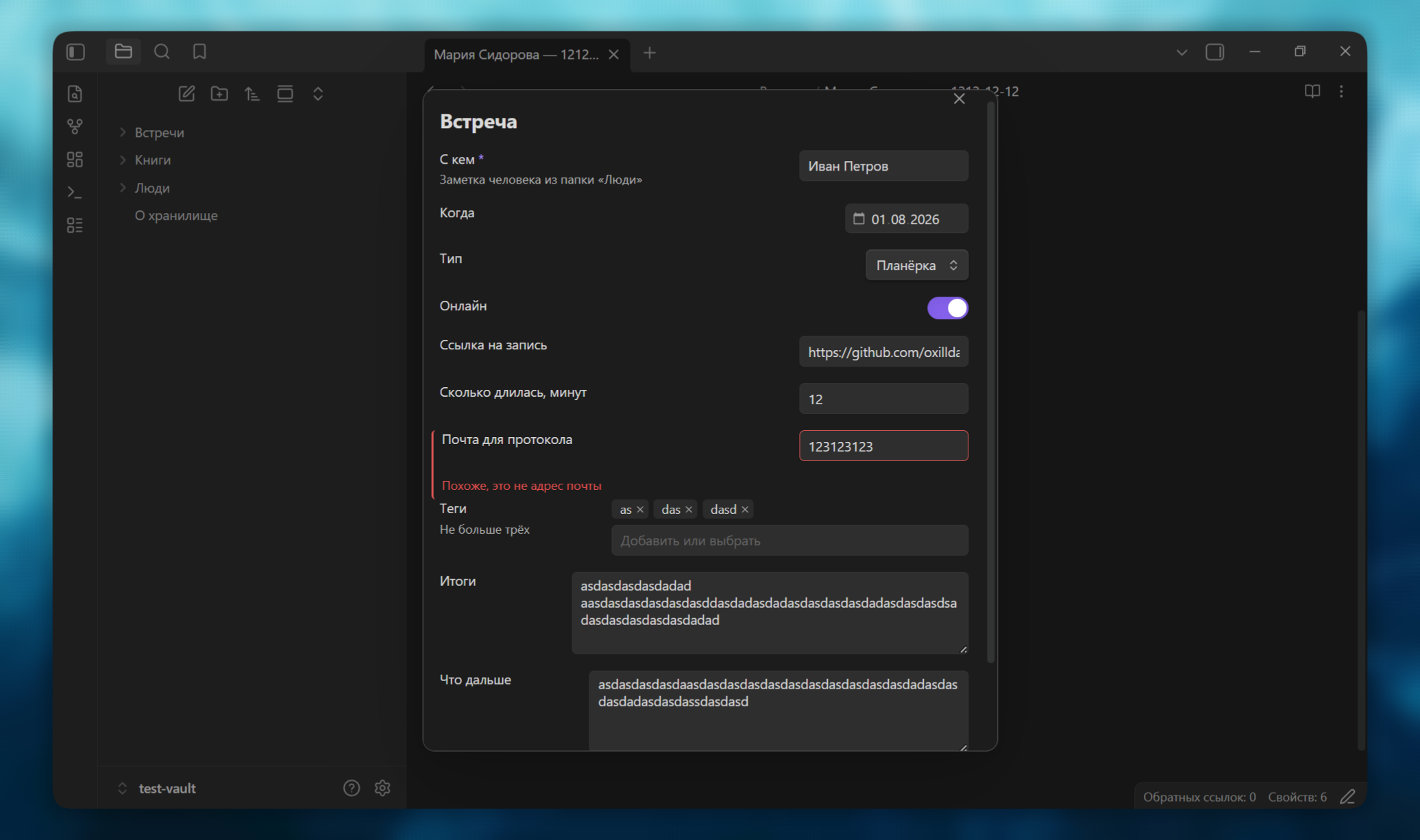
Field settings only show the rules that make sense for the type: a number has no length, a toggle has nothing at all.
What you can ask for
Beyond text, numbers and dates there are another dozen kinds of question. The full list is in the reference below; here are the ones worth opening it for.
Note from a folder. The most useful one for meetings. Give the field the
Note from a folder type and point it at the “People” folder: instead of
typing a name you pick an existing note from a list. And {{ person | link }}
in the template turns the answer into [[Mary Smith]] — so the meeting shows
up in the backlinks on that person’s page.
Select. Ready-made options: “standup”, “call”, “interview”. One value or several are two different types — Select and Multi-select. Options can come from a folder of notes instead of a fixed list, and then the list grows with the vault on its own.
Tags. The field suggests tags the vault already knows and lets you type a new one. When there are many housekeeping tags, whole branches can be kept out of the suggestions through the Do not suggest tags row.
Slider. A score from one to five, with no way to miss the range.
Image and File. The form puts the file into the vault and drops a link to
it into the note. It can go into the shared folder from the plugin settings or
into this field’s own, and the file name can be built from answers:
{{person}}-recording.
Folder. For when the question is about a place in the vault rather than a note. The choice can be limited to one branch so that all two hundred folders do not flash by.
List from a Dataview query. For those who have Dataview: the options come from a query and can depend on other fields of the form. See “Neighbouring plugins”.
When forms pile up
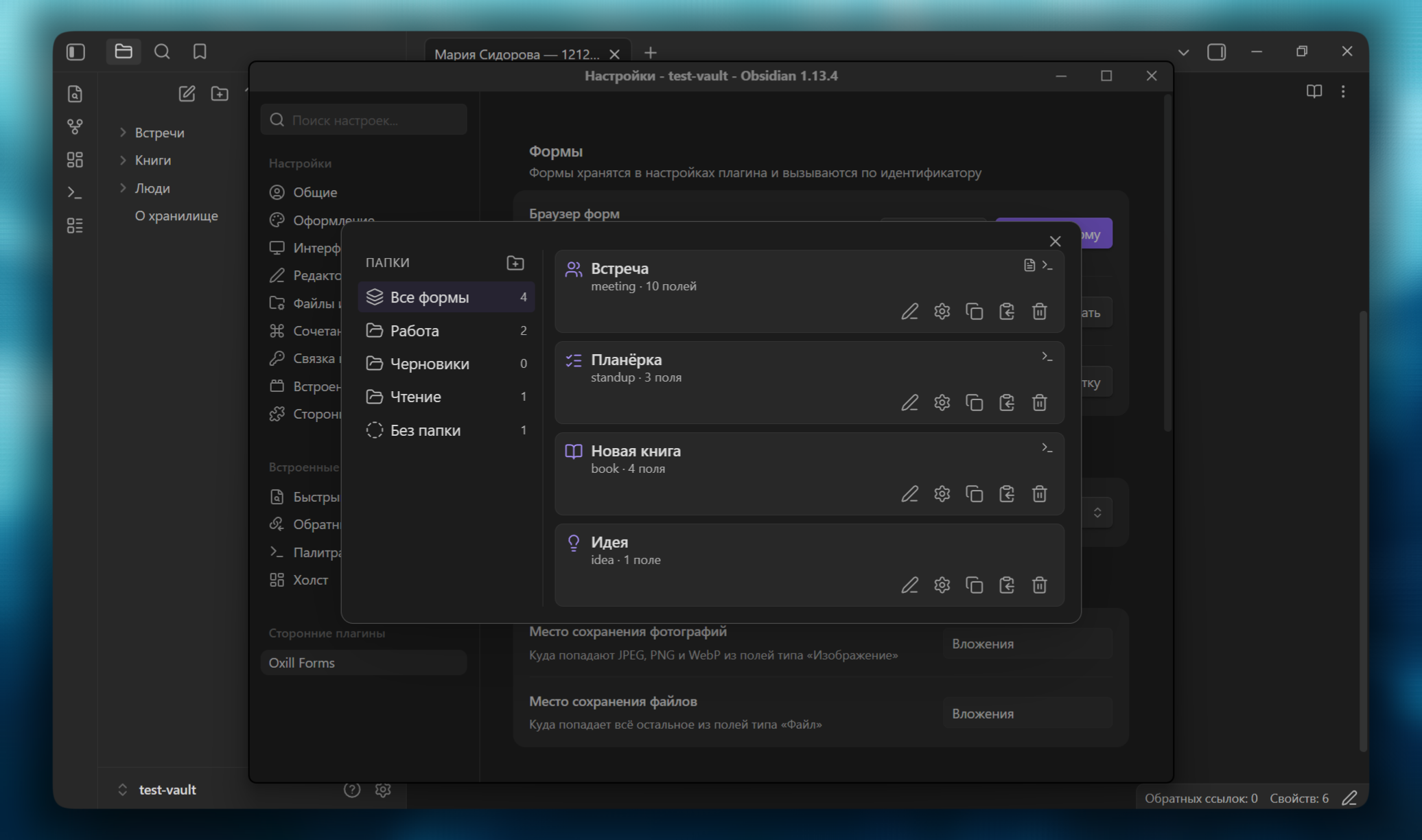
The form list opens with the Form list button in the settings or the Form browser command. Folders on the left, cards on the right.
A folder here is only a label for tidying up; it has nothing to do with vault folders. Create one with the folder icon above the list: type a name, press Enter. Forms are filed by dragging — pick a card up, drop it on a folder.
An empty folder is removed by the cross that appears on hover. If the folder is not empty, the plugin asks first and explains: the forms themselves stay, they simply become “No folder”.
A form card carries five buttons: properties, field setup, duplicate, copy to clipboard and delete.
If a field has to be renamed
You have made forty meeting notes and then decide that person would be
better called participant. Normally the old property stays behind in those
notes, and half of your queries stop finding them.
The plugin fixes that: it remembers what the field used to be called and renames the property in the notes it created itself.
How exactly is up to you, in the Notes section of the settings. With Update notes automatically when a form changes ticked, the fix happens as soon as the form is saved. Unticked, it leaves a Scan the vault button: the plugin finds such notes, shows how many there are and waits for your word. Editing your notes cannot be undone, so by default it asks.
Moving to another vault
Forms live in the plugin settings, not in the vault: they create notes but do not sit among them. Copying a folder therefore gets you nowhere — there is an export instead.
Export all forms in the settings puts every form as one chunk of JSON into the clipboard or into a new note. Import forms reads that chunk back — one form or a dozen at a time.
If the bundle was made by a newer version of the plugin, the import warns you: some settings it will not understand and will drop. And if there are fields with Dataview queries inside, it shows their code and asks again — this is executable code from someone else’s hands, and reading it is better done before than after.
Neighbouring plugins
Dataview. The List from a Dataview query field takes its options from the result of a query. The query can see not only your notes but also the answers already given in the form — so the list in the second field can depend on the answer in the first: pick a project, and only that project’s people show up.
Such fields execute the JavaScript you write, so the type is off by default. Switch it on in the settings, under Advanced.
Templater. If you use it, switch on Process templates with Templater
in the same place. Templater will then run the <% … %> commands in the form
template, while our {{ field }} placeholders run before it — Templater gets
finished text.
From code
If you write scripts — in Templater, QuickAdd, DataviewJS or straight in the console — a form can be opened from there and its answers collected:
const result = await OxillForms.openForm("meeting");
if (!result.ok) return;                         // the form was closed

result.get("person")                            // a single value
result.getData()                                // every answer as an object
result.link("person")                           // [[Mary Smith]]
result.asFrontmatter({ omit: ["draft"] })       // properties without the plumbing
result.asString("{{ person }} — {{ date }}")    // your own string from answers
Cancelling is not an error: the promise resolves with a “cancelled” status, so
check result.ok.
A form can also be built inside the script, which saves setting it up in the settings at all — the template becomes self-contained:
const form = OxillForms.builder("meeting", "Meeting")
    .note({ name: "person", label: "With whom", folder: "People", required: true })
    .date({ name: "date", label: "When", default: "{{today}}" })
    .textarea({ name: "summary", label: "Outcome" })
    .build();

const result = await OxillForms.openForm(form);
Fields can be prefilled two ways: openForm("meeting", { values }) puts in
what you pass, and openForm("meeting", { fromNote: true }) puts in whatever
the open note already has in its properties.
Is the name Forms taken by another plugin? Change it in the settings, under
Advanced.
Reference
Every field type
| Type | What it is |
|---|---|
| Text | a single line |
| Multiline text | a paragraph and up |
| Email, Phone | the same, with a format check |
| Number | whole or fractional, with bounds |
| Slider | a number by mouse, with minimum, maximum and step |
| Toggle | yes or no |
| Date, Time, Date and time | the system picker |
| Select | one value: a fixed list or notes from a folder |
| Multi-select | the same with many values; also takes a Dataview query |
| Tags | tags the vault knows, plus your own |
| List from a Dataview query | one value out of a query result |
| Note from a folder | an existing note, picked from a list |
| Folder | a vault folder; the choice can be limited to one branch |
| Image | JPEG, PNG, WebP — the file lands in the vault |
| File | any file, extensions can be restricted |
| Section | not a question but a heading inside the form |
Field settings
Common to all: a label, a description under it, a hint inside the empty field, a default value, required, a show condition and answer checks.
A hidden field is not drawn at all — it is there for values that arrive from
code through openForm(..., { values }) and have to reach the result.
Some types have their own:
- Multi-select — several source folders at once.
- Tags — an expression for tags that should not be suggested.
- Folder — the branch the choice happens inside.
- Image and File — an own save folder and a file name template; File also takes a list of allowed extensions.
Placeholders and transformations
Placeholders work in the note template, in the note name and in the folder for
notes: {{ field }}.
Special ones: {{frontmatter}} — every answer as properties at once,
{{cursor}} — where the cursor lands.
Date and time: {{date:FORMAT}}, assembled from the letters YYYY, YY,
MM, DD, HH, mm, ss. It works everywhere placeholders work, including
a default value. The short forms {{today}}, {{now}} and {{datetime}} are
still there and equal {{date:YYYY-MM-DD}}, {{date:HH:mm}} and
{{date:YYYY-MM-DDTHH:mm}}.
Transformations go after a vertical bar — {{ field | upper }}:
upper, lower |
UPPER and lower case |
capitalize |
First letter capital |
trim |
strip the spaces around |
slug |
name-for-a-file |
snake |
name_for_a_key |
link |
[[a link]] |
list |
a bullet list out of several values |
Plugin settings
- Forms — the browser, creating, import and export.
- Language — the language of windows, settings and commands.
- Attachments — shared folders for images and files.
- Advanced — hide “All forms” once everything is filed; do not ask when closing without saving; allow Dataview fields; process templates with Templater; the name of the API variable.
- Notes — fix notes after a field is renamed, automatically or on demand.
Languages
The plugin speaks English, Russian, German, French, Spanish and Chinese. On installation it looks at the language Obsidian speaks and takes it when such a dictionary exists; otherwise English. After that the language is yours to change in the settings, and Obsidian is no longer consulted.
Limits
- Obsidian 1.13.0 or newer is required.
- On phones and tablets dragging does not work — neither forms into folders nor fields in the editor: the browser does not read touches here. Field order is changed with the arrow buttons, and forms are filed through the form properties.
- List from a Dataview query fields execute the code you write in them. That is why the type is off by default.
Installing
Obsidian 1.13 or newer is required. On an older version the catalogue answers “no appropriate version found” — update Obsidian and the plugin installs.
From the community catalogue: Settings → Community plugins → Browse → find “Oxill Forms” → Install → Enable.
By hand: download main.js, manifest.json and styles.css from the
latest release and drop them into
<vault>/.obsidian/plugins/oxill-forms/.
Development
npm install
npm run dev     # watch build
npm run build   # production build into the repository root
npm test        # tests for the logic that does not need Obsidian
npm run check   # tsc --noEmit
npm run dev also copies the build into a vault for testing: point
OXILL_FORMS_VAULT at the plugin folder inside it, or keep a test-vault next to
the repository.
Tests live next to the code, in src/core/*.test.ts. They cover the logic
that does not need Obsidian — which is where the non-obvious things live, such
as assembling a note name out of fields that were left empty.
A new language is one file in src/i18n/: the dictionary is typed so that a
missing translation stops the build.
Support
If you would like to support me and my work, you can subscribe to my social media or donate via Boosty:
License
Written from scratch, inspired by obsidian-modal-form — thanks to its author for the idea.