Redirect
 jglev2k downloads
Facilitate management of especially non-Markdown files, by allowing aliases to be set on any file.
- Overview
- Scorecard
- Updates16
An Obsidian plugin to facilitate management of especially non-markdown files, by allowing aliases to be set on any file.
Motivation
Obsidian is highly featureful for management of markdown notes and metadata describing them. However, it is not currently as featureful for attachments (i.e., non-markdown file) management.
This plugin allows expanding Obsidian's existing metadata management features and tools to apply to other files, including binary files.
This plugin may be particularly useful alongside the Obsidian Binary File Manager Plugin, which automatically creates a Markdown file for each binary file in a vault.
Usage
YAML front matter
The plugin watches for markdown files that contain a redirect or redirects element in their YAML front matter. Either can be singular or plural. For example:
---
redirect: "path/to/file/in/vault.png"
---

Lorem ipsum...
or...
---
redirects:
  - "path/to/file/in/vault.png"
  - "path/to/second/file/in/vault.png"
---

Lorem ipsum...
The plugin will also watch for alias and aliases front matter elements.
To facilitate the creation of redirect / redirects YAML front matter entries, the plugin provides a command, Redirect: Insert redirected file path, which allows searching files within the vault:
Linking to files
While typing in a markdown note, typing r[ will bring up a searchable suggestion interface, which lists files based on their names, the files that include redirect / redirects YAML front matter references to them, and those files' aliases. Image files are displayed within the list, facilitating finding the desired image:
Opening files
Commands
A similar searchable list is accessible for opening files using the Redirect: Open redirected file command:
The Redirect: Open redirect origin file command will present a similar interface, but open the markdown file that configured the redirect.
File menu
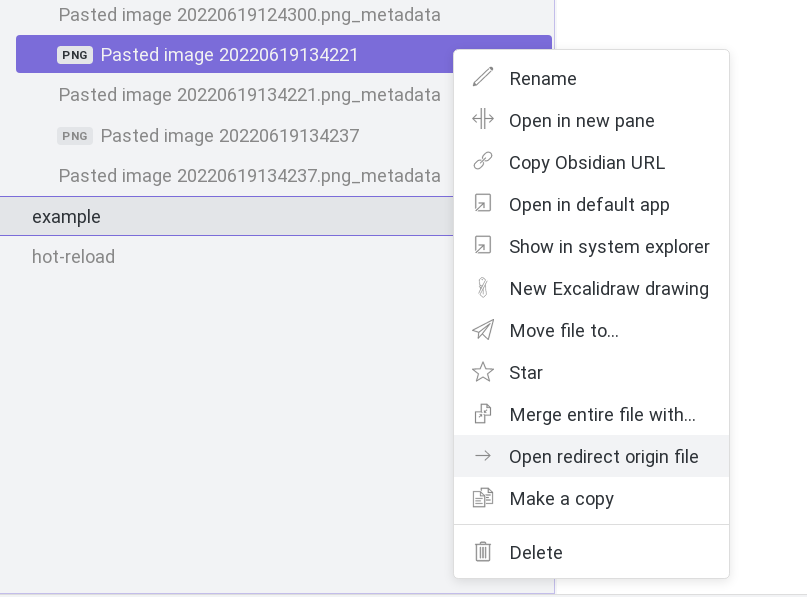
Right-clicking on a redirected file will present a Open redirect origin file option, which will open the file that configured the redirect, or will ask which of several files to open.
Dropping files from the system file explorer

The plugin adds a Status Bar button, Redirect drop.
In "Standard" mode, Obsidian works as normal. In "Open" mode, however, when dropping a file on an open editor window, if the file is already in the Vault and is a redirected file, Obsidian will open the file that configured the redirect, or ask which of several files to open. This behavior can facilitate using one's system's file explorer to aid in file management.
In "Open" mode, if a file is dropped and is either not part of the Vault, or has no redirects set up, no action is taken.
Drop mode can be changed by clicking on the Status Bar button, or by running the Redirect: Change mode command.
Hovering on images
On both desktop and mobile, hovering the mouse / long pressing on an image will expand that image temporarily, allowing one to see it better.
Installation
Manually installing the plugin
- Copy over
main.js,styles.css,manifest.jsonto your vaultVaultFolder/.obsidian/plugins/obsidian-redirect/.
From the Community Plugins list
- Search for "Redirect" in Obsidian's community plugins browser
- Enable the plugin in your Obsidian settings (find "Redirect" under "Community plugins").
- Check the "Redirect" settings tab. Add one or more patterns.
- (Optional) In the "Hotkeys" settings tab, add a hotkey for any of the "Redirect..." commands.
Development
Clone the repository, run yarn to install the dependencies, and run yarn dev to compile the plugin and watch file changes.
See https://github.com/obsidianmd/obsidian-api for Obsidian's API documentation.
License
This plugin's code and documentation is released under the BSD 3-Clause License.
Todo
Automated tests are not currently included in this code for this repository. Assistance in this, particularly using the Obsidian End-to-End testing approach, is especially welcome!