
- Overview
- Scorecard
- Updates2

Notionize
Write in Obsidian the way you write in Notion. Your notes stay plain Markdown.
Why
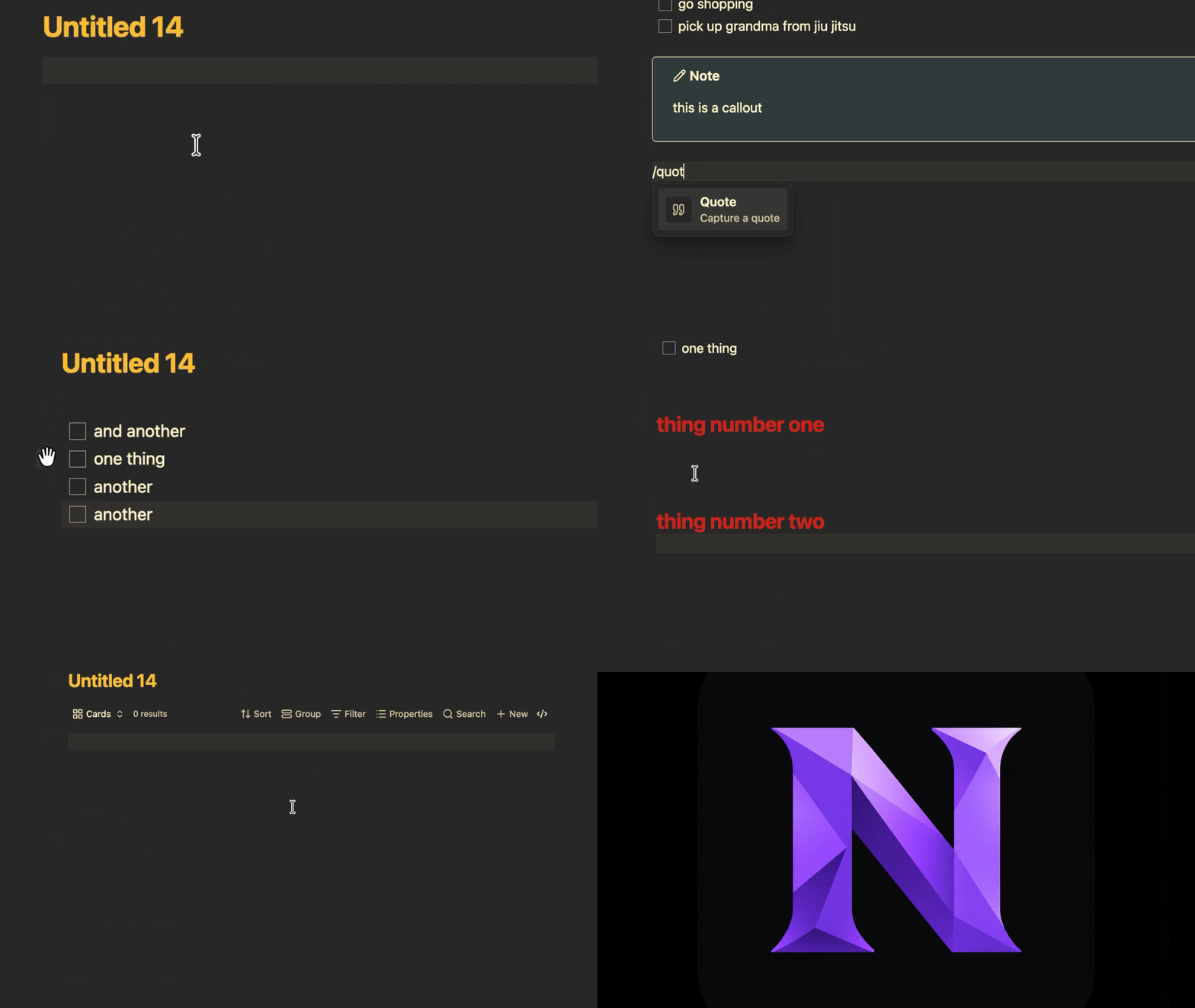
Many of us moved from Notion to Obsidian for local, file-based notes, but still miss how easy Notion feels to write in: a slash menu, blocks you can drag around, and no md syntax.
Notionize brings that editing experience to Obsidian without changing the final content of your files. Every block is written as standard Markdown, and if you disable the plugin your notes look exactly as they did before.
Features
Slash menu
Type / on an empty line and keep typing to filter. Pick with the arrow keys and Enter.
| Block | Aliases | What it writes |
|---|---|---|
| To-do list | todo, task, checkbox |
- [ ] |
| Heading 1, 2, 3 | h1, h2, h3 |
#, ##, ### |
| Bulleted list | bullet, ul |
- |
| Numbered list | numbered, ol |
1. |
| Toggle list | toggle, fold, dropdown |
+ with children indented below |
| Quote | quote |
> |
| Callout | callout, info, note |
> [!note] |
| Code | code, snippet |
a fenced code block |
| Divider | divider, hr, line |
--- |
| Table view | table, database |
an Obsidian Bases base block |
| Card view | cards, gallery, board |
an Obsidian Bases base block |
Table and card views list the notes of a folder you choose, using Obsidian's built-in Bases (Obsidian 1.9 or newer).
Drag handles
Hover a block to reveal its handle.
- Drag it to move the block together with everything nested under it. A ghost preview follows the pointer and a line shows where it will land.
- Drop on the lower half of a toggle's title to nest the block inside that toggle.
- Click it for the block menu: delete, duplicate, or turn the block into another type.
Markdown stays out of sight
In Live Preview, the syntax of the block you are editing is hidden: ## , > , - [ ] , > [!note] and code fences disappear, and only the content remains.
- To-dos show a real, clickable checkbox.
- Callouts are styled like the rendered callout while you type, with the right colour and icon for each type.
- Code blocks show a language label instead of fences.
Toggles
A toggle is a plain + list item with its children indented underneath. Click the triangle to fold or unfold it. Fold state lives in Obsidian and is never written to your file. Press Enter at the end of an open toggle's title to start its first child.
Installation
From the community directory
Once Notionize is approved: Settings → Community plugins → Browse, search for Notionize, then install and enable it.
Manual installation
- Download
main.js,manifest.jsonandstyles.cssfrom the latest release. - Create the folder
.obsidian/plugins/notionizeinside your vault and copy the three files into it. - In Obsidian, open Settings → Community plugins, enable community plugins if needed, and turn on Notionize.
Requirements
- Obsidian 1.9.0 or newer.
- Live Preview mode. In Source mode the Markdown stays visible, by design.
Usage
- Open a note in Live Preview.
- On an empty line, type
/and choose a block. - Hover a block and use its handle to move it or open its menu.
Development
git clone https://github.com/AvzLucas/notionize.git
cd notionize
npm install
npm test
| Command | What it does |
|---|---|
npm run dev |
Rebuilds main.js on every change |
npm run build |
Type-checks and builds the production main.js |
npm run deploy |
Builds, then copies the plugin into your vault |
npm test |
Runs the tests in watch mode |
npm run test:run |
Runs the tests once, as CI does |
To use npm run deploy, copy .env.example to .env and set OBSIDIAN_PLUGIN_DIR to /path/to/your/vault/.obsidian/plugins/notionize. Then reload the plugin in Obsidian.
How it is organised
The code is split so that the logic can be tested without Obsidian.
| Folder | Role |
|---|---|
src/core/blocks |
Pure TypeScript. Parses a document into a block tree: nesting, multi-line callouts, quotes and tables, code fences and front matter. |
src/core/ops |
Pure TypeScript. Every document edit as a function from text to text: move, backspace, delete, duplicate, convert, insert templates. |
src/editor |
CodeMirror 6 extensions: hidden syntax, widgets, toggles and folding, key handling and drag handles. |
src/features |
The Obsidian layer: the slash menu and the block menu. |
Tests and CI
The core is covered by Vitest unit tests that run against plain strings, with no Obsidian or DOM needed. GitHub Actions runs the build and the tests on every pull request and on every push to main.
Releasing
- Bump
versioninmanifest.jsonandpackage.json, and add the version with itsminAppVersiontoversions.json. - Commit and push to
main. - Push a tag with exactly the same version, for example
git tag 0.2.0 && git push origin 0.2.0.
The release workflow runs the build and tests, checks that the tag matches the manifest version, and publishes a GitHub release with main.js, manifest.json and styles.css attached.
Roadmap
- Optional Notion-style template, enabled from settings
- Columns
- Richer database views
Contributing
Issues and pull requests are welcome. Please run npm run build and npm run test:run before opening a pull request, and add tests for any change in src/core.
License
MIT © Lucas Vallerius