Notion Database Sync
 wj0s3ph720 downloads
Bidirectional sync between Markdown notes and multiple Notion databases.
- Overview
- Scorecard
- Updates5
Overview
Notion Database Sync is an Obsidian community plugin for syncing the active Markdown note with a selected Notion database.
It focuses on a narrow, observable workflow:
- push the current note to Notion
- pull the linked Notion page back into the current note
- keep mapped frontmatter properties in sync
- store the linked Notion page ID in frontmatter as
notionPageId
If only one database profile is configured, the plugin uses it directly. If multiple profiles are configured, the plugin asks you to select one.
Current feature set
- Manual sync for the active note from Obsidian to Notion
- Manual pull for the active note from Notion to Obsidian
- Property mapping between frontmatter keys and Notion properties
- One-click property list fetch from the target Notion database
- Notion property dropdowns in settings, so mappings do not require manual typing
- Immediate progress notices and clearer failure messages during sync
- English and Simplified Chinese UI copy, following the current Obsidian language
Supported property types
Writable Notion property types currently handled by the serializer and normalizer:
titlerich_textnumbercheckboxurlemailphone_numberdateselectmulti_selectstatus
Read-only or unsupported Notion property types are intentionally not written back:
created_bycreated_timelast_edited_bylast_edited_timeformularollupunique_idverificationbutton
Setup
- Create a Notion internal integration.
Open Notion integrations, click
+ New integration, choose the workspace, and create an internal integration. Only a workspace owner can create integrations for that workspace. - Enable the right capabilities for the integration. This plugin needs content access for the database you want to sync. In practice, enable read content and write or insert capabilities so the plugin can read pages, update pages, and create pages.
- Copy the integration token from the integration configuration page. Keep this token private. Do not commit it to source control or share it in screenshots.
- Share the target Notion page or database with the integration.
In Notion, open the page that contains the database, click the
...menu, chooseAdd connections, then select your integration. If the integration cannot access the parent page, API calls will fail even if the token is valid. - Find the Notion database ID. Open the database as a full page, copy its link, and extract the UUID in the URL. Notion accepts hyphenated and unhyphenated forms. This plugin lets you paste the database ID directly.
- Build or install the plugin into
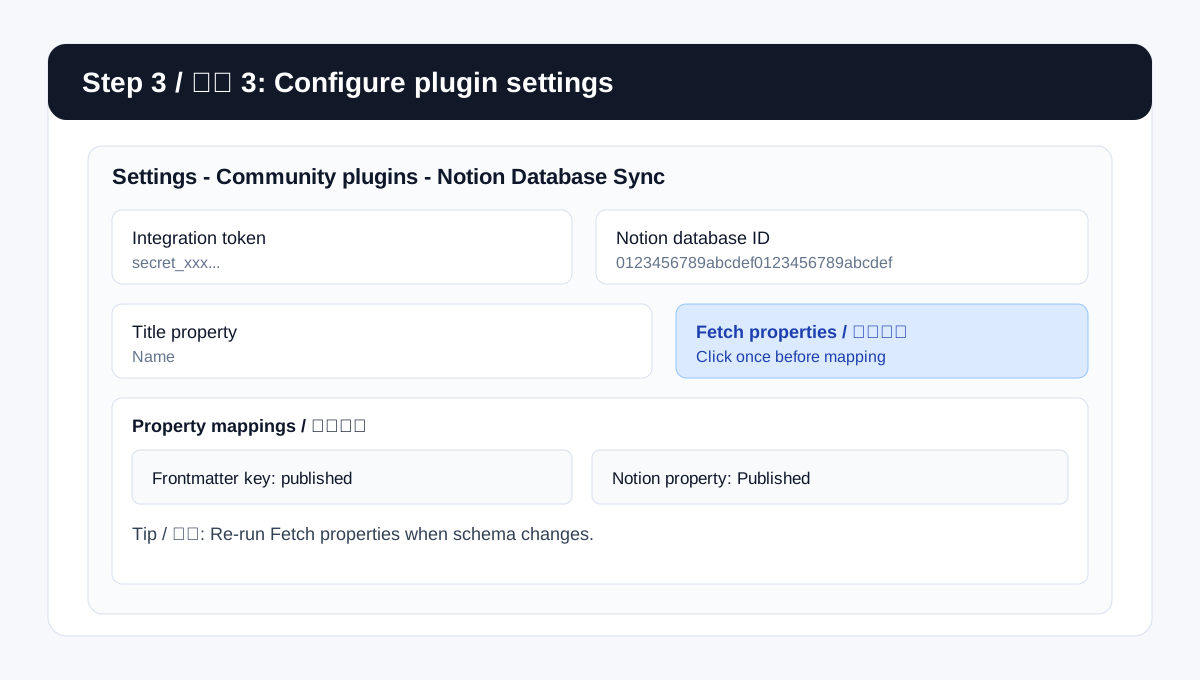
<Vault>/.obsidian/plugins/notion-database-sync/. - Open Settings → Community plugins → Notion Database Sync.
- Paste the integration token.
- Add a database profile.
- Fill in:
- profile name
- Notion database ID
- title property
- Click Fetch properties once. This reads the remote database schema and caches the available property names for the mapping dropdown.
- Add property mappings by entering a frontmatter key and selecting a Notion property from the dropdown.
Setup screenshots
The following images are setup illustrations that match the plugin flow.
- Create internal integration
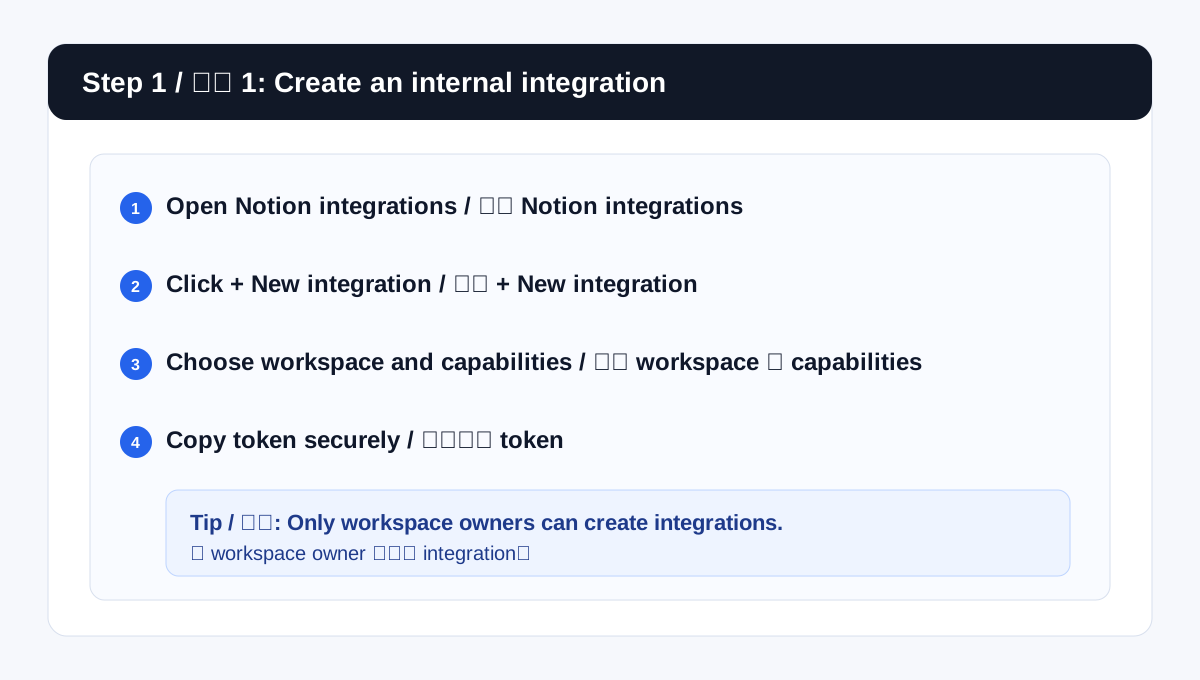
- Share database using Add connections, then copy database ID
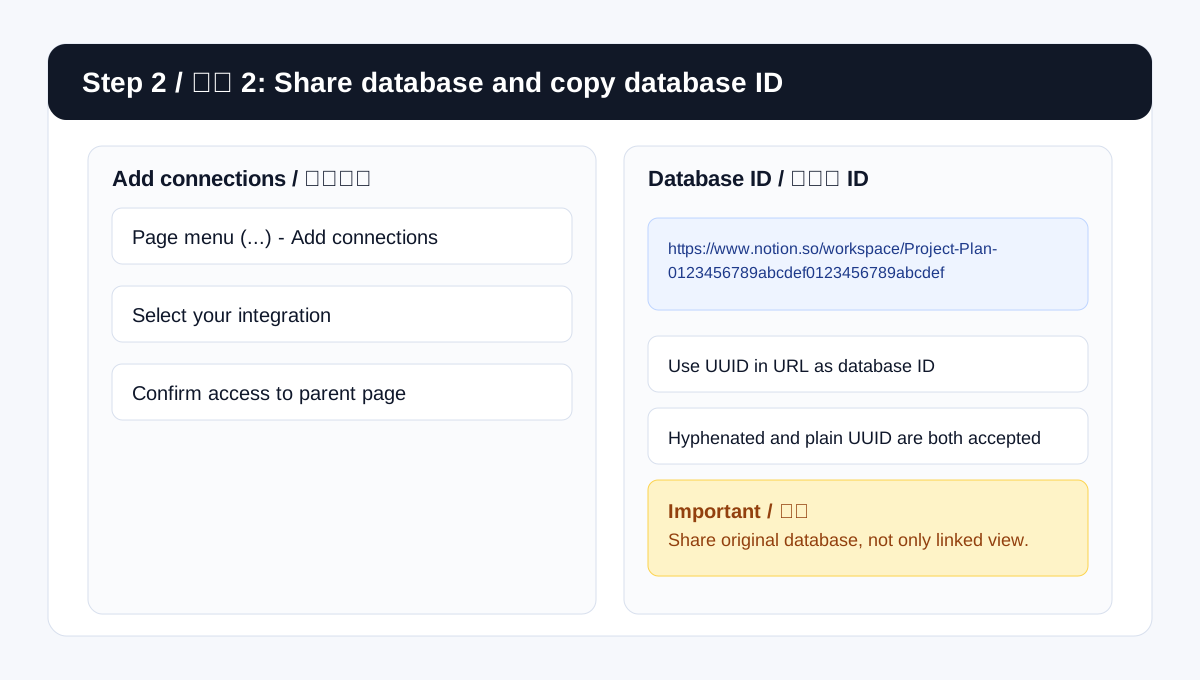
- Fill plugin settings and click Fetch properties
Notion-specific notes
- Notion now refers to many database containers as data sources in the API. The plugin still asks for a "database ID" because that matches how most users find the ID in Notion.
- If a mapped property depends on a relation, the related database may also need to be shared with the integration. Otherwise Notion may omit that property from the returned schema.
- Linked databases are not a separate source of truth for the API. Share the original database with the integration instead of a linked view.
Usage
- Use the ribbon icon or command Sync active note database to push the current note into Notion.
- Use the command Pull active note from Notion to overwrite the current note with the linked Notion page content and mapped properties.
- On first sync, the plugin creates a Notion page and writes
notionPageIdinto the note frontmatter.
Troubleshooting
Failed to fetchusually means the integration token is invalid, the target page or database was not shared with the integration, or the requested database ID is wrong.- If Fetch properties returns nothing useful, confirm you shared the original database, not only a linked database view.
- If relation-based properties are missing, share the related databases with the same integration as well.
- If sync creates or updates the page but mapped properties look wrong, verify the mapping names against the remote schema and re-run Fetch properties.
Known behavior
- This plugin currently focuses on active-note workflows. It does not expose a bulk "sync all databases" command.
notionPageIdis a built-in frontmatter key and is not configurable in settings.- Property types are derived from the remote Notion database schema. The plugin does not guess property types from frontmatter alone.
Development
npm install
npm run build
npm test
npm run build:release
Coverage is enforced at 70% for lines, statements, functions, and branches.
Release
Release assets are:
main.jsmanifest.jsonstyles.css<plugin-id>-<version>.zip
Build them with:
npm run build:release
Current release notes:
The repository includes .github/workflows/release.yml, which publishes release/* on SemVer tags such as 1.0.3.
Official Notion references
- Internal integration setup: https://developers.notion.com/guides/get-started/authorization
- Create an integration: https://developers.notion.com/docs/create-a-notion-integration
- Authentication: https://developers.notion.com/reference/authentication
- Retrieve a database: https://developers.notion.com/reference/retrieve-a-database
- Working with databases and data sources: https://developers.notion.com/docs/working-with-databases
- Notion Help Center overview: https://www.notion.com/help/create-integrations-with-the-notion-api