NoteBridge
 zzzhc23 downloads
Publish selected notes and images to a Hexo repository through GitHub.
- Overview
- Scorecard
- Updates3
NoteBridge
Publish Obsidian notes to your Hexo blog.
Articles and images · Covers and categories · Status checks · Multi-device sync · Conflict recovery
在 Obsidian 中,完成 Hexo 博客发布。
文章与图片 · 封面与分类 · 状态检查 · 多端同步 · 冲突恢复
Installation · Basic usage · 界面预览 · 使用指南 · 开发
NoteBridge is an Obsidian plugin that publishes Markdown notes and referenced images to a Hexo source repository through GitHub. It brings article previews, image uploads, cover and category selection, publishing status, withdrawals, deployment checks, and conflict recovery into one integrated control center.
NoteBridge 是一个面向 Hexo 的 Obsidian 发布插件。它将文章转换、图片上传、封面设置、分类选择、状态检查、撤回和部署查询集中到一个操作中心,让你无需离开笔记库,也能清楚完成每一次发布。
[!NOTE] NoteBridge 0.1.10 stable supports Obsidian on desktop and mobile. Back up your notes and publishing records before important operations.
NoteBridge 0.1.10 正式版,支持 Obsidian 桌面端与移动端。进行重要发布操作前,建议备份笔记与发布记录。
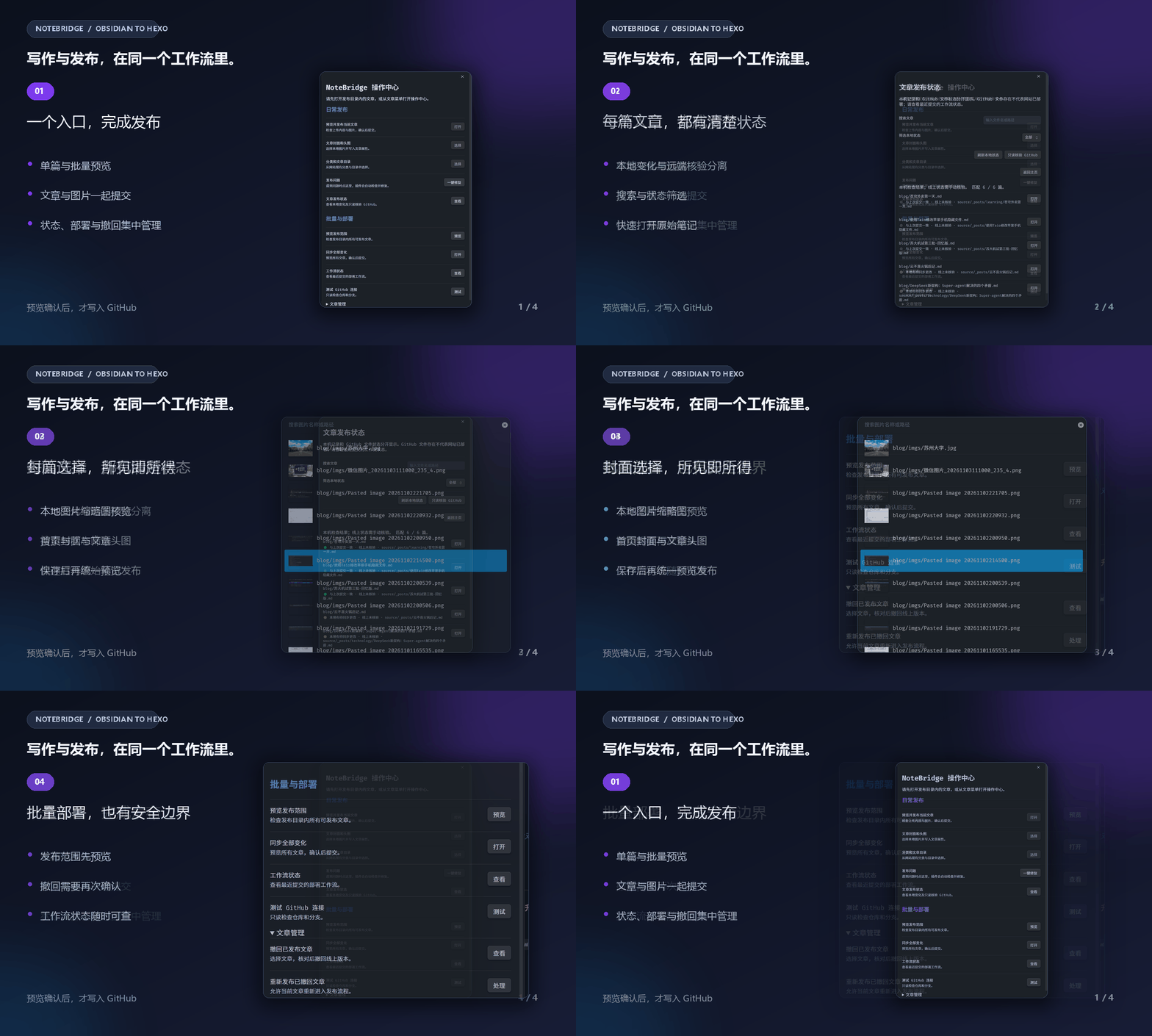
从笔记到网站:预览、确认、发布,在同一个工作流里完成。
功能一览
| 能力 | 说明 |
|---|---|
| 单篇与批量发布 | 发布前展示文章、图片、目标路径和完整上传副本,确认后才提交到 GitHub。 |
| 图片与封面管理 | 收集文章引用的本地图片,通过缩略图选择 Fluid 首页封面和文章页头图。 |
| 分类与目录选择 | 只读扫描 Hexo 仓库已有分类和目录,分别设置网页分类与 Markdown 保存位置。 |
| 状态与部署检查 | 搜索、筛选本地发布状态,只读核验 GitHub 文件,并查询对应提交的 Actions 工作流。 |
| 撤回与重新发布 | 明确核对后撤回线上文章;撤回记录可跨设备同步,恢复发布仍需再次确认。 |
| 多端同步与恢复 | 通过 Vault 同步记录协调多台设备,提供冲突比较、中断核对、备份及损坏记录恢复。 |
| 安全发布 | 检查附件越界、目标冲突、远端变化、目录树截断和未解决合并冲突,无法确认时停止写入。 |
| 无遥测 | 不收集使用数据;GitHub 凭据由 Obsidian SecretStorage 管理,插件设置只保存密钥名称。 |
技术栈
- 界面与平台:Obsidian Plugin API、Modal、FuzzySuggestModal、SecretStorage。
- 发布与协作:GitHub Git Data API、Actions API、Hexo 文件结构、Fluid Frontmatter。
- 语言与工程:TypeScript、Node.js、esbuild、ESLint。
- 文档展示:本地 PNG 截图与 GIF 动画,不依赖 JavaScript 或 Lottie 播放器。
Installation
Requirements
- Obsidian 1.11.4 or later on desktop or mobile.
- A GitHub repository containing your Hexo source files.
- A GitHub fine-grained personal access token with access to that repository.
Install manually
- Download
manifest.json,main.js, andstyles.cssfrom the NoteBridge 0.1.10 release. - Copy all three files into the
.obsidian/plugins/notebridge/folder inside your Obsidian vault. - Restart Obsidian and enable NoteBridge under Settings → Community plugins.
- When updating, replace all three files together so they remain on the same version.
You do not need Node.js, Git, or a separate server to use the plugin.
中文安装说明
环境要求
- Obsidian 1.11.4 或更新版本。
- 一个用于 Hexo 源码的 GitHub 仓库。
- 具有目标仓库权限的 GitHub fine-grained personal access token。
手动安装
- 下载仓库根目录的 manifest.json、main.js 和 styles.css。
- 将三个文件放入 Vault 的
.obsidian/plugins/notebridge/目录。 - 重启 Obsidian,在“设置 → 第三方插件”中启用 NoteBridge。
- 更新插件时同时替换这三个文件,确保它们来自同一版本。
最终用户不需要安装 Node.js、Git 或独立服务器;只有参与开发时才需要 Node.js。
Basic usage
- Create a fine-grained GitHub token limited to your Hexo repository. Grant Contents: Read and write; optionally grant Actions: Read-only for deployment status.
- Add the token to Obsidian SecretStorage, then select that credential in the NoteBridge settings. Never store the token in notes or synchronization records.
- Configure your repository, branch, publishing folders, site root, image URL path, and workflow filename. The default folders are
blog,source/_posts, andsource/imgs. - Place Markdown notes in
blog/and referenced local images inblog/imgs/. - Open NoteBridge: Control Center from the ribbon or the article context menu, then choose Preview and publish current article.
- Review the converted article, images, and destination paths. Nothing is written to GitHub until you explicitly confirm the publishing snapshot.
- After publishing, open the workflow status to follow the deployment associated with that commit.
中文配置与发布说明
1. 准备 GitHub 凭据
创建仅访问目标仓库的 fine-grained PAT,并授予:
- Contents: Read and write:读取和发布文章、图片。
- Actions: Read-only:可选,用于查询部署工作流。
在 Obsidian 密钥存储中添加 token,再到 NoteBridge 设置中选择对应凭据。不要把 token 写入笔记、同步记录或聊天内容。
2. 配置发布路径
| 设置 | 默认值 | 用途 |
|---|---|---|
| GitHub 仓库 | 空 | 格式为 所有者/仓库。 |
| 源码分支 | main |
Hexo 源码所在分支。 |
| 发布根目录 | blog |
Obsidian 中允许发布的笔记目录。 |
| 文章目标目录 | source/_posts |
Hexo Markdown 保存位置。 |
| 图片目标目录 | source/imgs |
Hexo 图片保存位置。 |
| 站点 root | / |
网站部署的子路径。 |
| 图片公开 URL 路径 | imgs |
上传副本使用的图片公开路径。 |
| 部署工作流文件 | pages.yml |
需要查询的 GitHub Actions 工作流。 |
3. 发布第一篇文章
- 将文章放入
blog/,本地图片放入blog/imgs/。 - 点击左侧 NoteBridge 图标,或从文章右键菜单打开“NoteBridge:操作中心”。
- 选择“预览并发布当前文章”,检查上传内容、图片和目标路径。
- 点击“测试 GitHub 连接”确认仓库与分支可用。
- 确认预览后提交,再通过“工作流状态”检查部署进度。
NoteBridge 不会自动发布。每一次 GitHub 写入都需要你明确确认。
界面预览
| 文章发布状态 | 封面图片选择 | 批量与文章管理 |
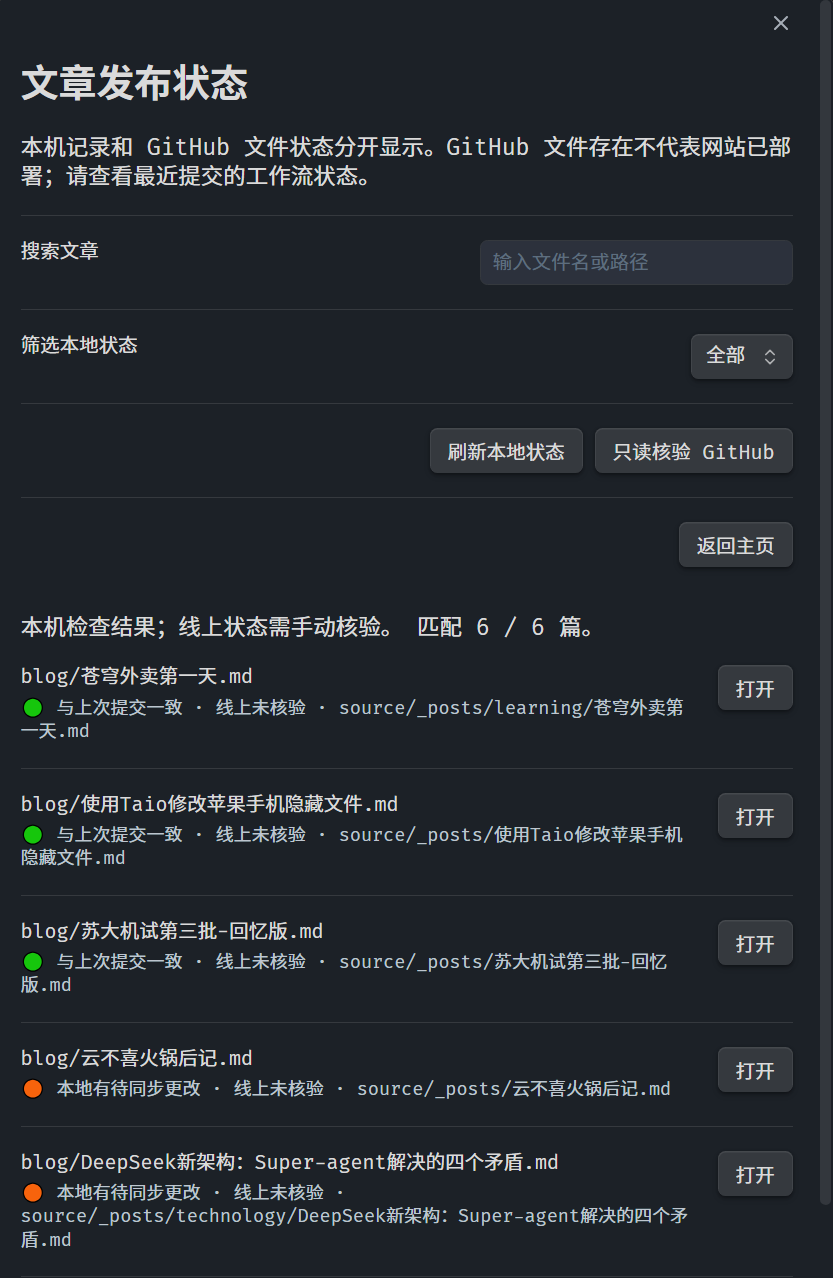
|
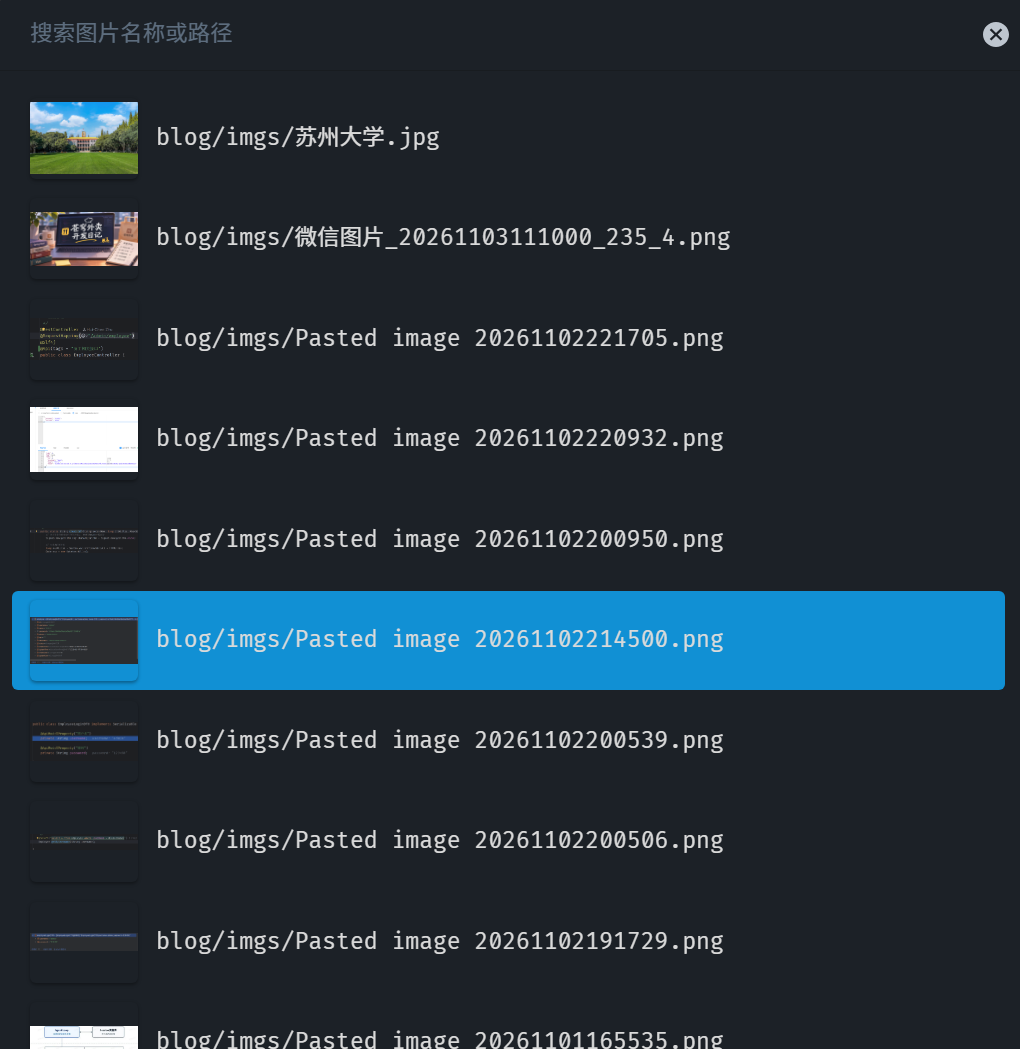
|
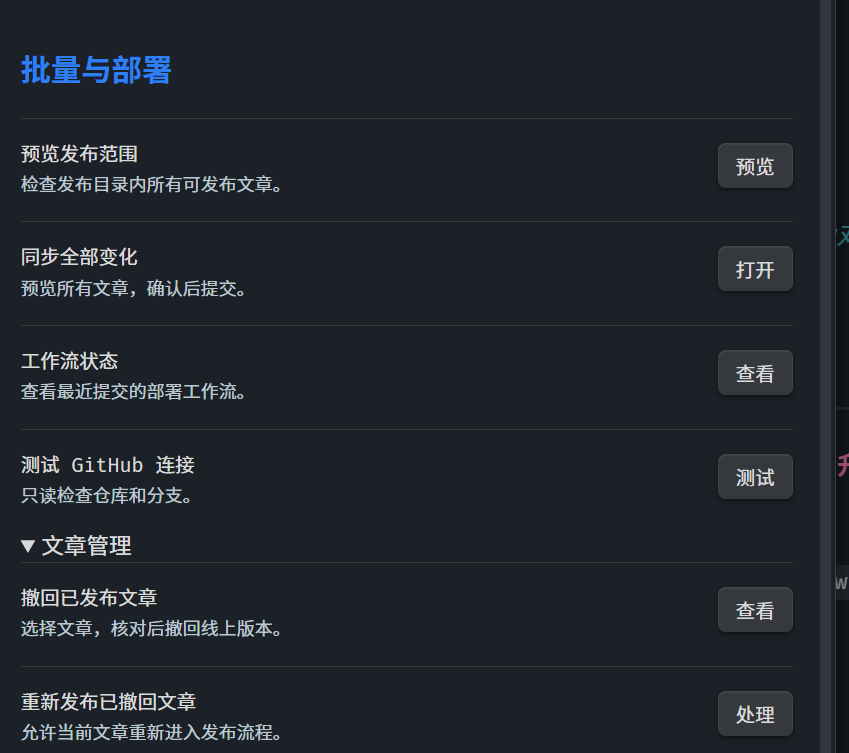
|
使用指南
封面和头图
“Fluid 文章封面和头图”默认开启。打开文章后,在操作中心选择“文章封面和头图”,即可通过缩略图选择图片,并设置为:
index_img:首页文章封面。banner_img:文章页头图。- 同时使用封面和头图。
也可以手动填写 Frontmatter:
---
index_img: "[[imgs/封面图.png]]"
banner_img: "[[imgs/封面图.png]]"
---
本地图片必须位于发布根目录内的 imgs/ 文件夹。保存选择只修改本地文章属性,之后仍需预览并发布;图片缺失、路径越界或目标冲突会阻止上传。实际显示效果取决于 Fluid 主题配置。
分类和文章目录
插件只读扫描仓库已有文章的 categories 或 category 属性,并列出文章目标目录下的现有文件夹:
- 网页分类会替换当前文章的原有分类。
- 仓库目录决定 Markdown 文件的保存位置。
- 两者分别设置,保存后仍需预览并手动发布。
- 已发布文章的远端路径保持固定,不能通过目录选择器直接迁移。
状态与部署
“文章发布状态”支持按路径搜索和按本地状态筛选,最多显示前 200 条结果。插件分别展示本地记录与 GitHub 核验结果,避免把“GitHub 文件存在”误认为“网站已经部署”。
提交后,插件按本次 SHA 查询指定工作流,每 15 秒检查一次,最多持续 10 分钟。工作流成功只代表对应运行成功,仍需确认其中包含实际部署步骤。
撤回与重新发布
撤回前会显示本地文章、远端路径和目标分支,确认后才创建删除提交。本地文件与远端图片会保留,旧内容仍存在于 Git 历史中。
撤回事件会写入同步记录,防止旧设备快照恢复已撤回的关联。需要重新发布时,先完成各设备同步,再在操作中心的“文章管理”中明确允许重新发布,随后重新预览并提交。
冲突处理与恢复
当远端文章与本机基线不一致时,运行“比较并合并当前文章的发布冲突”:
- 对比上次发布版本、本次上传副本和 GitHub 当前版本。
- 自动合并不重叠的修改,手动处理冲突标记。
- 检查合并结果并进入发布预览。
- 提交前再次核对远端版本和本地原文。
合并只修改上传副本,不会直接覆盖 Obsidian 本地笔记。操作中心的“一键修复”可处理能够安全确认的记录与中断;无法安全判断时会要求人工核对,不会强行覆盖远端文件。
多设备同步与数据安全
- 每台设备都需要安装相同版本的插件,并分别配置 GitHub 凭据。
- 插件在 Vault 根目录的
NoteBridge同步记录/中保存各设备记录,可通过坚果云等工具同步。 - 同步记录包含仓库配置、文章与图片路径、发布哈希;冲突合并记录还可能包含已发布文本,但不包含 token。
- 首次预览会为文章写入随机
notebridge_id,用于识别重命名和跨设备记录;该字段不会进入上传副本,请勿复制或手动删除。 - 每次写入同步记录前会保留
.backup;损坏记录需要明确恢复,不能通过删除记录绕过检查。 - 发布前请等待文章、图片和同步记录完成同步。插件无法替代同步工具,也无法自动解决两端同时编辑造成的笔记冲突。
查看完整发布规则与当前限制
文章与附件范围
- 只扫描发布根目录下的 Markdown,排除任何层级
imgs内的 Markdown。 draft: true、publish: false、published: false的文章会跳过。- 支持 png、jpg、jpeg、gif、webp、svg、avif;只上传发布根目录内
imgs/中被引用的本地图片。 - HTTP(S) 图片保留原样,不会由插件下载或上传。
- 附件缺失、路径越界、目标碰撞、远端变化或目录树截断会阻止发布。
- 相同内容不会生成新提交;空目录不会被当作删除文章的依据。
Markdown 转换
- 默认移除 Obsidian
%%...%%注释和 HTML 注释,保留代码块、行内代码和 Hexo 的<!-- more -->。 - 未闭合注释会阻止发布;
<!-- more -->不应包含私密内容。 - 支持简单 Markdown 图片和 Obsidian 图片嵌入,上传副本会移除尺寸标记。
- 复杂图片、引用式图片、普通 Obsidian 文章链接、笔记嵌入及 HTML 图片会报错。
- 相对 Markdown 笔记链接不会自动改写,预览时需要人工核对网站路径。
- 不支持 Dataview 渲染;自定义公开字段中的图片不提供通用识别。
cover、banner、thumbnail字段会阻止发布,请使用插件支持的 Fluid 字段。
Frontmatter 与提交
- 默认公开字段为
title、date、updated、tags、categories、permalink。 - 控制字段和
notebridge_id始终从上传副本移除。 - 缺少
title时使用文件名;首次准备日期会保存在本机状态中。 updated只保留原值,不会自动计算当前时间。- 插件使用 Git Data API 创建 blob、tree、commit,并以非强制方式更新分支。
- 写请求串行执行且开始时间至少间隔 1 秒;限流或结果不明确时不会盲目重试。
- 不会自动删除远端文件;撤回必须单独核对并确认。
尚未覆盖的能力
- 未实现自动监听、持久化发布队列、自动退避重试和暂停/恢复。
- 首页排序由 Hexo 和主题管理,NoteBridge 不修改网站排序脚本。
故障排查
| 情况 | 建议操作 |
|---|---|
| 远端文章与基线冲突 | 打开文章,比较三个版本并合并;不要通过删除同步记录强行覆盖。 |
| 本地或远端附件缺失 | 补齐文件后重新预览,确认图片位于发布根目录内的 imgs/。 |
| 返回 401 或 403 | 检查 token、仓库范围以及 Contents / Actions 权限。 |
ERR_CACHE_READ_FAILURE |
插件会对只读请求绕开缓存重试一次;仍失败时在分类窗口点击“重新读取”或重启 Obsidian。 |
| 提交结果无法确认 | 不要盲目重试,先核对 GitHub,再使用操作中心的恢复与修复能力。 |
| 存在旧重复发布记录 | 等待各设备同步后,比较两个远端版本,确认属于同一文章再清理旧关联。 |
| 远端旧记录已不存在 | 使用“核对远端已删除的旧发布记录”,确认不是尚未同步的改名文章后清理关联。 |
更多文档
开发
npm ci
npm run build
npm run lint
构建输出为根目录的 main.js,安装时还需 manifest.json 和 styles.css。
网络与隐私
NoteBridge uses api.github.com to read the configured repository, branch, and Actions status, and writes only the confirmed article snapshots and images. To provide batch previews, publishing status, and cover selection, it enumerates note and image paths in the vault and reads files required for those operations. Publishing baselines and initial preparation dates are stored in Obsidian localStorage and vault synchronization records. NoteBridge does not collect telemetry.
NoteBridge 使用 api.github.com 读取配置的仓库、分支和 Actions 状态,并在确认后写入选中的文章转换副本和图片。为提供批量预览、发布状态和封面选择,插件会枚举 Vault 中的文章与图片路径,并读取这些功能所需的文件。发布基线与首次准备日期保存在 Obsidian localStorage 和 Vault 同步记录中。插件不提供遥测;远端内容和 Git 历史由 GitHub 及你的仓库权限管理。
许可
NoteBridge 使用 Apache License 2.0。打包组件及其许可证见 THIRD_PARTY_NOTICES.md。