Native Slides
 Losk371 downloads
Slides mode for deck notes: an immersive, editable card view with a slides bar for properties and PPT-style navigation, driven by one deck property.
- Overview
- Scorecard
- Updates10
English | 简体中文
An Obsidian plugin that turns deck notes into Slides: an immersive, editable (Live Preview) "one screen = one card" view with a slides bar for properties and PPT-style navigation — driven by a single frontmatter property.
Design principles — zero intrusion, native editing, a next-link chain, and an adjustable surface; no persistence beyond configuration, and efficient, idiomatic code. See docs/design.md.
Features
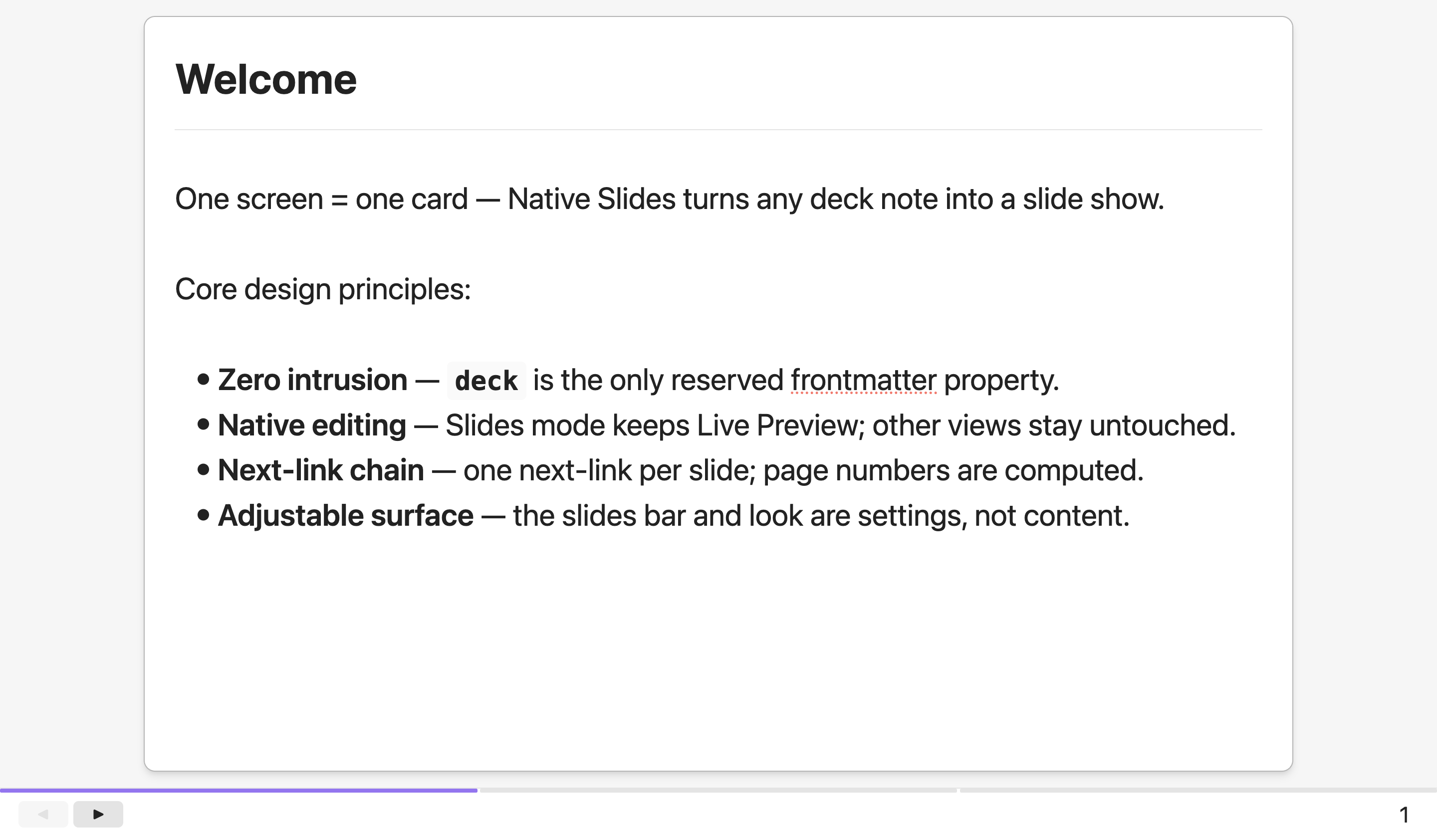
Slides mode (deck notes only): an immersive, editable card view — "one screen = one card". Enter with the Toggle Slides Mode command (default hotkey
Mod+Shift+E); the ribbon, sidebars and tab bar hide, the slide content sits in a centered card (80vw wide, capped to the editor pane so the card never overflows it, theme-adaptive) whose look you choose from six built-in style templates — Lecture (jyy) (default, modeled after the slideshow cards of jyywiki.cn lecture notes), Dashed outline, Paper card, Minimal, Accent edge and Frosted glass — each restyling the card and the slides bar; the file name is hidden by default, and a Slides title setting can show any frontmatter property (orfilenamefor the file name) as the card title — the filename title is editable right on the card (click it and type — this renames the note, just like the native inline title), while property-backed titles render read-only (edit the property in the note's properties panel), the editor clips to a single screen (no scrolling — content beyond the fold is clipped) and always opens at the top of the note, and a slides bar shows the configured bar properties, ◀ ▶ navigation and the auto-computed page number. Exiting restores the view you came from (Source / Live Preview / Reading).Native modes stay untouched: Source mode, the default Live Preview and Reading view keep Obsidian's default behaviour — no status-bar hiding, no slides bar, no fullscreen, no styling. Slides mode is the plugin's only surface, so it coexists cleanly with other plugins that also modify the reading view.
PPT-style deck navigation with one reserved frontmatter property,
deck(next-only: at most one markdown link — the next slide; no overview page):# Slide — one link = the next slide deck: ["[[slide-2]]"] # Last slide — no link (empty list) deck: []- Page numbers are auto-computed by walking the link chain (head slide → slide 2 → …), 1-based: the head slide is page 1, so no
page-numberproperty is needed. - Flip pages with the ◀ ▶ buttons in the slides bar, or with the Previous Page / Next Page commands (default hotkeys
Cmd/Ctrl+Shift+←/→, rebindable under Settings → Hotkeys). Pressing them from a native mode enters Slides mode and flips. Both arrows are always shown; the one that cannot move (first page's ◀, last page's ▶) is disabled and light gray. - Create Next Slide command (deck notes only): creates a new slide right after the current one — the file is named
<current>-next(collision-aware:-2,-3, …), thedecklinks are rewired automatically, and the new note opens ready for content. If the current note'sdecklink points to a missing note, that exact note is created instead (fixing the ⚠ warning). - Create New Slide command (notes not in any deck): starts a brand-new deck — a fresh note (
untitled-slides, collision-aware) is created as its first page withdeck: []; the note you ran it from stays untouched. Works from a blank tab too (the note lands in your default location for new notes). Grow the deck by running Create Next Slide from inside it. - Initialize Slides with This Note command (notes not in any deck): promotes the active note into the head of a brand-new deck — content, title and location stay put, and
deck: []is written onto its frontmatter (a single-slide deck). Handy when you drafted long-form first (lecture material, project notes) and want to present it: run it and Slides mode auto-enters so the result is immediately visible. The command only appears in the command palette on notes that are not yet part of a deck, so it never shows misleadingly on deck notes.
- Page numbers are auto-computed by walking the link chain (head slide → slide 2 → …), 1-based: the head slide is page 1, so no
Presenting without a blinking caret: click the slides bar to move focus out of the editor — the caret disappears while you talk; click any slide content to resume editing. The Toggle Mouse Pointer command (
Mod+Shift+M) goes one step further and hides the mouse pointer window-wide (focus parked too); run it again to restore, and leaving Slides mode always restores it.Configurable bar properties: choose which frontmatter properties appear in the slides bar and in what order. Settings → Bar properties accepts a comma-separated list (e.g.
series, level, date); each value fills an equal-width column, and draggable dividers between columns let you resize them interactively (widths persist across sessions). Empty = no property columns. Missing properties are skipped silently. Column typography matches the page number (both scale with the bar height); columns render muted while the page number stays prominent.Auto-enter Slides mode (settings, default off): open deck notes straight into Slides mode; leave off to enter manually.
Center images on slides (settings, default on): images render centered on the slide as a card block exactly as tall as the picture. Turn the setting off for Obsidian's usual behavior — images stay inline with the text (a small image and its caption sit on the same row).
Copy AI agent prompt command (inside Slides mode): copies an AI-ready prompt to the clipboard — plugin context first (how a deck works: one screen = one card, the
deckchain property, Create new/next slide), then the measured layout of the live view: the real text area (minus slides bar and card title), how many lines and how many latin/CJK characters per line fit one screen, the measured line box of each element type (H1/H2/H3, body, bullet, code, first image), and capacity examples: "20 body lines", "H1 + 19 bullets", and so on. Follows the Obsidian UI language — use it when asking an AI for slides: paste the prompt after your request (e.g. "For , make slides notes").A settings tab picks the style template, configures bar properties, and toggles the ◀ ▶ buttons, the page number, and auto-enter.
Broken deck-link warnings: if a
decklink points to a note that doesn't exist, the slides bar shows a ⚠ warning chip so authors can spot typos (the chain simply ends or excludes the link).Commands: Toggle Slides Mode (
Mod+Shift+E), Previous Page / Next Page (Mod+Shift+←/→), Create Next Slide (Mod+Shift+N), Create New Slide, Initialize Slides with This Note, Copy AI Agent Prompt, Show Slides Panel, Toggle Mouse Pointer (Mod+Shift+M), and Toggle Slides Bar — all rebindable under Settings → Hotkeys. Commands are context-aware: deck-navigation commands (Previous Page / Next Page, Create Next Slide) and Toggle Slides Mode appear only on deck notes, Initialize Slides with This Note only on notes not yet in a deck, and the Slides-mode-only commands (Toggle Slides Bar, Toggle Mouse Pointer) only inside Slides mode.
Slides panel (sidebar)
Since v1.0.0 there is no overview page — the slides panel takes over the "see the whole deck" role. Run the Show Slides Panel command (or click the presentation ribbon icon) and a sidebar view lists every slide of the active note's deck in chain order, numbered; clicking an entry opens that slide. The list follows the active note and stays in sync with deck edits.
Right-click an entry for a context menu with Create next slide — same behavior as the command, but relative to the right-clicked slide (the new ⟨slide⟩-next note is wired in between, and stays unopened) — and Delete slide, which moves the note to your configured trash (vault trash or OS trash, per Settings → Files & links) and splices the chain (the predecessor's deck link jumps over the deleted slide). To delete several slides at once, hold Cmd/Ctrl to build a selection (again on an already-selected item to remove it — the only way to cancel an item) or Shift to range-select; Shift ranges always include the slide you are currently viewing, and the first Shift+click extends from it when nothing was selected yet. Right-click an already-selected entry — the menu then shows Delete N slides. Deleting a slide that is currently open moves the editor to the nearest surviving slide (next one preferred, previous one as fallback). A confirmation dialog lists what will be deleted; tick Don't ask again or toggle Settings → Confirm slide deletion (default on) to skip it.
Move a slide by dragging its entry: a 2px accent line marks the gap it would land in (above the first entry and below the last one included), the entries being moved dim while a copy follows the pointer, and Escape cancels. Dragging an entry that is part of the selection moves the whole selection as one block, keeping the relative order of the slides you did not pick; dragging an entry outside it moves just that slide and clears the selection. The context menu offers the same two moves as Move slide up / Move slide down — shown as Move N slides up / Move N slides down when a selection is being moved — disabled at the ends of the chain, acting on the same set. A move rewrites the deck links of the slides whose next link actually changed (every other note keeps its frontmatter byte-for-byte), and the panel, the slides bar's page number and ◀ ▶ navigation follow the new order immediately. The panel scrolls when the deck is taller than the sidebar, and a drag near its top or bottom edge scrolls it for you. Two things to know: a move writes frontmatter, which Cmd/Ctrl+Z does not undo — move the slide back instead — and it needs the panel visible, because Slides mode hides both sidebars: sorting is an editing-time action.
Example vault
The demo notes live in example-vault/, the Obsidian vault you open to try the plugin. It holds a three-page demo deck — Welcome.md (the short design-principles intro, no bar properties), Make it yours (the settings guide; carries series / level / date as the Bar properties demo), Grow the Deck.md (the last page, deck: []) — file names match the slide titles shown on the cards — plus a demo-image.png used by the test notes. Under example-vault/tests/ there is typography-demo.md (a Markdown kitchen sink for Slides-typography testing) and five typography-sample-*.md notes (fixed one-page fixtures consumed by the dev-only Debug: Dump Typography Styles command — do not rename or remove them). The vault carries a minimal .obsidian/ configuration — the demo look (baseFontSize 23, default theme) and the plugin's demo settings (Lecture (jyy) template, series, level, date bar properties) — and a plugin folder whose files are symlinks to the repository root, so the example vault always runs the current build.
Symlinks require filesystem support (macOS/Linux work out of the box; on Windows enable Developer Mode). If symlinks are unavailable, copy
main.js,manifest.json,styles.cssintoexample-vault/.obsidian/plugins/native-slides/.
Getting started
- Open the example vault: Obsidian → Open another vault → select the
example-vault/directory inside this repo. - Allow community plugins: Settings → Community plugins → Turn off Safe mode (one-time, manual).
- Enable Native Slides under Settings → Community plugins.
Open Welcome.md and press Cmd/Ctrl+Shift+E to enter Slides mode — the slides bar shows the ◀ ▶ buttons and page number (the configured bar properties appear on Make it yours). Press Cmd/Ctrl+Shift+→ to go to the next slide, and run Show Slides Panel to see the whole deck.
Demo deck: Welcome.md → Make it yours.md → Grow the Deck.md.
Documentation
- Design principles & how it works (简体中文) — the four design principles that guide every change, and the implementation mechanics: how Slides mode hides the chrome, resolves the deck chain, computes page numbers, and the create-* commands.
- Development (简体中文) — building the plugin (npm scripts), the dev loop with Obsidian reload, testing in
example-vault/(the only vault anything here is tested against), the dev-only typography debug tooling, thesrc/module layout, and the AI agent skills in.agents/skills/(this repo's own workflow skills plus the vendored mattpocock/skills set).
Known limitations
- Desktop only — the plugin targets the Obsidian desktop app; mobile is not supported.
- Slides mode applies only to deck notes (notes with a
deckproperty); all other notes are left fully native. - Properties come from frontmatter (the
---YAML block at the top); inlinekey:: valueproperties are not read. deckis a reserved key name; thepositionkey is also reserved and hidden from the slides bar (it can be used by other tools without cluttering the bar).- The Previous Page / Next Page default hotkeys shadow the editor's "select to line start/end" shortcuts in edit view while a deck note is open; on plain notes they no longer interfere (those commands only act on deck notes). Remove them in Settings → Hotkeys if you don't need page navigation.
- Quote link values in YAML (
deck: ["[[slide-2]]"]) — unquoted[[...]]becomes a nested YAML array (the plugin tolerates it, but quoting is the correct form). - A move writes a rewritten
decklink in the bare[[basename]]form (as Create Next Slide and Delete slide do), so a path-qualified or aliased link that has to change loses that form. - The deck chain must not contain cycles; a broken link simply ends (or excludes) the chain.
License
Released under the MIT License. Copyright (c) 2026 Yuanhui Luo.
Credits
- Lecture (jyy) style template: modeled after the slideshow cards of jyywiki.cn by Yanyan Jiang. The card geometry (80vw width, soft shadow, thin bottom rule on headings, disc bullets with constant marker-to-text gap, list item spacing) is adapted from Jiang's lecture notes design.