Moyu Mode
 bugstack2714 downloads
Open web pages as workspace tabs and switch back to your notes when the cursor leaves the page.
- Overview
- Scorecard
- Updates2
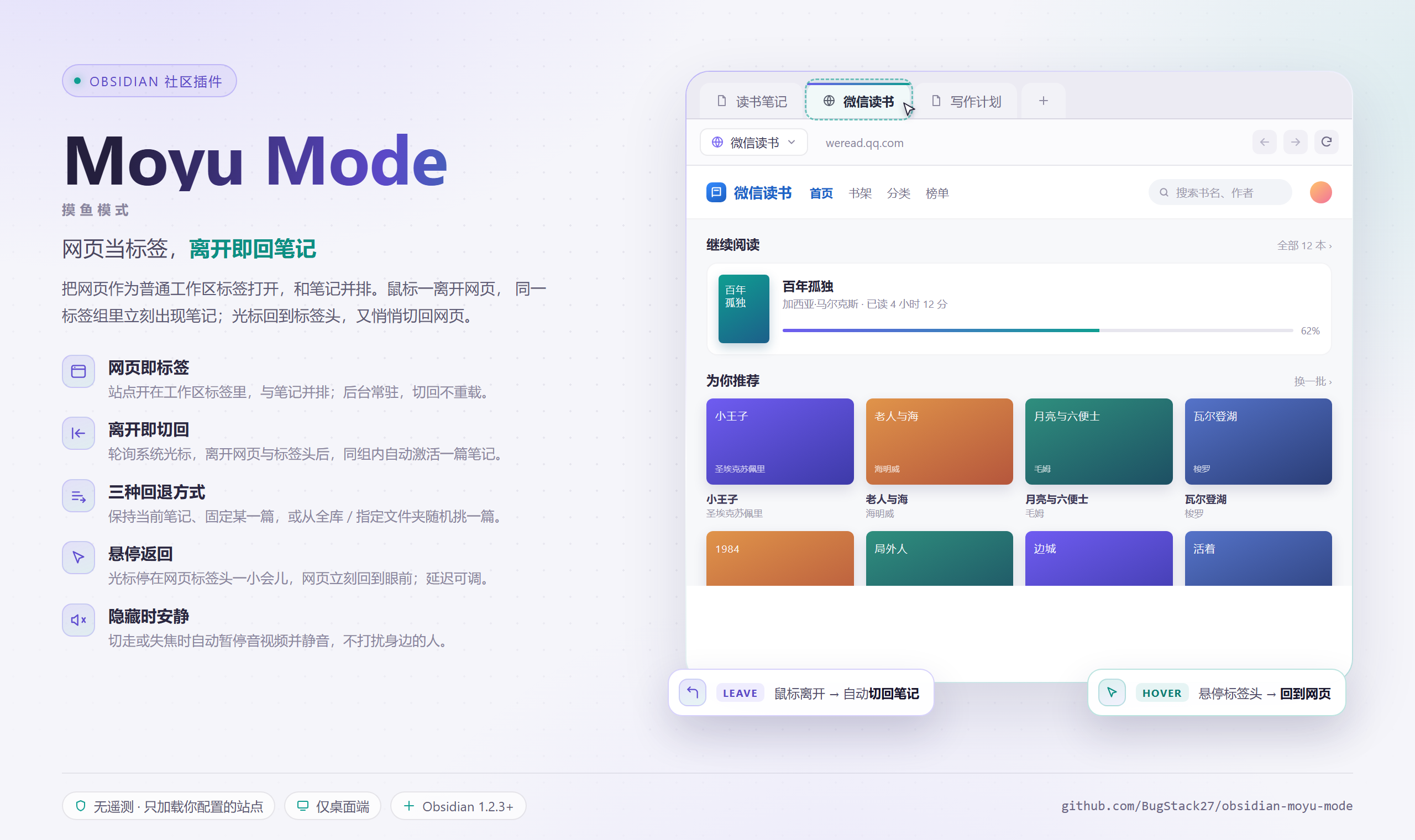
An Obsidian plugin that opens a website as a workspace tab and switches back to your notes as soon as the cursor leaves the page.
Features
- A website as an ordinary tab — open a configured site in a workspace tab, next to your notes. The web page stays alive in the background, so switching back does not reload it.
- Switch back when the cursor leaves — a web page swallows mouse events, so the plugin polls the global cursor position. Once the cursor leaves both the page area and its tab header, a note is activated in the same tab group.
- Three fallback modes — keep the last active note (falling back to any open note, then the most recently opened file), always jump to one fixed note, or open a random note from the whole vault or from selected folders. The last ten random notes are avoided until the pool runs out.
- Come back by hovering — hover the tab header for a configurable delay to return to the page, or click the tab as usual.
- Quiet while hidden — pause playing media and mute the page when the tab is hidden or Obsidian loses focus (optional).
- Toolbar — site switcher, current address, back, forward and reload.
target="_blank"links open in the same tab instead of popping a new window. - Self-explaining empty state — when no site is configured, the tab says so and offers a button into the settings.
Installation
Install through BRAT:
- In Settings → Community plugins, turn off restricted mode, then install and enable BRAT.
- Open the BRAT settings and choose Add beta plugin.
- Enter the repository:
BugStack27/obsidian-moyu-mode - Confirm, wait for BRAT to fetch the latest release, then enable Moyu Mode in Settings → Community plugins.
Manual install: download main.js, manifest.json and styles.css from Releases, put them in <vault>/.obsidian/plugins/moyu-mode/, restart Obsidian and enable the plugin.
BRAT installs a published release. If the release is still a draft, publish it first.
Usage
- Open Settings → Moyu Mode and add a site: a name and its URL. Several sites can be kept and reordered, and one of them is the default.
- Click the globe ribbon icon or run 打开网页标签 from the command palette. The site loads in a new tab.
- Move the cursor out of the page: a note appears in the same tab group, according to the fallback mode.
- Hover the tab header to bring the page back, or click the tab.
First-time users start with an empty site list; the web tab links straight to the settings.
Settings
| Setting | Default | Description |
|---|---|---|
| Sites | Empty | One name and URL per site; the order drives the tab dropdown |
| Default site | First site | Site loaded when a web tab is opened |
| Fallback | Keep current note | Keep current note, a specific note, or a random note |
| Fallback note | Empty | Vault path, for example 日记/2026-11-24.md |
| Random scope | Whole vault | Whole vault or selected folders |
| Random folders | Empty | One folder path per line |
| Poll interval | 100 ms | 20–1000 ms; how often the cursor position is read |
| Hide delay | 0 ms | 0–2000 ms; how long the cursor must stay away before falling back |
| Restore delay | 120 ms | 0–2000 ms; how long the tab header must be hovered to return |
| Edge tolerance | 6 px | 0–40 px; slack around the page edge to avoid jitter |
| Fall back on blur | On | Fall back immediately when Obsidian loses focus |
| Pause media on hide | On | Pause video/audio and mute the page when the tab is hidden or Obsidian loses focus |
Settings are stored in the plugin's data.json.
Privacy and data access
- Pages come from the network. The tab loads the sites you configure, using an Electron
<webview>; nothing else is requested, and the plugin collects no telemetry. - Session data stays local. The webview uses the persistent session partition
persist:moyu, which keeps cookies and site storage inside Obsidian's own user-data folder — not in your vault and not synced with it. - Cursor polling. While the page is visible, the plugin reads the screen cursor position at the poll interval through Electron's screen API. The position is only compared against the page rectangle; it is never stored or logged.
- Vault access. Random mode enumerates Markdown file paths (
vault.getMarkdownFiles()) to pick a note. Other modes read no notes. The plugin writes only its owndata.json. - Injected script. When a page finishes loading, a small script is injected to keep
target="_blank"links in the same tab; media is paused viaexecuteJavaScriptwhen the page is hidden. No page content is read or sent anywhere. - Paused while modal dialogs are open, so leaving the page to use a dialog does not trigger a fallback.
Compatibility
- Obsidian 1.2.3 and later.
- Desktop only — the plugin relies on Electron's
<webview>and screen APIs and does nothing on mobile. - Works with any layout that has tab headers; the page and the fallback note share one tab group.
Development
npm install     # install dependencies
npm run dev     # watch mode, writes main.js
npm run build   # type check + production build
npm run lint    # ESLint
Source lives in src/; the build output is main.js (not committed).
For local debugging, copy main.js, manifest.json and styles.css into <vault>/.obsidian/plugins/moyu-mode/ and reload Obsidian.
Release
npm version patch   # updates package.json, manifest.json, versions.json and tags the commit
git push --follow-tags
Pushing the tag makes GitHub Actions run the type check and build, then publish a release titled Moyu Mode version with main.js, manifest.json, styles.css and build provenance. The tag message becomes the release notes.
License
中文说明
一个把网页当作工作区标签打开的 Obsidian 插件:鼠标离开网页后自动切回笔记,悬停标签头又能立刻回到网页。
功能
- 网页就是普通标签:把配置好的站点开在工作区标签里,和笔记并排;网页留在后台,切回来不需要重新加载。
- 离开即切回:网页会吞掉鼠标事件,所以插件轮询系统光标位置;光标离开网页区域和它的标签头之后,在同一标签组里激活一篇笔记。
- 三种回退方式:保持当前笔记(依次退到任意打开的笔记、最近打开的文件)、始终打开指定笔记、或从全库 / 指定文件夹里随机打开一篇笔记。最近出现的十篇随机笔记会被避开,直到候选池用完。
- 悬停返回:把光标移到网页标签头上停留一小段可配置的时间即可回到网页,也可以像平常一样点击标签。
- 隐藏时安静:网页被切走或 Obsidian 失焦时,可以选择暂停正在播放的音视频并静音。
- 工具栏:站点切换、当前地址、后退、前进、刷新;
target="_blank"的链接会留在当前标签内打开,不弹新窗口。 - 空状态说明:还没配置站点时,网页标签会说明情况,并直接给出进入设置的按钮。
安装
本插件通过 BRAT 安装。
- 在 设置 → 第三方插件 中关闭安全模式,安装并启用 BRAT。
- 打开 BRAT 的设置,选择 Add Beta plugin。
- 填入仓库地址:
BugStack27/obsidian-moyu-mode - 确认并等待 BRAT 拉取最新 Release,然后在 设置 → 第三方插件 中启用 Moyu Mode。
手动安装:从 Releases 下载 main.js、manifest.json、styles.css,放入 <库>/.obsidian/plugins/moyu-mode/,重启 Obsidian 后启用。
BRAT 安装的是已发布的 Release。如果 Release 仍是 draft,需要先手动发布。
使用
- 打开 设置 → Moyu Mode,添加一个站点:填写名称和网址。可以保存多个站点、调整顺序,并指定默认站点。
- 点击左侧功能区的地球图标,或在命令面板执行 打开网页标签,站点会在新标签里加载。
- 把鼠标移出网页,同一标签组里会出现一篇笔记,具体显示哪篇由「回退方式」决定。
- 把鼠标悬停在网页标签头上即可回到网页,或直接点击标签。
首次使用时站点列表为空,网页标签会直接把入口给到设置页。
设置
| 设置项 | 默认值 | 说明 |
|---|---|---|
| 网页站点 | 空 | 每个站点一个名称和网址,顺序决定下拉里的排列 |
| 默认站点 | 第一个站点 | 打开网页标签时加载的站点 |
| 回退方式 | 保持当前笔记 | 保持当前笔记、指定笔记、随机笔记三选一 |
| 回退笔记路径 | 空 | 库内路径,例如 日记/2026-11-24.md |
| 随机范围 | 全库 | 全库或指定文件夹 |
| 随机文件夹 | 空 | 每行一个文件夹路径 |
| 轮询间隔 | 100 毫秒 | 20–1000 毫秒,读取光标位置的频率 |
| 隐藏延迟 | 0 毫秒 | 0–2000 毫秒,离开多久后才回退 |
| 恢复延迟 | 120 毫秒 | 0–2000 毫秒,标签头悬停多久后切回网页 |
| 边缘容错 | 6 像素 | 0–40 像素,网页边缘的判定余量,避免抖动 |
| 失焦时回退 | 开 | Obsidian 失去焦点时立即回退 |
| 回退时暂停媒体 | 开 | 网页被隐藏或 Obsidian 失焦时暂停音视频并静音,回来后继续播放 |
设置保存在插件的 data.json 中。
隐私与数据访问
- 网页内容来自网络:标签里加载的是你自己配置的站点,通过 Electron 的
<webview>打开;除此之外不发起任何请求,也不收集任何遥测数据。 - 登录态留在本地:webview 使用持久化会话分区
persist:moyu,Cookie 和站点存储保存在 Obsidian 自己的用户数据目录里,不写入库、也不随库同步。 - 光标轮询:网页可见时,插件按轮询间隔通过 Electron 的屏幕接口读取系统光标位置,只用于和网页矩形做比较,不保存、不记录。
- 库内访问:随机模式下会枚举库中的 Markdown 文件路径(
vault.getMarkdownFiles())来挑一篇笔记;其他模式不读取笔记。插件只写自己的data.json。 - 注入脚本:网页加载完成后注入一小段脚本,把
target="_blank"的链接留在当前标签内;网页隐藏或 Obsidian 失焦时通过executeJavaScript暂停媒体,回来后续播此前由插件暂停的内容。不读取、不上传页面内容。 - 弹窗打开时暂停判定,在对话框里操作不会被当成「离开网页」而误触发回退。
兼容性
- Obsidian
1.2.3及以上。 - 仅桌面端:插件依赖 Electron 的
<webview>与屏幕接口,移动端不可用。 - 需要带标签头的工作区布局;网页和回退的笔记共用同一个标签组。
开发
npm install     # 安装依赖
npm run dev     # 监听编译,生成 main.js
npm run build   # 类型检查 + 生产构建
npm run lint    # ESLint 检查
源码位于 src/,构建产物为 main.js(不纳入版本控制)。
本地调试时,把 main.js、manifest.json、styles.css 复制到 <库>/.obsidian/plugins/moyu-mode/,重载 Obsidian 即可。
发布
npm version patch   # 同步更新 package.json、manifest.json、versions.json,并打 tag
git push --follow-tags
推送 tag 后,GitHub Actions 会执行类型检查与构建,直接发布标题为 Moyu Mode 版本号 的 Release,附带 main.js、manifest.json、styles.css 与构建证明;tag 信息会作为 Release 说明。