Media Speed Enhancer
 liyifan2 downloads
Add 10s skip, hold-to-speed, and a custom speed menu to the native HTML5 audio and video players.
- Overview
- Scorecard
- Updates3
Media Speed Enhancer
English | 简体中文
A minimal enhancement toolbar layered on top of Obsidian's native HTML5 audio/video players: skip back / skip forward / hold-to-speed / speed menu. Minimal intrusion, native UI untouched.
The plugin UI follows Obsidian's interface language automatically (English / 简体中文).
Features
| Control | Behavior |
|---|---|
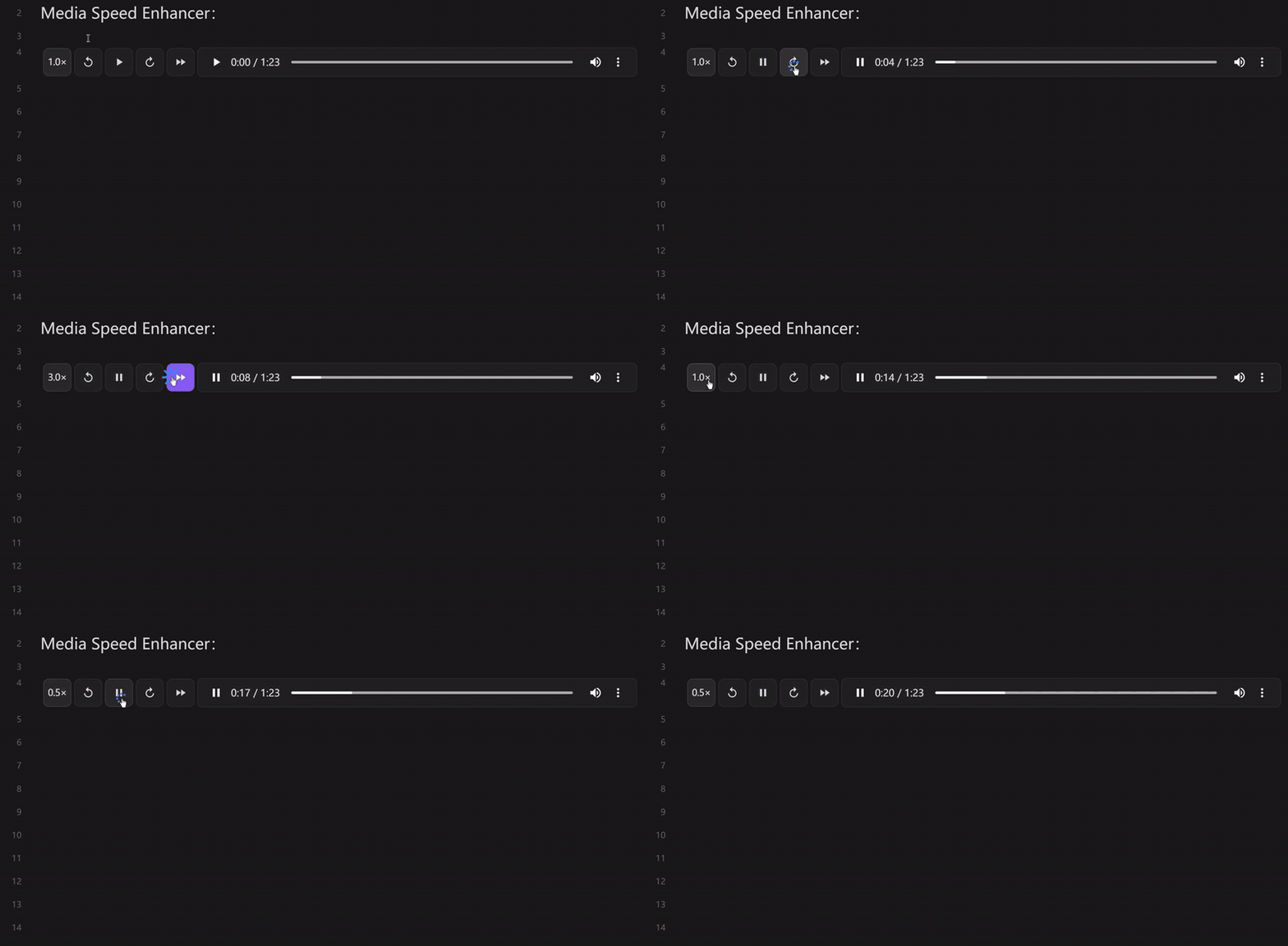
| Current-speed badge | Always visible at the left of the player (e.g. 1.5×); click or right-click opens the speed menu |
← / → skip buttons |
Jump back / forward by N seconds (1–60, configurable, default 5) |
| Hold-to-speed | Immediately switch to a temporary speed (default 2.0×) while pressed; restore the previous playbackRate on release |
| Play / Pause | Optional extra play/pause button (off by default) |
Extras:
- Speed menu — pick a permanent speed from a fully customizable list (0.25×–4.0×).
- Commands & hotkeys — 4 commands (skip back, skip forward, toggle temporary speed, play/pause) with no default hotkeys; bind your own in Settings → Hotkeys.
- Global speed sync (optional) — applying a speed to one media element applies it to all open media.
- Minimum duration filter (optional) — leave short sound effects untouched.
- Auto-play next (optional) — when one audio ends, play the next audio in the same note (with an optional 660 Hz chime).
Demo
The native player (for comparison):

Enhanced (skip buttons / hold-to-speed / current-speed badge):

Installation
Install Media Speed Enhancer from Obsidian → Settings → Community plugins, or build from source:
- Clone this repo into
<vault>/.obsidian/plugins/media-speed-enhancer/. cd .obsidian/plugins/media-speed-enhancernpm installnpm run build— generatesmain.js- Enable Media Speed Enhancer in Obsidian → Settings → Community plugins.
Compatibility: Obsidian 1.5.0+ (desktop and mobile,
isDesktopOnly: false).
Usage
Once enabled, every <audio> / <video> element embedded in the vault (Markdown embeds, Live Preview, Canvas, etc.) automatically gets the toolbar.
- The toolbar is auto-hidden by default: it expands when the mouse enters the controls area and collapses to the current-speed badge when the mouse leaves.
- Turn off Auto-hide toolbar in settings to keep it always expanded.
Settings
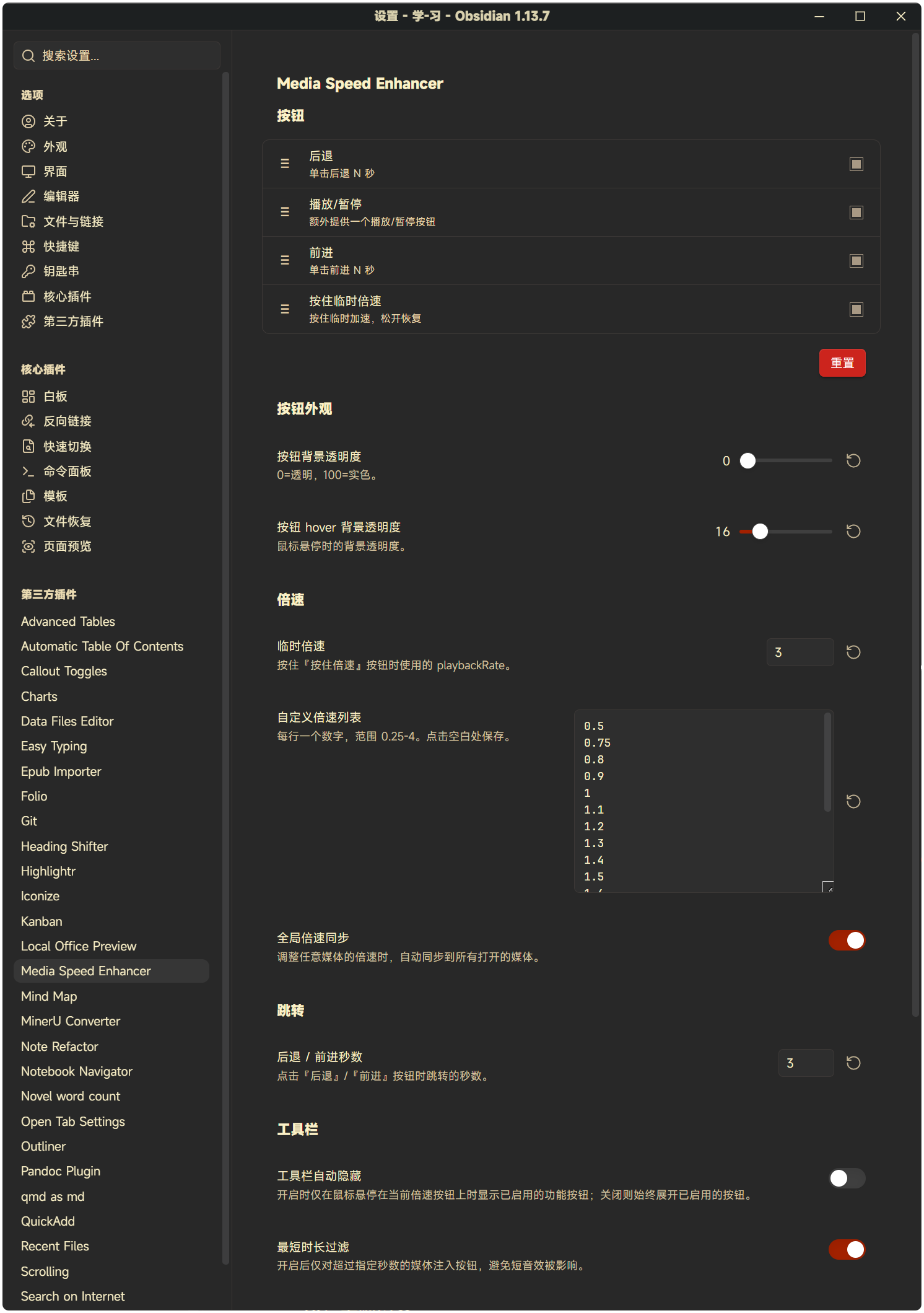
Open Obsidian → Settings → Media Speed Enhancer:
| Setting | Description | Default |
|---|---|---|
| Buttons | Drag to reorder, tick to enable: skip back / skip forward / hold-to-speed / play-pause | first 3 on |
| Button background opacity | 0 = transparent, 100 = solid | 6 |
| Button hover opacity | Background opacity while hovered | 16 |
| Temporary speed | playbackRate while the hold-to-speed button is pressed, 0.25–4.0 | 2.0 |
| Custom speed list | One number per line (0.25–4.0); duplicates removed, sorted ascending | 0.5 … 3.0 preset |
| Global speed sync | Sync speed changes to all open media | off |
| Skip back / forward seconds | Seconds jumped by the skip buttons, 1–60 | 5 |
| Auto-hide toolbar | Expand buttons on hover only | on |
| Minimum duration filter | Only inject buttons into media longer than N seconds | off (30) |
| Auto-play next | Play the next audio in the same note when the current one ends | off |
| Switch chime | 660 Hz chime on auto-advance | on |
| Touch optimization | Use pointer events for touch screens | on |
Technical notes
Why a side toolbar instead of an overlay?
The native HTML5 <audio controls> / <video controls> bar is rendered by the browser inside a Shadow DOM; external JS cannot reach its internals. That is Web-spec behavior, not an Obsidian quirk.
All controls sit as flex items to the left of the audio/video> element, vertically centered; the media element itself shrinks to make room. As a result:
- The native player is never modified or replaced
- Nothing above the native bar gets covered
- Automatically adapts to any Obsidian theme (CSS variables)
- No third-party player library involved
MutationObserver + polling fallback
The plugin watches document.body and app.workspace.containerEl (subtree/childList) and injects the toolbar into every new <audio> / <video>, recursively scanning inside added nodes (so a wholesale parent replacement never hides media). Injected elements are tracked in a WeakMap, which survives re-renders and supports re-mounting.
Skipped targets: media inside iframes (YouTube and other third-party embeds) and elements outside the Obsidian content area. For 30 seconds after startup a full scan runs every 2 seconds as a fallback for dynamic insertions.
Known limitations
- The native Shadow DOM control bar cannot be injected into — all enhancements live in a separate toolbar, visually detached from the native bar.
- Native audio controls are often hidden by default (browser-dependent); this plugin's toolbar is always available, so playback stays fully controllable either way.
- No injection into third-party embeds (YouTube iframes etc.) — cross-origin restrictions, by design.
Development
npm install
npm run build      # bundle to main.js (production)
npm run dev        # watch mode, auto rebuild
Build artifacts: main.js (bundled entry), styles.css (loaded automatically), manifest.json (metadata).
License
简体中文
在 Obsidian 原生 HTML5 音频/视频播放器上叠加极简的增强工具栏: 后退 / 前进 / 按住倍速 / 倍速菜单。最小侵入、不替换原生 UI。
插件界面自动跟随 Obsidian 界面语言(English / 简体中文)。
功能
| 控件 | 行为 |
|---|---|
| 当前倍速徽标 | 始终显示在播放器左侧(如 1.5×);单击 / 右键弹出倍速菜单 |
← / → 跳转按钮 |
后退 / 前进 N 秒(1–60 可配置,默认 5 秒) |
| 按住倍速 | 按下立即切到临时倍速(默认 2.0×);松开恢复到按下前的 playbackRate |
| 播放 / 暂停 | 可选的额外播放/暂停按钮(默认关闭) |
其它能力:
- 倍速菜单 — 从完全自定义的倍速列表(0.25×–4.0×)中选择永久倍速。
- 命令与快捷键 — 4 个命令(后退、前进、切换临时倍速、播放/暂停),不带默认快捷键,在 设置 → 快捷键 中自行绑定。
- 全局倍速同步(可选)— 调整任意媒体的倍速时同步到所有打开的媒体。
- 最短时长过滤(可选)— 不给短音效注入按钮。
- 顺序播放(可选)— 当前音频播完自动播放同一笔记中的下一个音频(可选 660Hz 提示音)。
演示
原生播放器(对照):
增强后(跳转按钮 / 按住倍速 / 当前倍速徽标):
安装
在 Obsidian → 设置 → 社区插件中搜索 Media Speed Enhancer 安装,或从源码构建:
- 克隆本仓库到
<vault>/.obsidian/plugins/media-speed-enhancer/。 cd .obsidian/plugins/media-speed-enhancernpm installnpm run build,生成main.js- 在 Obsidian → 设置 → 社区插件中启用 Media Speed Enhancer。
兼容性:Obsidian 1.5.0+(桌面 + 移动端均可,
isDesktopOnly: false)。
使用方法
启用后,所有 Vault 内嵌的 <audio> 与 <video> 元素(Markdown 嵌入、Live Preview、Canvas 等位置)会自动获得工具栏。
- 工具栏默认 自动隐藏:鼠标移入控件区展开,离开时收回到当前倍速徽标。
- 在设置中关闭 工具栏自动隐藏 可让工具栏常驻展开。
设置项
打开 Obsidian → 设置 → Media Speed Enhancer:
| 设置 | 说明 | 默认值 |
|---|---|---|
| 按钮 | 拖拽排序、勾选启用:后退 / 前进 / 按住倍速 / 播放暂停 | 前 3 个开启 |
| 按钮背景透明度 | 0 = 透明,100 = 实色 | 6 |
| 按钮 hover 背景透明度 | 悬停时的背景透明度 | 16 |
| 临时倍速 | 按住『按住倍速』时使用的 playbackRate,0.25–4.0 | 2.0 |
| 自定义倍速列表 | 每行一个数字(0.25–4.0),自动去重、升序排序 | 0.5 … 3.0 预设 |
| 全局倍速同步 | 倍速变化同步到所有打开的媒体 | 关 |
| 后退 / 前进秒数 | 跳转按钮跳转的秒数,1–60 | 5 |
| 工具栏自动隐藏 | 仅 hover 时展开按钮 | 开 |
| 最短时长过滤 | 仅对超过 N 秒的媒体注入按钮 | 关(30) |
| 顺序播放 | 当前音频播完自动播放同笔记中的下一个 | 关 |
| 切换音频提示音 | 顺序播放切换时的 660Hz 提示音 | 开 |
| 触摸优化 | 使用 pointer events 适配触屏 | 开 |
关键技术说明
为什么是侧栏而不是覆盖层?
原生 HTML5 <audio controls> / <video controls> 的控制条由浏览器渲染在 Shadow DOM 中,外部 JS 无法访问其内部 DOM。这是 Web 规范决定的,与 Obsidian 无关。
所有控件作为 flex 子项放在 audio/video 元素的左侧并与之垂直居中,媒体元素本身收缩让出空间。因此:
- 完全不修改 / 不替换原生播放器
- 不遮挡原生控制条上方内容
- 自动适配 Obsidian 主题(CSS 变量)
- 不引入任何第三方播放器库
MutationObserver + 轮询兜底
监听 document.body 和 app.workspace.containerEl 的 subtree/childList 变化,对新出现的 <audio> / <video> 自动注入工具栏,并递归扫描新增节点内部嵌套的媒体(父容器整体替换时不遗漏)。用 WeakMap 跟踪已注入元素,支持重渲染后的重新挂载。
跳过的目标:iframe 内(YouTube 等第三方嵌入)及 Obsidian 内容区之外的媒体。启动后 30 秒内每 2 秒全量扫描一次,兜底动态插入。
已知限制
- 无法注入原生 Shadow DOM 控制条——所有增强都在独立工具栏中,与原生控制条视觉分离。
- 原生音频控制条常默认隐藏(视浏览器而定);本插件的工具栏始终可用,播放控制不受影响。
- 不在第三方嵌入(YouTube iframe 等)中注入——跨域限制,设计如此。
开发
npm install
npm run build      # 打包到 main.js(production)
npm run dev        # watch 模式,自动重建
构建产物:main.js(打包入口)、styles.css(自动加载)、manifest.json(元数据)。